Last Updated on August 13, 2026
Recovering a broken Windows installation has long been one of the most frustrating chores in desktop management. Whether caused by a failed driver update, corrupt system files, or aggressive malware, getting a computer back into working condition usually meant hunting for a spare USB drive. You would have to download an ISO image on another PC or rely on a local recovery partition that might already be damaged.
Microsoft is working on a much cleaner solution. A feature called Cloud Rebuild allows users and system administrators to reinstall the entire operating system over an active internet connection. You can do this without needing physical local media or a functioning recovery partition on the hard drive.
Moving Past Traditional Local Resets
1. The Problem with Local Resets
For several years, Windows has included a standard reset option. That built-in reset function depends heavily on local files stored directly on the computer internal storage drive. If a severe crash corrupts those recovery files or ransomware compromises the underlying drive, the local reset routinely fails. This leaves users stranded with a completely unbootable machine.
2. The Cloud Rebuild Approach
Cloud Rebuild approaches recovery from a completely different angle. It stops trusting local files that may be corrupted. The system reformats the local storage drive and pulls a fresh copy of Windows 11 directly from Windows Update servers.
3. Fetching Essential Drivers
At the exact same time, it fetches essential hardware drivers specific to the machine components. By streaming the installation payload from Microsoft infrastructure, the process ensures the new operating system starts from a verified baseline. This guarantees a completely clean slate.
How the Recovery Process Operates
1. Launching from the Recovery Environment
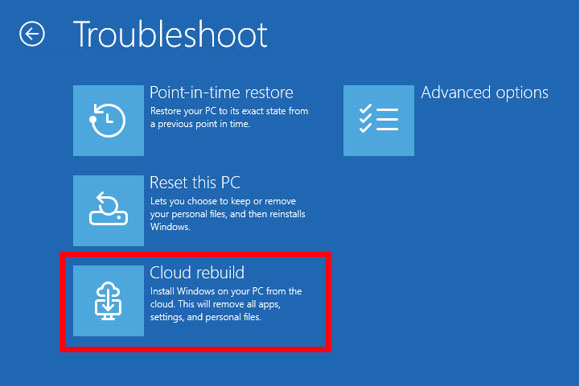
Accessing Cloud Rebuild currently happens through two main entry points in Windows Insider preview builds. A user with physical access to a machine can launch it directly from the Windows Recovery Environment under the Advanced Startup menu. A local administrator can also trigger the process from an elevated command prompt inside Windows.
2. Establishing Network Connectivity
One major hurdle with performing cloud operations outside the main operating system has always been network connectivity. Cloud Rebuild includes basic networking support within the recovery environment to fix this. When launched, the tool prompts the user to connect to the internet using an Ethernet cable or a standard Wi-Fi network before downloading files.
3. Verifying the Installation Payload
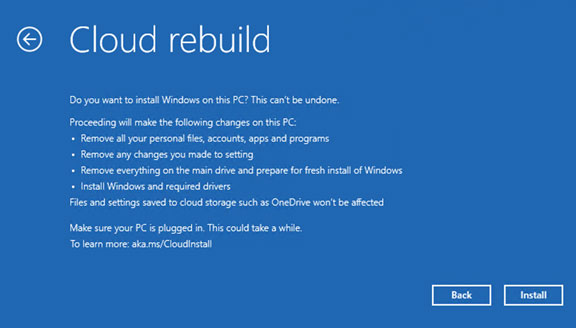
Before wiping the hard drive, Cloud Rebuild queries Windows Update. It displays the exact Windows edition, build number, and language choice targeted for installation. Once the user acknowledges a data loss warning, the process automatically formats the system disk.
4. Completing the Automated Download
The system then downloads the necessary files and completes the installation. It does this without requiring any further user intervention during the download phase. You just sit back and wait.
Automated Setup for Managed Devices
1. Fixing Remote Work Laptops
Individual users gain a reliable way to fix unbootable PCs. The larger impact of Cloud Rebuild lies heavily in corporate IT management. Recovering a corrupted laptop often meant shipping physical boot media across the country or asking the employee to mail the device back to the helpdesk.
2. Integrating with Microsoft Intune
Cloud Rebuild integrates directly with Microsoft enterprise management tools. After the fresh operating system finishes installing, the computer boots into the standard out-of-box experience. For devices registered in Microsoft Entra and managed through Microsoft Intune, Windows Autopilot takes over automatically.
3. Restoring Corporate Policies
Intune re-applies strict security policies and redownloads approved corporate applications. Services like Backup for Organizations and OneDrive restore desktop preferences and cloud-synced files once the employee logs back in. The result is a device restored to corporate standards with minimal manual effort.
Prerequisites and Error Handling
1. Meeting Hardware Safeguards
Cloud Rebuild performs a complete reformat of the primary system disk. Microsoft requires specific hardware safeguards before the recovery begins. The target computer must meet standard Windows 11 hardware requirements including an enabled Trusted Platform Module in the firmware.
2. Checking Network Driver Compatibility
Network drivers also play a crucial role in this process. Computer manufacturers must ensure their network adapters and storage controllers have compatible drivers published directly on Windows Update. If a required driver is missing or if the hardware fails compatibility checks, the tool stops the process. It alerts the user with an error code before wiping any local data.
3. Understanding Common Error Codes
You might encounter error code 0x800704C6 during setup. This flags a lost or missing network connection and prompts the user to re-establish Wi-Fi before continuing. Error code 0xc1900200 signals that the machine lacks minimum hardware specs or that essential drivers are missing from the cloud repository.
4. Current Preview Status
Cloud Rebuild is still officially in the preview testing phase. Microsoft advises against using it on primary production devices until general availability. It remains a powerful new tool for IT teams managing distributed workforces.