Last Updated on November 18, 2026
Virtualization is a great way to do things such as test out new operating systems without needing to change the configuration of your computer to do so. You can also use it to test out new software or operating system patches without risking harming your main computer. Not too long ago, you needed to use expensive servers to create virtual machines but now you can do so on your desktop computer running Windows, Linux or even macOS.
VirtualBox is a free desktop virtualization app that runs on Windows and Linux and once you have it installed, you can then create virtual machines running a variety of operating systems. You can then run as many virtual machines (VMs) as your host computer has the resources to handle.

Preparing VirtualBox for Remote Desktop
1. Check for the Extension Pack
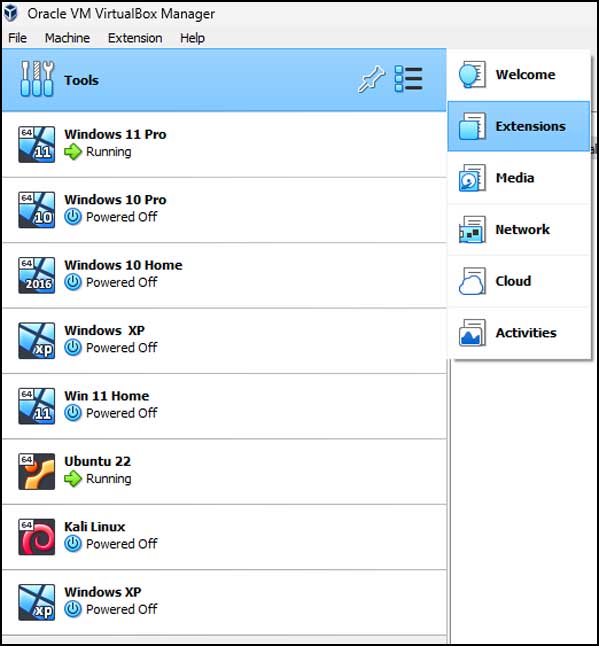
In order to connect to your virtual machines using the Remote Desktop client, you will need to make sure that you have the Oracle VirtualBox Extension Pack installed. You can check this requirement by going to the Tools section in the VirtualBox Manager. Then navigate directly to Extensions to view your active add-ons.
2. Download the Required Extension
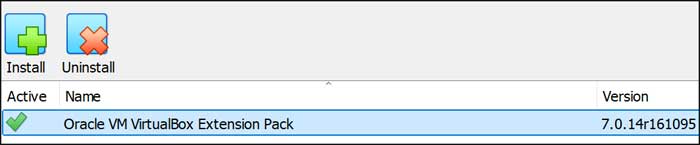
If you do not have the VirtualBox Extension Pack there, then you will need to install it. You also need to be sure that you are using the same version of the extension pack that matches your version of VirtualBox. You can download the extension pack here and click the Install button to browse to the file you downloaded.
3. Verify Your VirtualBox Version
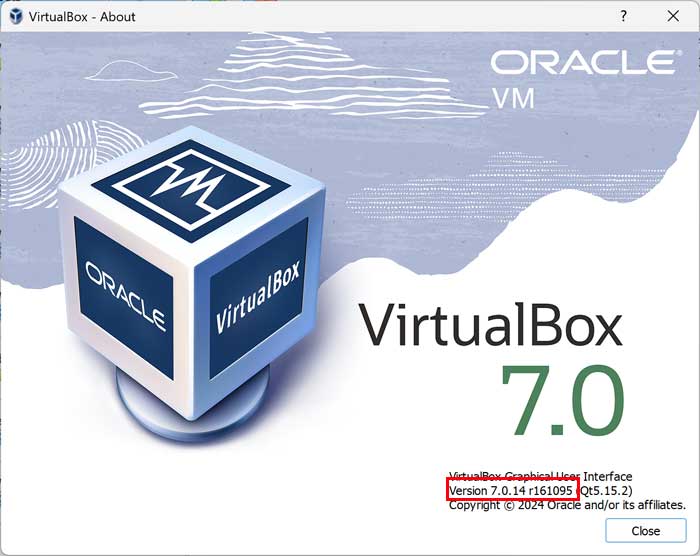
You must match the extension pack version perfectly to avoid severe compatibility errors. You can find your exact version of VirtualBox by going to the Help menu. Then click on About VirtualBox to see the full build number on your screen.
Configuring the Virtual Machine Settings
1. Enable the Remote Display Server
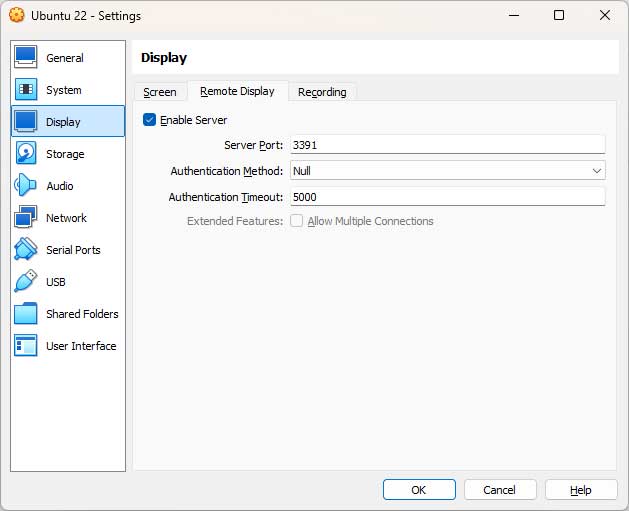
Once you have the extension pack installed you can go to the settings for the virtual machine you want to connect to with Remote Desktop. Next, go to the Display section and click on the Remote Display tab. Check the box for Enable Server to activate the feature.
2. Assign a Unique Port Number
You should then change the server port from 3389 to something different. That is the default port used with Remote Desktop. You do not want to get into some connection loop since you are technically connecting to your own computer running VirtualBox. For our example, we will be using port 3391. You can use whatever number you like.
3. Enter the IP Address and Port
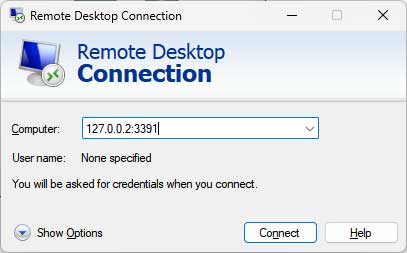
The IP address you should use will be 127.0.0.2 and you need to add a colon and then the port number after it. So, for our example, we will enter 127.0.0.2:3391 in the Computer box in the Remote Desktop client. This specifically targets the local loopback address for the VM.
4. Accept the Security Certificate
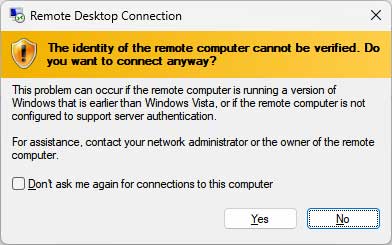
Once you click the Connect button, you should see a warning telling you that the identity of the remote computer cannot be verified. It asks if you want to connect anyway. This is a fairly normal message for Remote Desktop connections. You can check the box that says Don’t ask me again for connections to this computer if you do not want to see this message next time you connect to the VM.
5. Verify the Active Connection
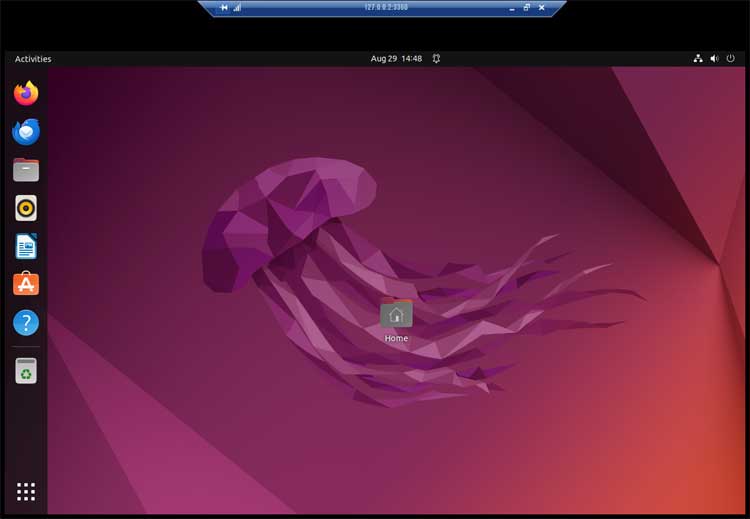
Once you click the Yes button, your Remote Desktop connection will be made to your virtual machine. As you can see in the image below, we connected to a Linux VM using Remote Desktop. This is something you typically cannot do without installing third-party tools first.
6. Manage Multiple Virtual Machines
If you plan on using the remote display feature with other virtual machines, you should give each one their own unique port number. This makes absolutely sure Remote Desktop connects to the right one. Managing ports properly prevents annoying connection conflicts across your system.
For additional training resources, check out our online IT training courses.
Check out our extensive IT book series.