Last Updated on May 16, 2026
With technology expanding at an exponential rate it seems like the hardware associated with it keeps getting smaller and smaller because we can now pack more power into smaller packages. And with this comes a decrease in cost at least when it comes to hardware in today’s modern datacenters. It wasn’t that long ago that you would walk into a server room and see racks of servers where each one had a single purpose or ran its own individual operating system.
Nowadays with virtualization technology those same servers can run multiple servers on just one piece of hardware and each can have its own operating system, hard drives, CPU, memory and so on. Of course in able to pull this off the actual physical server needs to have plenty of “horsepower” based on how many virtual servers you want to run on it and you are limited by your hardware resources when it comes to the amount of virtual servers and their “virtual” hardware specs.
1. Understanding Virtualization Software and Players
In order to utilize virtualization technology effectively, you need specialized software that allows you to virtualize these environments so they can run alongside other servers on the exact same piece of physical hardware. This core software grants the virtual machines direct access to the physical devices installed on that host. Currently, there are a few main players in the virtualization game, including Microsoft Hyper-V, emerging open-source leaders like Proxmox, and of course VMware. VMware, now owned by Broadcom, remains one of the most dominant and widely used platforms in corporate enterprise environments.
2. How Hypervisors and Host Hardware Interact
To successfully pull this off, processor manufacturers build modern CPUs specifically designed to support multiple operating systems executing instructions at the exact same time. In this architecture, the physical server is typically called the host while the virtual servers running inside it are called guests. The background software used to make this all happen is called a hypervisor. This hypervisor interacts directly with the physical hardware and safely allocates those resources to be consumed by the VMs.
3. Centralized Management and Hardware Monitoring
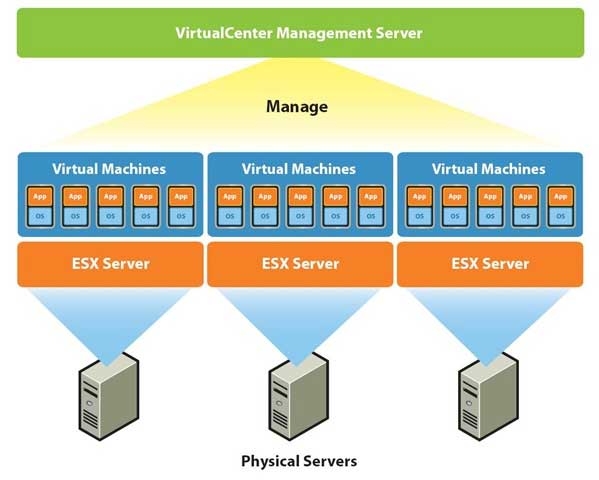
The hypervisor actively monitors the physical hardware and allows system administrators to see exactly what is going on with the assigned resources being used by the active VMs. As you can see in the VMware specific diagram below, the physical servers are running the bare-metal hypervisor software known as ESXi. On top of that ESXi layer sit the virtual machines running their own independent operating systems and applications. At the very top of this hierarchy, the Virtual Center Management Server (or vCenter) manages the hypervisors and VMs via a central software console. You can easily mix various operating systems and versions like Windows and Linux simultaneously on one single ESXi host.
4. Configuring Host and Guest Shared Storage
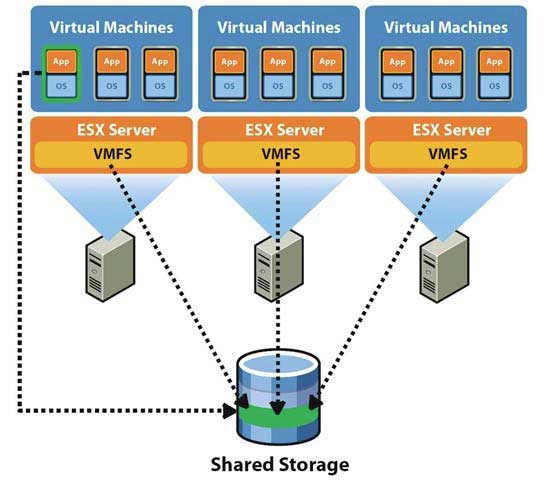
Storage for the hosts and guests is typically accomplished utilizing high-speed shared storage arrays such as a SAN (Storage Area Network) or NAS (Network Attached Storage). Local storage for the host operating system itself is usually installed in the form of a dedicated boot SSD or an internal NVMe drive. Older legacy setups used to boot hypervisors from simple USB drives or SD cards, but enterprise platforms officially dropped support for those unreliable methods in recent software versions. The heavy-duty shared storage is usually a group of disk arrays entirely separate from the compute hosts, attached via high-speed iSCSI or Fiber Channel connections.
5. Provisioning Datastores and Logical Volumes
This external networked storage is specifically configured with LUNs (Logical Unit Numbers), which act exactly like massive blank volumes presented to the virtualized environment. The hypervisor software allows you to instantly format these LUNs into usable datastores. Once formatted, these datastores can be freely used by the guest VMs as their local C-drives to install the operating system. You can also carve out additional space from these datastores to attach secondary data drives to any running virtual machine.
6. Utilizing Centralized Management Software
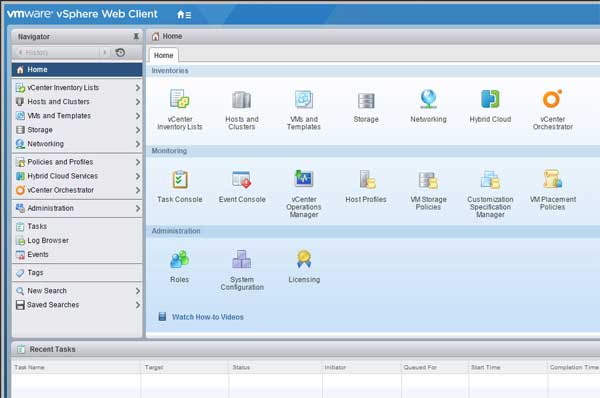
The management software interface is what the systems administrator actively uses to oversee all the VMs, their virtual hardware devices, and the connected storage pools. This central console allows you to spin up completely new VMs from scratch or clone existing templates in a matter of seconds. It also lets you securely move active virtual machines from one physical host to another while they are completely powered on. This live migration capability allows you to perform routine hardware maintenance on a host server or automatically balance heavy workloads without ever taking the applications offline.
7. Executing Advanced Administrative Tasks
Other critical administrative things you do with this management software include configuring virtual network switches and mapping virtual network cards to physically separate VLANs. You can instantly provision and add extra storage space to a VM that is running low on disk capacity. Administrators also use this console to create high-availability clusters for automated resource allocation and failover protection. The interface actively tracks hardware health, checks system errors, issues warning alerts, and manages the expensive hypervisor licensing keys.
8. Performing Physical to Virtual (P2V) Conversions
If you currently have aging physical servers that you want to quickly virtualize without having to rebuild them entirely from scratch, you can perform a specialized P2V (Physical to Virtual) migration. This process uses separate conversion software to copy the raw physical server data and convert it directly into a virtual machine format with its operating system, files, and legacy applications entirely intact. This can be a rather time-consuming procedure with some minor hardware compatibility limitations. It usually works out pretty well for getting legacy hardware retired quickly.
9. Saving Money on Hardware and Maintenance
Virtualization drastically cuts down on initial capital expenditures because you no longer have to buy a dedicated physical server for every single application. Condensing ten older servers down into two powerful virtualization hosts immediately reduces hardware refresh costs. You also save a massive amount of money on ongoing hardware maintenance contracts and replacement parts over the lifespan of the equipment.
10. Freeing Up Physical Rack Space
Data center real estate is incredibly expensive to rent and maintain. By condensing your hardware footprint, you open up huge amounts of physical rack space inside your server room. Emptying out old server racks allows you to downgrade to a smaller, cheaper facility or repurpose that expensive square footage for other critical network infrastructure.
11. Increasing Overall Server Uptime
Running your servers virtually provides significantly more uptime than relying on single points of physical failure. High availability clusters constantly monitor the health of the hardware hosts sitting in the rack. If a physical motherboard suddenly dies, the virtualization management software instantly reboots those affected virtual machines onto a healthy surviving host within seconds.
12. Keeping Your Server Room Cooler
Fewer physical servers plugged into the wall means significantly less heat being blasted out into your data center environment. A room that previously required heavy-duty industrial HVAC units to cool thirty individual servers can now operate much more efficiently. This massive reduction in thermal output translates directly into lower monthly utility bills for the business.
13. Allowing Easier Backups and Snapshots
Backing up a virtual machine is fundamentally easier than trying to back up a bare-metal operating system. Third-party backup tools grab a complete image of the virtual machine at the hypervisor level without installing clunky agents inside the guest OS. You can also take instant snapshots of a virtual machine right before a risky software update, allowing you to roll back the entire system in seconds if the patch breaks something.
14. Saving on Operating System Licensing
Virtualization can heavily reduce your software licensing costs depending entirely on exactly how your environments are clustered. Microsoft offers specific Windows Server datacenter licensing models that allow you to run an unlimited number of Windows VMs on a properly licensed physical host. Condensing your workloads onto a few heavily licensed hosts is much cheaper than buying individual operating system licenses for dozens of standalone machines.
15. Moving Servers Between Hosts Seamlessly
The absolute best feature of a virtualized environment is the ability to easily detach a server from underlying hardware dependencies. You can literally drag and drop a running virtual machine from an older server onto a brand new hardware host without dropping a single network packet. This specific capability makes hardware upgrades and emergency host maintenance a completely invisible process to the actual end users.
For additional training resources, check out our online IT training courses.
Check out our extensive IT book series.