Last Updated on October 11, 2026
Google Drive is one of the most popular cloud storage platforms used by home and even business users. If you have a Google or Gmail account, then you automatically have a Google Drive account. Google gives you 15GB of free storage space that is used between all your Google Apps.
If you use the Google Drive desktop client on your computer, then it will create a drive letter that is used in File Explorer to access your online files. The default letter it will use will be G unless the letter G was used for another drive during the installation of the Drive app. If you do not want your Drive client using a drive letter on your computer, then you can have it use a folder instead. In this article, we will be showing you how to change your Google Drive desktop client drive letter or change it to a local folder.

Changing the Google Drive Desktop Client Drive Letter
1. View Your Current Drive Letter
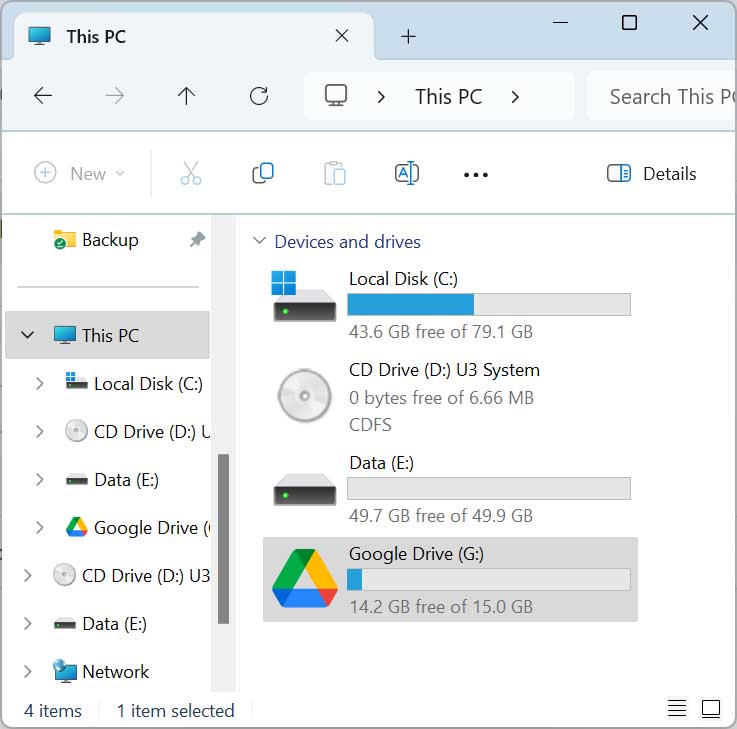
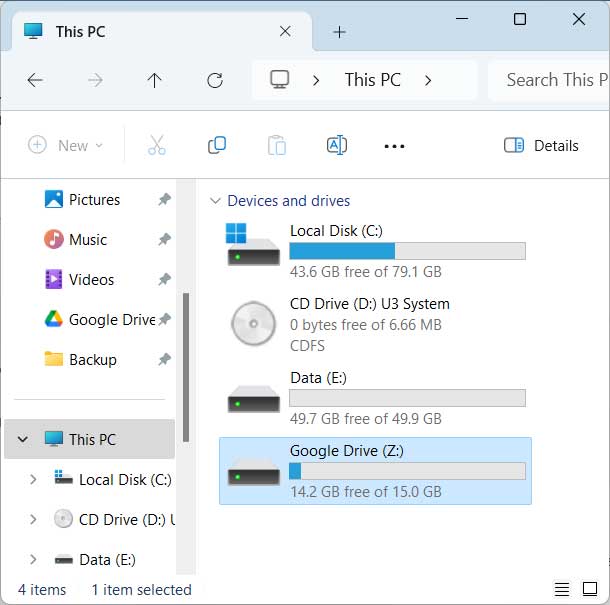
The easiest way to see what letter the Drive client is using is to open File Explorer and go to This PC. As you can see in the image below, Google Drive has been assigned the letter G. When you click on this drive, you will see all of your synced files.
2. Open the Drive Preferences
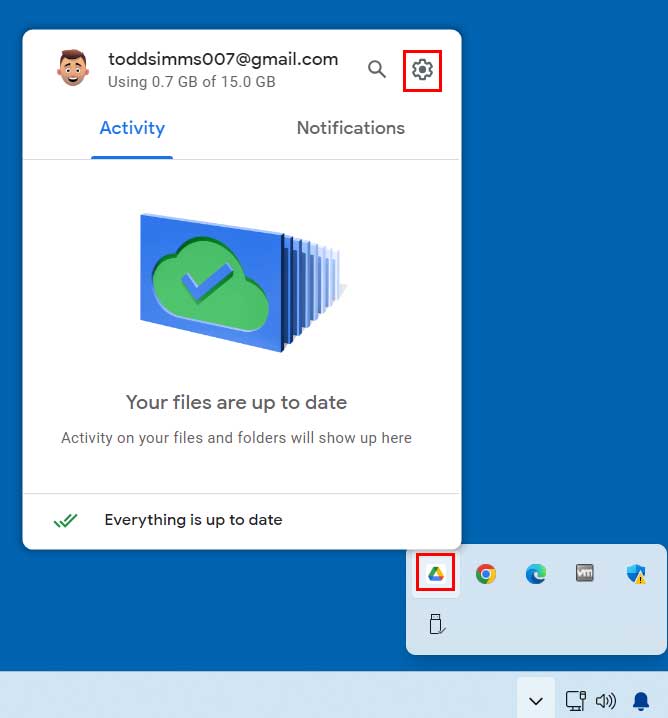
To change this letter, you can click on the Google Drive icon in the Windows system tray. Click on the gear icon and then go to Preferences. This opens the main configuration menu for your synchronization settings.
3. Select a New Drive Letter
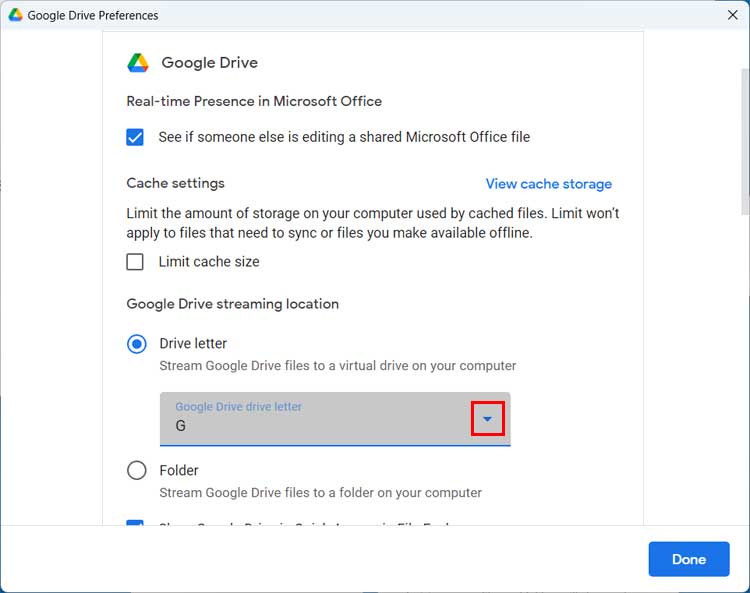
Then click on the gear icon again and scroll down to the Google Drive streaming location section. You will then be able to click on the arrow icon and choose a new drive letter for your Google Drive. You will only be shown drive letters that are available and not in use by something else on your computer. If you are interested in seeing the difference between Google Drive streaming and mirroring, check out this video.
4. Restart the Drive Client
Then the Google Drive client will tell you that it needs to be restarted. You can then click on the Restart now button if you want the changes to take effect immediately. You will then see your Google Drive with its new drive letter. When doing this, the icon might change from the Drive logo to a standard hard drive icon as seen in the image below. It will most likely change itself back to the Google Drive logo shortly after.
Now every time you want to access your Drive files, you can click on this new drive letter.
Changing the Google Drive Client to Use a Local Folder
1. Switch to the Folder Option
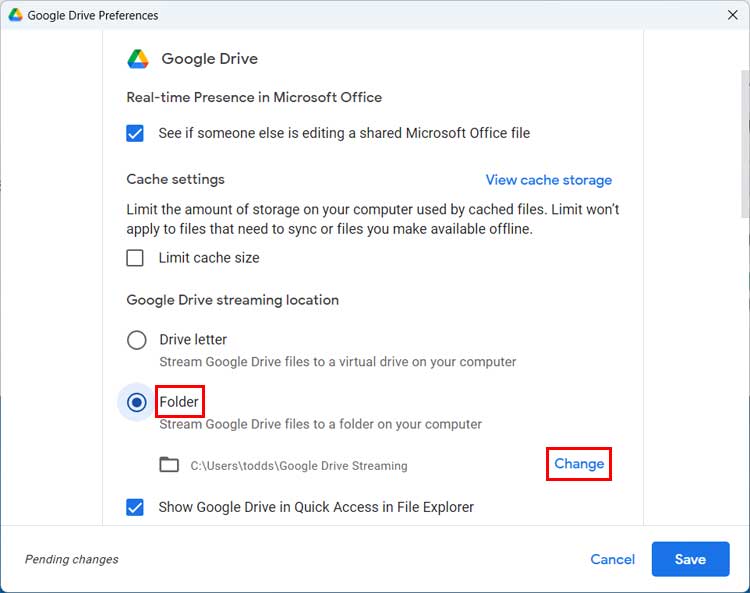
If you would rather have your Drive files synced to a folder rather than be assigned a drive letter, you can do that from the same area in the preferences. Simply change the selection from Drive Letter to Folder. By default, Drive will want to create a folder called Google Drive Streaming in your Windows user account folder. If you want to specify your own folder, you can click on the Change link and browse to the location of that folder.
2. Specify Your Custom Folder Path
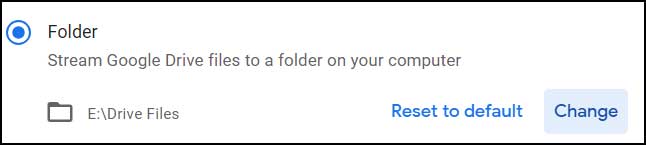
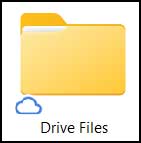
For our example, we are using a folder called Drive Files on the E drive. You can choose any local hard drive or partition that has enough free space. Select your desired directory and confirm your choice.
3. Save Changes and Restart
Once you click on the Save button, the Google Drive client will need to restart for this change to take effect. The application will close and reopen automatically. This ensures your file paths update correctly across the operating system.
4. Verify the Folder Sync
Now you can browse to the location of the folder you have configured. You will notice that there is a cloud icon on the folder indicating its being synced with Google Drive. This visual cue confirms your setup works perfectly.
5. Access Your Synced Files
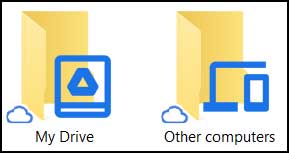
When you open the folder, you will have another folder called My Drive that you can open to view your files. If you see another folder called Other computers, that means you have configured additional folders to be synced. This could be from this computer or a different computer entirely
For additional training resources, check out our online IT training courses.
Check out our