Last Updated on April 12, 2026
Usernames and passwords have been a way of life for most of us for some time now. And if you forget one or the other, it can cause a lot of stress and maybe even a nice headache to go along with it. Even though Linux users tend to be more technical than Windows users, they can still forget their passwords. Or you may even be in a situation where you have a computer that you have never used, and nobody can remember the username or password needed to get into it. In this article, we will be showing you how to reset your Linux user account password if you’re locked out of your computer or forgot your password.
To reset our Linux user password, we will be using the free Rescatux app that can be downloaded here. You can then use your favorite USB creator tool such as Ventoy to make a bootable flash drive that you will need to boot your computer from.
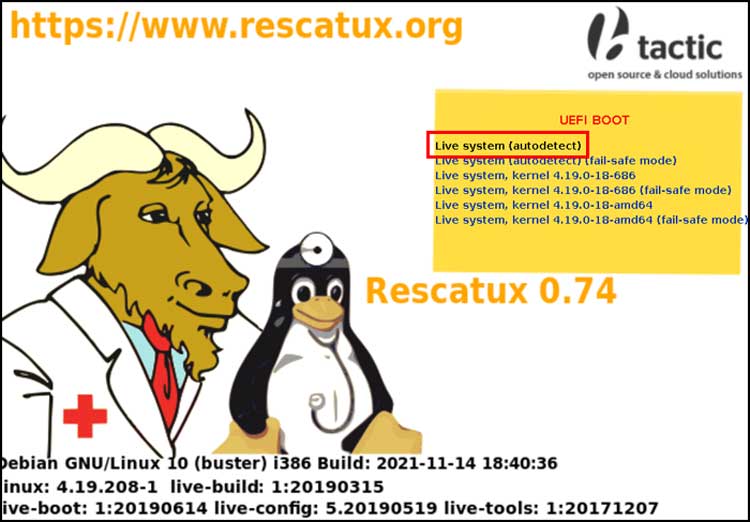
Once you boot to the Rescatux flash drive, you can choose the first option that says Live system (autodetect) by pressing Enter on your keyboard. If you do not press a key on your keyboard, this option will be selected automatically after 60 seconds.
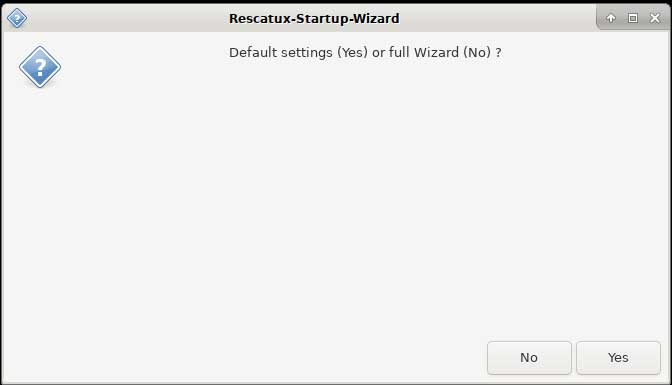
You should then see a dialog box asking if you want to use the default settings or the full wizard. You can just click on the Yes button here.
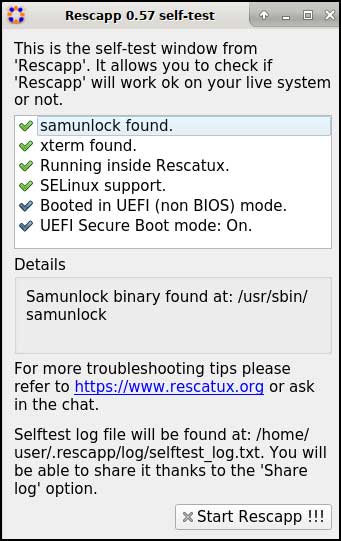
The Rescapp app will then open and perform a self-test. You can then click the Start Rescapp button to continue.
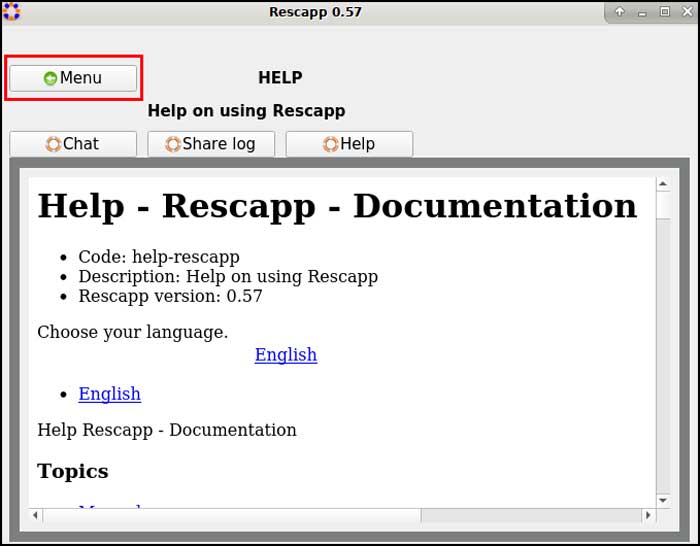
On the next screen, you can click the Menu button to get started unless you want to go through the documentation first to see how the tool works.
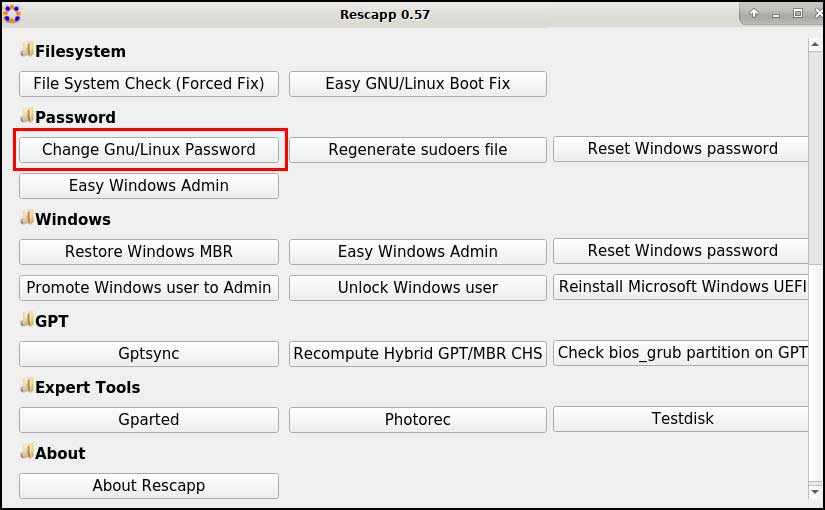
On the next screen, we will scroll down to the Grub section then click on the Change Gnu/Linux Password button.
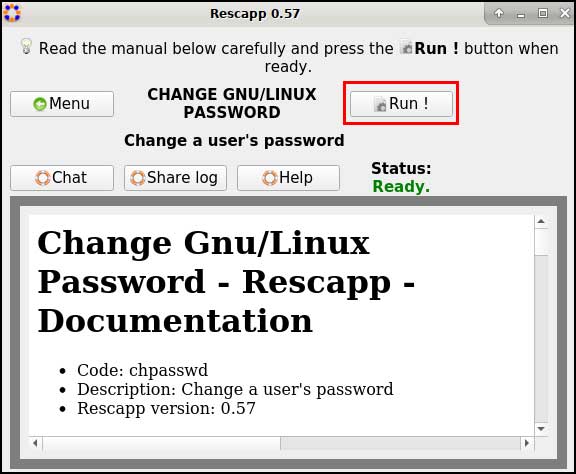
Once you click the button, you can once again read the documentation on the process or click the Run button to start the process.
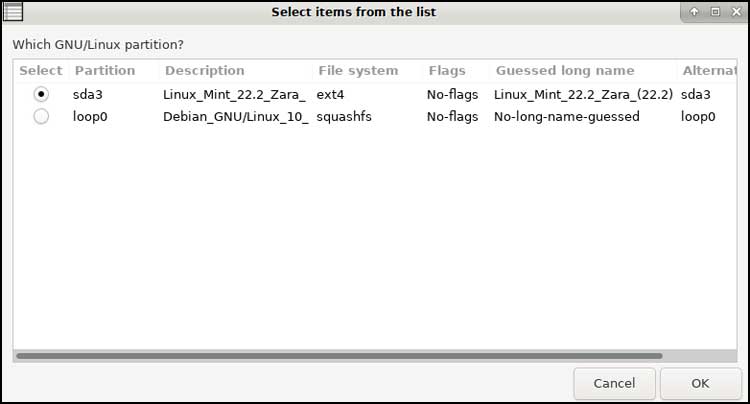
Once you start the process, you will be shown the partition that has your Linux installation on it. If you see more than one and one that says loop0, that is most likely a loopback device which is a virtual device that maps a file (like an ISO or squashfs image) as if it were a block device. In this case, it’s likely the Rescatux live environment itself mounted as a loop device.
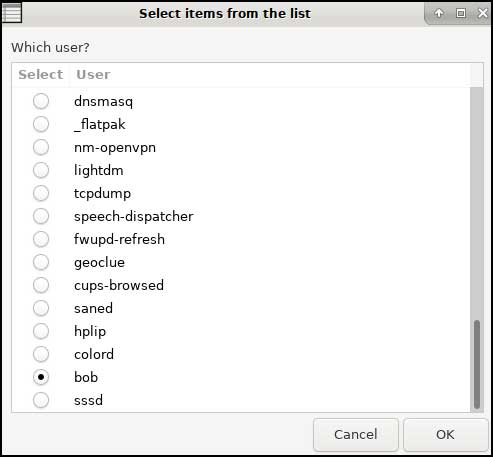
After you choose the correct partition and click the OK button, you will then be shown all the users on the computer, including system accounts. You can then choose the user account you want to reset the password for from the list and click the OK button.
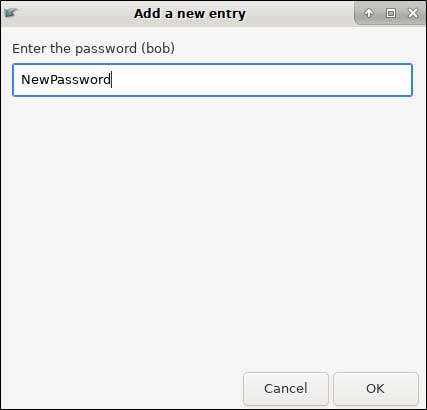
You will then be prompted to enter a new password for the selected user account.
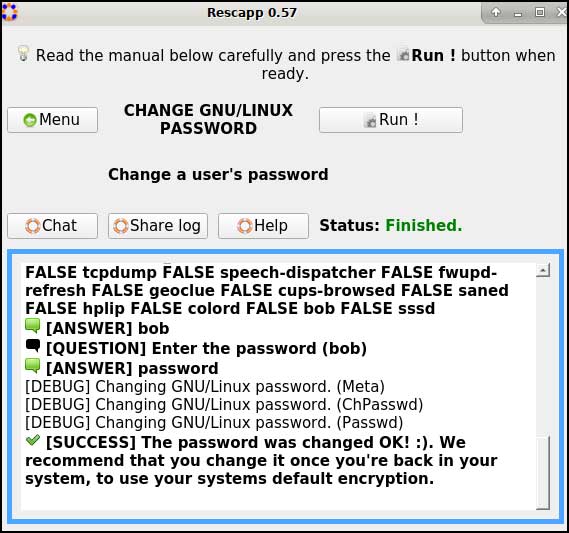
You can then click the Run button on the next page, and you will see the results in the box after it’s completed. You should see a success message saying the password was changed.
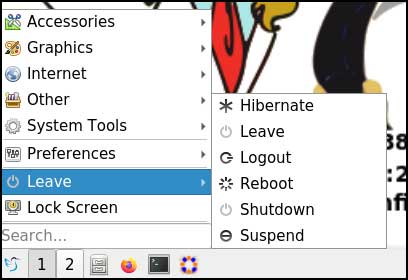
Now you can go to the lower left corner of Rescatux and click the button and choose Leave and then Reboot to restart your computer and go back into Linux. You might want to remove your flash drive first to make sure it doesn’t boot back into Rescatux.
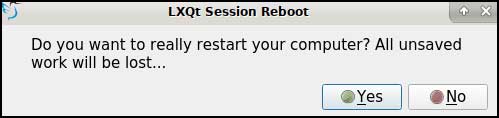
You will then see a message saying all unsaved work will be lost but this does not affect the changes to the user account, so you can click the Yes button.
You can also use Rescatux to reset the password of a Windows user account and make them an admin if needed.
For additional training resources, check out our online IT training courses.
Check out our extensive IT book series.