When it comes to repairing your computer and recovering from system failures, it can be hard to find the right tool for the job. And many times, you need multiple tools to get the job done, or at least to help you figure out what is wrong. This is where a repair and recovery USB toolkit like Live USB Malekal can really help you out.
Live USB Malekal is an all-in-one system repair and recovery USB toolkit and is similar to NVH BOOT, Medicat and Hirens Boot CD. It works by booting your computer with the flash drive and running the required tools needed to repair or reconfigure your computer. You can even use it to reinstall Windows.

To configure your Live USB Malekal flash drive, you will need to download the ISO file from the Live USB Malekal website. Then you can use your favorite flash drive creation software such as Rufus to create a bootable flash drive.
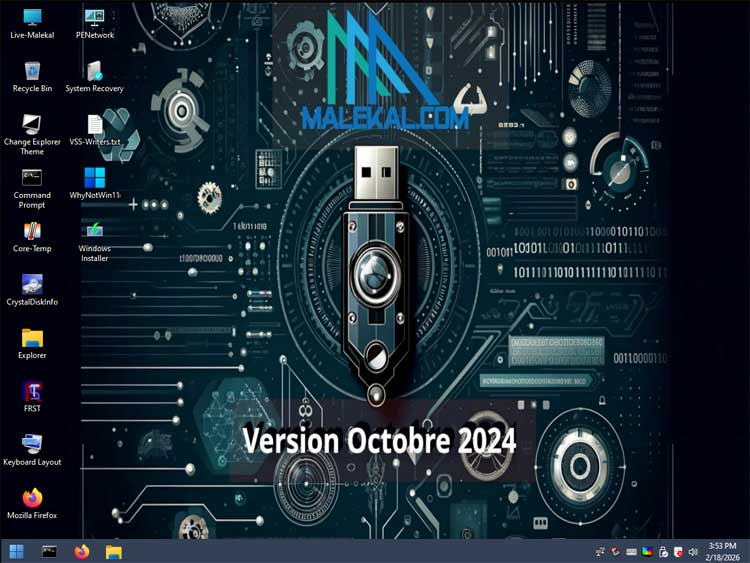
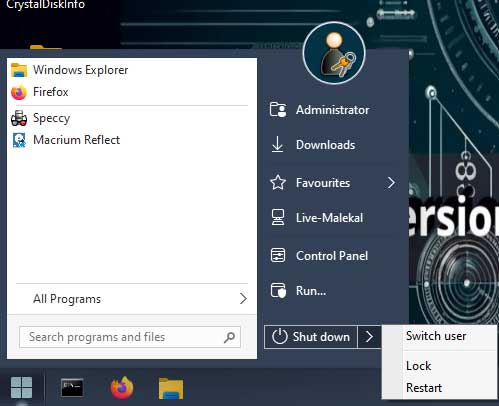
Once you boot your computer with the Live USB Malekal flash drive, it will look like it’s loading Windows, but it is really going into its own custom Windows desktop interface along with its own taskbar and start menu.
There will be several icons on the desktop for various custom tools as well as things such as a Windows command prompt, File Explorer and even a Recycle Bin. You may find that there are some tools on the desktop that are not listed with the other apps that can be found in the start menu so keep this in mind.
To access the other tools, you can click the start button and then click on All Programs. Here you will see that all the tools are separated into categories, making it easier to find what you are looking for.
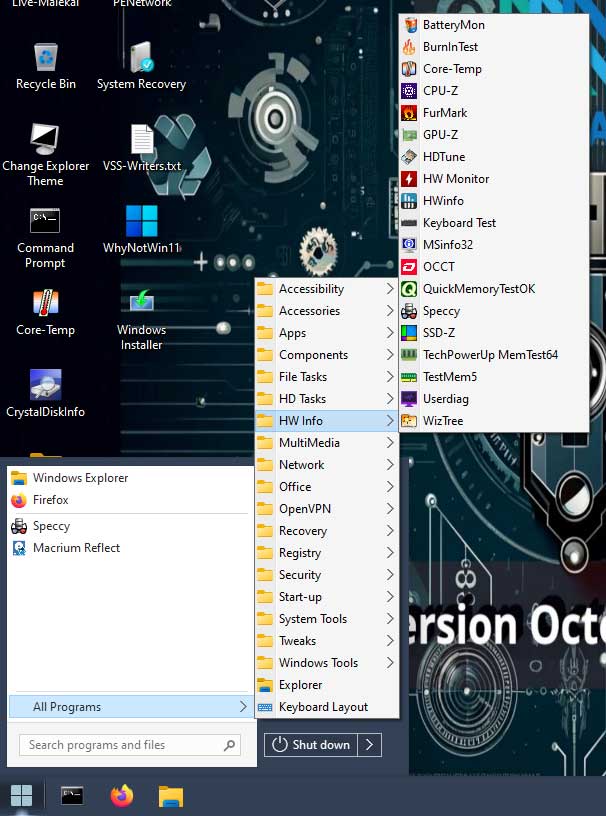
Here is a breakdown of what types of tools and apps you will find here.
- Accessibility – Here you will find tools such as the on-screen keyboard (OSK) and narrator app.
- Accessories – If you need to use the calculator or WordPad, you can find them here.
- Apps – This section contains NirLauncher and WSCC (Windows System Control Center).
- File Tasks – If you need to use tools such as 7-Zip, Everything or Rufus, you will find them here along with other file management type tools.
- HD Tasks – This section contains tools you can use to create bootable flash drives, check hard drive health, create and restore backups with Macrium Reflect and manage hard drive partitions.
- HW Info – There are many tools here you can use to view information about your hardware such as CPU info and memory (RAM) testers. You will even find WizTree here that can be used to see what files are using up the space your hard drive.
- MultiMedia – Here you will find tools to play media files such as VLC Media Player.
- Network – This section contains tools to manage your network and connect to remote computers. You will find apps such as AnyDesk, TeamViewer, Remote Desktop, WinSCP and Wireshark.
- Office – This section may not be too useful unless you want to use a notepad app or PDF reader.
- OpenVPN – Here you will find the StartOpenVPN app.
- Recovery – If you need to recover deleted or lost files, you can use tools such as PhotoRec and Recuva from here. You can also use TestDisk to recover lost partitions and fix broken file systems.
- Registry – If you need to fix registry issues, you will find the Windows Registry Editor (regedit) as well as Remote Regedit here.
- Security – This section contains tools that can be used to reset user account passwords and find your Windows key.
- Start-up – This will show any apps set to start up with the computer and will most likely be empty.
- System Tools – Here you will find a variety of system tools such as Autoruns, Blue Screen View, Dism++, Process Monitor and System Recovery.
- Tweaks – This section only has a couple of tools including Set Max Resolution and Start VSS Service.
- Windows Tools – Here you will find typical Windows tools such as Device Manger, Disk Management and the Windows Services tool.
Once you have finished using the required tools, you can click on the start button and either shutdown or reboot your computer.
As you can see, Live USB Malekal has a large variety of system repair and recovery tools that you can use to hopefully get your computer up and running again.
For additional training resources, check out our online IT training courses.
Check out our extensive IT book series.