When it comes to repairing your PC, you really need to have the right tools at your disposal to make sure you have everything you need to get the job done. There are many all-in-one system rescue toolkits out there such as Hiren’s Boot CD and Lazesoft Recovery Suite. The key is finding the toolkit that works the best for you.
Even though you have many options, there is a unique repair toolkit that you might want to check out that can actually repair both Windows and Linux and soon even macOS. It’s called AiO (All-in-One) System Rescue Toolkit and it’s free to use even though you have some other advanced options as well.

The AiO System Rescue Toolkit Community Edition is the free version and there is also a Supported and Professional edition. You can check these out as well as download AiO from their website here.
Configuring your Flash Drive and Loading AiO
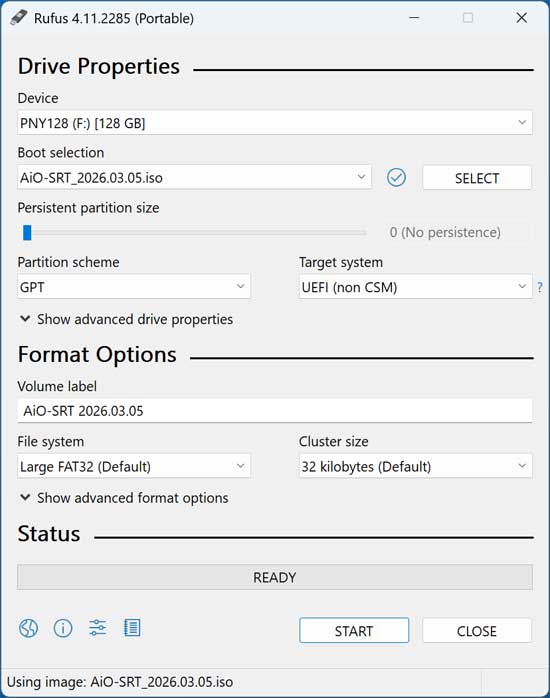
Once you download the AiO ISO file, you will need to make a bootable USB flash drive using your favorite USB creator tool. For out example, we will be using the popular Rufus USB app to create our flash drive. Depending on the specs of the computer you are going to be using AiO on will determine what settings you will use in Rufus. For newer computers and operating systems, you should be fine with the GPT partition scheme and FAT32 file system.
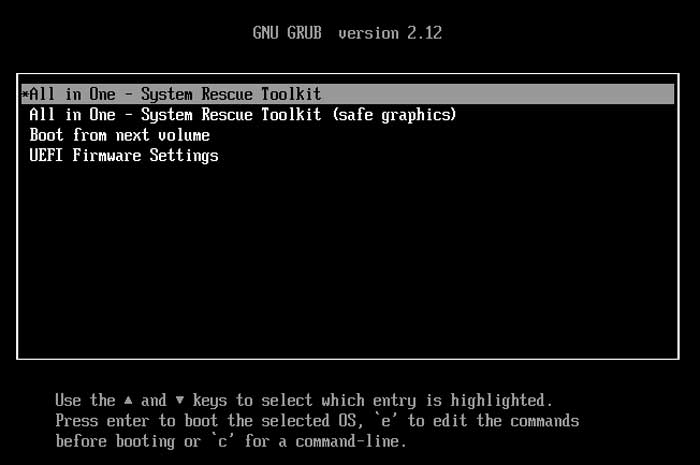
Once you boot to your USB flash drive, you will see the AiO Linux GRUB bootloader screen and will have 30 seconds to change the option before it chooses the first one for you. If you press one of the arrow keys on the keyboard, it will stop the countdown timer. We will now choose the first option on the list and press enter.
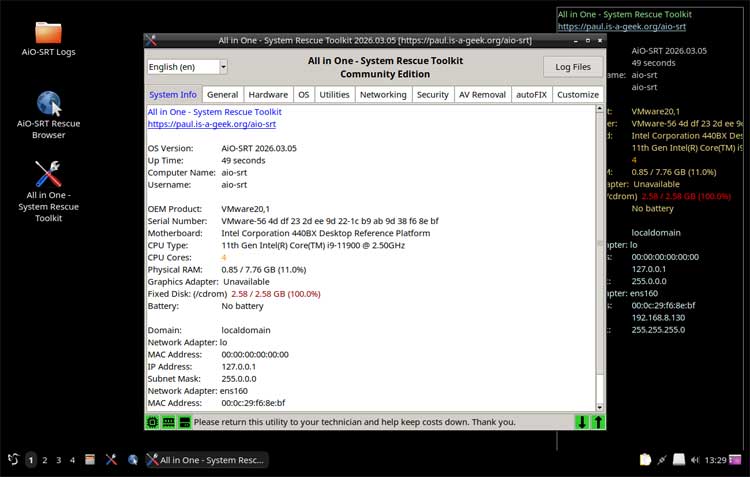
You will then see a Linux style desktop and need to click on the Accept button to get past the license agreement.
The All in One System Rescue Toolkit will automatically open on the screen to the System Info tab where you can find information about your computer. If you close AiO, you can open it again using the icon on the left side of the screen. There is also a built in web browser that you can use if you need to get on the internet (AiO-SRT Rescue Browser).
AiO System Rescue Toolkit tabs
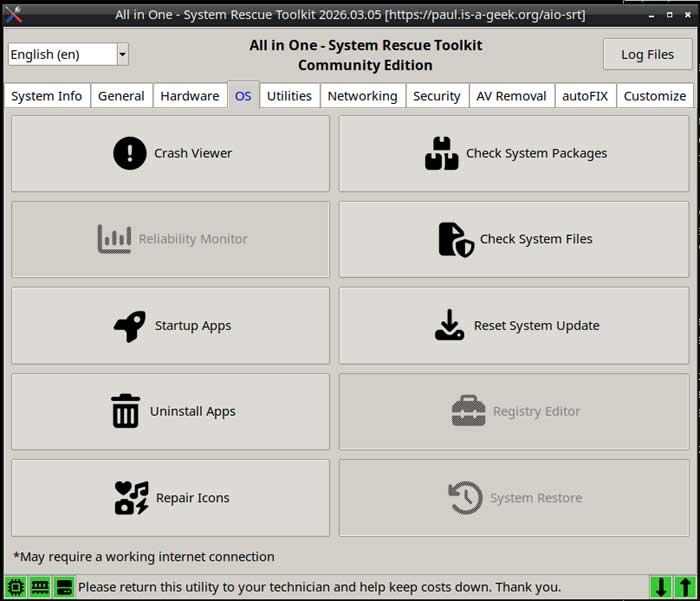
There are many tabs with various tools within each one. We will now show you each tab and the tools contained within it. If you see a tool that is greyed out, that is most likely because it’s a Windows tool that can only be used when running Windows. You can run AiO in Windows, which we will be discussing later in this article.
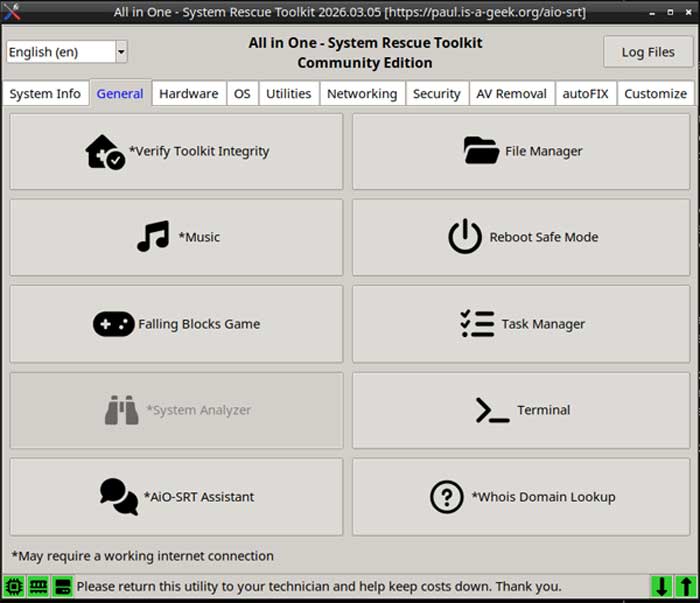
The General tab has misc. tools you can use to do things such as view your files with Double Commander. You can also open a Linux style terminal to run commands and use the built-in task manager to see what is running on the computer.
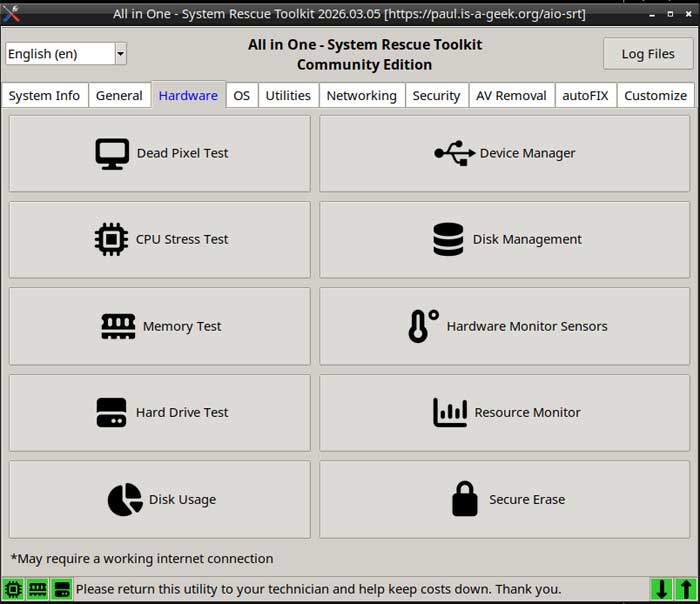
The Hardware tab has tools you can use to manage your hardware such as a CPU, hard drive and memory test apps. As you can see, there is a Device Manager and Disk Management app, but these will open Linux versions while booted with the flash drive. When you run these in Windows, they will use the Windows versions of the tools. You can also use the Secure Erase app to wipe a drive if needed.
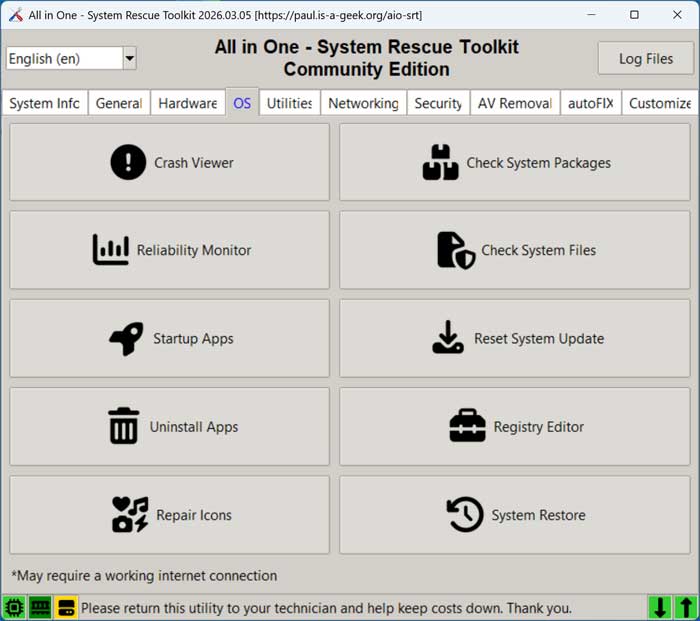
The OS tab has tools you can use to do things such as check system files, view startup apps and view crash reports. Once again, some of these will open different tools when used from within Windows.
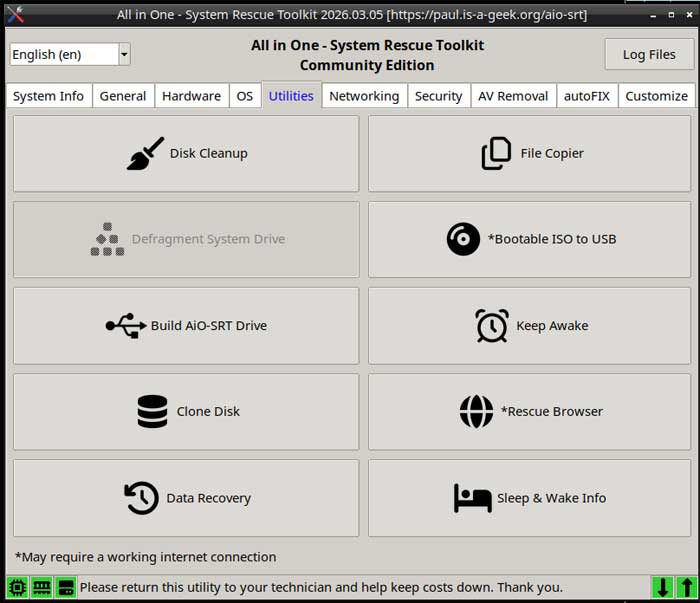
The Utilities tab contains tools that can do things such as cleanup your hard drives, clone drives and copy files. There is also a data recovery tool that you can use to try and recover deleted files.
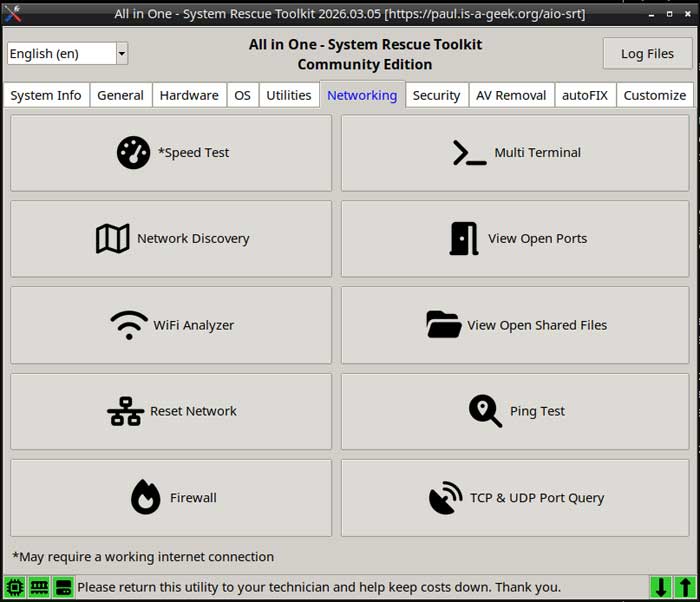
The Networking tab allows you to do things such as run an internet speed test, view open ports and run a ping test. It will also open the firewall app if there is one configured on the computer.
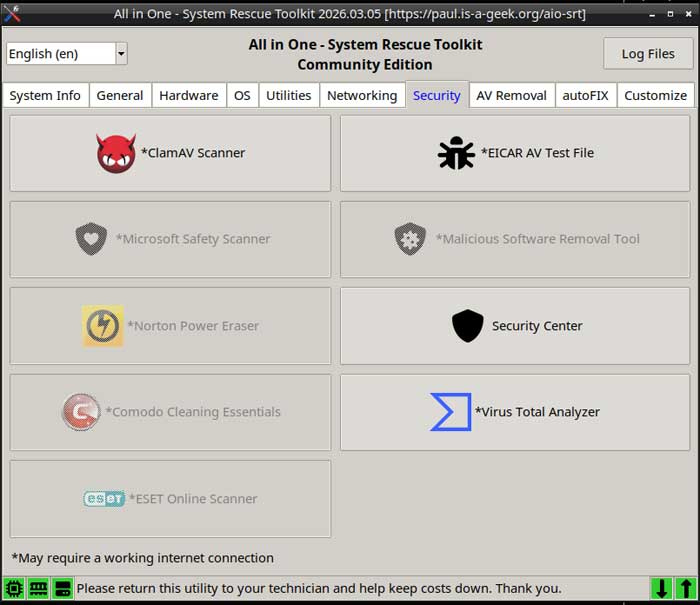
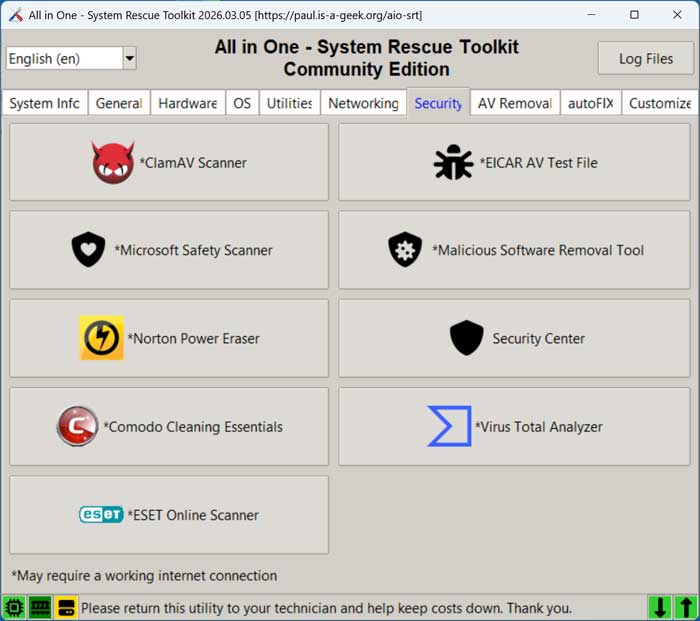
The Security tab has several tools you can use to scan your computer for threats. As you can see, many of them are greyed out because they cannot be urn from the boot disk.
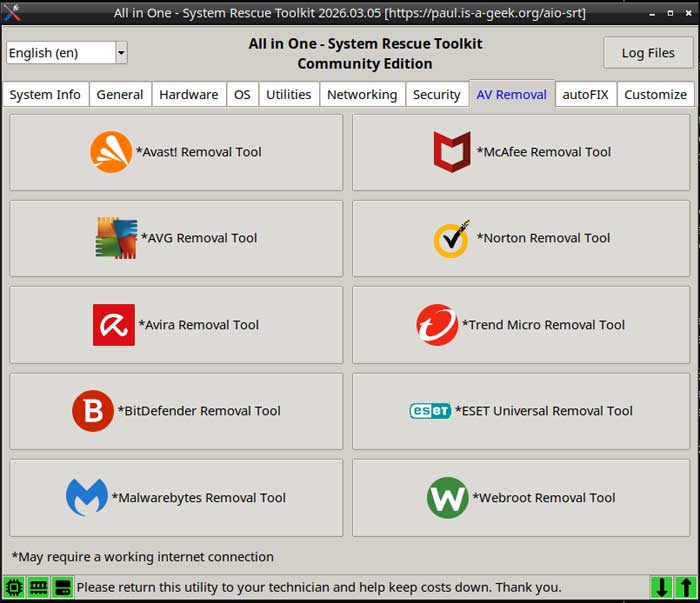
The AV Removal tab has other antivirus tools you can run from the boot disk as well as from within Windows.
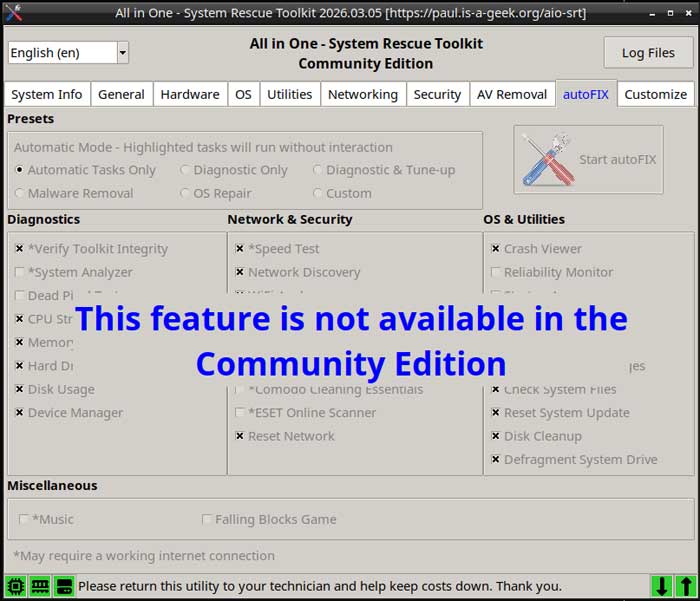
The autoFIX tab has many more options, but as you can see it is not available with the free Community version.
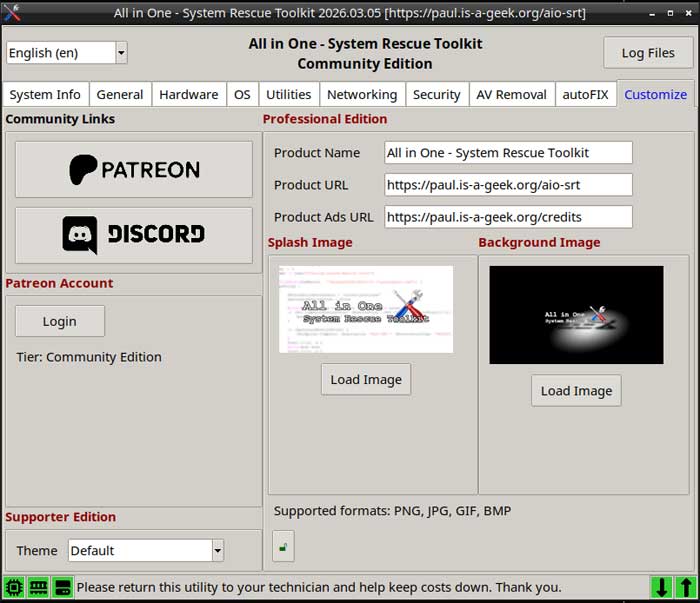
The Customize tab has some options to customize the product name, URL and image used with the AiO app.
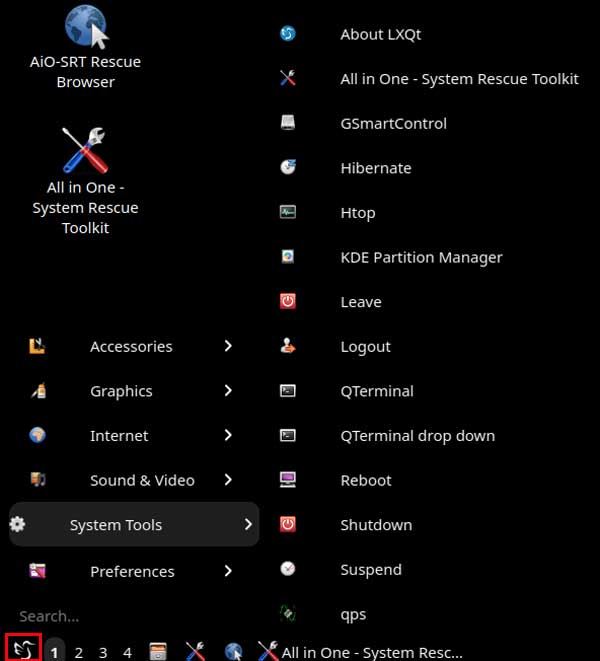
Once you are done hopefully fixing your computer, you can click on the bird icon at the lower left corner and then go to System Tools and then Reboot or Shutdown.
Running the AiO System Rescue Toolkit from Windows
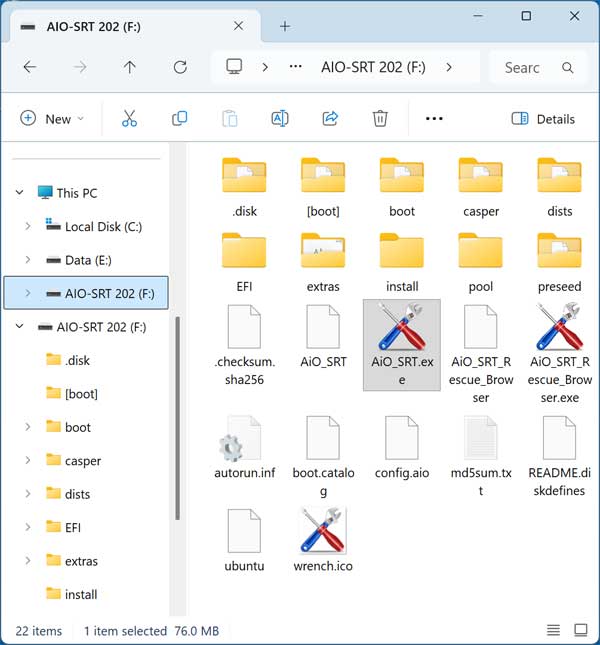
To use AiO in Windows, you can simply browse to your flash drive in File Explorer and open the AiO_SRT.exe file to run the same tool within Windows. You can even run the Rescue Browser from here if needed.
Once again, you will need to click on Yes at the UAC prompt and then click on the Accept button to accept the license agreement.
As you can see in the images below, the options such as Registry Editor, System Restore, and the rest of the Security tools are no longer greyed out. So you can now run these tools while booted into Windows to see if they can help fix your issue.
For additional training resources, check out our online IT training courses.
Check out our extensive IT book series.