Last Updated on October 21, 2026
Windows Remote Desktop Protocol (RDP) enables users to connect to computers and servers from different locations. It is widely used by businesses that support remote employees, manage IT systems or provide access to internal applications. Despite its convenience, an improperly configured remote desktop connection can create serious security risks, particularly when it is accessible to anyone on the internet.
Businesses can improve protection by combining network restrictions, strong authentication and dedicated RDP security software. Instead of allowing unrestricted external connections, organizations should establish controlled access points and implement security measures that prevent unauthorized users from reaching their systems. This approach helps maintain remote working flexibility without unnecessarily increasing exposure to cyber threats.
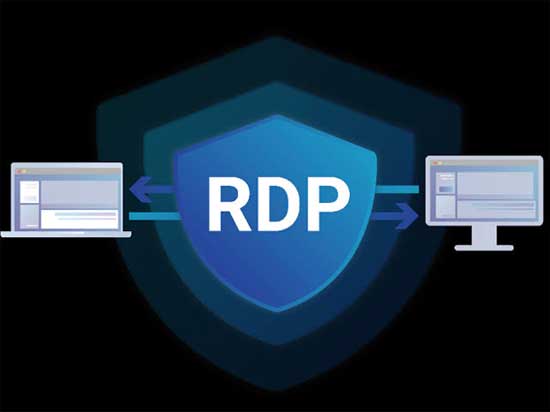
Why Exposing RDP to the Internet Is Risky?
Windows Remote Desktop typically uses port 3389 for incoming connections. When this port is openly accessible from the internet, automated scanning tools can identify the service and attempt to gain access.
Brute-force attacks are a common threat. During these attacks, cybercriminals use automated methods to test numerous password combinations until they find valid credentials. Attackers may also use stolen usernames and passwords obtained through phishing campaigns, malware or compromised online accounts.
A successful intrusion can have serious consequences. An attacker might access confidential business information, install malicious applications, steal additional credentials or attempt to move between connected systems. In some cases, compromised remote access can become an entry point for ransomware attacks.
Changing the default RDP port may reduce exposure to some basic scanning activity, but it does not eliminate these threats. Preventing unauthorized access to the service is a much stronger security measure than relying on a different port number.
Use a VPN or Secure Remote Access Gateway
A virtual private network (VPN) provides a practical way to restrict access to internal systems. It establishes an encrypted connection between an authorized user’s device and the organization’s network. Users can then connect to permitted computers without requiring the RDP service to be publicly accessible.
VPN access should be protected with strong authentication, and permissions should be limited to the resources each user needs. Organizations should also ensure that remote devices meet appropriate security requirements before allowing them to connect.
A Remote Desktop Gateway offers another option. Instead of connecting directly to an internal computer, users authenticate through a managed gateway that controls access to remote desktop services.
Both approaches create an additional layer between external users and internal systems. The right solution depends on the company’s network design, security requirements and remote access arrangements.
Strengthen Authentication and Account Policies
Passwords remain an important part of remote access security, but they should never be the only safeguard. Every account with RDP permissions should use a strong, unique password that is not shared with other services.
Multi-factor authentication (MFA) provides additional protection by requiring users to verify their identity through another method. Depending on the environment, this may involve an authenticator application, a hardware security key or another supported verification mechanism.
Account lockout policies can also help limit repeated unsuccessful login attempts. Administrators should configure these policies carefully to discourage automated password guessing while reducing the possibility of attackers deliberately locking legitimate users out of their accounts.
Access permissions should be reviewed regularly. Employees should receive only the privileges necessary for their responsibilities, and administrative accounts should be restricted to authorized personnel. Removing unused accounts and disabling unnecessary remote access permissions can further reduce the risk of compromise.
Configure Firewalls to Restrict RDP Access
Firewalls help organizations determine which devices and networks are allowed to connect to their systems. Rather than permitting incoming RDP connections from any internet address, administrators should allow access only through approved networks or secure remote access services.
For example, a company might configure its firewall to accept RDP traffic exclusively from its VPN network. Requests originating from other locations would be blocked before reaching the relevant computer or server.
Windows Firewall settings should be reviewed alongside network firewalls, routers and cloud security rules. An application may remain exposed if an outdated rule or an incorrectly configured network device allows unexpected incoming connections.
Network segmentation provides another useful safeguard. By separating sensitive servers from less trusted devices, businesses can limit communication between systems and reduce the potential impact of an intrusion.
Keep Windows Systems Updated and Monitor Login Activity
Regular maintenance is essential for protecting remote desktop environments. Security updates address known vulnerabilities in Windows and related components, reducing opportunities for attackers to exploit outdated software.
Monitoring login activity is equally important. Repeated authentication failures, unexpected connection times and unusual access patterns may indicate an attempted intrusion. Reviewing these events helps administrators investigate suspicious behavior and determine whether additional security measures are necessary.
Automated monitoring tools can simplify this process by generating notifications when specific conditions occur. Instead of relying entirely on manual log inspections, IT teams can prioritize events that require immediate attention.
Organizations should also establish a clear incident response process so that suspicious connections can be investigated, compromised accounts disabled and affected systems secured without unnecessary delays.
How Dedicated RDP Security Software Adds Protection?
Firewalls, secure gateways and authentication policies create a strong foundation, but additional security tools can provide more specialized protection for remote desktop connections.
Dedicated RDP security software may include intrusion prevention, IP address filtering, suspicious login detection and configurable access restrictions. Depending on its capabilities, a solution may identify repeated failed login attempts, automatically block suspicious addresses or help administrators control which users can access particular systems.
These features can reduce the workload associated with investigating routine security events. They can also help businesses respond more consistently to suspicious activity across multiple servers.
When selecting a solution, organizations should consider compatibility with their Windows environment, available reporting tools, automated blocking capabilities and integration with existing security controls. It is also important to understand how the software handles legitimate users who trigger security rules accidentally.
Dedicated tools should complement, rather than replace, secure network architecture, timely updates and strong authentication practices.
Conclusion
Protecting Windows Remote Desktop requires more than simply setting a password or changing the default port. Businesses should prevent direct public exposure wherever possible and use controlled access methods such as VPNs or secure gateways.
Strong authentication, restrictive firewall rules, carefully managed account permissions and regular software updates provide further protection. Continuous monitoring and dedicated security tools can help detect suspicious behavior and reduce the likelihood of unauthorized access.
By applying these measures together, organizations can support secure remote working, protect sensitive information and maintain reliable access to business systems