A font is another word for a typestyle which is just like it sounds, the style of the font that you are using in your document or other type of file. Many programs have default fonts that they use and most of the time they are pretty basic to try and please everyone.
Font choices play a bigger role than many people realize, influencing not only how a document looks but also how it feels to read. A clean, well‑chosen typestyle can improve readability, reduce eye strain, and give written content a more intentional appearance. While default fonts aim to be neutral, they often lack personality, which is why many users prefer to adjust them to better match the tone or purpose of their work.
Just like when you create new Microsoft Word documents, Outlook has default settings for new emails for things such as typestyle, size and color etc. If you don’t like the default Outlook settings then it’s easy to change and we will show you how to do it for Outlook 2007 and 2010 and up.
Because email is such a common form of communication, having control over its appearance can make messages feel more consistent and polished. Adjusting default font settings in Outlook helps ensure that every new email reflects your preferences without extra effort. Once these defaults are set, composing messages becomes faster and more comfortable, allowing you to focus on the message itself rather than repeatedly formatting the text.
To change the Outlook default mail formatting settings simply go to the Tools menu and then Options for Outlook 2007 or the File tab and Options for Outlook 2010 and up. From here click on the Mail Format tab for Outlook 2007 or the Mail link on the left hand column for Outlook 2010 and up. Then click on the Stationary and Fonts button.
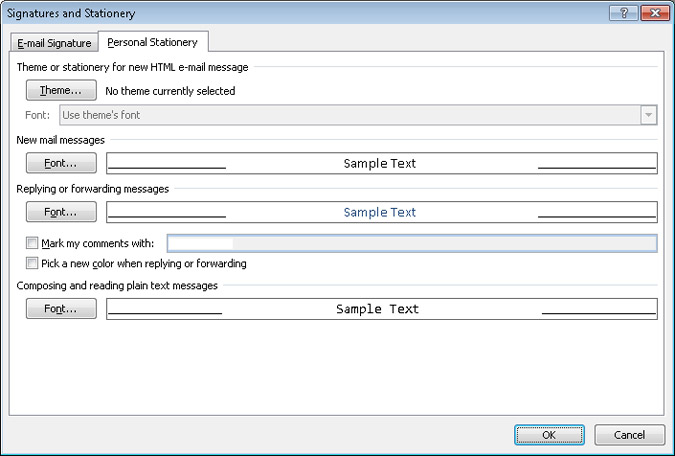
On the Personal Stationery tab choose which email setting you want to change such as composing a new email or replying to an email. Then on the Font tab you can choose which font you want to use as well as other things such as style, size and color. You can also ad various effects like shadowing and embossing to your font.
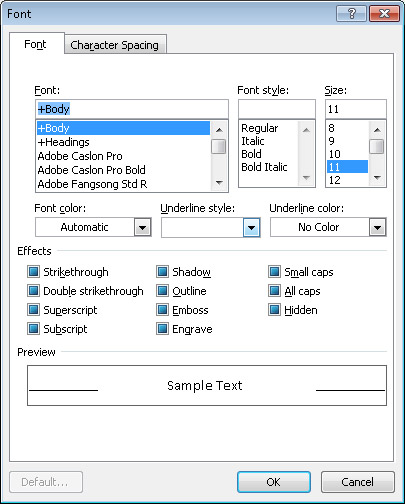
You can also click on the Character Spacing tab (Outlook 2007) or the Advanced tab (Outlook 2010 and up) to change other options relating to how the type is scaled and positioned in the email.