Last Updated on April 28, 2026
Thanks to modern wireless and networked printers, we don’t rely on shared USB printers nearly as much as we used to.
However, you might have an older, perfectly good printer connected via USB to a desktop.
You can still share that printer over your local network so other computers can print to it.
But if you are using a Windows 11 computer and want to connect to that shared printer, you may run into a frustrating roadblock.
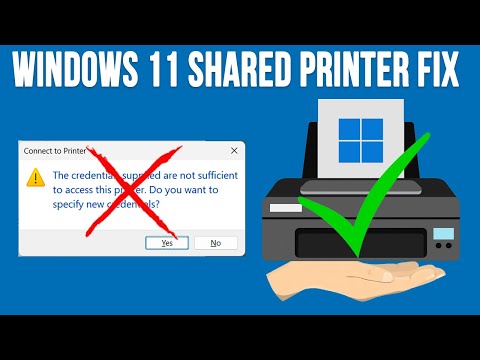
Often, while trying to connect, you will get slammed with an error message: “The credentials supplied are not sufficient to access this printer. Do you want to specify new credentials?”
Even if you enter the correct name and password for a valid user account, the same message just pops back up.
It completely prevents you from connecting to the shared printer.
In this guide, we will show you exactly how to fix this Windows 11 credential error.
Why Does Windows Block Shared Printer Credentials?
This specific error became much more common after recent Windows 11 security hardening updates.
Microsoft completely changed how “Remote Procedure Calls” (RPC) work for network printing.
They did this to patch massive security vulnerabilities, most notably the “PrintNightmare” exploit.
Essentially, Windows is now much more strict about how one computer introduces itself to another over the network.
Even if you have “Everyone” permissions set on the printer share, the host computer’s local security policy might reject the connection.
It simply doesn’t recognize your incoming request as trusted. The steps below will help you manually force that trust.
Before Troubleshooting the Client PC
Before we apply the fix on your computer, you need to check the “Host” computer.
The Host is the PC that is physically plugged into the printer via USB.
First, check the Network Profile. Ensure the network connection on the host is set to Private, not Public.
Next, verify your File and Printer Sharing settings. Go to Advanced Sharing Settings and make sure the toggle for “Turn on file and printer sharing” is switched on.
Finally, check Password Protected Sharing. We usually recommend keeping this on for security and using the Credential Manager fix below.
However, turning it off temporarily can sometimes help rule out underlying password conflicts.
The Endless Credential Loop
When you connect to a shared printer, you usually type the Host computer’s name into your File Explorer.
This lets you see all the available shares on that machine.
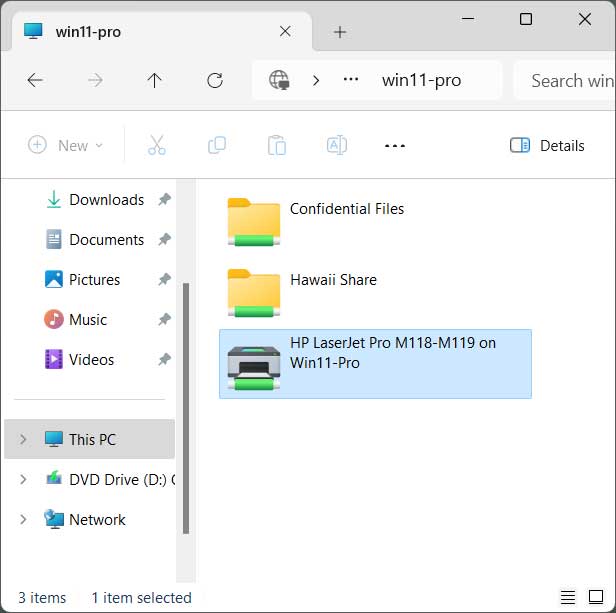
Once you see the printer you want to install, you simply right-click it and choose Connect.
You are usually prompted to enter the username and password of an account on that remote computer. By default, shared printers should have the Everyone group assigned with at least print permissions.
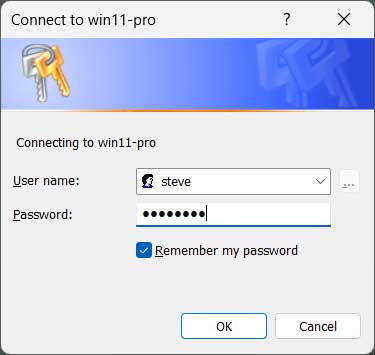
After you enter the credentials, you might see a warning message.
It will say the credentials conflict with an existing set of credentials, asking if you want to overwrite them.
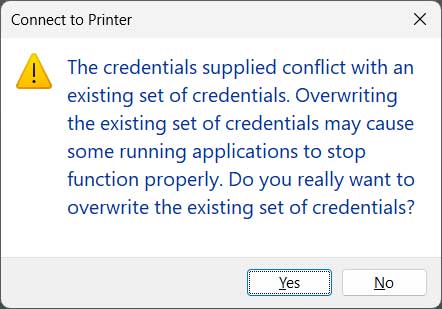
If you click Yes, you will probably be asked to enter the username and password all over again.
This is exactly where the “credentials supplied are not sufficient” error rears its ugly head. If you click Yes to specify new credentials, you just get stuck in an endless loop.
Method 1: The Credential Manager Fix
To permanently get past this message, we need to manually store the password in Windows.
Open the Windows Control Panel on your computer.
Look for the Credential Manager tool and open it.
Click on the Windows Credentials tab on the right side. From here, click the link that says Add a Windows credential.
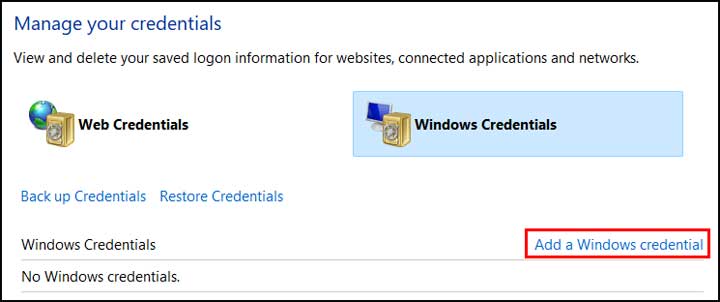
A new screen will appear asking for the network address, username, and password.
In the Internet or network address box, type the name of the Host computer.
Make sure you type two backslashes (\\) in front of the computer name (for example: \\win11-pro).
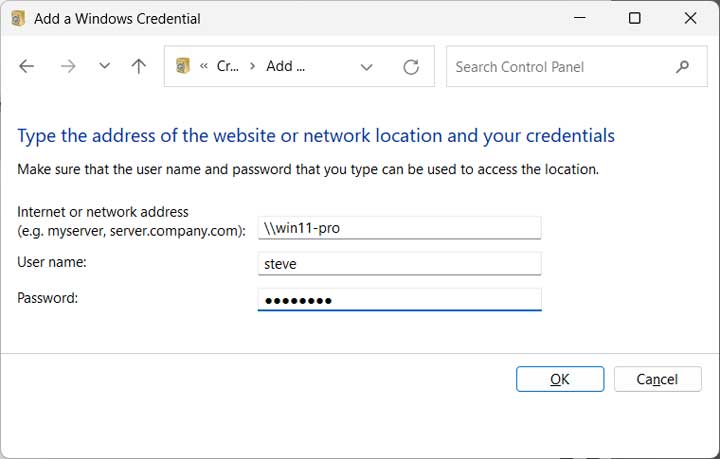
Type in the exact username and password that exists on the Host computer, then click OK.
Now, try connecting to the shared printer exactly like you did before. Windows will quietly use the saved credentials, and the printer should install successfully.
Method 2: Connect via IP Address (The Workaround)
If the Credential Manager fix fails, you might be dealing with a “Name Resolution” issue.
This happens when your network router fails to translate the Host computer’s name into a readable network address.
Using the IP address directly bypasses this DNS headache completely.
First, go to the Host computer and open the Command Prompt.
Type ipconfig and press Enter. Look for the IPv4 Address and write it down (e.g., 192.168.1.50).
Now go back to your computer. Press the Windows Key + R to open the Run dialog box.
Type the IP address with two backslashes in front of it (for example: \\192.168.1.50) and press Enter.
If a window opens showing the printer, right-click it and select Connect.
If you are prompted for a username here, use the ComputerName\Username format. This forces Windows to look at the correct local machine for that account.
Method 3: The Registry Edit Fix
If you are still getting blocked by the recent security updates, you may need to tweak the registry on the Host computer to allow the connection.
Note: Always back up your registry before making changes.
Open the Start menu on the Host PC, type regedit, and hit Enter.
Navigate to the following path:
HKEY_LOCAL_MACHINE\System\CurrentControlSet\Control\Print.
Right-click on an empty space on the right side of the window, select New, and choose DWORD (32-bit) Value.
Name the new value RpcAuthnLevelPrivacyEnabled.
Double-click your new value and ensure the Value Data is set to 0.
Restart the Host computer and try connecting from your client PC again.
Printer Credential Error FAQ
Does this fix work for “Error 0x0000011b”?
Yes, the Credential Manager method often resolves various “0x000” network printer errors. These are usually caused by the exact same RPC security changes.
What username should I use?
You must use a username and password that actually exists on the Host computer. Do not use the local password for the computer you are currently sitting at.
What if I don’t have a password on the other computer?
Windows 11 hates “blank” passwords over a local network. For the most reliable results, you need to add a password to the user account on the host PC. Once you do that, save it in the Credential Manager using the steps above.
For additional training resources, check out our online IT training courses.
Check out our extensive IT book series.