Troubleshooting Windows issues can be a daunting task and most of the time there is not an obvious solution, and you will need to do some online research to find the answer to your problem. And when you do find a possible solution, you need to hope that it is something you can actually attempt to do without the help of an expert!
Many times, you will find that you need to boot your computer into Safe Mode to perform the steps to fix your Windows problems. But if Windows won’t start correctly or fully load, then getting into Safe Mode can be difficult since the methods used to get into Safe Mode are usually done while logged into Windows itself. So, if you are having an issue such as a black screen when logging in because of a faulty video card driver and need to remove it, this won’t be possible when booted normally.

Fortunately, there is a command you can use to force Windows into Safe Mode on the next reboot so you can perform the steps required to get your computer up and running again.
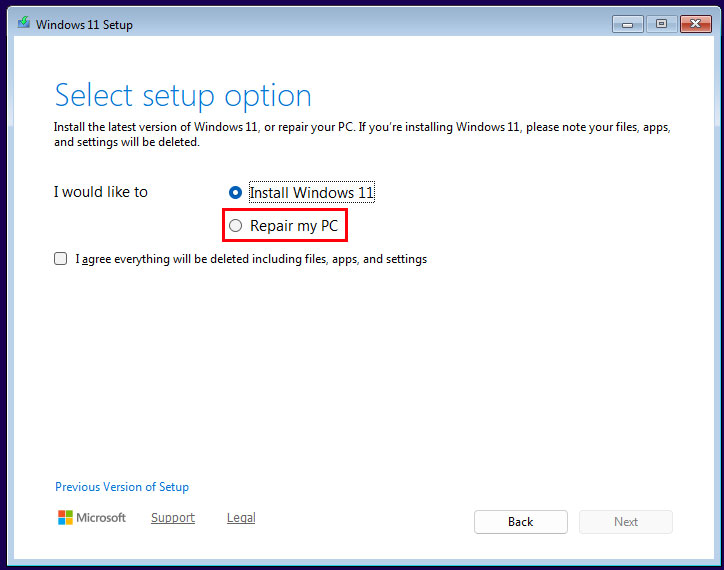
To do this, you will need to boot your computer with your Windows installation media/flash drive as if you were going to install Windows itself, even though you are not. Once you are on the Windows setup screen, you will choose your language and keyboard settings and then when you get to the main setup screen, you will choose the Repair my PC option rather than the Install Windows 11 option.
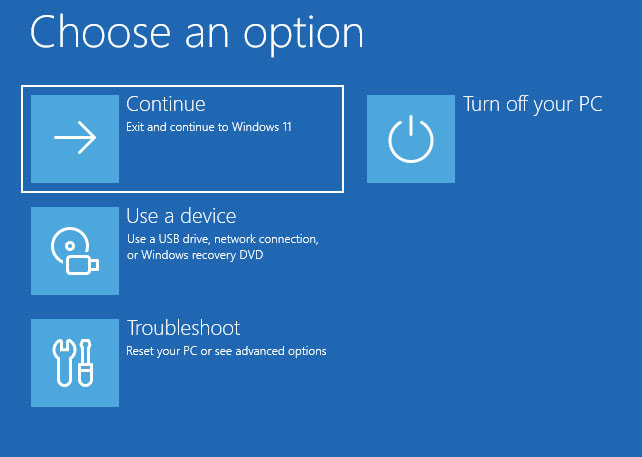
When you get to the Choose an option menu, you will want to select the Troubleshoot option.
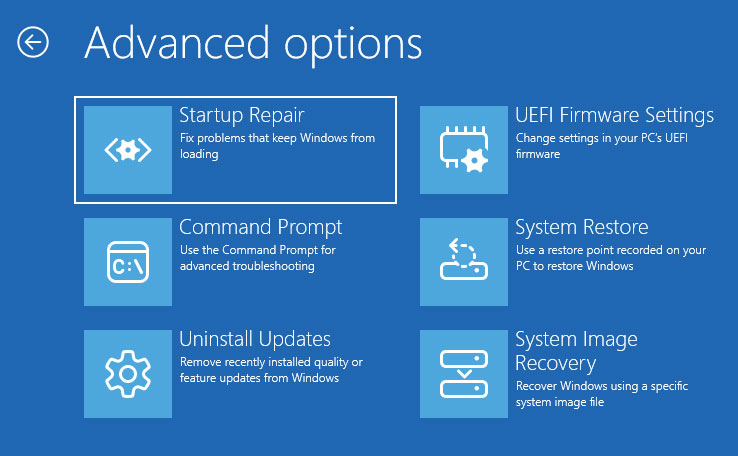
On the next screen, you will then need to click on Command Prompt.
Once you are at the command prompt, you can then use the bcdedit command to force Windows to boot into Safe Mode on the next restart. bcdedit is a Windows command-line utility that lets you control how the system starts by viewing and changing the settings Windows uses during the boot process. You will have three different commands you can choose from when using this.
bcdedit /set {default} safeboot minimal
bcdedit /set {default} safeboot network
bcdedit /set {default} safeboot dsrepair
Here is what each one these choices will do.
- Minimal: Loads Windows with just the core drivers and services needed to diagnose basic system issues.
- Network: Loads the core system plus network support so you can access the internet while troubleshooting.
- DsRepair: Starts a domain controller without Active Directory running, allowing administrators to repair or restore it.
You will most likely want to use minimal unless you need internet access, then you can use the network option.
After typing the command and pressing enter, you should see a message that says the operation completed successfully.
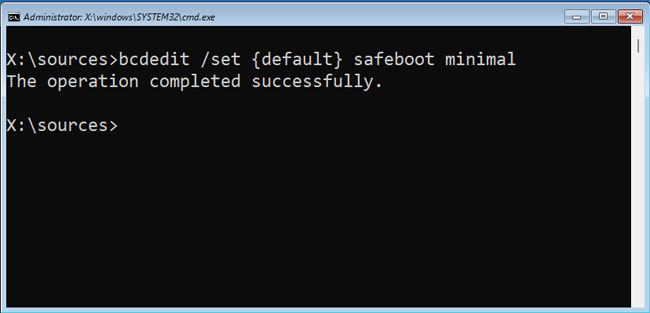
Now you can exit out of the command prompt and choose the Turn off your PC option and then start it back up again.
Then when it starts up, you will be running in Safe Mode and can then perform the required steps needed to get your computer fixed so you can use it as you normally would.
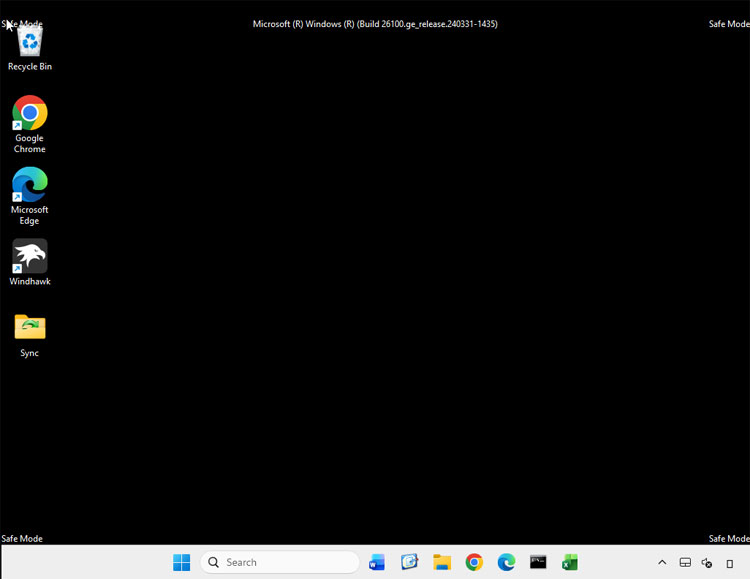
Once you are ready to reboot normally, you will need to run another command from within Safe Mode, otherwise if you restart your PC, it will boot back into Safe Mode again.
To get it to boot normally, open a command prompt and type in the following command.
bcdedit /deletevalue {default} safeboot
This command removes the Safe Mode setting from the default Windows boot entry, and allows Windows to start normally instead of back into Safe Mode.
For additional training resources, check out our online IT training courses.
Check out our extensive IT book series.