When it comes to keeping your computer clean, there is much more to it than deleting old files and folders off your desktop or emptying your Recycle Bin. As you use your computer, it accumulates temp files from your web browser, Windows updates, software installation and even leftovers when uninstalling software.
If you really want to free up space on your computer and get rid of all the extra junk you don’t need, this is where a third-party tool such as WMaster Cleanup can really help you out. WMaster is an entire suite of cleanup tools that allow you to fine tune what aspects of your computer you want to clean. Plus, it comes with many other additional tools that many people find handy. In this article, we will be showing you how to clean your PC and remove junk files to free up space with WMaster Cleanup.

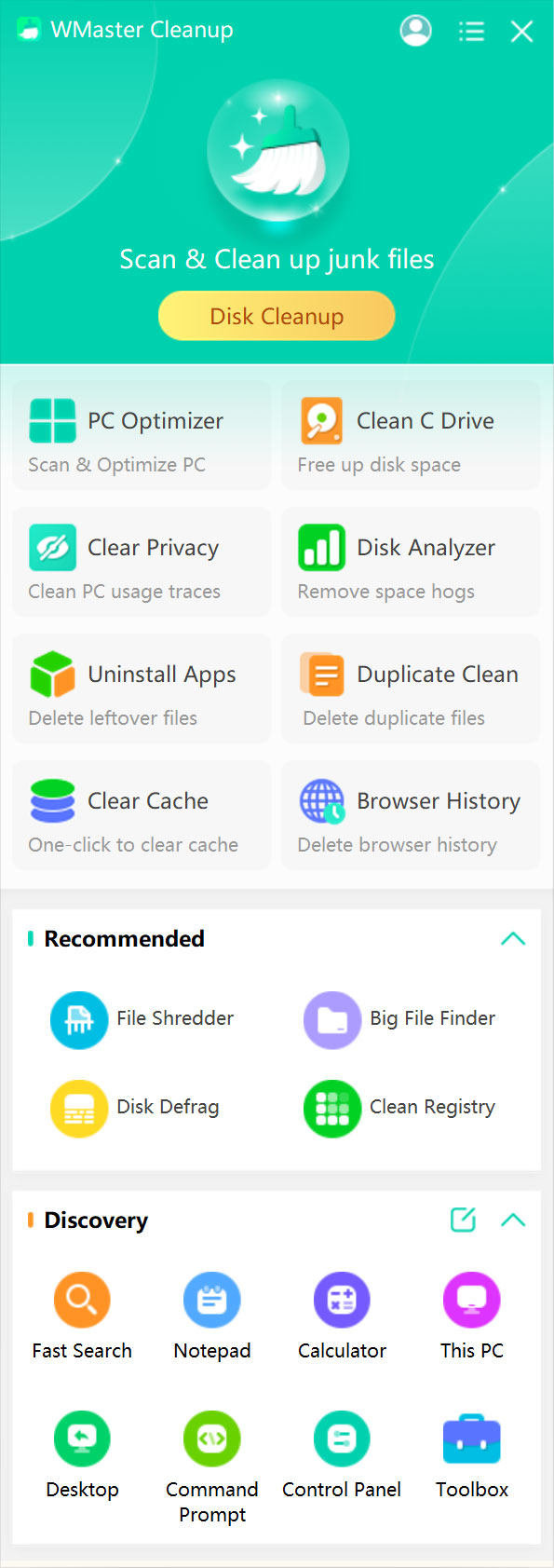
After you install WMaster Cleanup and open it, you will see a panel off to the side of your computer showing the many cleanup tools you have available. As you can see in the image below, there are additional tools you can use to do things such as securely delete files, uninstall apps, clean the registry, find larger files, and even see what folders on your computer are using up the most space.
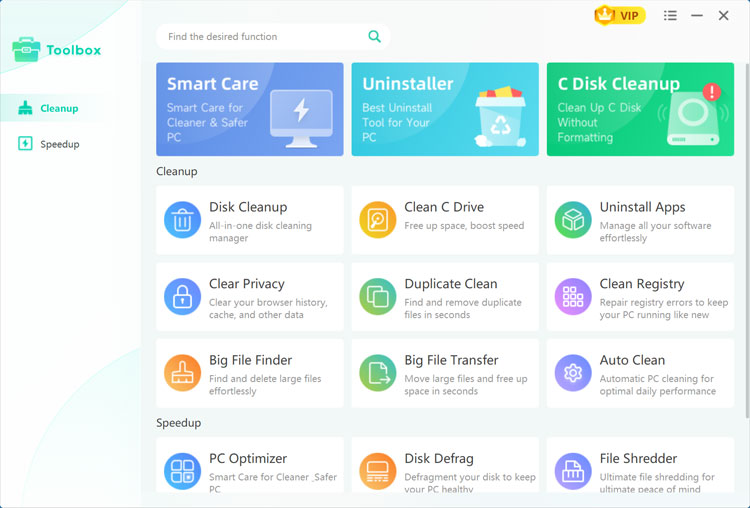
If you click on the Toolbox icon, you will get another view of all the available tools broken down into Cleanup and Speedup sections.
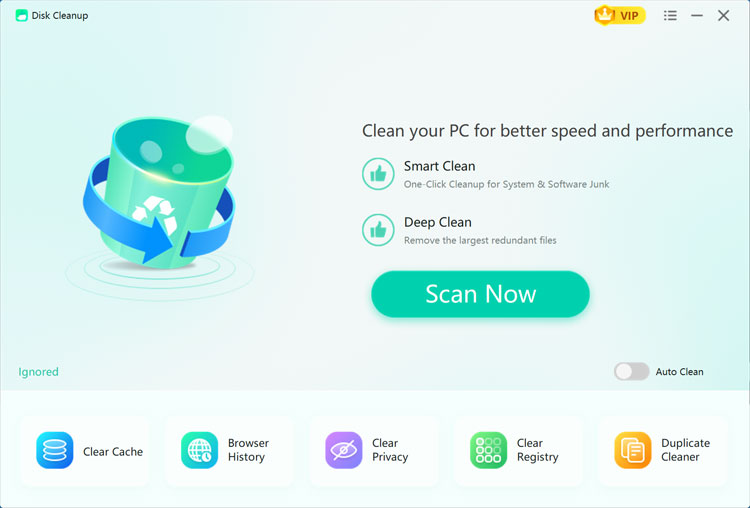
The first feature we will be using is the Disk Cleanup tool which runs several cleanup tasks at the same time which allow you to free up quite a bit of space. When you run many of these tools, you will notice that they place shortcuts to run related tools on the same screen.
We will now click the Scan Now button to begin the initial scan to see what types of files we can clean up from our computer.
This first scan found 25GB of files to clean up and has selected 10GB for deletion. WMaster will not select all the available categories by default but rather the ones that it deems safe to delete. You can then go through the unchecked results and select any additional file types you want to have deleted.
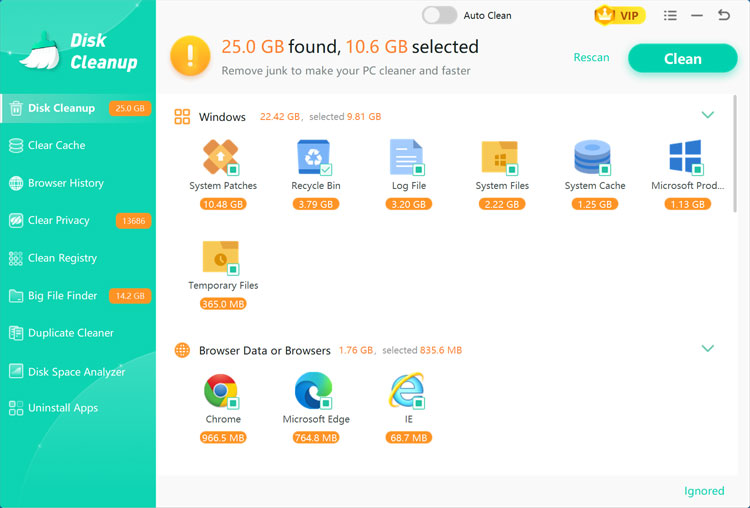
Once you have chosen the files you wish to delete, you can click the Clean button to begin the process.
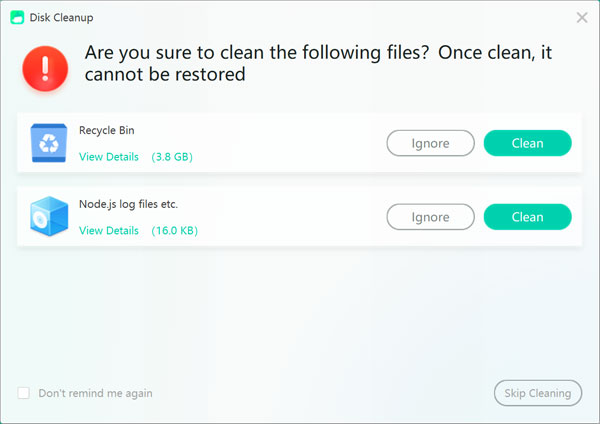
You may get a warning about some of your selections and need to confirm that you want to have them deleted. WMaster does this to make sure that you do not delete anything you shouldn’t be or did not mean to select. If you want to delete the items that are shown in this window, you can click the Clean button to continue, otherwise click Ignore.
Then the cleanup process will begin, and it should be completed rather quickly. Then you can move on to another section of the app to perform additional cleanup tasks.
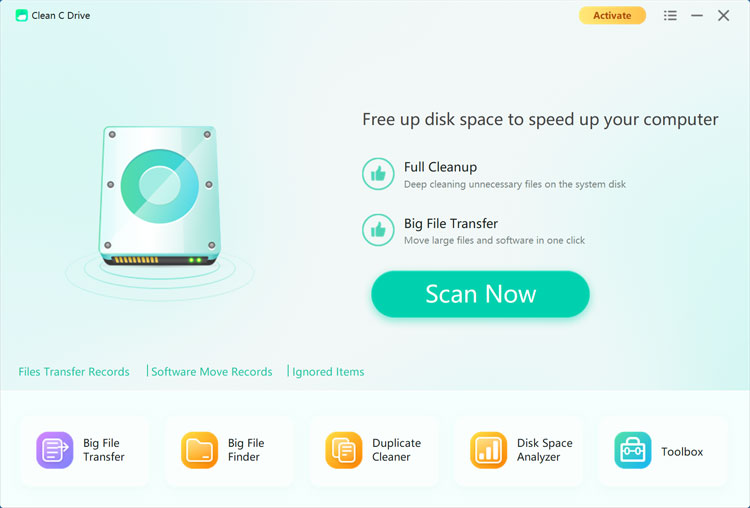
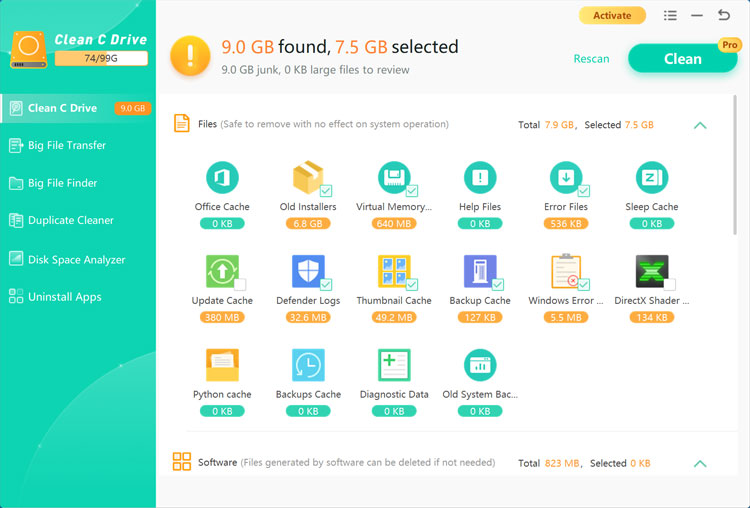
Next, we will move on to the C Disk Cleanup tool which will scan your Windows drive to find temp files that can be removed to free up additional space. Once again, you can see that there are related cleanup tools you can also use at the bottom of the screen. We will now click the Scan Now button to begin the process.
This time WMaster found 9GB of additional files and has suggested 7.5GB of files to clean up. You can choose additional files or categories as needed from here as well. Once you are happy with your choices, you can click the Clean button to have these files removed.
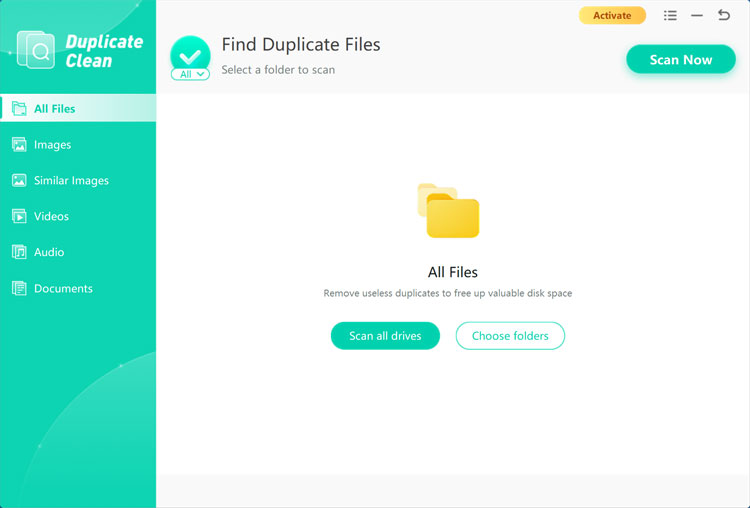
Another unique feature of WMaster Cleaner is the ability to search your computer for duplicate files and then allow you to remove or move the ones you do not want to keep. This is another great way to free up disk space on your computer.
You can have it scan your entire computer or just specific folders if you have an idea of where the duplicate files might be located. We will choose the Scan all drives option for our example.
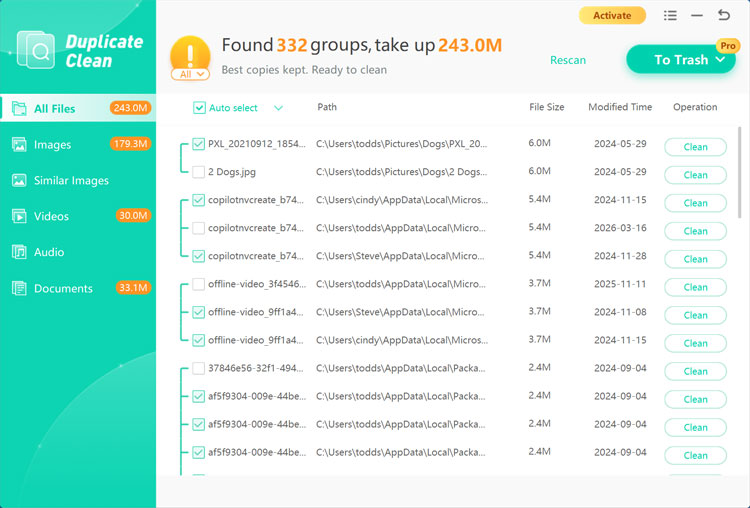
As you can see from the results below, it found 243MB of duplicate files and automatically decided which ones to keep. Of course, you should review this for yourself to make sure you keep the ones you want. It also shows you the path to each file and you can click on any one of them to open the folder that contains the duplicate file.
You can then choose to have the duplicates sent to the Recycle Bin, permanently deleted or moved to a specific folder. You can then have that action taken on all the duplicate files or you can do them one at a time by clicking on the Clean button next to the specific file.
As you can see WMaster Cleanup is a powerful way to remove junk files and free up disk space on your computer.