Last Updated on March 28, 2026
When it comes to playing music, most people these days use some type of streaming service such as Spotify, Apple Music, YouTube Music or Pandora to name a few. But for those who still have music CDs, MP3s and even MP3 players, you most likely have the need to burn music or MP3 CDs to listen to in the car or on your laptop.
Since the days of having a built in CD/DVD or Blu-Ray burner on our desktop and laptop PCs are numbered, there are not a lot of options when it comes to software we can use to create music and MP3 CDs. Windows Media Player used to be a decent choice but even that is no longer a viable option unless you use the legacy Windows Media Player. In this article, we will be showing you some free CD burning software that can burn music and MP3 CDs fast.
The app we will be using to burn music and MP3 CDs is called Express Burn Free. They also have a pay for version that allows you to do things such as create DVDs, copy disks and create image disks from ISO files.

To begin, you will need to download and install Express Burn Free from their website here. It is easy to install and installs just like any other software application.
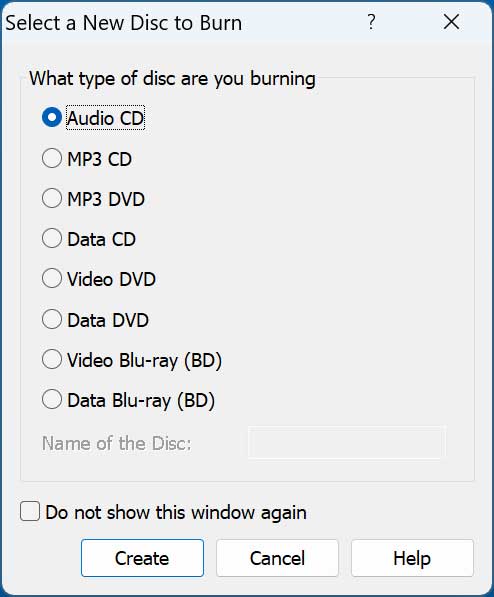
When you open Express Burn, it will ask you what type of disk you want to burn. It will also show you options that are not available with the free version so don’t think that you can use these unless you have the pay for version. You do not need to choose one of the options right away and can click on the Cancel button to be taken to the main interface.
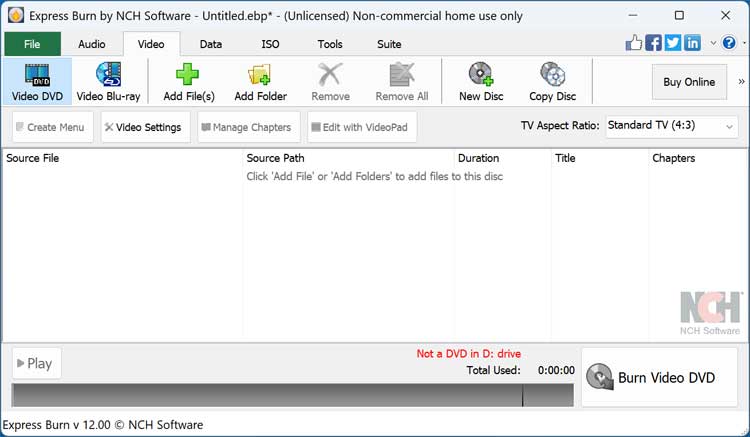
As you can see in the image below, there are tabs for each of the functions including Audio, Video, Data and ISO.
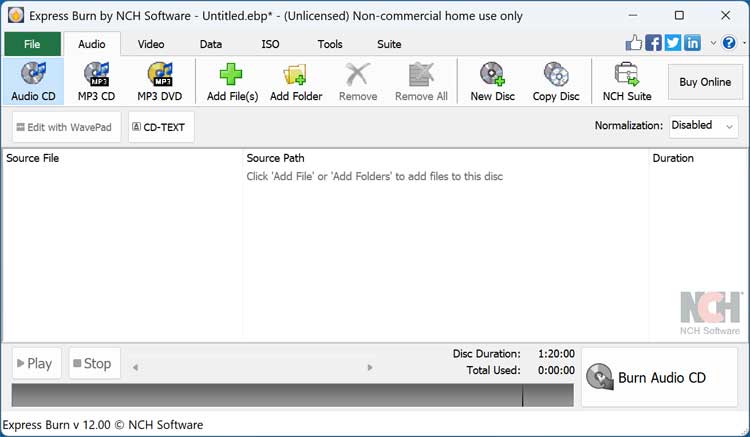
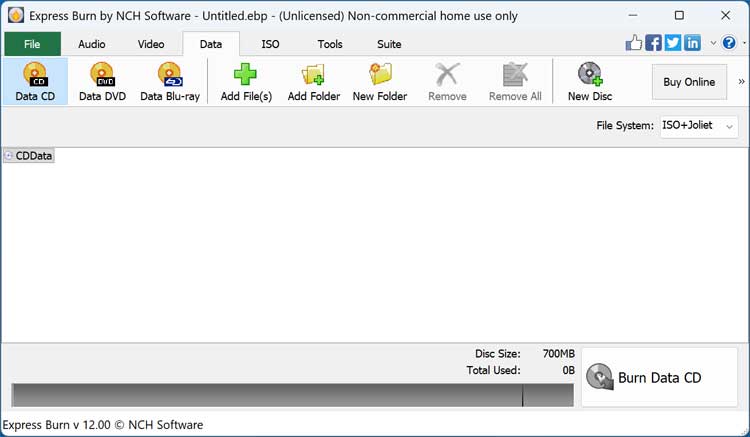
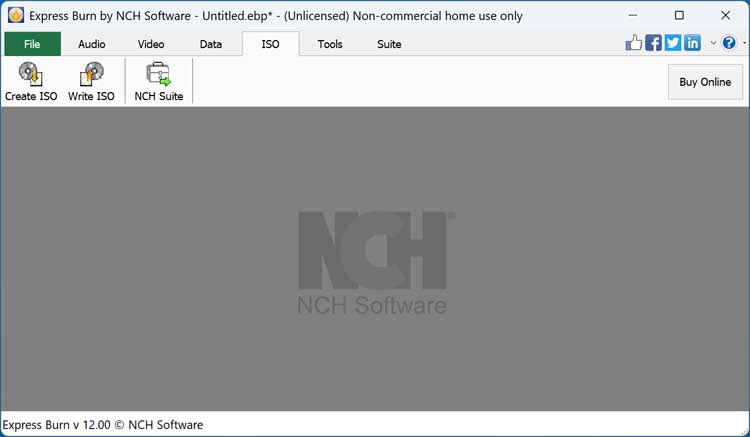
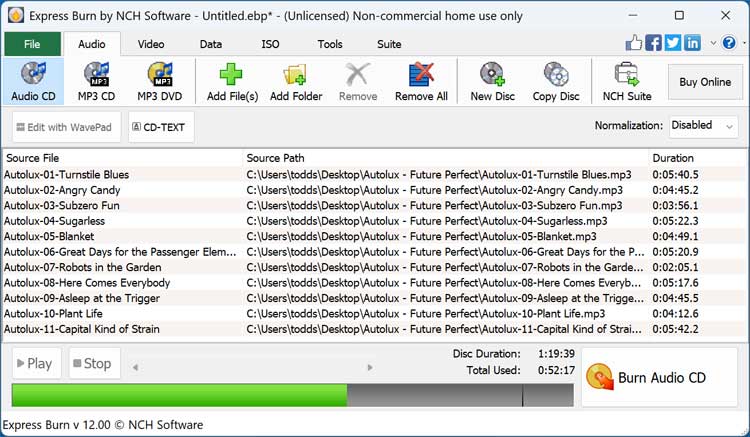
If you want to create an audio/music CD, you can click the Audio tab and then the Audio CD button. You can then drag and drop your MP3 files into the window or click the File tab and browse to them. You can also use other types of audio files such as WAV, OOG, WMA, AIF, FLAC, 3GA, MP4 and more.
As you can see in the image below, it shows that all the songs that were added are going to use up 52 minutes out of the available 80 minutes on the CD.
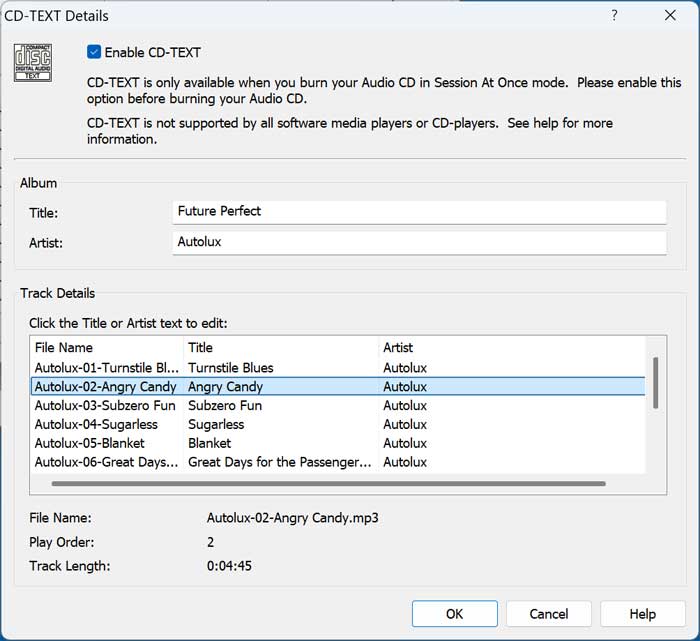
If you click on the CD-TEXT button, you can add the album name and artist to your CD assuming your player supports it.
If we leave the same MP3 files and click on MP3 CD, you can see that we have much more space left free on the CD for more music. This is because music CDs go by time and MP3 CDs go by file size. The image below shows that this CD is using 119 MB out of the available 700 MB.
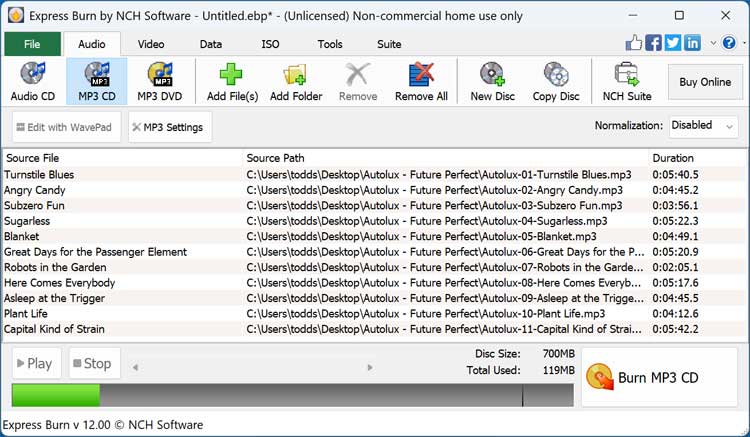
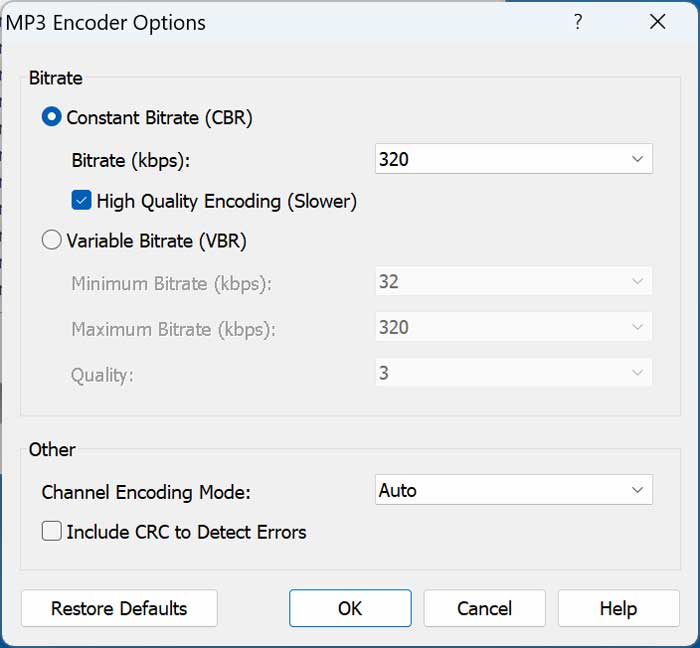
Clicking on the MP3 Settings button will give you some options you can use to adjust the audio quality such as changing the constant or variable bitrate.
Once you have your files loaded and have chosen the type of CD you want to burn, you can simply click on the Burn CD button to start the process. You can then adjust any burning settings as needed such as the write speed and number of copies to burn.
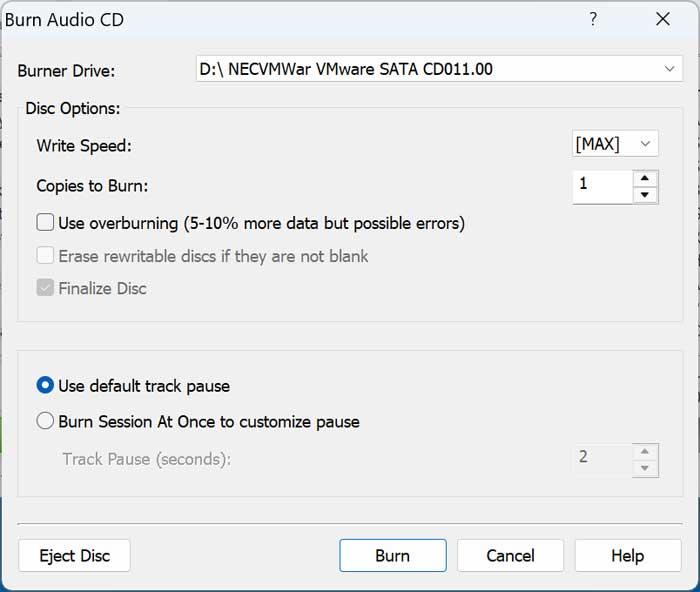
Then you can just click on the Burn button and have your music or MP3 CD created.
You may also want to check out the ImgBurn and Magic ISO CD burning tools
For additional training resources, check out our online IT training courses.
Check out our extensive IT book series.