
Last Updated on May 3, 2026
With everyone having a video camera in their pockets (aka a smartphone), it makes sense that many people now consider themselves amateur video producers and photo editors. Some people like to edit their videos using apps on their smartphones but that can be a bit tedious, especially when you have to use a small screen. So many of us will transfer our videos to our computers so we can edit them there.
As you might have noticed, video editing software can be expensive and difficult to use. If you are a Microsoft Windows user, you can use the free Clipchamp video editor software but even that can be complicate for those new to video editing. In older versions of Windows, we had the Windows Movie Maker software that was easy to use and did a great job when it came to basic video editing. Unfortunately, it was discontinued in 2017 and replaced by the Windows Video Editor app which was then replaced by Clipchamp in 2023. But if you want to go back to when things were easier, we will be showing you how to install the classic Windows Movie Maker on Windows 10 and 11 in this article.
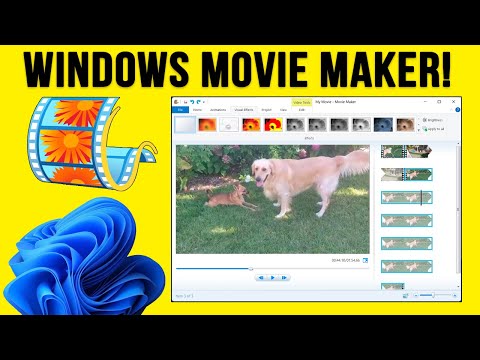
Why Do Users Prefer Classic Movie Maker Over Clipchamp?
When Microsoft transitioned to Windows 11, they made Clipchamp the default video editor. While Clipchamp offers modern templates, it is a cloud-based Web App. This means it relies heavily on your internet connection, tracks telemetry data, and locks high-resolution exports (like 4K) behind a premium monthly subscription.
Classic Windows Movie Maker is a traditional, locally hosted Win32 application. It uses your computer’s actual hardware (CPU and GPU) to render videos offline, has zero premium paywalls, and never leaves a watermark on your final project. For users who just need to quickly trim a clip, add a title card, or fade out audio, the classic timeline interface remains unmatched in its simplicity.
**UPDATE**
If the archive.org link below is no longer valid, you can download Windows Movie Maker from Major Geeks here. It will be a zip file with no password and then contain a file called windows-movie-maker-2012.exe that you can double click to install. Then you can skip down to the installation step below.
Since you cannot get the classic Windows Movie Maker from Microsoft, you can download it from the arhive.org website which posts lots of older software titles and even operating systems. Once you go to the website, you will need to go to the download options section and download the ISO image file. The ISO file is only 77 MB, its it should be a fairly quick download.
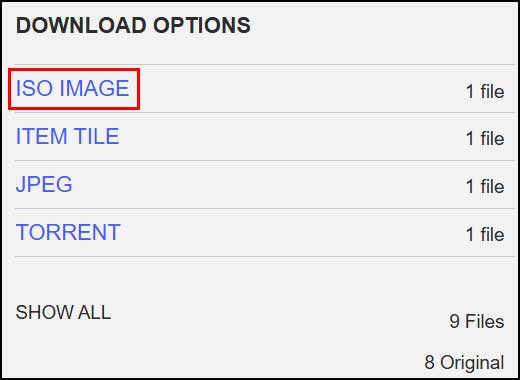
Within this ISO file, you will find a RAR file which is a type of compressed file, similar to a Zip file. In order to get to the installation file, you will need to be able to extract the contents of the RAR file.
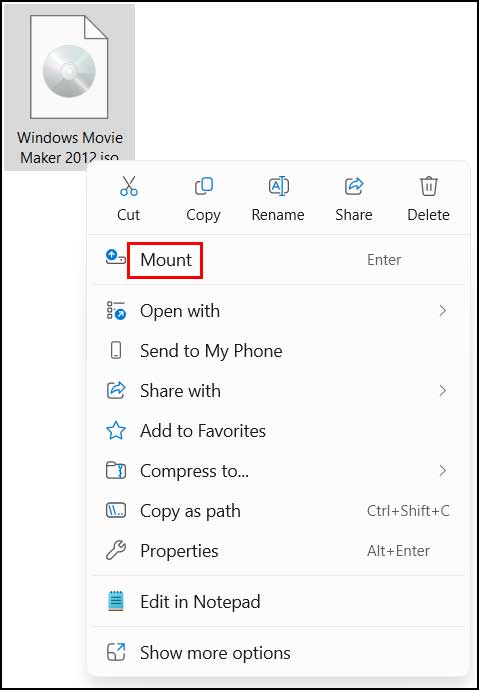
One option you can use is to mount the ISO file as a drive letter in File Explorer. To do so, you can right click the ISO file and then click on the Mount option.
Then the ISO file will be listed with its own drive letter in File Explorer. But you will still need a way to extract the Windows Movie Maker 2012.rar file within it.
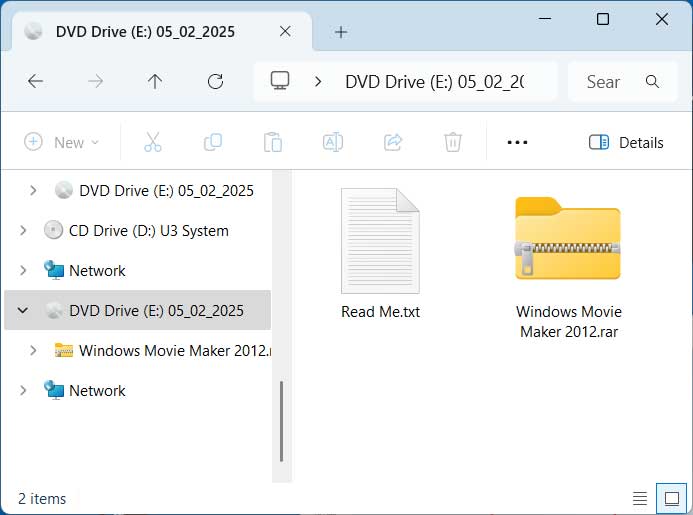
To do so, you can use a free program such as 7-Zip which can open RAR files to view their contents and extract the files within them.
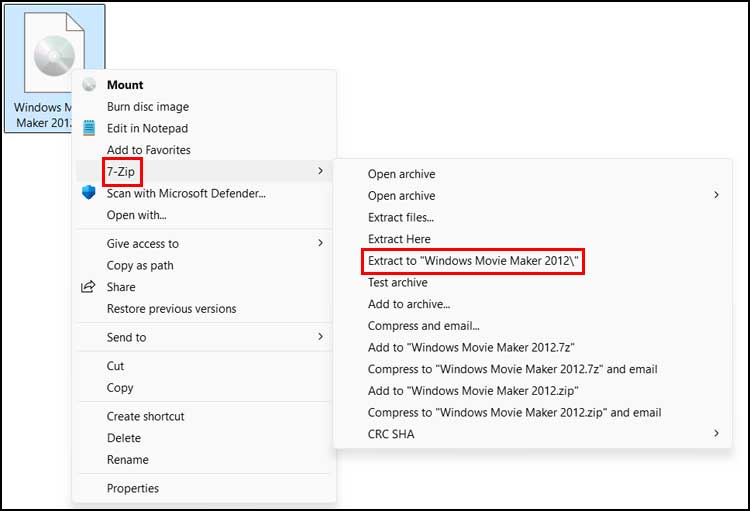
You can also use 7-Zip to extract the contents of the ISO file by right clicking on it and choosing Show more options (Windows 11) and then 7-Zip > Extract or Extract to Windows Movie Maker 2012 to have the contents extracted to its own folder.
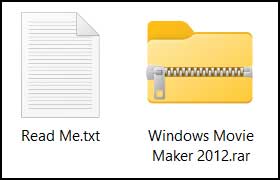
Once you have extracted the contents of the ISO file, you will then have two files called Read Me.txt and Windows Movie Maker 2012.rar.
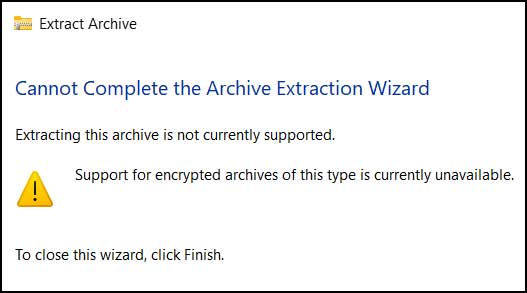
If you try and use the Windows built in file extraction feature, you will most likely get a message saying Cannot Complete the Archive Extraction Wizard because it thinks the file is encrypted because it has a password.
So you can once again use 7-Zip to extract the Windows Movie Maker 2012.rar file to its own folder.
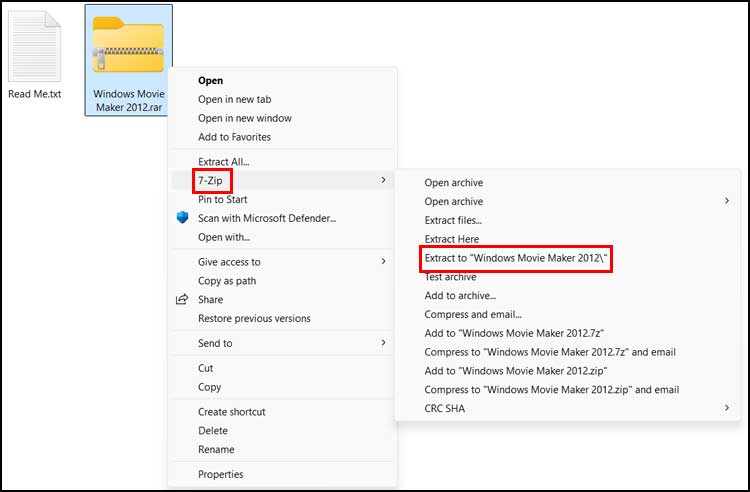
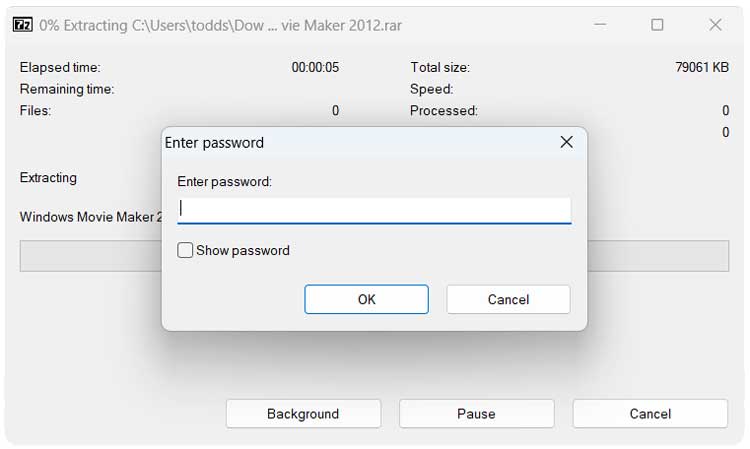
You will then be prompted to enter the password for the Windows Movie Maker 2012.rar file which is 123.
Now you will have a file called Windows Movie Maker 2012.exe that was extracted from the RAR file.
Prerequisite: Enable .NET Framework 3.5
Because Windows Movie Maker 2012 is a legacy application, it relies on an older software framework that Windows 10 and Windows 11 disable by default. Before running the installer, you must ensure this feature is turned on, or the installation will fail.
- Click the Windows Start button and type Windows Features.
- Select Turn Windows features on or off from the search results.
- In the list that appears, look for .NET Framework 3.5 (includes .NET 2.0 and 3.0).
- Check the box next to it (it does not need to be a black checkmark, just a square block).
- Click OK. Windows will automatically download the required files from Windows Update and apply the changes.
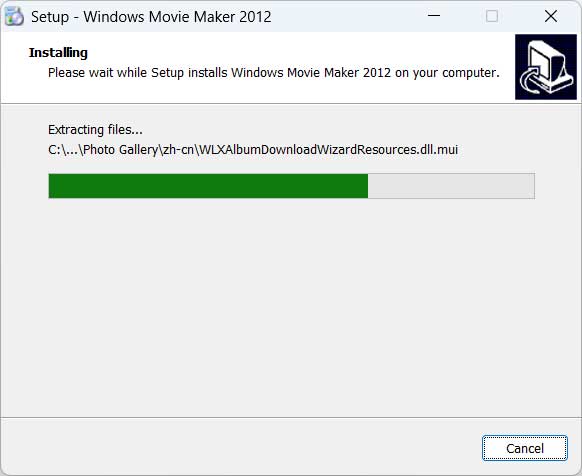
You can then double click the Windows Movie Maker 2012.exe file to start the installation. You will then be prompted to say yes to the Windows UAC prompt and then asked to choose your language. Then you will need to accept the license agreement, and the installation will begin.
Bypassing Windows Defender SmartScreen
Since you are running an older, unsigned executable downloaded from an archive website, Windows Defender SmartScreen will likely flag the file as “unrecognized” to protect your PC.
If you see a blue popup that says Windows protected your PC, simply click the More info link located within the text of the warning. A new button will appear at the bottom right of the window. Click Run anyway to launch the setup wizard safely.
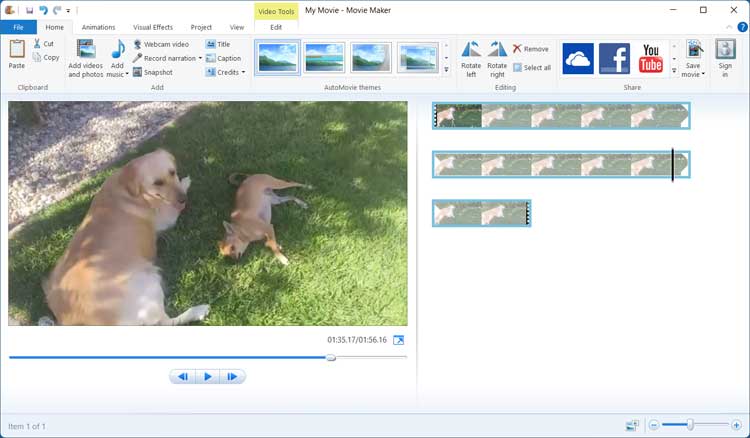
You can then open the Windows Movie Maker app and will need to accept another agreement to continue.
Once Windows Movie Maker is loaded, you will be able to import your videos and start editing them just like you did when Windows Movie Maker was part of Windows.
Windows Movie Maker Compatibility FAQ
What video formats does classic Movie Maker support?
The 2012 version supports all standard modern formats, including MP4 (H.264), WMV, AVI, and MOV. If you are importing video from an iPhone (which uses the HEVC/H.265 codec), you may need to install the HEVC Video Extensions from the Microsoft Store first.
Will this replace the modern Photos or Clipchamp app?
No. Installing this legacy software will not overwrite or remove Clipchamp or the Windows 11 Photos app. They will exist side-by-side on your computer, allowing you to use whichever tool fits your current project.
Why does my audio desync in the timeline?
If you are importing very long, high-framerate videos (like 60fps gameplay footage), the older 32-bit architecture of Movie Maker can struggle to keep the audio in sync. It is best used for shorter home videos, slideshows, and basic editing tasks.
For additional training resources, check out our online IT training courses.
Check out our extensive IT book series.






