Last Updated on April 16, 2026
As you probably know, Microsoft is constantly updating Windows 11 with new features and for some people, this can be hard to keep track of. And for others, they might not even notice these new so called “enhancements”. With the Windows 11 25H2 update, we now have a new Start menu with categories that can be changed to grid or list view. The Start menu no longer has the All section to view all your apps option to view all your apps in a list which is more of a downgrade.
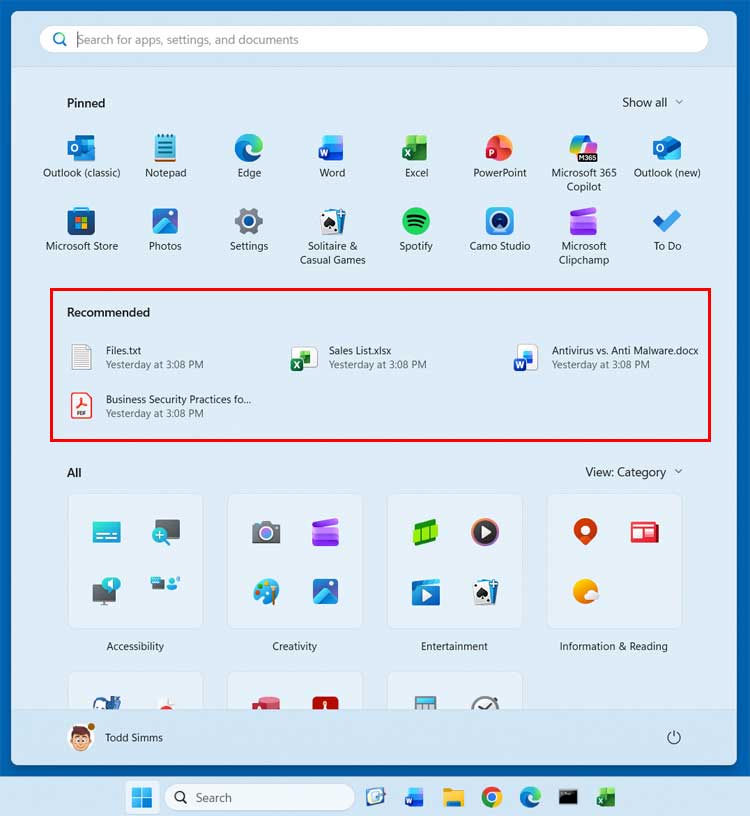
One thing that the 25H2 Start menu carried over from the 24H2 Start menu is the recommended section that can show recommended apps, recently installed apps and recently opened documents and other files. Many people do not like this feature and think of it as a privacy issue. In this article, we will be showing you how to disable the recommended section in the Windows 11 25H2 Start menu.

Understanding the Recommended Section
1. Privacy Concerns on Shared Computers
The recommended section visibly displays several files that you recently opened right on your desktop. You probably do not want this enabled on a shared computer. Others will see your personal documents. Users with separate logins for each Windows account do not have to worry about this. Windows hides your recent files and apps from completely different user profiles.
Disabling Start Menu Recommendations
1. Open the Windows Start Settings
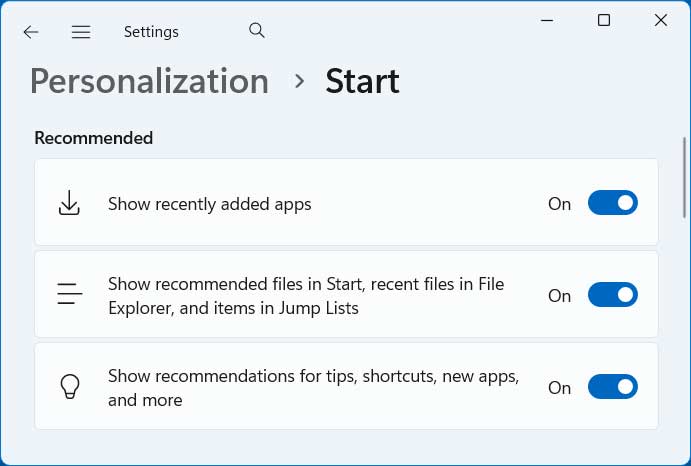
You must open the main Windows settings app to disable the recommended section in the Windows 11 25H2 Start menu. Navigate directly to the Personalization category and click on the Start section. You will immediately see a dedicated recommended section containing three individual toggle switches. Disable these options to clean up your interface.
2. Hide Recently Added Apps
The first toggle switch controls the visibility of your newly installed applications. This setting displays your recently added apps right at the top of the Start menu. It helps you quickly find a program you just downloaded. Turn this toggle switch off to prevent these new apps from cluttering your menu.
3. Hide Recommended and Recent Files
The second option controls the main recommended section inside the Start menu itself. It displays files you recently opened or documents Windows assumes you want to use. This setting also shows a list of recently opened files whenever you launch File Explorer. It also controls the Jump Lists that appear when you right-click an app icon on your taskbar. Disabling this switch stops recent Word documents from showing up under the Word icon.
4. Turn Off Tips and Shortcuts
The third setting allows Windows to suggest helpful tips and quick actions directly in your Start menu. It will also aggressively highlight new apps and features that Microsoft wants you to try. You can choose to disable just one or two of these specific settings as needed. Most people just disable all of them. This guarantees a completely clean interface.
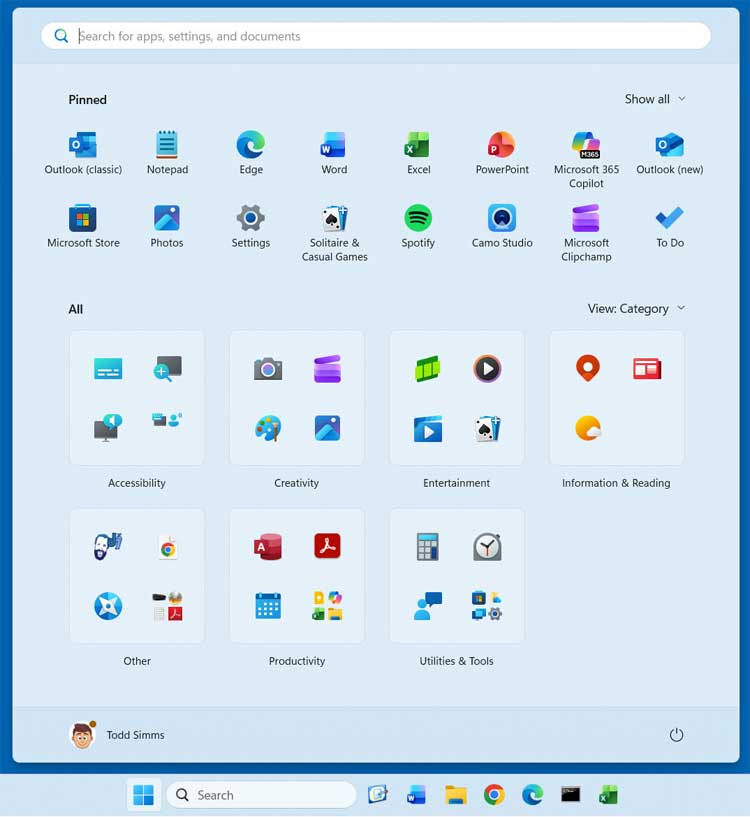
5. Verify the Clean Start Menu
The entire recommended section completely disappears after you disable all three options. Your Start menu will look much cleaner. It will prioritize your pinned applications instead. You can easily re-enable these exact settings later if you change your mind. Windows will gradually add your new apps and files back to the recommended section once you turn the switches back on.
6. Managing Older Windows 11 Versions
You might be using an older version of Windows 11 that lacks this specific updated interface. You can still disable the recommended section from the older settings menu using a similar process. You can also use specific update methods to enable the new Windows 11 25H2 start menu if your system hasn’t received it yet. Keeping your system updated ensures you have the latest privacy controls.
For additional training resources, check out our online IT training courses.
Check out our extensive IT book series.