Installing your own operating system is a very common practice these days, especially if you are the type who likes to build their own computer. Other reasons for installing your own OS are if you want to try something new such as switching from Windows to Linux or even dual booting Windows and Linux or even to recover from a virus infection or other system crash.
If you are already running Ubuntu Linux or some variant of Ubuntu, you can easily create a Linux USB flash drive installer in Linux with Startup Disk Creator without needing a third party tool such as Ventoy or UNetbootin.

Startup Disk Creator is a Linux tool designed to create bootable USB flash drives to install Ubuntu based distributions of Linux. It will work to create flash drives for distributions such as official Ubuntu builds, Kubuntu, Xubuntu, Lubuntu, MATE, etc. It will generally also work with Ubuntu‑based distributions such as Mint, Pop!_OS and elementary, etc. It MAY work for some Debian-based versions such as Debian and MX Linux, but it’s not guaranteed.
Versions it will not work with include distros such as Fedora, Arch, Manjaro and openSUSE for example. It will definitely not work for Windows installations.
Before you attempt to install Startup Disk Creator you can run a simple command to see if it is already installed on your system. This command will tell you where the program is located on your system if it is installed.
which usb-creator-gtk
If the command does not show any results and just brings you back to a blank prompt, then you know that Startup Disk Creator is not on your system.
Installing Startup Disk Creator is a simple process and only requires you to run a couple of commands. The first one we will run is sudo apt update which refreshes your system’s package index, which is the local database that lists all available software and their versions.
You will need to enter your admin password when running this command.
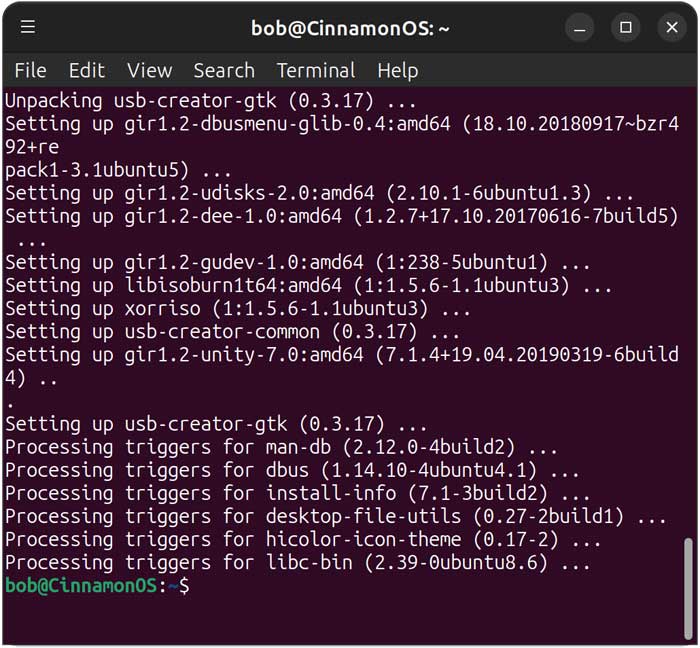
Next, we will run sudo apt install usb-creator-gtk to install Startup Disk Creator itself. When it asks Do you want to continue, you will need to type Y to continue.
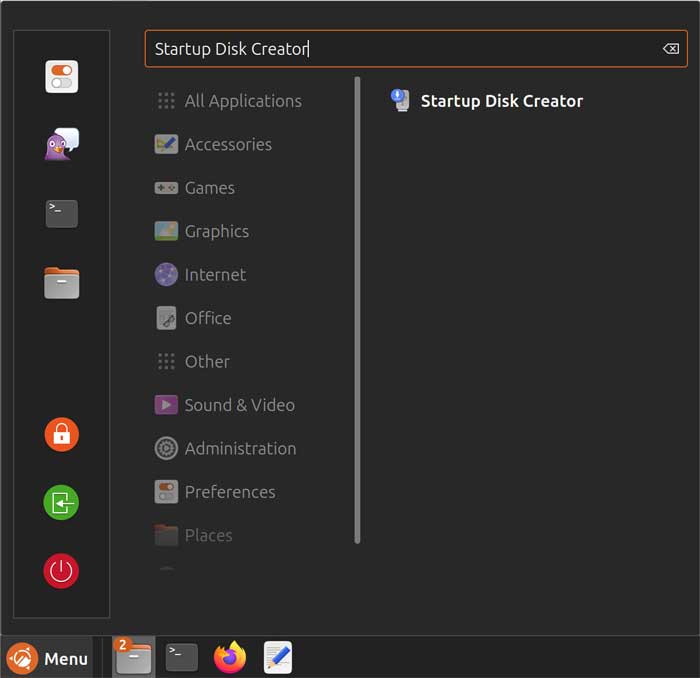
After Startup Disk Creator is installed, you can run it from the command prompt by typing usb-creator-gtk or find it with your other apps.
To use Startup Disk Creator, simply browse to the location of your Linux ISO file on your hard drive by clicking the Other button. There may be a chance that the app finds it for you and populates this section so make sure it’s the ISO image you want to use if you have more than one on your drive.
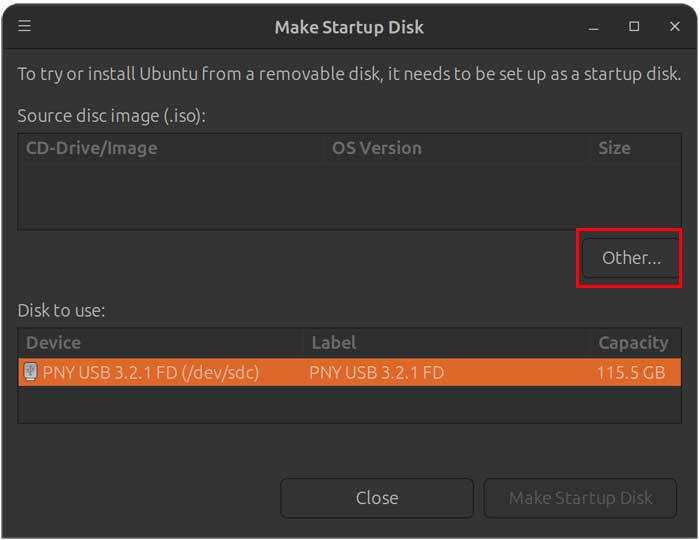
Once you have selected the Linux ISO file, make sure that you have your flash drive selected in the Disk to use section. If you have more than one flash drive, be sure to choose the correct one because the flash drive will be wiped during the process.
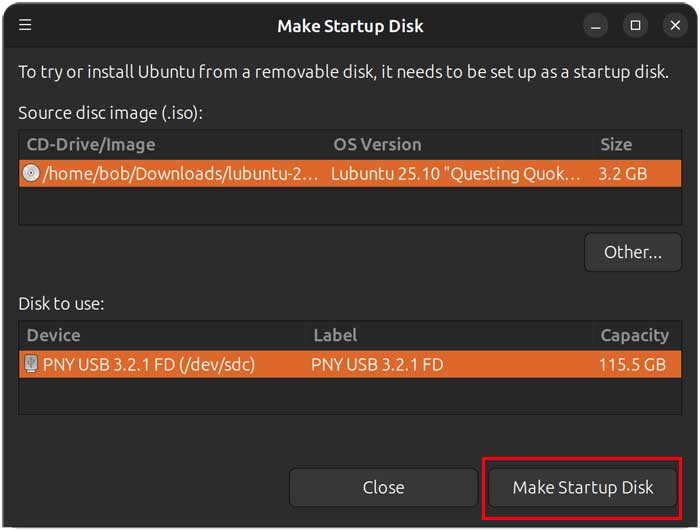
Now you can click the Make Startup Disk button to begin the process. You will then see a message saying “Are you sure you want to write the disk image to the device? All existing data will be lost.” You will then need to click the Yes button to continue. You will once again need to enter your administrative password.
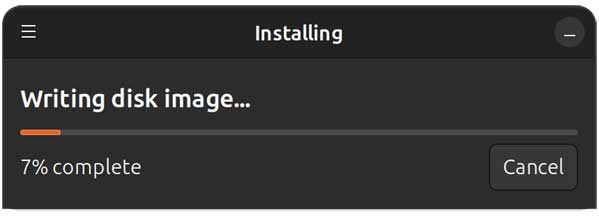
Now the disk writing process will begin, and it will take several minutes depending on the speed of your USB connection and the size of the ISO image you are writing.
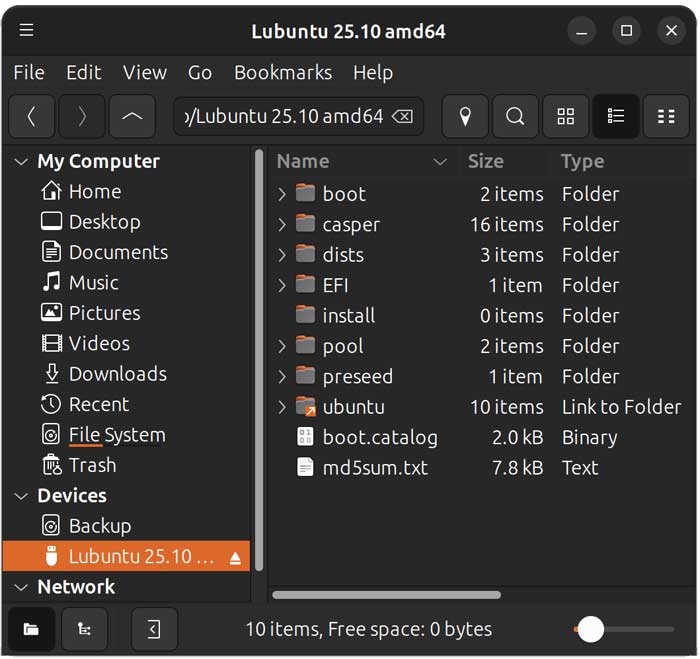
Once the process is complete, you can look at your flash drive and see the Linux installation files. Then you can configure your computer to boot from the USB drive and install Linux as needed.
For additional training resources, check out our online IT training courses.
Check out our extensive IT book series.