Last Updated on September 13, 2026
If you are a Microsoft Windows user or use any operating system for that matter, you are most likely using shortcuts that point to applications, folders and even files. Knowing how to manage your files and folders is an essential part of becoming a proficient Windows user.
Another common thing that people like to do is create bookmarks or favorites for their most commonly used websites. This makes it easy to access these websites with a click of the mouse, rather than having to search for them or type their URL in the address bar of your web browser. But what if you can combine shortcuts with bookmarks? In this article, we will be showing you how to create shortcuts to websites on your taskbar, desktop or start menu in Windows.
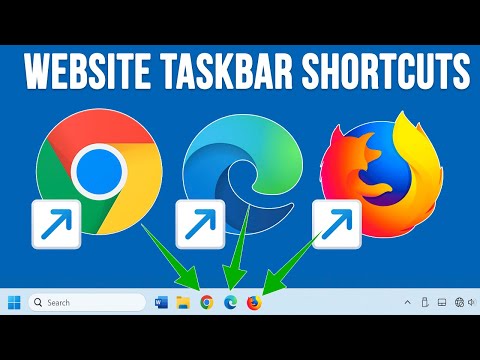
When it comes to creating shortcuts for apps, folders or files, the process is pretty straightforward. But the process of creating shortcuts for websites is a little different. And how it is done depends on the web browser you are using.
Create a Website Desktop Shortcut Using Any Browser
If you want to create a desktop shortcut to a website, then this is an easy process to and should work the same for any web browser.
1. Locate the Website Icon
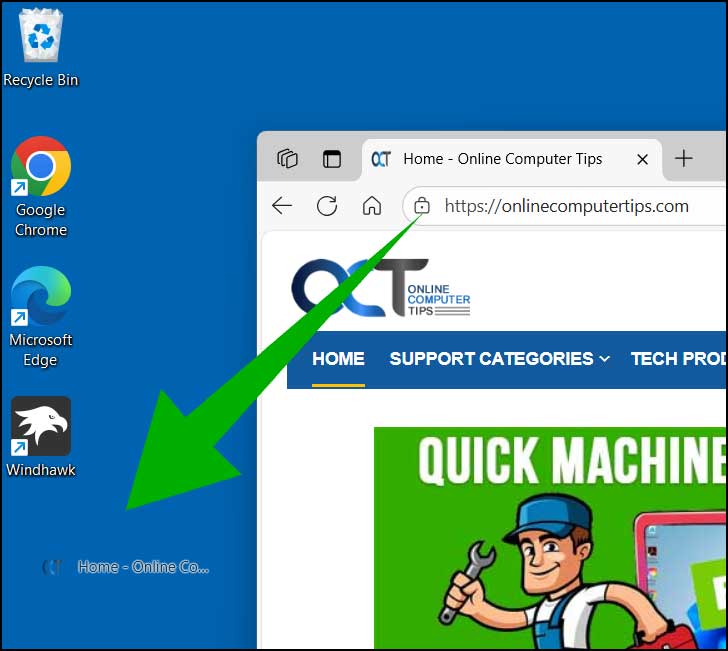
To create the desktop shortcut, simply open the website you want to create the shortcut for. Look for the icon to the left of the website address in the address bar (URL). This icon may look like a padlock or something completely different depending on your browser.
2. Drag the Icon to the Desktop
Next, partially minimize your browser so you can clearly see the web page and your computer desktop at the same time. Then simply click on the icon, drag it directly to your desktop, and release the mouse button.
3. Verify the New Shortcut
You will then have a functional desktop shortcut for that specific website. It will automatically be named after the site itself. You can rename this shortcut to any name you like just like a standard file.

4. Change the Shortcut Icon
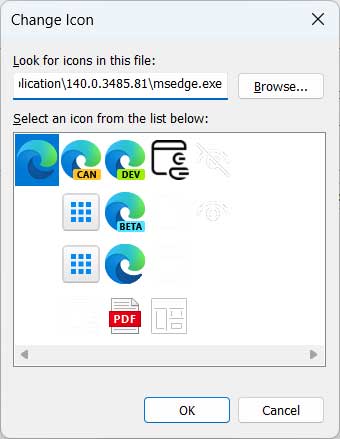
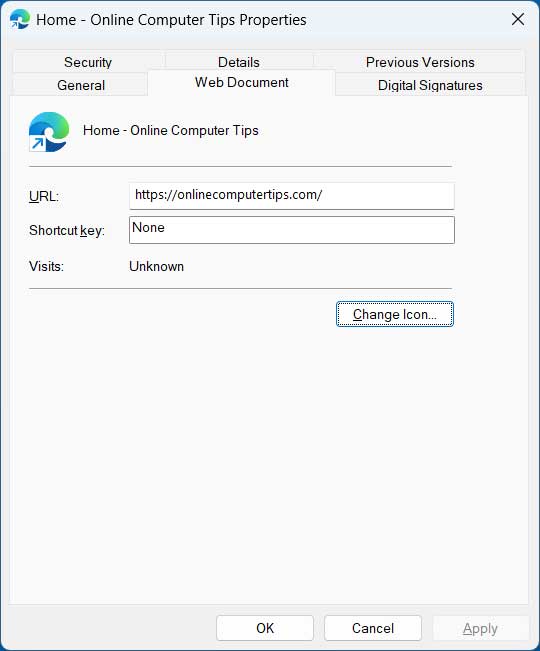
If you were to right-click the shortcut and choose Properties, you can then click the Change Icon button to change the visual icon for your shortcut. You can browse your computer for a supported icon image file or even download one that you like online.
5. Understand Taskbar Limitations
For most Windows shortcuts, you can simply drag them onto the taskbar to have them pinned there. You can also right-click and choose pin to taskbar or pin to start menu. Because this specific shortcut uses a URL rather than a local folder path, you cannot do this natively in Windows.
Create Website Taskbar and Start Menu Shortcuts in Microsoft Edge and Google Chrome
If you use Edge or Chrome for your main web browser, then they both have the option to create website shortcuts that you can then place on your taskbar or start menu. This process is a little different for each browser, but you can accomplish the exact same goal regardless.
1. Pin Sites in Microsoft Edge
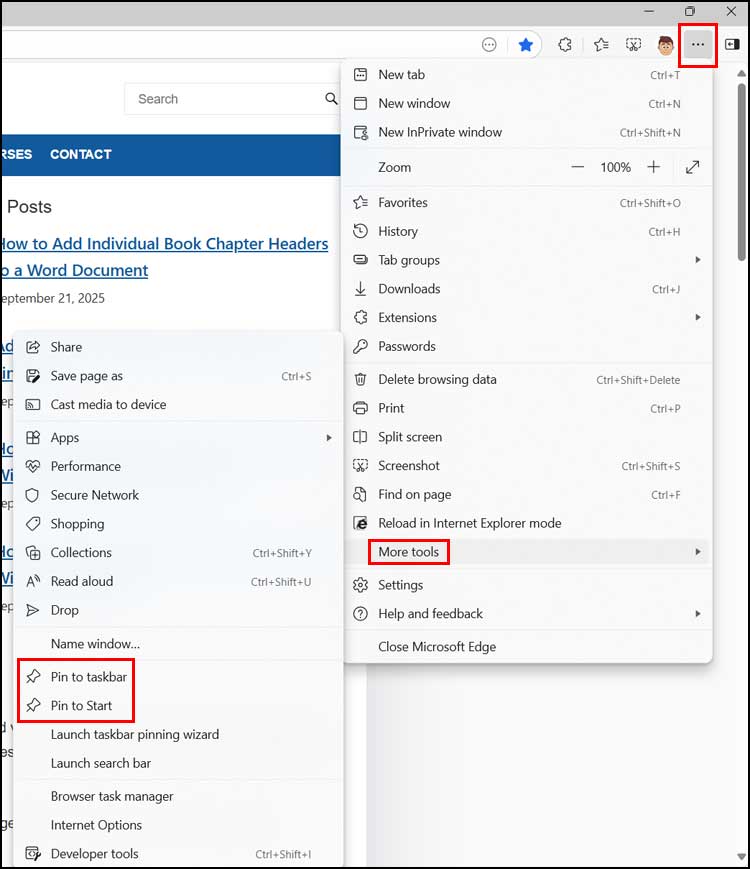
For Edge, simply have the website open you want to create the shortcut for. Click on the ellipsis (…) at the upper right of the window and choose More tools. Then choose either Pin to taskbar or Pin to start (or both if desired).
2. Create Shortcuts in Google Chrome
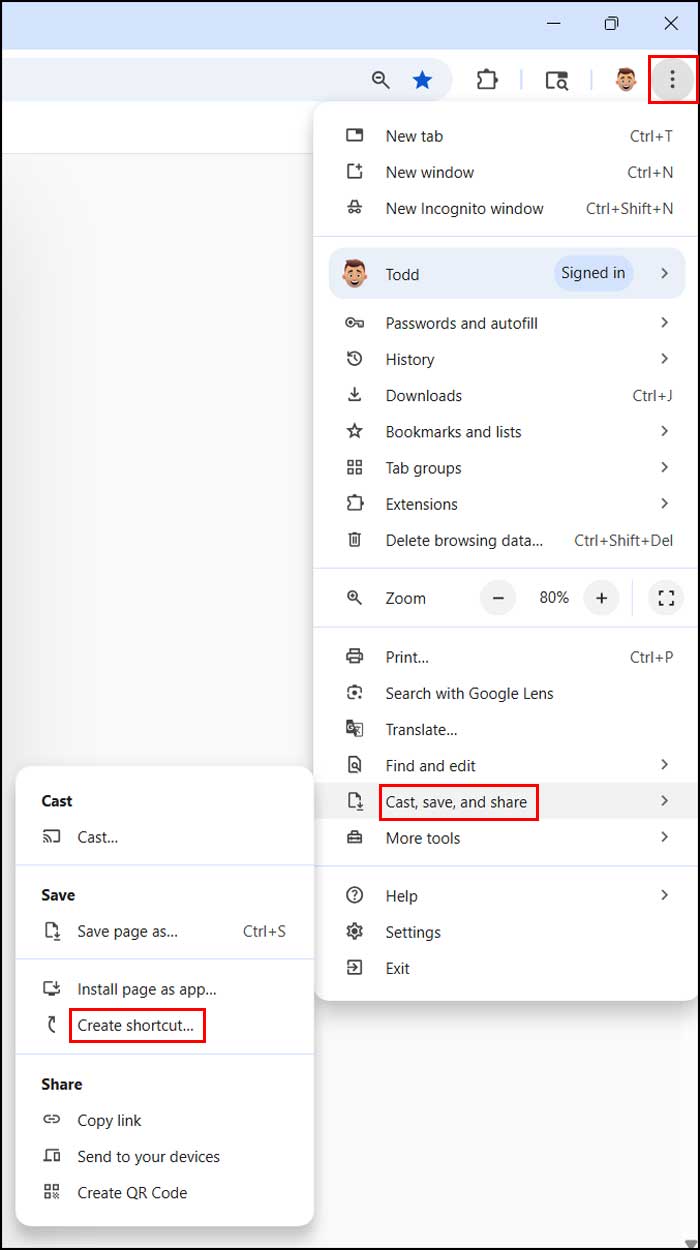
For Chrome, you will go to the three vertical dots at the upper right corner of your active browser window. Navigate to Cast, save and share and then choose Create shortcut.
3. Name Your Chrome Shortcut
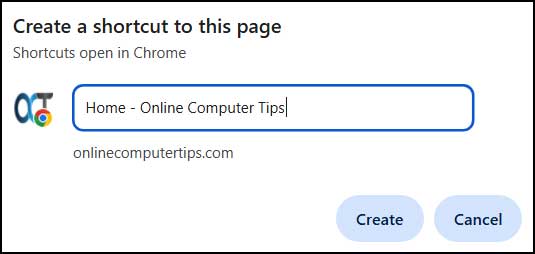
You will then be asked to give the new shortcut a specific name. You can also just go with the default name that it creates for you based on the website’s title tag.
4. Pin the Chrome Shortcut
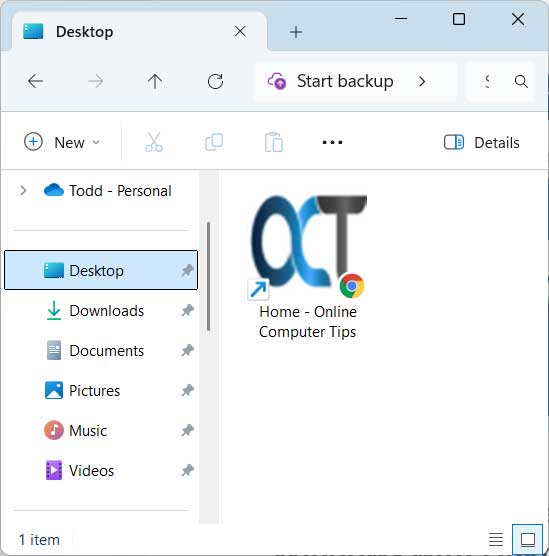
Chrome will then place a shortcut to that website on your desktop, but this will be a different type of shortcut than what we saw in the first process. This type of shortcut can actually be dragged to the taskbar unlike the other one. You can also right-click on it to get the Pin to taskbar or Pin to start menu options like a regular software shortcut.
Creating a Windows Web App Shortcut to Your Website
Both Edge and Chrome have the option to create an app for a specific website. That way you can open the website within the app in its own dedicated window, completely separate from your main browser.
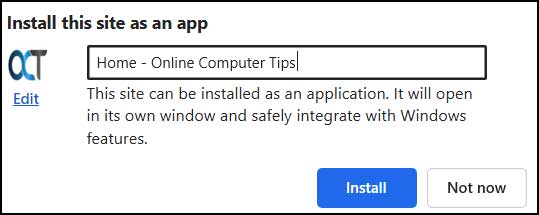
1. Install an App in Edge
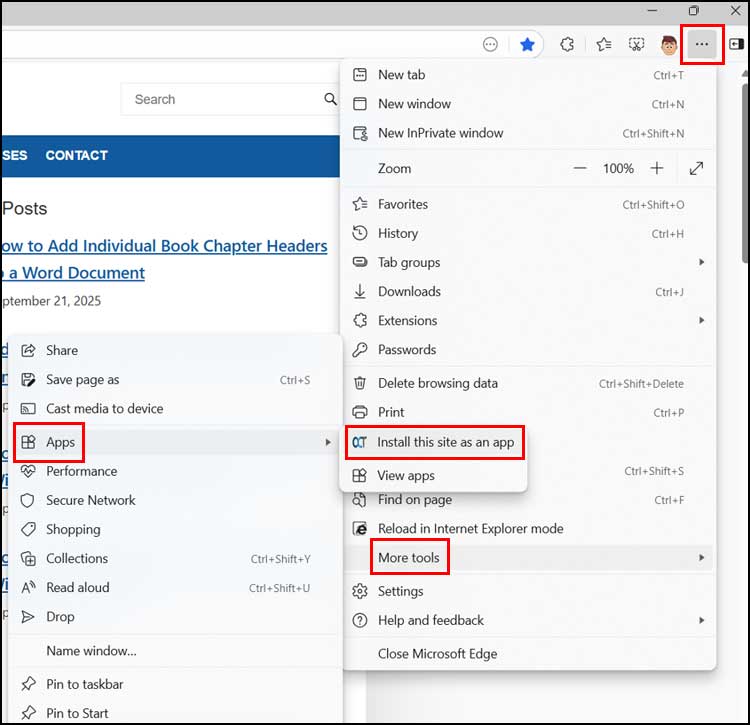
For Edge, go back to the ellipsis menu in the top right corner. Navigate to More tools > Apps and click on Install this site as an app.
2. Name the Edge App
You will then be prompted to give your new web app a name. You can also stick with the default title that Edge chooses for you based on the website name.
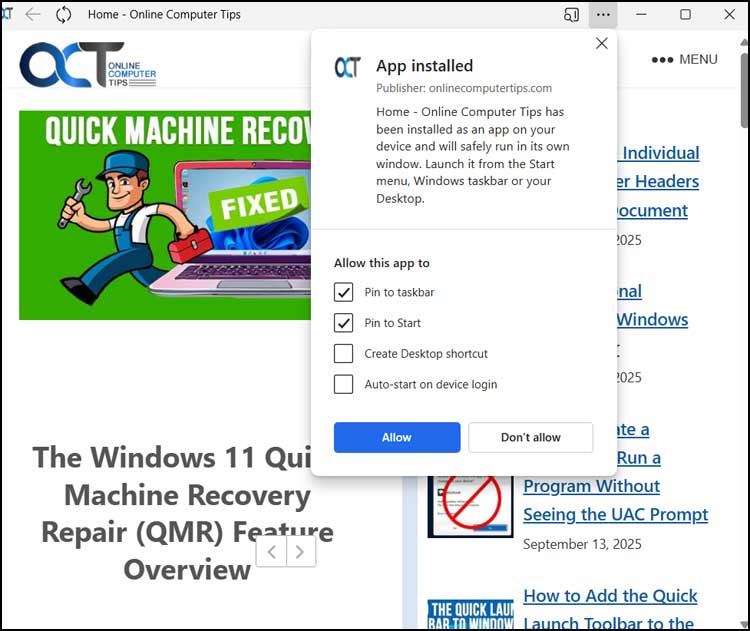
3. Place the Edge App Shortcuts
You should then be prompted to place a shortcut on the taskbar or start menu. You can even add a shortcut to the desktop and have the website app open automatically when you start your computer.
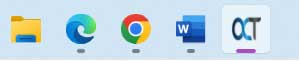
4. Verify the Pinned App
If you pin the app to your taskbar, you will then see it sitting alongside your other pinned apps. It functions exactly like a native Windows application.
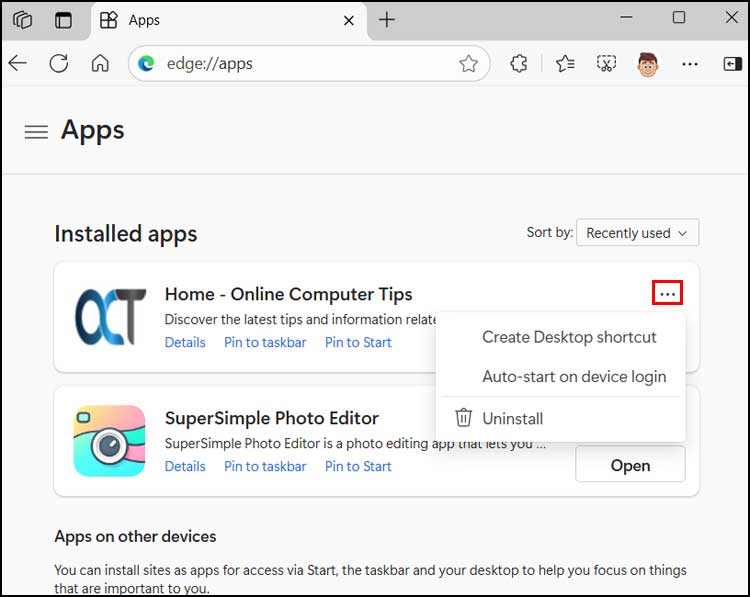
5. Manage Your Edge Apps
To manage your Edge apps, you can type edge://apps/ into your address bar. From this page, you can do things such as create desktop shortcuts, configure auto-start options, and even delete them entirely.
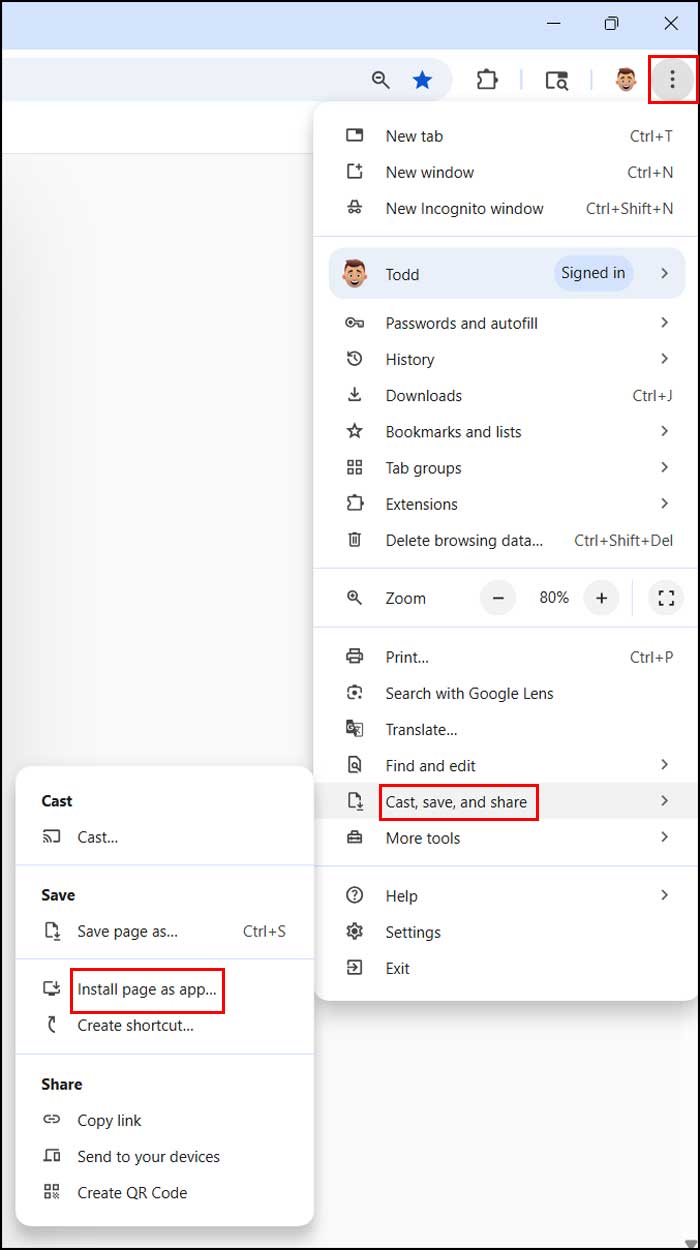
6. Install an App in Chrome
To create a website app in Chrome, go back to the three vertical dots in the top right corner. Navigate to Cast, save and share > Install page as app.
7. Name the Chrome App
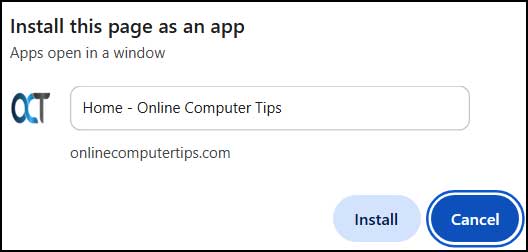
Once again, you will be prompted to give your new website app a name or stick with the suggested one. Click the Install button to confirm the creation.
8. Pin the Chrome App to the Taskbar
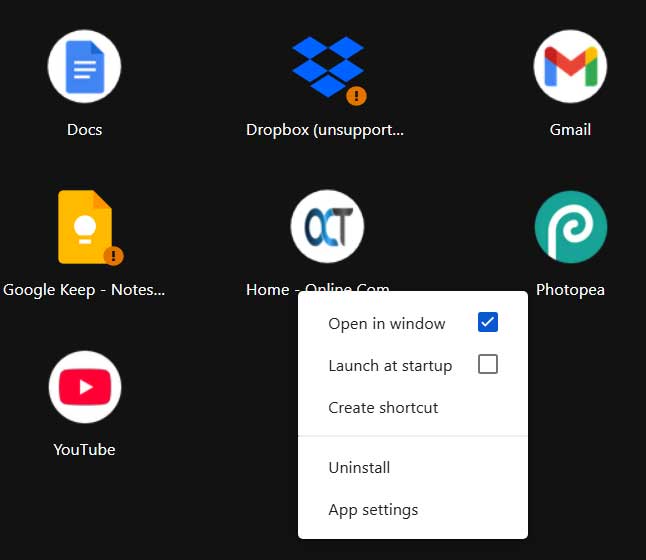
Then it will open up your new app in its own window, but this time it will not prompt you to pin it to the taskbar or start menu. You can right-click the icon on the taskbar while it’s open and then choose Pin to taskbar manually.
9. Manage Your Chrome Apps
You can go to the installed apps page in Chrome to manage your apps as well. Type chrome://apps/ into your address bar to view your active web applications.
10. Locate Chrome Apps in the Start Menu
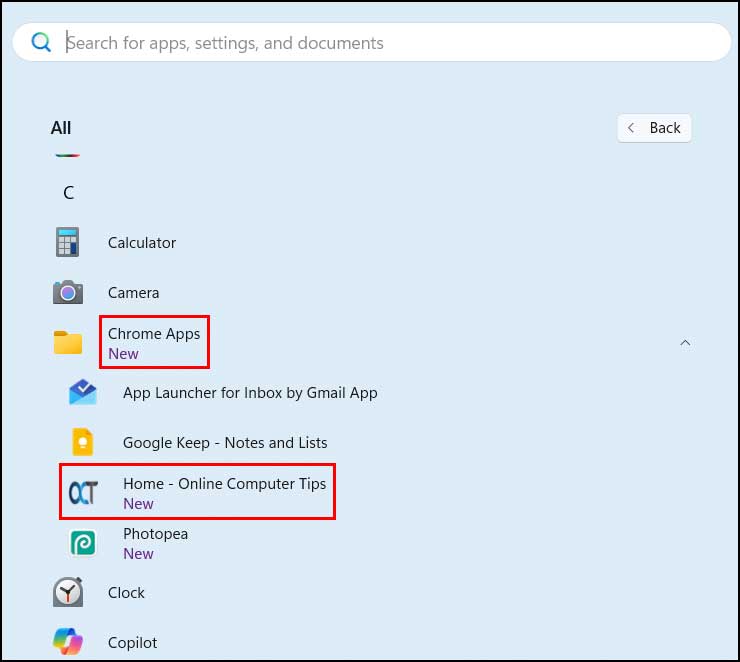
When you create a website app in Chrome, it will also be listed within your Windows start menu. You can find these shortcuts organized under the Chrome Apps folder.
It is also possible to pin documents and other files to the taskbar if needed.
For additional training resources, check out our online IT training courses.
Check out our extensive IT book series.