When it comes to installing operating systems such as Windows or Linux, man people prefer to do it themselves rather than using a preinstalled version of Windows that might be filled with bloatware. This is especially true if you are the type who likes to build their own computer.
If you are running Microsoft Windows and want to create a bootable Linux USB flash drive, there are several apps you can use to do so. For example, you can use Rufus or UNetbootin. But if you are looking to install one of the several different versions of Linux and want to have the image file downloaded and burned for you, you can use the Fedora Media Writer to create Linux bootable flash drives in Windows.
The unique thing about the Fedora Media Writer tool, is that it can download multiple Fedora Linux images and can also be used to create bootable flash drives for other distributions of Linux. Plus, you can also use the Fedora Media Writer in Linux itself.

The first thing you will need to do is download and install the Fedora Media Writer app itself. The best place to get it is the GitHub website. You will want to download the .exe version for Windows.
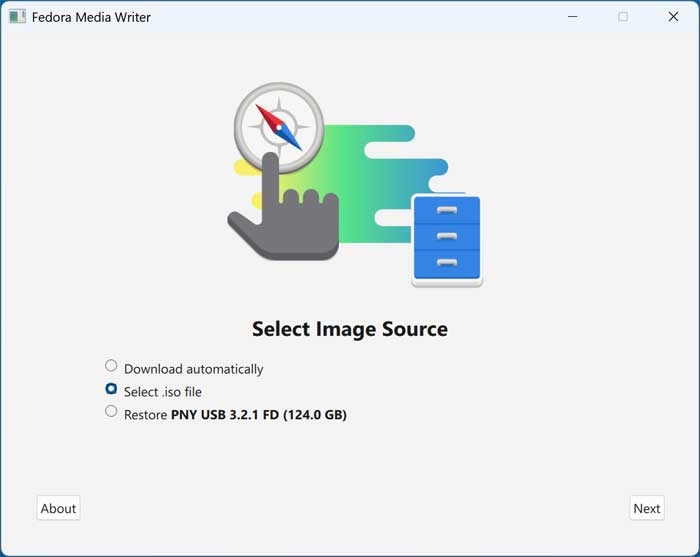
Once you run the Fedora Media Writer tool, you will have the option to download and write one of the Fedora distributions or select an ISO file that you have downloaded yourself. The restore option is used to revert your flash drive back to a useable state after you are done with it if you no longer need to use it to install Linux. You will not have this option the first time you use it.
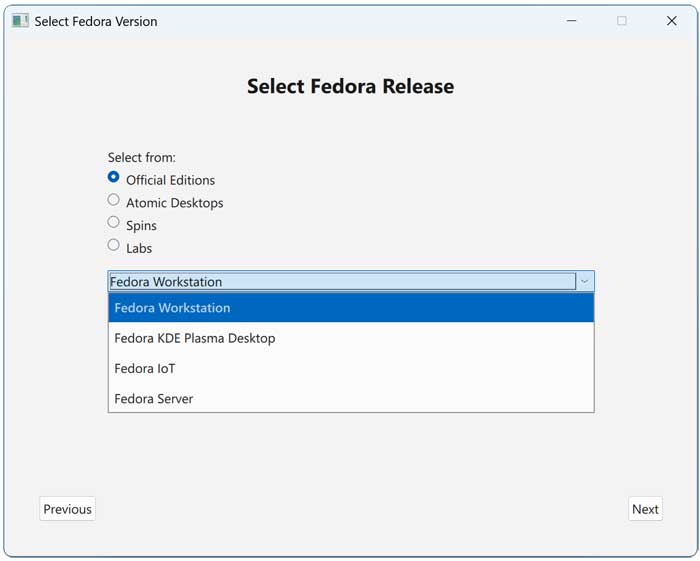
The image below shows the screen you will see if you choose the download automatically option. As you can see, you have options for official Fedora editions as well as Atomic Desktop, Spins and Lab editions.
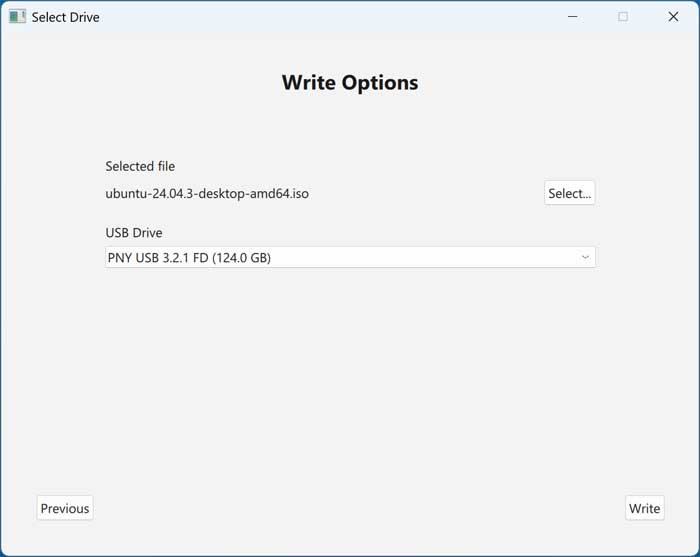
We will be using the select .iso option and browse to the location of our Ubuntu ISO image file we have downloaded on our computer. If you have more than one flash drive on your computer, make sure you select the correct one to avoid losing any data.
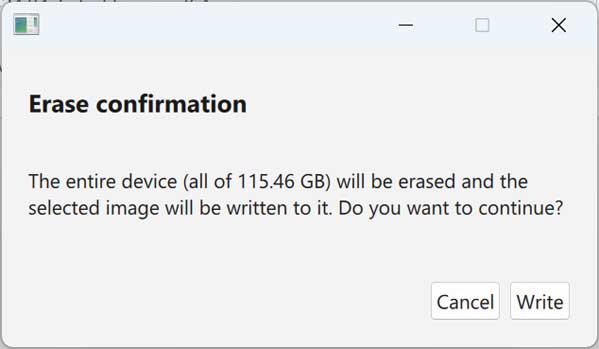
You will then be informed that everything on the flash drive will be erased and you can click the Write button proceed.
The write process will take several minutes to complete.
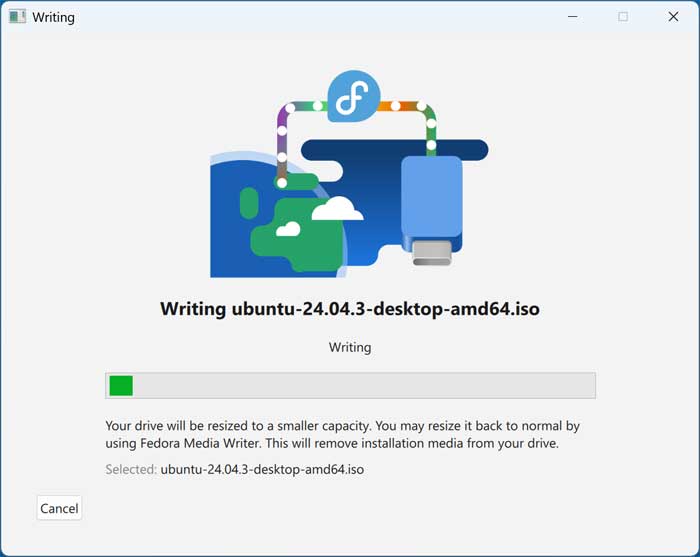
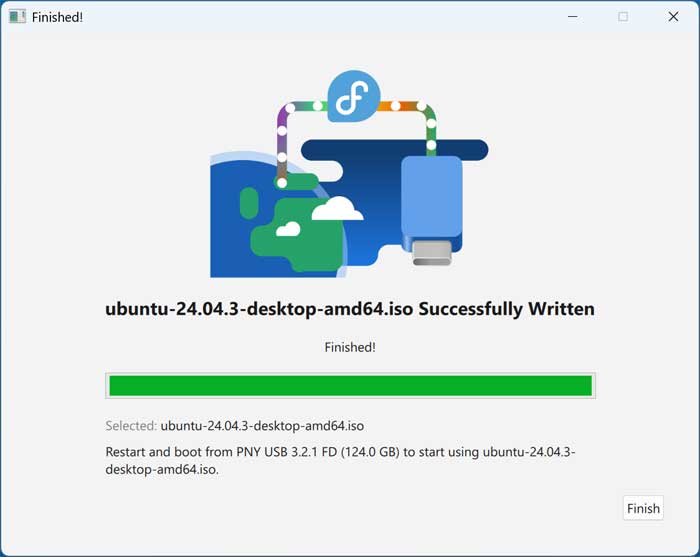
You will then be shown a message that your image file has successfully been written.
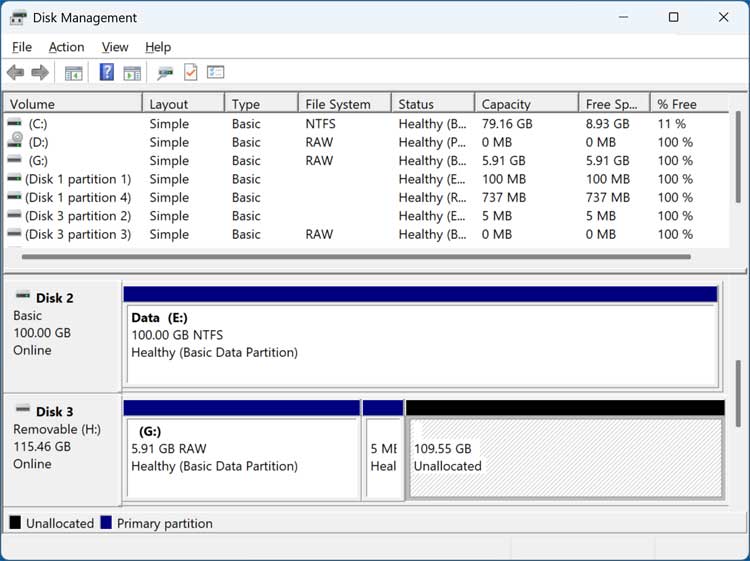
If you were to look at the flash drive in the Windows Disk Management tool, you would see a RAW partition with the data as well as some unallocated space. You will not be able to view the contents of the drive in Windows itself.
You can then boot your computer with your new flash drive and install Linux.
For additional training resources, check out our online IT training courses.
Check out our extensive IT book series.