Everyone at some point or another has deleted a file or files that they didn’t mean to delete. Most of the time you can just go to the Recycle Bin and restore your file from there. But what if you emptied the Recycle Bin or used Shift+Del to bypass the Recycle Bin? Normally you would be out of luck unless you had a third party program such as Recuva to help you out of your jam.
Recuva is a free utility from the makers of the popular Ccleaner PC cleaning software. It can be used to recover deleted files and email from hard drives and other media such as flash drives and even iPods. You can have it search specific drives and folders or only search for certain types of files etc. It will also search your computer for files you deleted from the Recycle Bin. Even if you have formatted your hard drive Recuva still may be able to restore lost files.

When you run Recuva it automatically starts in the Wizard mode unless you tell it not to. Here you can choose what types of files you want to have it search for or choose Other to search all types of files.
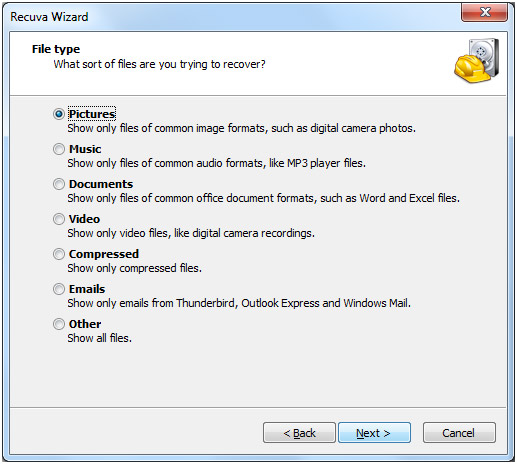
Then you can tell it where to search or choose I’m not sure to have it search all your drives and folders.
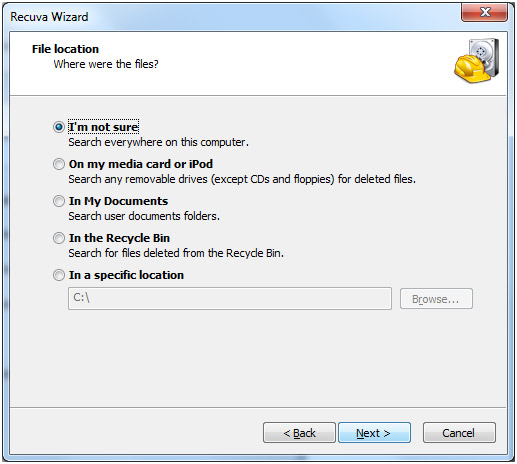
There will be an option to run the Deep Scan if previous attempts have failed to find your file. Keep in mind that this can take a very long time to run.

After the scan is complete it will display the results displayed by filename, path (location), date modified and so on. The colored circles tell the state of the file with green being excellent, yellow being poor and red being unrecoverable.
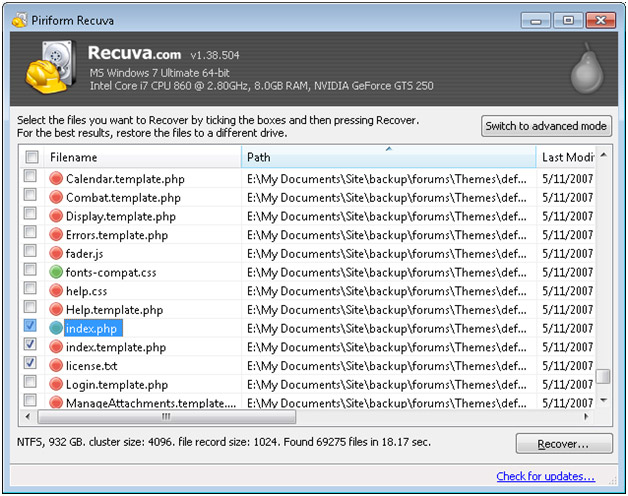
If you see the file or files you want simply check the boxes next to the file and click the Recover button.
If you don’t use the wizard then you will be able to manually choose what folders you want Recuva to search in.

One really nice feature of Recuva is the ablility to permanently delete files from your hard drive. This can come in handy if you have a secure file that you don’t want to be recovered after you delete it. To do this simply find the file in the list of deleted files, check the box or boxes, right click on one of them and choose Secure Overwrite Checked or Secure Overwrite Highlighted.

Overall, Recuva offers a simple yet powerful way to recover files that might otherwise feel permanently lost. Its clear wizard, detailed results, and flexible scanning options make it approachable for beginners while still useful for more advanced users. Whether you’re trying to undo an accidental deletion or ensure sensitive files are truly gone for good, Recuva gives you control over your data and a reliable safety net when mistakes happen.
Recuva can be downloaded for free here.
For additional training resources, check out our online IT training courses.
Check out our extensive IT book series.