Flash drives are commonly used today for a variety of purposes from sharing and transferring files to installing operating systems such as Windows and Linux. If you frequently use your flash drive, you may run into situation where you want to change the name to make it easier to differentiate between your other flash drives or even format it to wipe it and start new.
When trying to rename or format your USB flash drive, you may run into issues doing so such as getting errors saying the drive is write protected and so on. In this article, we will be discussing fixes for not being able to rename or format your USB flash drive.

Let’s say you wanted to rename your flash drive. There are several ways to do so with the easiest being simply right clicking on it and choosing rename. You can also rename it from the Windows Disk Management tool or even from the command line. If you are trying to rename your Windows drive, you will need to right click it and choose Properties or do it from Disk Management.
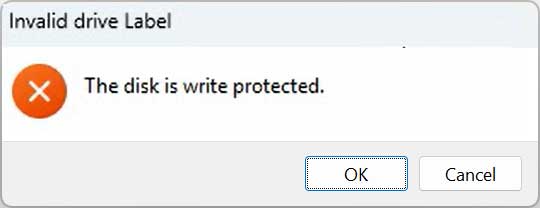
One thing you may encounter when trying to rename your flash drive is receiving an error that says Invalid drive label. The disk is write protected.
So maybe you decide to format the drive thinking that will fix things and then you can rename the drive during the formatting process. Of course, this will wipe any data that is on the flash drive so you need to take that into account. Once you right click the flash drive and choose Format, you can then change the volume label (name) for the flash drive.
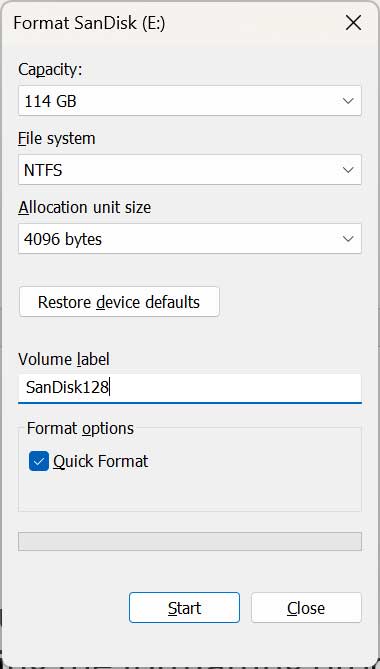
Then you can click on the Start button to begin the formatting process and everything appears to be working as it should.
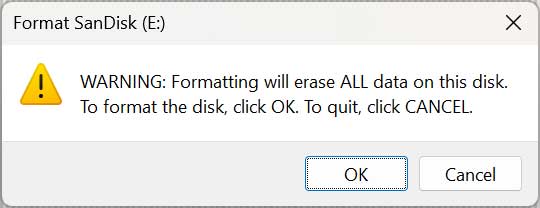
Then all the sudden you get an error message that says The disk is write protected once again.
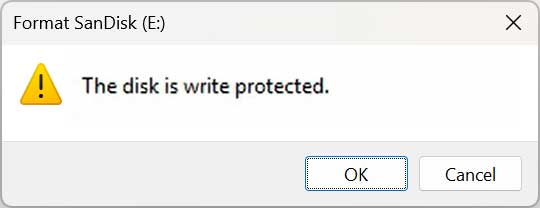
One thing you can check to try and fix this issue is to look for a specific registry key that can be preventing you from renaming or formatting your USB flash drive. If you type regedit in the taskbar search box and open the Windows Registry Editor, you can then navigate to the key below. You can also copy and paste it into the registry editor address bar.
HKEY_LOCAL_MACHINE\SYSTEM\CurrentControlSet\Control\StorageDevicePolicies
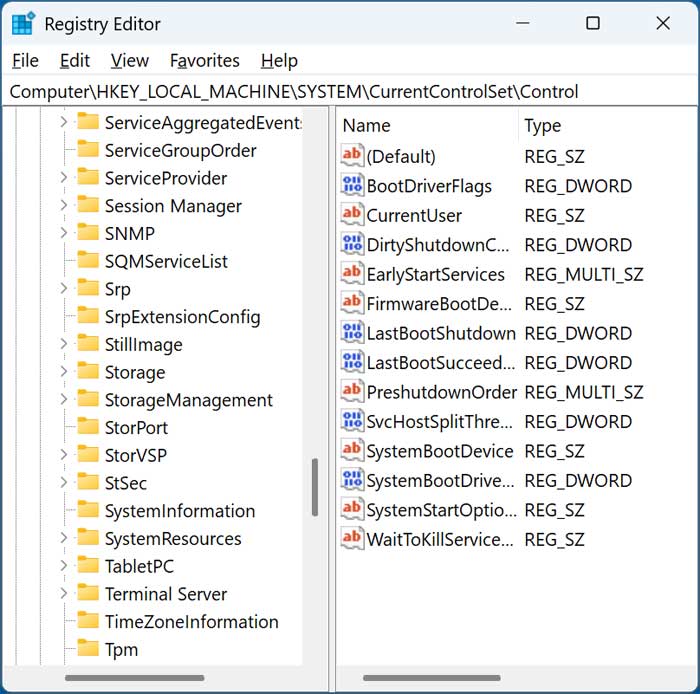
You will then need to see if you even have the StorageDevicePolicies key under the Control key. If not, then this will not apply to your situation. If you do have the StorageDevicePolicies key, then you will want to look for a DWORD value called WriteProtect and set it to 0 if it is set to 1. You can change this by double clicking the DWORD value and changing it that way.
The next method you can use to fix this issue is to use the Windows DiskPart command and try and clear the read only attribute on the flash drive. This will allow you to write to the flash drive and still keep any existing data you might have on it. DiskPart is a tool that is used to manage and configure hard drives via the command line.
To run the DiskPart command, you will need to open a command prompt as administrator and then type diskpart to get to the DiskPart prompt.
Then you will need to type list disk to view the drives on your computer. You will need to find the disk number that matches your flash drive which should be easy to do based on its size. Then you can type select disk X but replace X with the number that corresponds to your flash drive. Finally, you can type attributes disk clear readonly to remove the read only attribute for your drive and then exit to exit the DiskPart prompt.
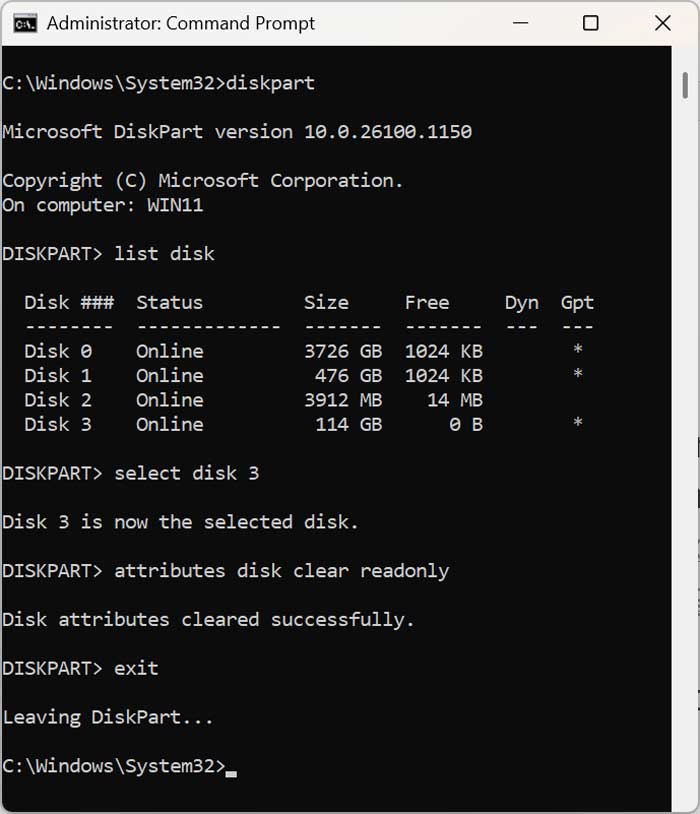
You can then try to rename or format your flash drive once again. If you still cannot do so, you can then use the clean command in DiskPart to completely wipe the drive. Just keep in mind that this will erase any data contained on the drive. The process is the same as before but instead of using the attributes disk clear readonly command, you will use clean.
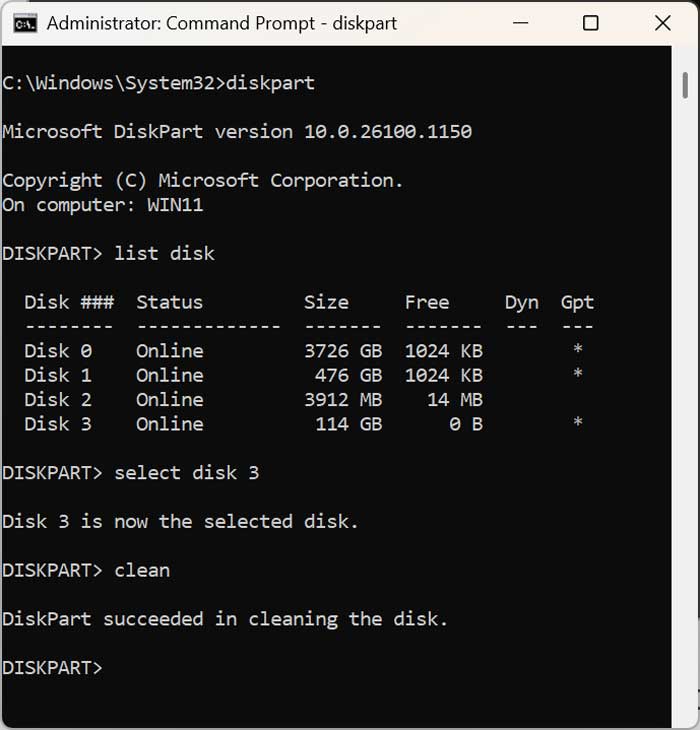
Once the clean process is complete, you will then need to go into Disk Management and find the flash drive. You will see that it will be there with no partitions or volumes assigned to it and will be listed as having unallocated space.
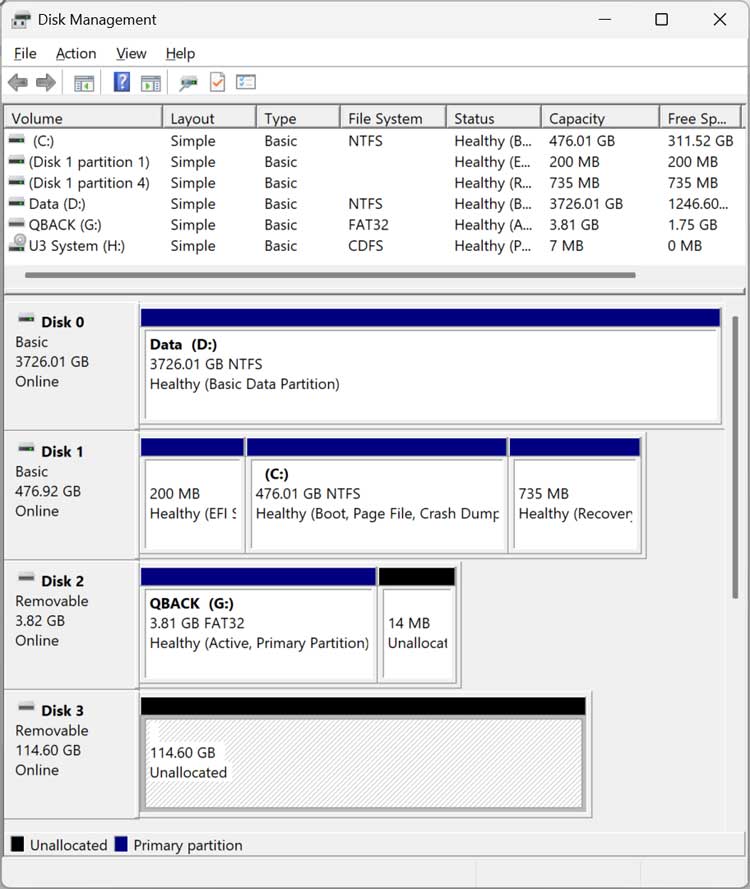
You can then right click in the unallocated section and choose New simple volume and go through the wizard to create a volume and give it a name of your choice. If you leave the default choice for Specify a volume size, it will use all the available space on the flash drive. It will also assign the flash drive the next available drive letter, but you can choose a different one if you like.
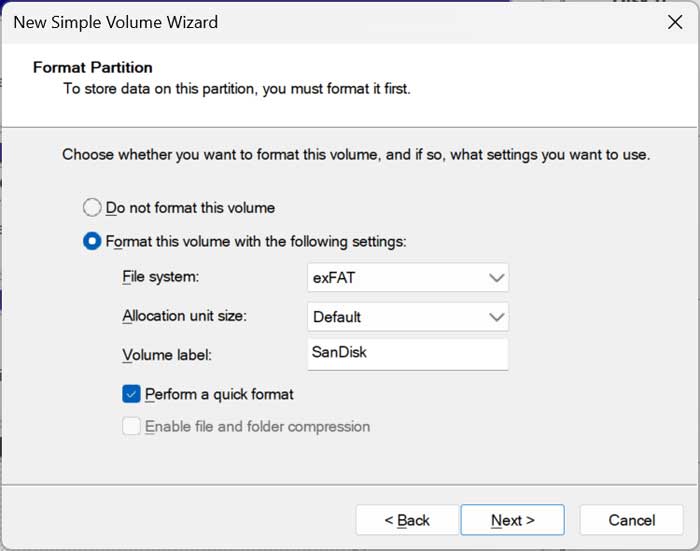
At the Format Partition screen, you can then choose a file system and also give your flash drive a new name if you do not want to use the default name of New volume. The Perform a quick format option should be sufficient to use to format the drive.
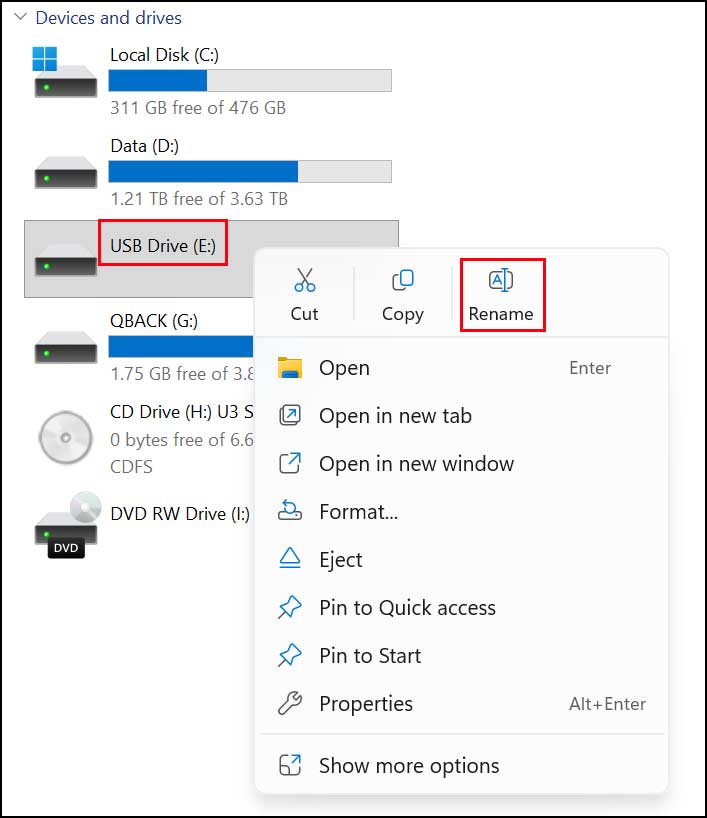
Even after doing this, you may find that the name you assigned to your flash drive did not apply. If that is the case, you can simply right click it in File Explorer and choose Rename.
For additional training resources, check out our online IT training courses.
Check out our extensive IT book series.