Last Updated on October 17, 2026
There are many desktop virtualization programs you can use on your home computer or even in the office, and most of them do a good job at allowing you to easily create virtual machines for things such as testing security patches or learning a new operating system.
One of the best virtualization platforms you can use on your desktop PC is VMware Workstation. This is a powerful app that has some advanced features such as snapshots, cloning, encryption and advanced networking capabilities. VMware Workstation is now free to use and there are also other apps such as VirtualBox, VMware Player and Hyper-V that you can also use.
For most of your virtual machine network configuration, you will be using the default NAT setting. NAT (Network Address Translation) is a method used in networking to modify IP address information in packet headers while in transit, enabling multiple devices on a local network to share a single public IP address for accessing external networks.
Even when using NAT for your virtual network adapters, you may run across an issue where your virtual machine randomly loses its network connection. This frustrating bug halts your productivity immediately. You lose access to required online resources.
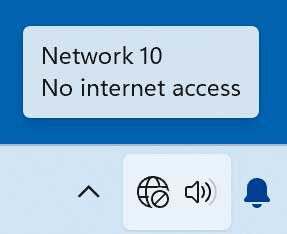
When this happens, you may also find that rebooting the virtual machine does not restore network connectivity for your VM. Neither will closing and reopening VMware Workstation. In this article, we will be showing you how to fix the VMware Workstation virtual machine disconnected network issue.
One way to restore network connectivity to your virtual machines is to reboot your host computer. That means you will need to shut down all your VMs and any other apps you may have open. This is not a practical approach for active workflows.
Restoring VMware Network Connectivity
1. Open the Windows Services Tool
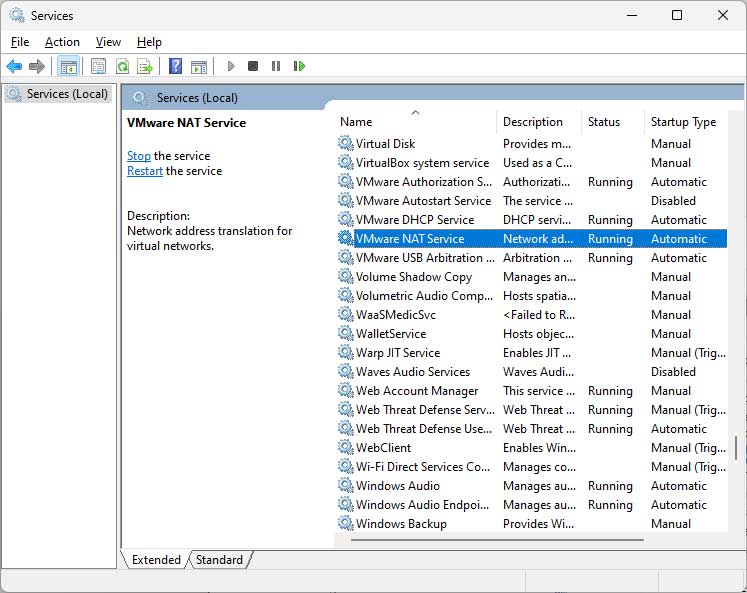
An easy way around rebooting your host computer is to restart the VMware NAT Service on the host computer itself. To do so, you can open the Services tool in Windows by searching for services.msc. You can also right click the Start button and choose Computer Management and find it there. Accessing this backend console gives you direct control over background processes.
2. Restart the VMware NAT Service
Once you have the services tool open, look for a service called VMware NAT Service. Select it and then click on Restart the service. You can also right click the service and choose Restart to accomplish the same thing. This forces the networking daemon to reload its configuration data.
3. Verify Your Network Connection
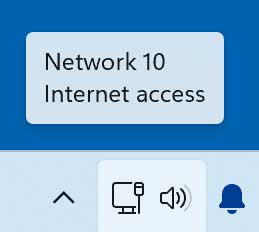
Restarting the VMware NAT Service should only take a few seconds to complete. Then your virtual machine should automatically reconnect to the network without any intervention on your part. As you can see, it is very easy to fix the VMware Workstation virtual machine disconnected network issue. Your browser will start loading web pages normally again.
For additional training resources, check out our online IT training courses.
Check out our extensive IT book series.