In today’s age of viruses, malware and security breaches you may want to be able to protect your Office documents from people who shouldn’t be looking at them. Many people keep confidential information in their files yet store them on file servers that are accessed by many other users. This is where password protection comes into play in Microsoft Office.
Password protection adds an extra layer of control that goes beyond basic file storage permissions. Even if a document is accidentally shared, copied, or accessed from a shared location, a password ensures that only authorized users can view or modify its contents. This is especially important when working with sensitive data such as financial information, internal reports, or personal records, where a simple mistake could otherwise lead to unintended exposure. By securing documents at the file level, you maintain ownership and privacy no matter where the file ends up.
If you need to keep prying eyes out of your important documents then Office has a feature that allows you to password protect your documents from being opened, being changed or both. Here we will show you how to set this up.

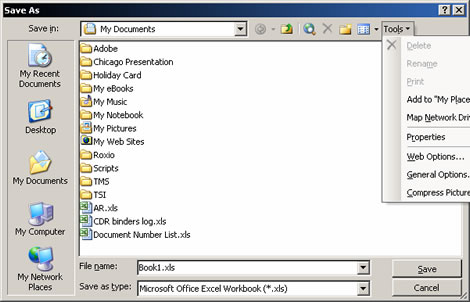
All you need to do is go to File, then Save As and then click on the Tools menu. You will see a General Options selection.
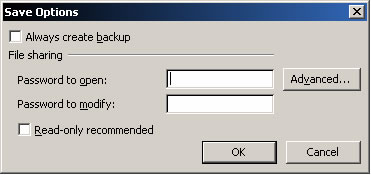
In the Save Options dialog box you will have options to assign a password to open or modify your document. There is also an option to make your document read only so no one can save over your original document.
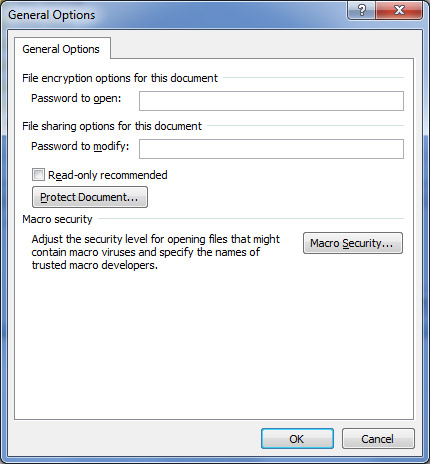
For newer versions of Office the password options box will look a little different but does basically the same thing and the Tools setting is in the lower right hand side of the Save As dialog box.
Using password protection in Microsoft Office is a simple yet effective way to safeguard sensitive information and maintain control over who can access or change your documents. By applying passwords at the file level, you add a reliable layer of security that remains in place regardless of where the document is stored or shared. With just a few built‑in options, Office allows you to prevent unauthorized viewing, limit edits, or protect original content, helping ensure your important files stay private and unchanged when they need to be.