Many people like to embed images within their emails so you don’t have to open them as an attachment or to make it easier to get their message across. This is assuming you use HTML format for your email messages which most people and most email clients use by default. Sometimes allowing pictures to be displayed within your email can be a security risk but if you are careful about who you open emails from then you should be ok.
Embedded images can make emails more engaging and help convey information more clearly than text alone. Logos, screenshots, and visual examples are often used to reinforce a message or provide context at a glance. While images add value, email programs balance convenience with safety by limiting what is automatically displayed, helping protect users from potentially harmful or misleading content.
You may have noticed that when you open an e-mail in outlook you get a little red x where a picture should be. This is because the default setting in Outlook blocks images from being downloaded into your e-mail.
Outlook blocks images by default to prevent external content from loading without your consent, which can also help reduce tracking and unwanted data downloads. Although this behavior may seem inconvenient at first, it gives users control over what content is allowed into their inbox. Once you understand why images are blocked, adjusting the settings becomes a simple way to tailor Outlook’s behavior to your comfort level and email habits.
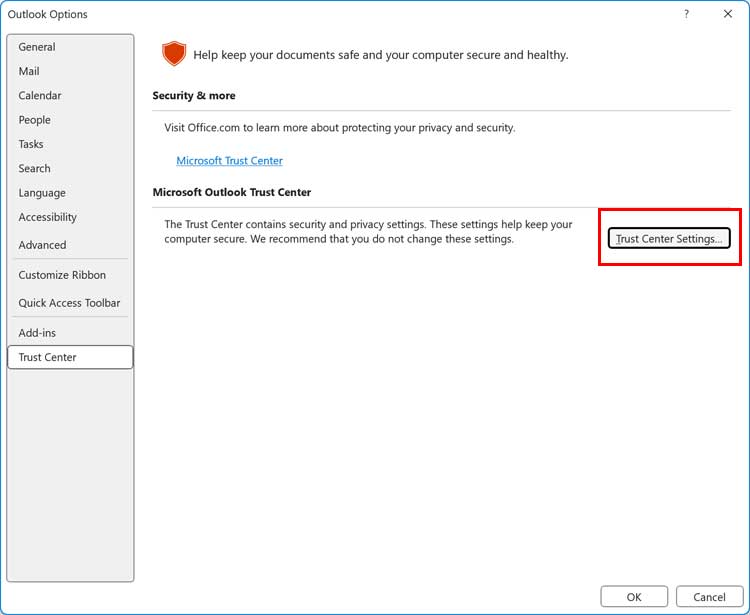
To allow images to be downloaded with your e-mail do the following. Go to the File menu and then to Options and then Trust Center. From there, click on the Trust Center Settings button.
As you can see there are a few different options you can change from here such as:
- Don’t download pictures at all
- Don’t download pictures in encrypted or signed HTML email messages
- Permit downloads from safe senders
- Permit downloads from websites in the trusted zone
- Permit downloads in SharePoint discussion boards
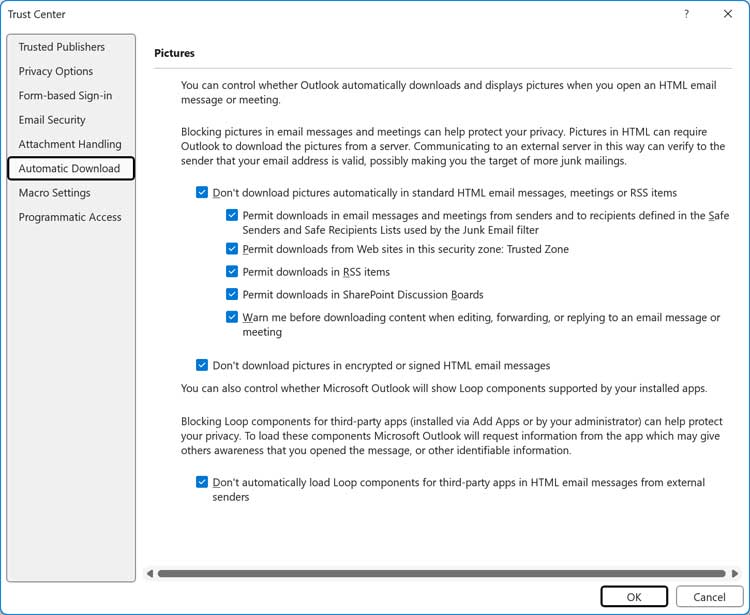
Now you should be able to see embedded pictures within your email.