Almost everyone who has a computer and Internet access has an email account whether it is at home or at work. And I’m sure you have seen those emails come in from other people with the fancy backgrounds or font colors etc. Many email programs allow you to customize the way your emails are displayed in regards to fonts, colors and backgrounds.
Customizing the appearance of email messages allows people to add a personal or professional touch to everyday communication. Whether it’s a subtle font choice or a consistent color scheme, these visual elements can help messages stand out and feel more intentional. For business users, this can reinforce branding and create a polished look, while personal users may enjoy expressing their style or making longer messages easier to read. When used thoughtfully, formatting can enhance clarity without distracting from the message itself.
If you are an Outlook user then you can your own style to your outgoing email messages with just a few clicks. These steps may vary depending on your version of Outlook but you should be able to figure out from these instructions.
Outlook makes this process relatively straightforward by grouping formatting options into a single area where users can define how their emails should look by default. Instead of changing fonts or colors every time you write a message, you can set preferences once and let Outlook handle the rest automatically. This not only saves time but also ensures consistency across all outgoing messages, whether you’re sending a quick reply or composing a detailed email.
The first step is to open Outlook and go to the Tools menu and click Options. Then go to the Mail Format tab and click on the Stationary and Fonts button and then the Personal Stationary tab.
Now here is where you can start customizing your settings.
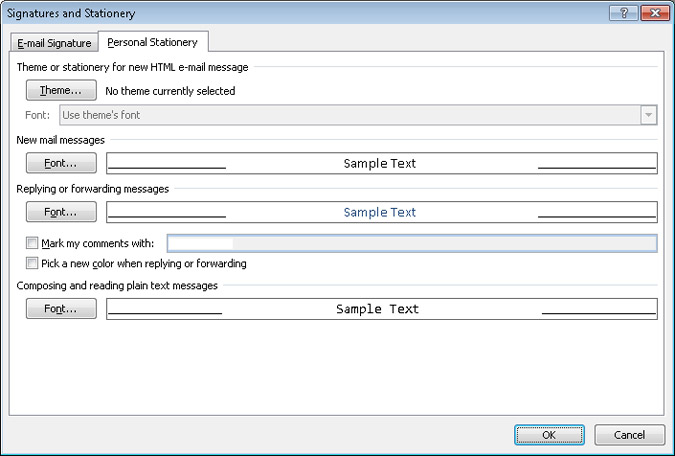
If you click on the Theme button you will be presented with quite a few custom themes you can apply to your email. You can scroll down the list to see examples of the themes by name until you find one you like.
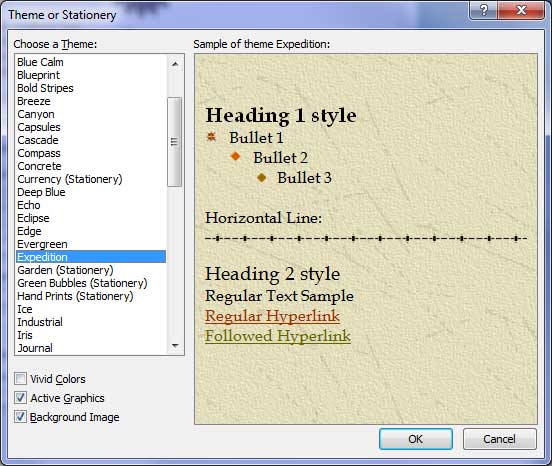
You can toggle theme features on and off such as using vivid colors, active graphics and a background image by checking or unchecking the appropriate box. Vivid colors increases the range of colors used in your theme. Active graphics determines what graphics are shown in the theme. Background image will remove the background image from the theme but not the background color.
You will also notice that some of the options are labeled Stationary. These are just background images with no extra text or graphics effects. Think of them kind of like a desktop wallpaper image but only for your email message.
Once you choose your theme then you will click on OK and return to the Personal Stationary tab. You will notice that under the Theme button there is a font section that may say use theme’s font. This option can be changed to use my font when replying or forwarding messages or always use my fonts depending on your preference. Depending on which option you choose will activate the other Font buttons under New mail messages and Replying or forwarding messages so you can customize the fonts in regards to typestyle and colors.
Once you are satisfied with your choices for your theme and fonts you can click the OK button and start sending emails with your new themes.