Cloning hard drives is a fairly common practice these days. It’s an effective way to copy all your data including Windows (or other OS), programs and files to a new drive without reinstalling everything and restoring your personal files from a backup. It’s also a great way to upgrade to a larger or faster hard drive or replace a failing one before it dies or if you have built your own computer and want to migrate your data.
There are various ways to clone a disk. You can do a partition clone, disk clone or operating system clone. The OS clone method is a way to transfer your OS such as Windows to a new drive and have it be bootable. Depending on the disk cloning software you are using, you can sometimes do it from within Windows itself or you may have to start your computer with a boot disk and do it offline.

You may run into a situation where you have a hard drive with a copy of Windows on it that was removed from another computer that you want to clone to a larger or faster drive. But rather than install it in another computer and try to make it boot up with different hardware, you may want to clone it as a secondary drive instead. In this article, we will be showing you how to clone an attached secondary Windows drive from another PC to a new hard drive.
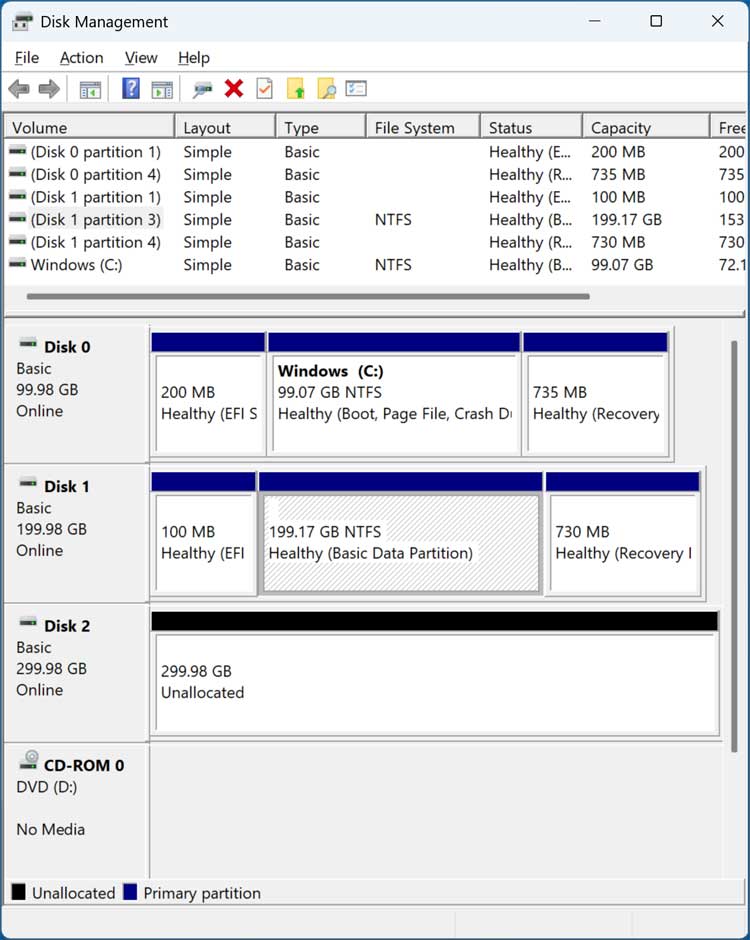
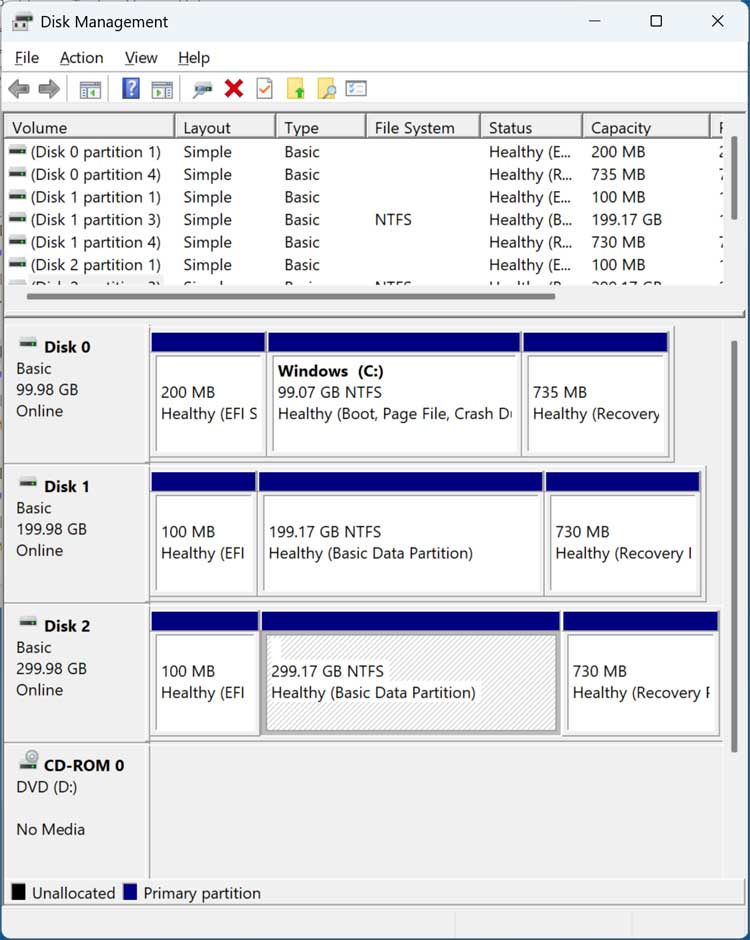
The image below shows the Windows Disk Management tool and as you can see Disk 0 is the Windows drive that is running on the computer now. Disk 1 is the secondary Windows drive that was taken from another computer. Disk 2 is the new drive that we will be cloning Disk 1 onto. So, we will be cloning a secondary 200 GB Windows drive to a new blank 300 GB drive.
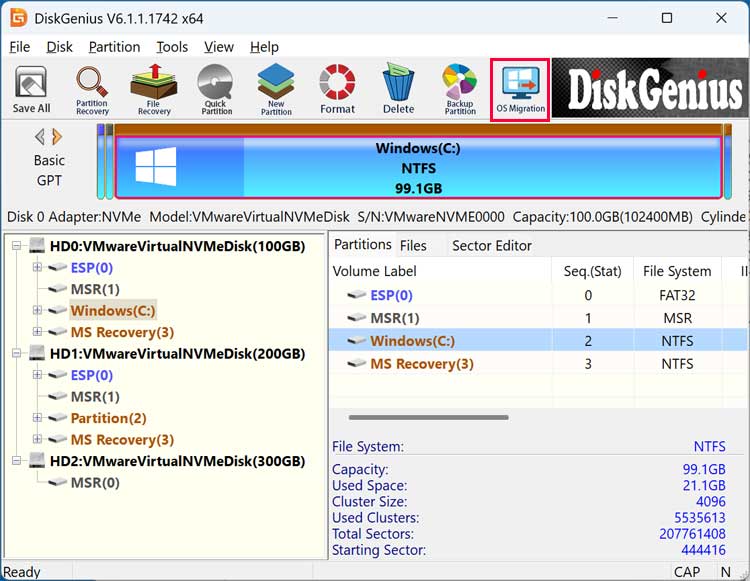
To clone this secondary Windows drive, we will be using a free disk cloning app called DiskGenius that can be downloaded from their website here.
Once you install DiskGenius, you can open the app and click on the OS Migration button to begin the cloning process.
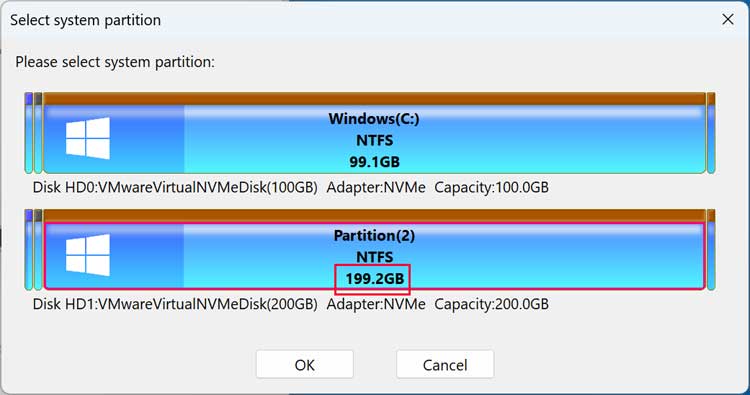
You will then be asked to specify the source Windows drive. DiskGenius will assume you want to clone the Windows drive that has the running copy of Windows on it so you need to make sure you choose the secondary Windows drive.
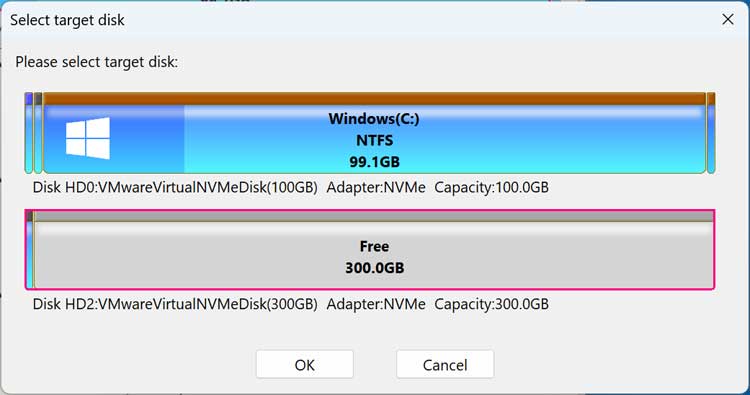
Then you will need to select the destination or target disk. For our example, this will be the blank 300 GB drive.
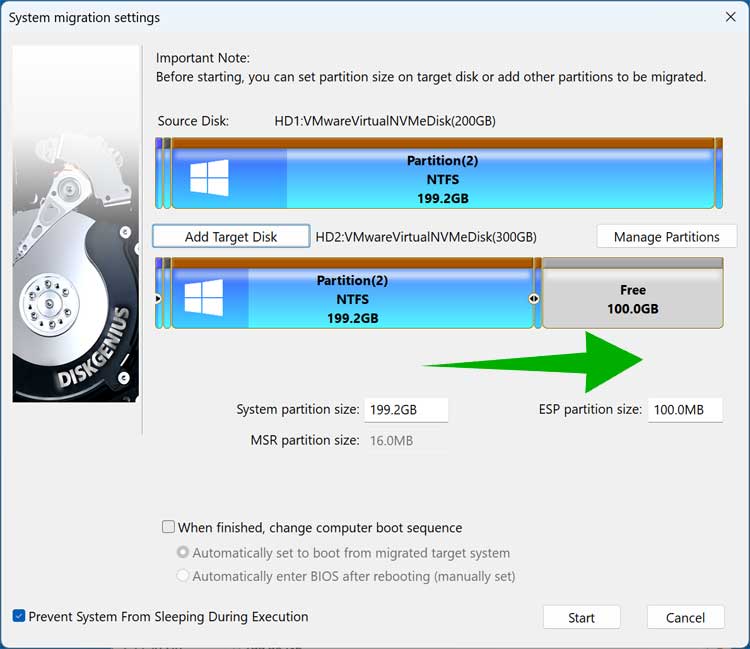
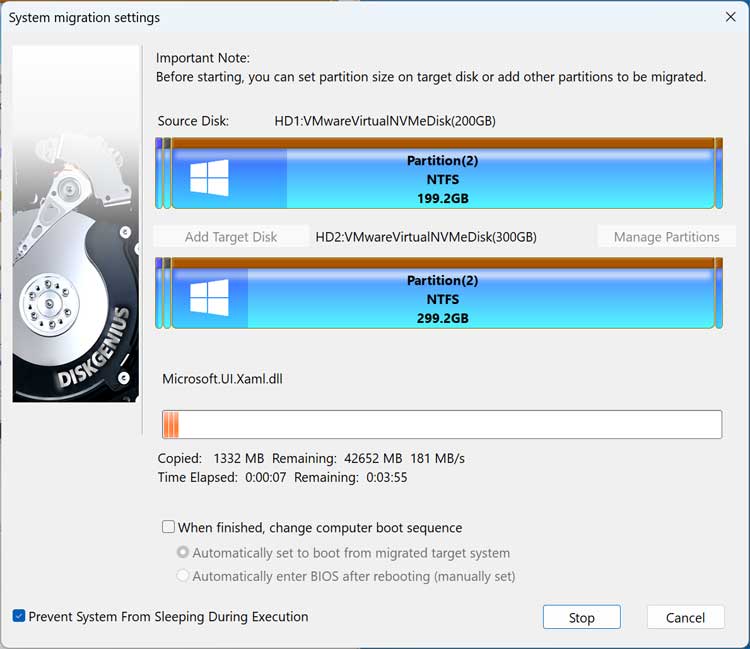
By default, DiskGenius will want to allocate the same amount of space to the target disk that is being used by the source disk. So, in our case it wants to allocate 200 GB and leave 100 GB free. We want to use the entire disk for Windows so we will drag the 200 GB partition to the right so it uses up all the available space.
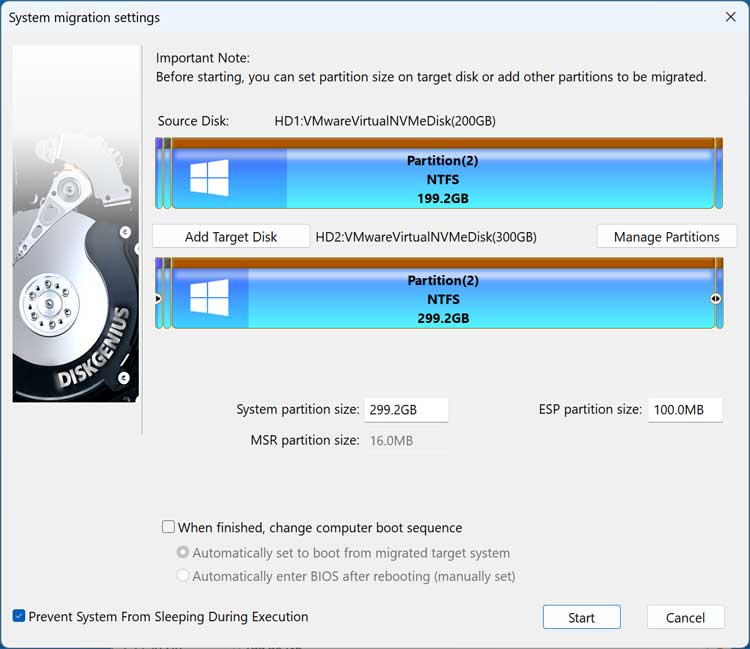
Now you can see that we will be using the entire drive for the disk clone.
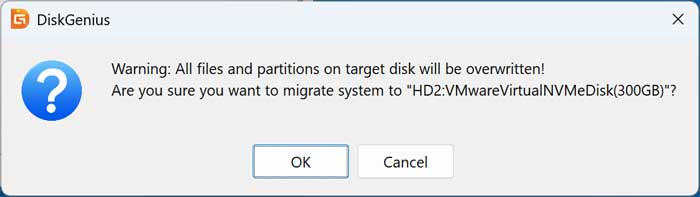
Once you click the Start button, you will be warned that all the files and partitions on the target disk will be overwritten, which is fine since our drive was blank to begin with. If you have files you need to keep, be sure to back them up first!
You will then need to click on the Hot Migration button to continue. This allows you to clone the disk while running Windows since it uses snapshot technology to do so. If you were cloning the running Windows disk you would also have an option to boot into the WinPE mode to clone the disk outside of Windows.

The cloning process will take several minutes and the time it takes will vary depending on the size and speed of your drives.
Now that the disk clone is complete, we can see that Disk 2 now matches Disk 1 for its partition layout, but the main Windows drive is larger in size (200 GB vs. 300 GB).
We will now shut down the computer and remove Disk 0 and Disk 1 and boot with Disk 3 to test it out to make sure it boots into Windows properly.
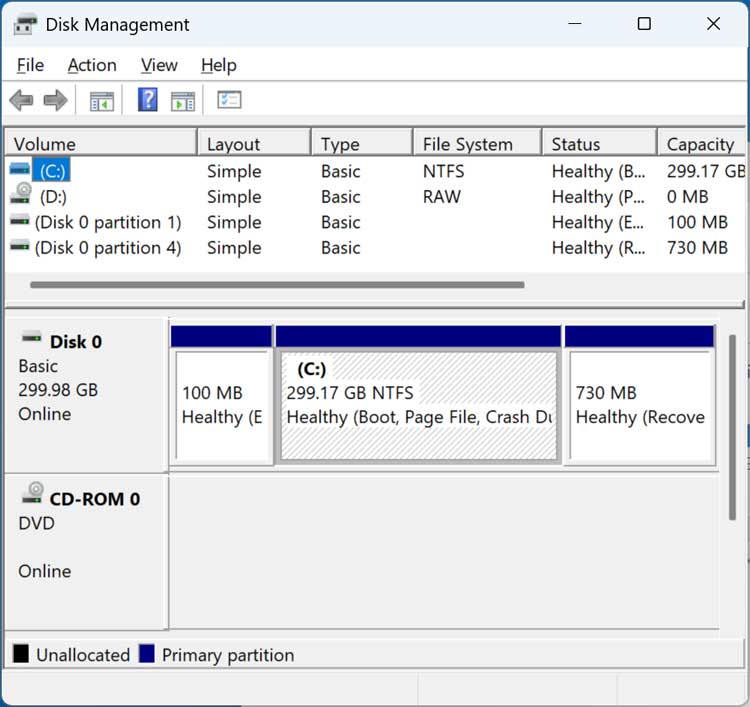
After booting up with only Disk 3 attached, we can open Disk Management and see that we only have the 300 GB drive attached. It is now called Disk 0 because it is the only hard drive installed in the computer.
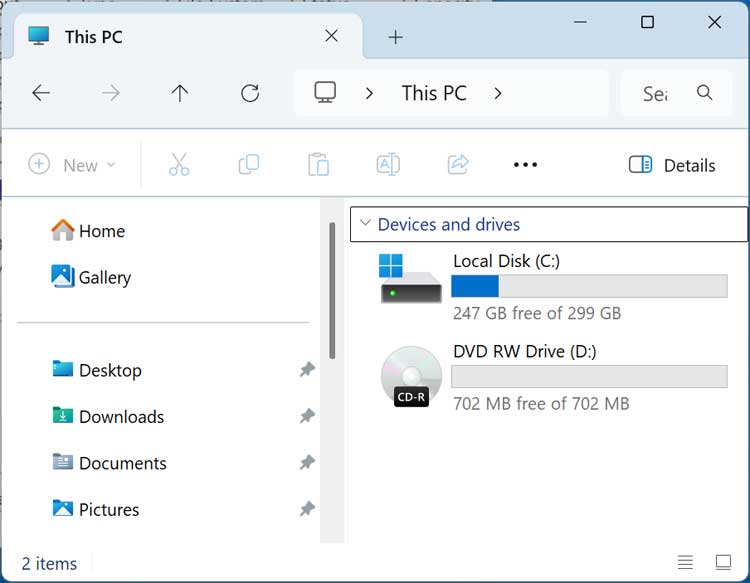
If we were to open File Explorer, we could see our Windows drive and see that it has 247 GB free out of 300 GB.
You can also use DiskGenius to clone a larger drive to a smaller drive assuming you have the space to do so.
For additional training resources, check out our online IT training courses.
Check out our extensive IT book series.