How your program scrollbars look and function might not be something you normally think about, but they can affect how easy it is to work within your applications. If you are the type who likes to click and drag on the scrollbar to move up and down within a webpage, then you might want to try the overlay scrollbar feature of Google Chrome.
Overlay scrollbars are designed to be more subtle and less visually intrusive, appearing only when you actively scroll or move your cursor near the edge of the window. This can make the browsing experience feel cleaner and more modern, especially on smaller screens where every bit of space matters. By reducing visual clutter, overlay scrollbars allow more of the webpage content to remain in focus while still providing the same scrolling functionality when you need it.
Many Windows apps have the same or similar types of scrollbars but there is a certain type called an overlay scrollbar that functions a little bit differently. And fortunately, this is something you can enable or disable within the Google Chrome web browser.
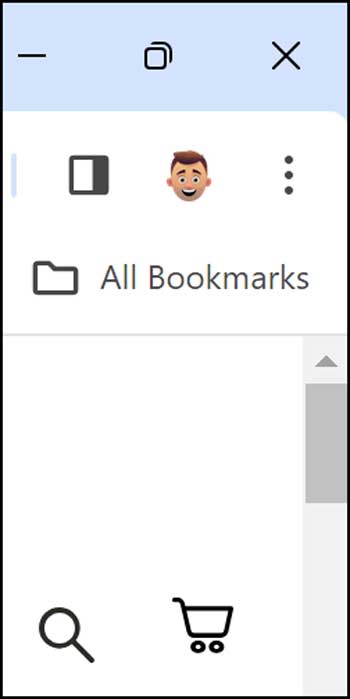
The image below shows how the default scrollbar looks within Google Chrome. As you can see, its an average width bar that sits within a slider track that goes down the length of the page. If you do not want to see this track and also have the scrollbar be hidden when not in use, then you can enable the overlay scrollbar to accomplish this.
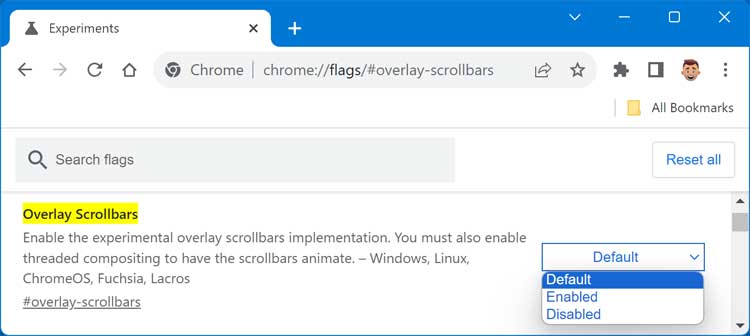
The easiest way to get to the overlay scrollbar setting in Google Chrome is to type (or copy and paste) the URL below into the address bar of Chrome itself and press enter. You can find many Google settings from the flags section.
chrome://flags/#overlay-scrollbars
This should take you to the overlay scrollbar setting where you can then change it from default to enabled. Once you make the change, you will then be prompted to restart Chrome to have the new setting be applied.
Now when you are on a webpage in Chrome, the scrollbar will be hidden when you do not have your mouse next to the edge of the page.
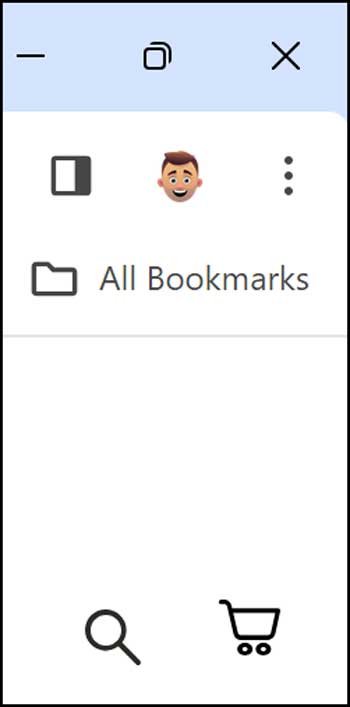
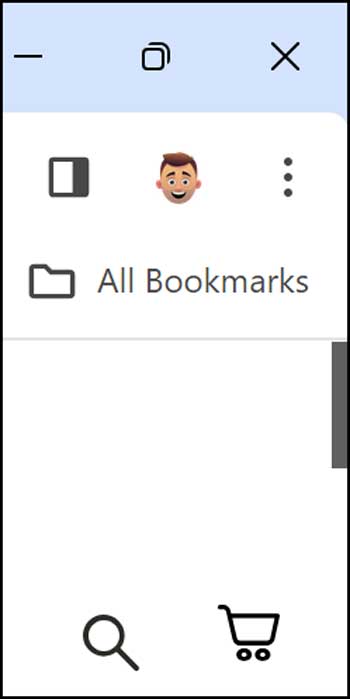
Then as you move your mouse closer to the edge of the page, you will be shown a thin scrollbar without the track like you would have with the original type of scrollbar.
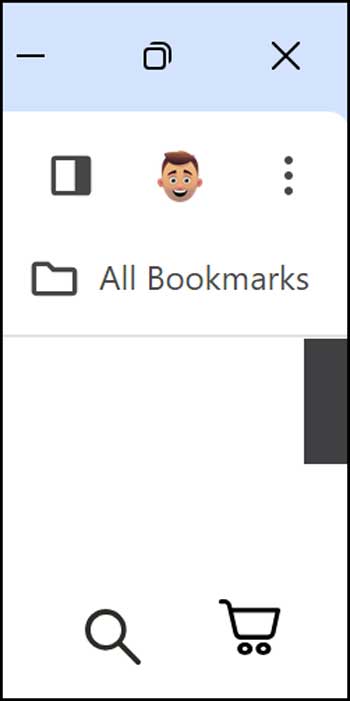
As you place your mouse over the scrollbar, it will then become thicker\wider giving you more area to click on with your mouse if you need to drag it up or down the page. You will still not see a scrollbar track which gives the interface a cleaner, more modern look.
If you want to change the scrollbar back to the default, you can go back to the Chrome flag for overlay scrollbars and set it to default or disabled.
For additional training resources, check out our online IT training courses.
Check out our extensive IT book series.