Moving data between your physical computer (Host) and your virtual machine (Guest) is essential for a productive workflow. Whether you need to copy a complex command from a website into a terminal or move a configuration file, Oracle VirtualBox makes this seamless through its Shared Clipboard and Drag’n’Drop features.
Oracle’s VirtualBox software is a free virtualization platform that you can run on your desktop PC within Windows and configure and run VMs as needed assuming you have the physical hardware to support them. And just like with the big name virtualization software it’s nice to be able to copy and paste as needed with VirtualBox too.

Step 1: Enable the Feature in Settings
You must enable these features for each individual VM. You can do this while the machine is powered off or while it is running:
- Select your VM and click Settings (or go to Devices in the top menu if the VM is running).
- Navigate to General > Advanced.
- Locate Shared Clipboard and Drag’n’Drop.
To turn on this feature choose the VM you want to apply it to and go to its settings by clicking on the Settings button from the toolbar or the VM itself. Then from the General section click on the Features tab.
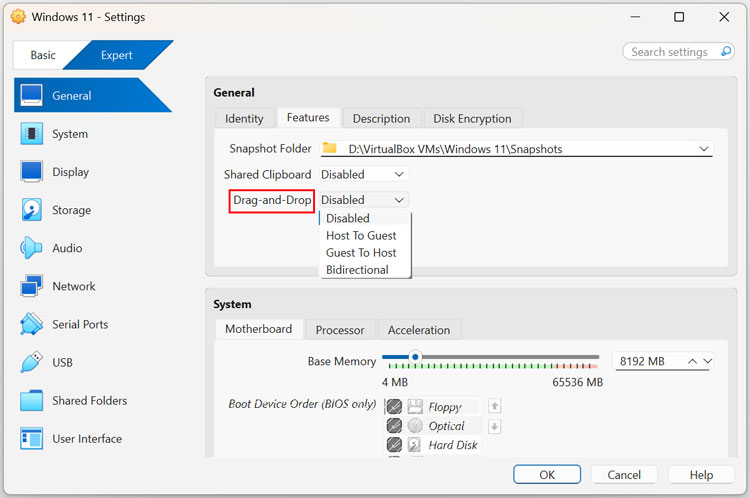
You will notice how there is a Shared Clipboard option and then a Drag’n’Drop option and here is the difference.
The Shared Clipboard option is for when you do things like copy text from the host and want to paste it somewhere on the guest. For example if you have a website open on your host computer and want to open that same site on the guest you would copy the address from your computer and paste it into the VM.
The Drag’n’Drop setting is for dragging and dropping files from host to guest or vice versa like you would between two folders on your computer. This comes in handy for copying files from one computer to the other without having to do any kind of network sharing to transfer files etc.
For both settings, you can choose the direction of the data flow. For most users, Bidirectional is the best choice as it allows free movement between both systems.
- Shared Clipboard: Handles text and images copied via Ctrl+C / Ctrl+V.
- Drag’n’Drop: Allows you to physically click and pull files from one window into the other.
Step 2: Install Guest Additions (Required)
Important: The settings above will not work unless you have the VirtualBox Guest Additions installed on the guest operating system. This is a package of drivers that allows the guest to communicate with your host hardware.
- With the VM running, click the Devices menu at the top.
- Select Insert Guest Additions CD Image
- Open the “CD Drive” inside the guest OS and run the installer (e.g.,VBoxWindowsAdditions.exe).
- Restart the Guest VM to apply the changes.
Once the Guest Additions are installed and the settings are set to Bidirectional, you can treat your VM like any other window on your desktop. If things stop working after a VirtualBox update, simply re-insert the Guest Additions CD and run a “Repair” installation.
For additional training resources, check out our online IT training courses.
Check out our extensive IT book series.