Windows Resource Monitor is a tool to help you see your system resources are and find out what processes and services are using them. The resources are monitored in real time; making it easy to see what’s going on as it happens. Resource Monitor can help you analyze unresponsive processes, identify which applications are using files, and control processes and services. Windows Resource Monitor allows you to end or suspend processes and start, stop, or restart services. Be careful when doing this since some services can rely on other services to run properly.
There are several ways to open Resource Monitor in modern versions of Windows:
- Search: Press the Windows Key, type resmon, and press Enter.
- Task Manager: Press Ctrl + Shift + Esc, click the Performance tab, and then click “Open Resource Monitor” at the bottom of the window.
- Run: Press Windows Key + R, type resmon.exe, and click OK.
Resource Monitor has 5 tabs: Overview, CPU, Memory, Disk, and Network.
Overview
The Overview tab provides a “birds-eye view” of your system. It is the best place to start if your computer feels sluggish, as it allows you to see if the CPU, Disk, or Network is hitting 100% usage simultaneously.
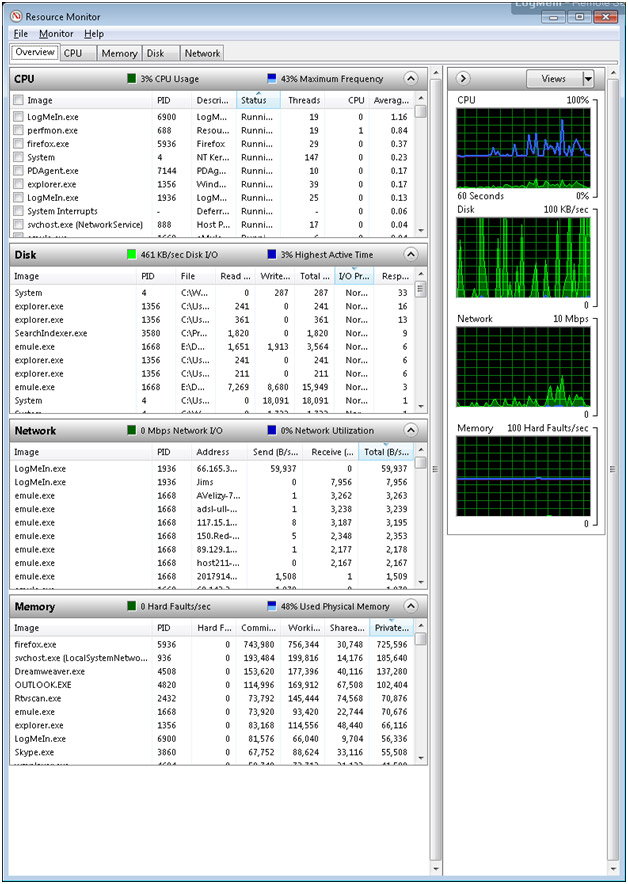
The CPU tab displays CPU usage and what processes and services are using what amount of the processors time.
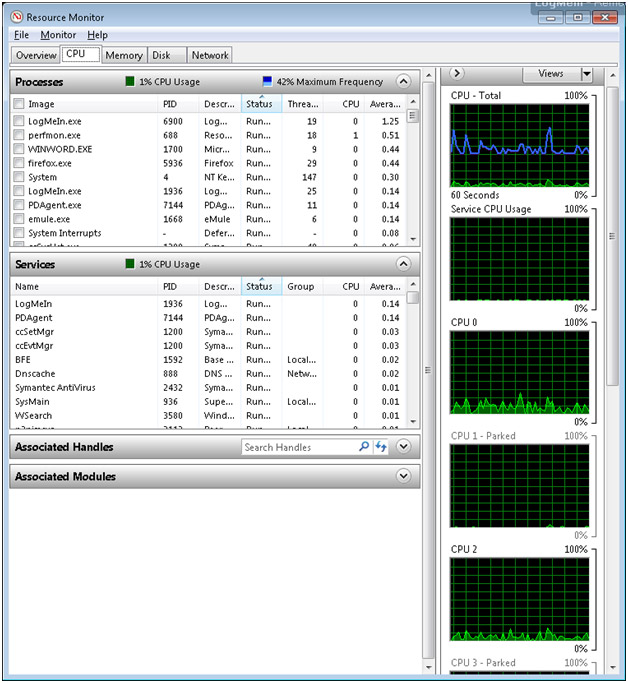
The Memory tab is much more detailed than the Task Manager. Pay close attention to the “Hard Faults/sec” column; if this number is consistently high, it means your computer is running out of physical RAM and is forced to use the much slower “Page File” on your hard drive or SSD.
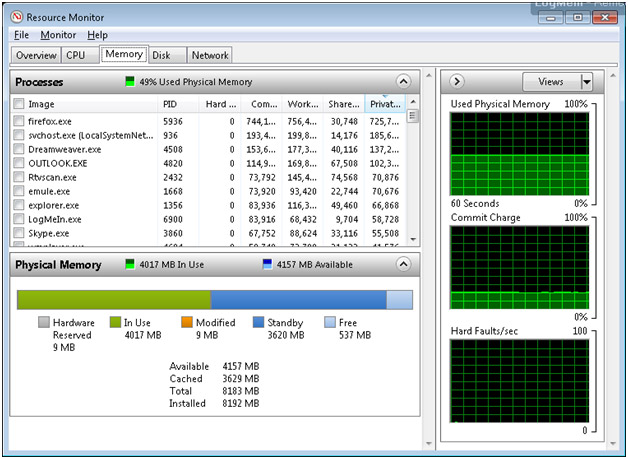
The Disk tab is essential for identifying which program is “thrashing” your drive. Look at the “Response Time” column. On a healthy SSD, response times should be under 10ms. If you see numbers in the hundreds or thousands, that specific process is likely causing your system to hang or stutter.
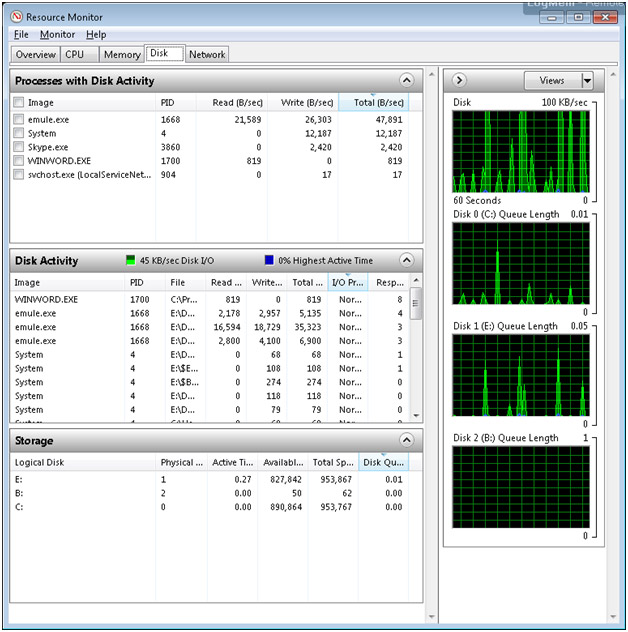
The Network tab is a great security tool. The “TCP Connections” section shows you every remote IP address your computer is currently talking to. If you see an unknown process sending large amounts of data to a foreign IP address, it could indicate unwanted background software or a potential security issue.
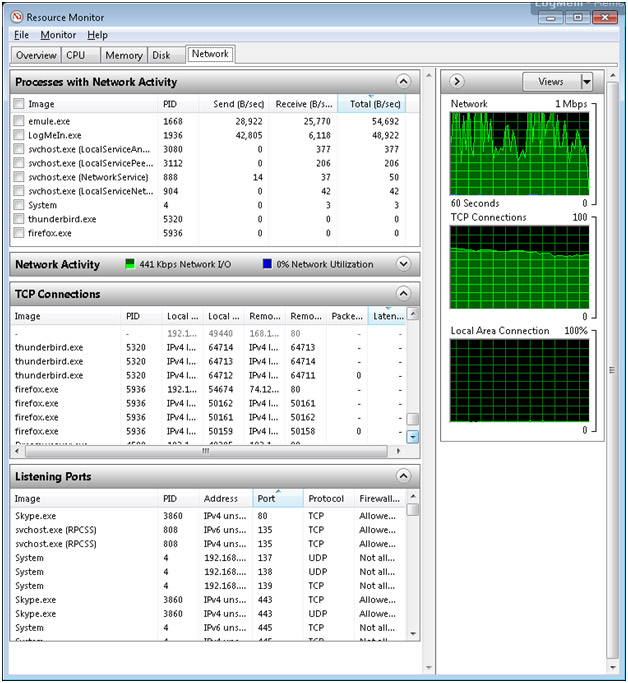
Pro Tip: Fixing “Not Responding” Apps
If a program freezes, go to the CPU tab, right-click the process name (it will likely be red), and select “Analyze Wait Chain.” This tool will tell you if the app is truly crashed or if it is just waiting for another process to finish. This can save you from force-closing an app and losing your unsaved work!
For additional training resources, check out our online IT training courses.
Check out our extensive IT book series.