You can ask just about anyone who runs Windows on their PC if they have had some type of issue such as a crash, freeze up or total system failure and they will most likely say yes! Computer issues are just part of life but that doesn’t mean you shouldn’t have the basic knowledge required to try and fix them, so you don’t end up paying someone else to fix your computer for you.
There are many tools available that can be used to diagnose and repair your computer from built in Windows tools such as Event Viewer, Startup Repair, and even the newer Quick Machine Recovery feature that is supposed to fix your computer for you when it crashes.
When it comes to repairing Windows issues, most people use a standard set of command line tools that can fix many types of problems. But when it comes to using these tools, the order and how you use them are very important. In this article, we will be discussing the CHKDSK, DISM and SFC commands and how to use them and in what order to use them.

CHKDSK, DISM, and SFC are all commonly referred to as Windows repair tools. They are run from the same command prompt and often suggested together, which leads many users to assume they do the same job. In reality, each tool targets a different layer of Windows. Running them blindly often fixes symptoms instead of the underlying cause.
If you have ever opened Command Prompt and fired off CHKDSK, DISM, and SFC back to back, you are not alone. These three commands get lumped together as “repair tools,” they run from the same place, and they all look like they are doing similar work. The problem is that they do not fix the same thing and running them blindly often clears a symptom while the real cause stays put.
Windows repairs are layered. When you repair the wrong layer first, you can end up in a loop where files keep breaking, SFC reports issues again, or repairs only “stick” for a short time. The right order fixes the root cause, so you stop repeating the same troubleshooting steps.
Why CHKDSK, DISM, and SFC Get Misused So Often
Here is the trap: CHKDSK, DISM, and SFC are all called “repair tools,” they are all run in a command window, and they all sound like they repair Windows. In reality, each one targets a completely different layer of the system. When you run them without a plan, you can temporarily improve stability while leaving the underlying corruption untouched. The fix is not “run everything,” the fix is “run the right tool for the right layer, in the right order.”
Think Bottom Up: The Windows Repair Stack (The Simple Mental Model)
A reliable way to remember the correct order is to picture Windows repairs as a stack you fix from the bottom up:
- Disk and file system integrity, this is physical storage health plus the file system metadata that tells Windows where everything lives.
- Windows image and component store, this is the internal blueprint that defines what should exist, plus the clean, known good components Windows uses for repairs and updates.
- Active system files, these are protected files currently in use that must match the clean versions stored in the component store.
Each tool works in only one layer. If the lower layer is unstable, repairs you do above it can fail or keep undoing themselves.
CHKDSK: What It Really Fixes (Disk and File System)
CHKDSK (Check Disk) focuses on the disk’s file system and metadata. It scans how data is stored and accessed, detects logical corruption and bad sectors, and repairs file system issues so repaired files are less likely to corrupt again.
Common CHKDSK commands
Use the command that fits what you are trying to verify or repair. Here are some common switches used with the chkdsk command:
- chkdsk C: – Runs a read‑only check of the file system on the C: drive. It looks for file system inconsistencies and reports problems but does not make any changes or repairs.
- chkdsk C: /scan – Scans the disk for file system errors while Windows is running, without taking the drive offline. It reports problems but does not fix them automatically.
- chkdsk C: /f – Checks the file system for logical errors and fixes them. If the drive is in use, Windows will schedule the repair for the next reboot.
- chkdsk C: /r – Performs everything /f does plus scans for bad sectors on the physical disk. It attempts to recover readable data and marks damaged sectors, so they are not used again. This is the most thorough and time‑consuming option.
These are example commands commonly used when checking a system drive, with options that can fix file system errors or scan for bad sectors depending on what you run.
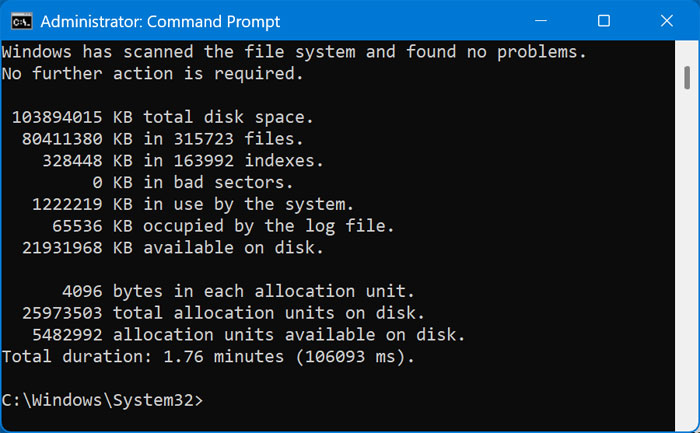
When CHKDSK matters most: If the file system is unhealthy, Windows files can keep getting damaged, which makes higher level repairs feel pointless because the same corruption returns.
DISM: What It Repairs (Windows Image and Component Store)
DISM (Deployment Image Servicing and Management) repairs the Windows image, which is the OS blueprint that defines which components should exist and be valid. It also repairs the component store, the place Windows keeps clean, known good components that are used by Windows Update, optional features, and repairs. If the store is corrupted, Windows can struggle to repair itself properly. ,
The DISM command most people need to use.
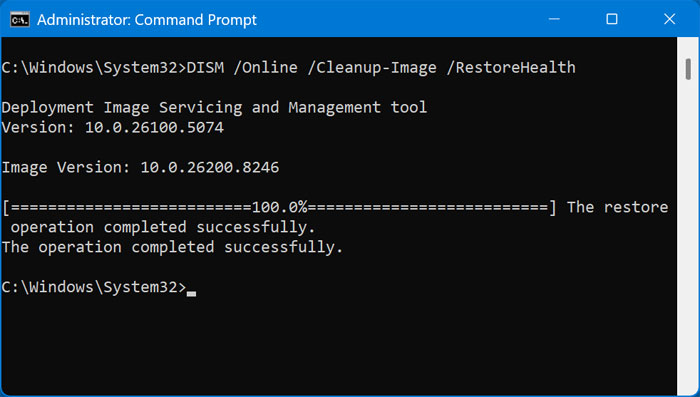
- DISM /Online /Cleanup-Image /RestoreHealth – This checks the Windows image and component store for corruption and repairs it using clean files from Windows Update or a local source.
This is the standard “repair the online image” command used to restore health to the Windows image and component store.
Here are some other common switches you can use with DISM.
- DISM /Online /Cleanup-Image /CheckHealth – Quickly checks whether the Windows image has been flagged as corrupted. This command does not perform a scan or make repairs; it only reports if corruption is already known.
- DISM /Online /Cleanup-Image /ScanHealth – Performs a thorough scan of the Windows image to detect corruption. It does not repair anything but provides a detailed assessment of image health. This scan can take several minutes.
- DISM /Online /Cleanup-Image /AnalyzeComponentStore – Analyzes the size and health of the component store and determines whether cleanup is recommended. Useful for diagnosing excessive disk usage related to Windows updates.
- DISM /Online /Cleanup-Image /StartComponentCleanup – Removes outdated and unused system components from the component store. This can free disk space and improve update reliability but does not repair corruption.
SFC: What It Repairs (Protected System Files in Use)
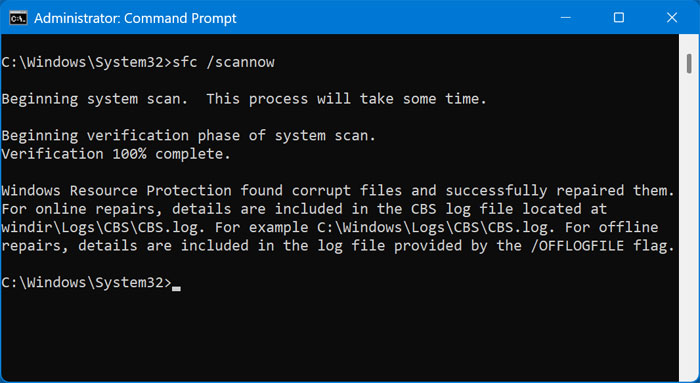
SFC (System File Checker) scans protected system files currently in use, compares them to clean versions in the component store, replaces missing or corrupted files, and logs what it fixed or could not fix.
The SFC command
That is the standard SFC scan and repair command. The key detail many people miss is that SFC depends on the component store as its clean source. If the component store is corrupted, SFC can fail or only partially fix what it finds.
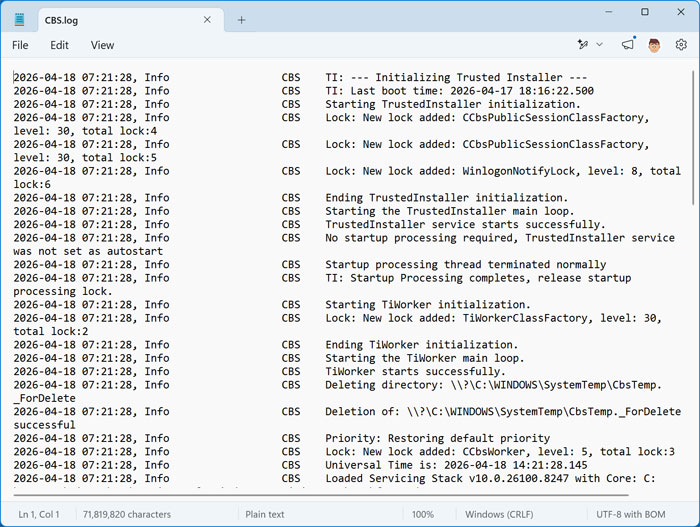
If the System File Checker does find errors, it will give you some details after the scan is complete as well as a location for a log file you can view for more information. This CBS.log file is usually located in the C:\Windows\Logs\CBS directory.
The CBS.log file can be quite large in size and will not be easy to read unless you know what you are looking for.
Why the Order Matters (Root Cause vs Symptom Fixes)
This is where most “Windows repair routines” go wrong. If the disk and file system have corruption, files can keep breaking even after you replace them.
If the Windows image and component store are corrupted, SFC may not have a healthy source to pull from, so it can fail or only fix part of the problem. If you run SFC first, it may appear to fix things, but it can be a temporary win if the underlying image or disk issues remain.
Correct order is not about doing more work, it is about fixing the foundation so the next layer can actually stay repaired.
The Correct Order for Most Windows 11 Problems (The Standard Sequence)
For most Windows 11 update issues and OS level corruption, the standard sequence is:
- DISM, repair the Windows image and component store first.
- SFC, repair protected system files using that now healthy source.
This combination resolves most cases where system files are damaged and Windows Update or features are acting strange.
When CHKDSK Should Come First (Disk Issues Change the Order)
Sometimes the standard DISM then SFC flow is not enough, because the real issue is lower in the stack.
If you suspect disk or file system corruption, the order becomes:
- CHKDSK, stabilizes the disk and file system.
- DISM, repair the Windows image and component store.
- SFC, repair protected system files last.
This order helps prevent the endless repair loop where you “fix” system files and then they corrupt again because the underlying storage layer is still unreliable.
Common Mistakes That Break Troubleshooting
If you want faster, lasting fixes, avoid these common habits:
- Running SFC first every time, it can be a symptom fix, not a cause fix.
- Ignoring disk corruption, if the file system is unstable, repairs above it can keep failing.
- Assuming one tool fixes everything, each tool repairs only one layer.
- Repeating commands without verification, shortcuts often lead to recurring failures instead of a clean resolution.
FAQ:
Should I run SFC first?
It is usually better to ensure the Windows image and component store are healthy first, because SFC compares active files to clean versions stored there. If the store is corrupted, SFC can fail or only partially work.
Does DISM replace system files?
DISM repairs the Windows image and the component store, which provides the clean source Windows uses for repairs and updates. SFC is the tool that scans protected system files currently in use and replaces corrupted or missing ones.
When do I use CHKDSK in the process?
Use CHKDSK first when disk or file system issues are suspected, then follow with DISM and SFC so you do not end up repairing files that get corrupted again.
Final Takeaway
Windows repair works best when you fix it from the bottom up. Start by stabilizing the disk when disk issues are in play, repair the Windows image next, then repair system files last. That correct order leads to faster fixes that actually last, instead of repeated failures that keep coming back.
For additional training resources, check out our online IT training courses.
Check out our extensive IT book series.