Google Chrome is one of the most popular web browsers in use today. It’s available for many operating systems including Windows, Linux and even macOS. And as you probably know, Google also has many other free apps that you can use besides Chrome including Gmail and Google Docs, to name a few.
There is a newer feature available for Chrome that will let you view two web pages side by side in the same browser window. This comes in handy for things such as comparing the contents of two webpages or having your search results open in one window while viewing one of those results in the other window. In this article, we will be showing you how to use the Google Chrome Split View feature to open tabs side-by-side.

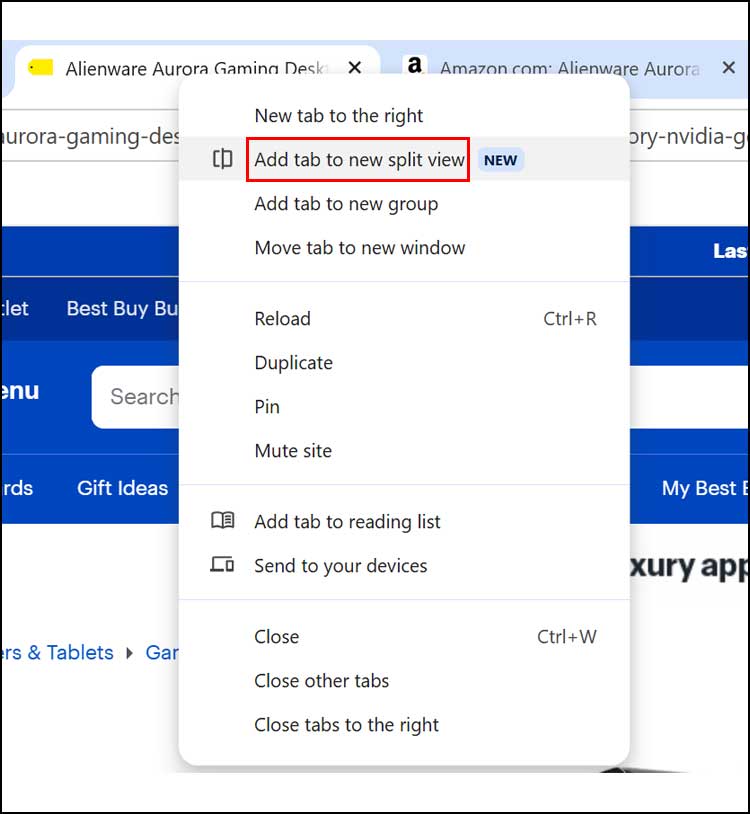
There are a couple of ways to use the Chrome Split View feature, but the easiest way is to simply right click one of the tabs that you want to use in the side-by-side mode and choose Add tab to a new split view.
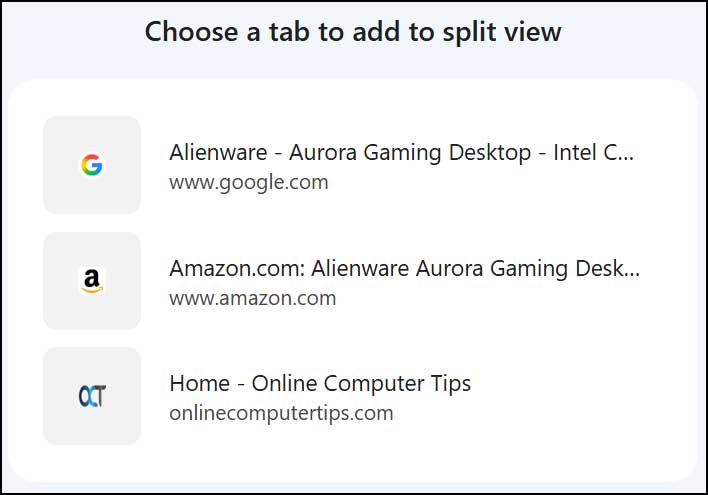
Then Chrome will show you all the other tabs that you have open in your browser. Then you can click the tab that you want to add for the other half of the split view. For our example, we will choose the Amazon page.
As you can see in the image below, we have the Best Buy and Amazon pages open side-by-side so we can compare the computers on each page without having to go back and forth between the tabs themselves. We can scroll each page individually as well.
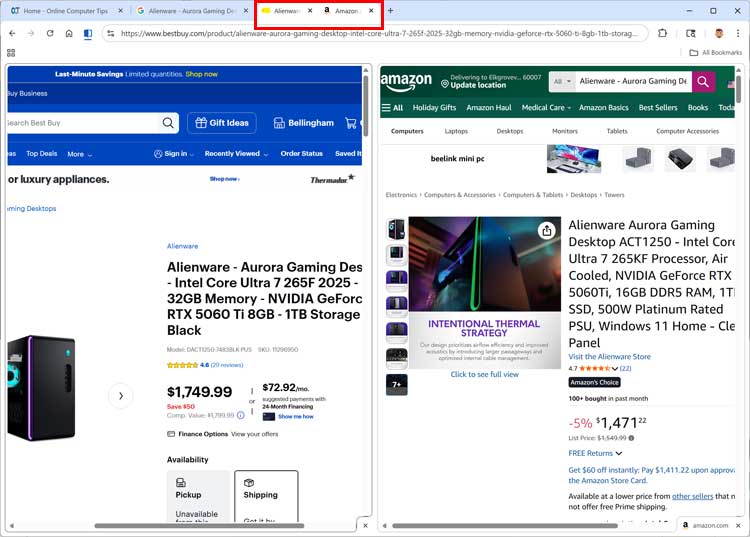
Now that we have the two tabs in a split view, they will be grouped together at the top of Chrome. If we were to right click these grouped tabs, we would have option to do things such as separate the tabs back into individual pages, close one of the tabs or reverse their order.
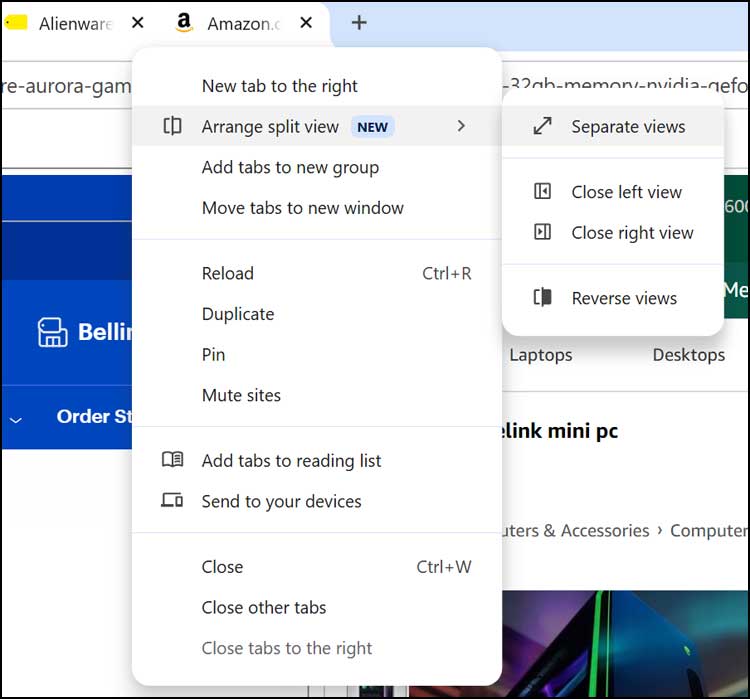
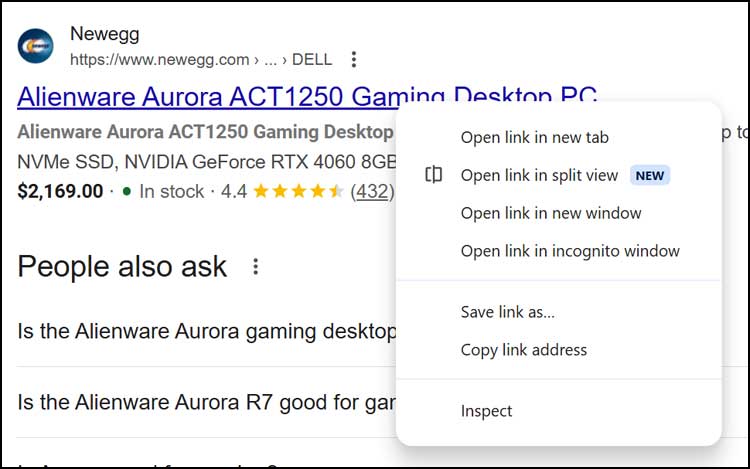
Another way you can use the Google Chrome Split View feature is by right clicking a link and choosing Open link in split view once again.
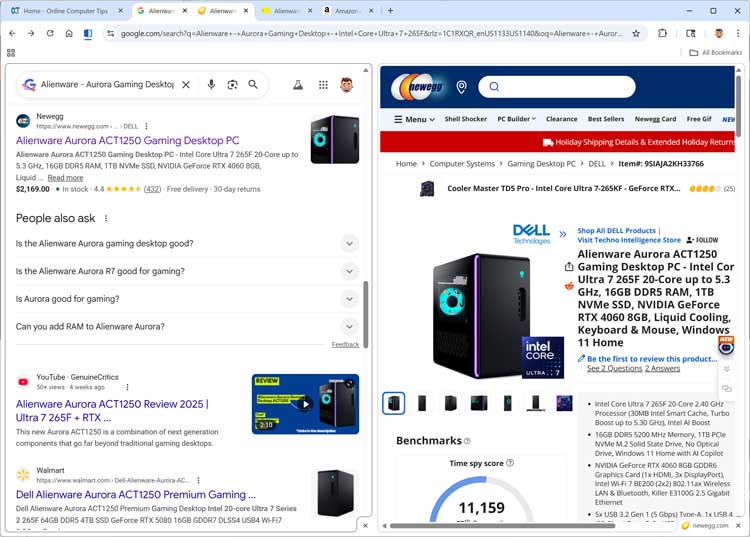
Now we have the website from the link open in one tab while having our search results open in the other tab. As you can see, we also have two sets of side-by-side tabs. While in this view, you can right click on any link on either side and open it in the other pane as needed.
Another thing you can do with the Chrome Split View feature is replace a tab with a completely different one. So if you already had two tabs grouped together, you can then right click a separate tab and have it moved into the existing split view and replace one of the existing tabs.
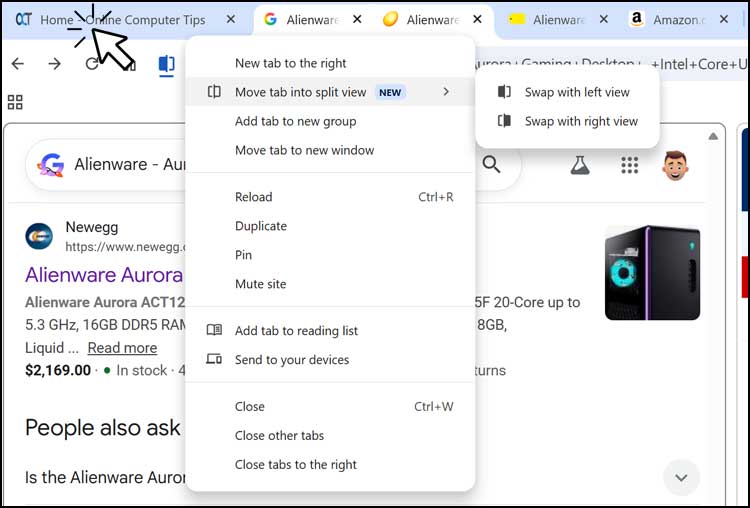
As you can see, we moved the OCT tab into the existing split view which moved one of the other tabs out of it.

Here is a video showing how to disable the Split View right click option if you don’t plan on using and find that it is just getting in the way.
Microsoft Edge also has a split view feature you can check out if you are an Edge user. Plus there is a browser extension you can use to open Google Docs, Sheets and Slides in split view.
If you want to disable the Chrome Split View option so it does not appear in your right click menu, you can do so using this method.
For additional training resources, check out our online IT training courses.
Check out our extensive IT book series.