
Last Updated on September 24, 2026
Unboxing a brand-new computer is exciting until you realize you have to manually move all your files, reinstall every application, and reconfigure your settings. Dragging folders onto an external hard drive takes hours, and it entirely leaves your installed software behind.
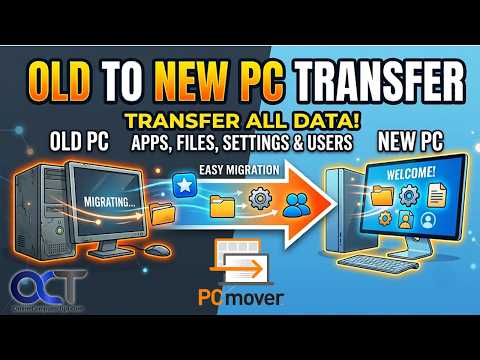
Fortunately, you do not have to start from scratch. Laplink PCmover Professional is a dedicated utility designed to perfectly replicate your working environment. It transfers your selected programs, documents, and user profiles right over to your new machine via your local network or a dedicated Laplink cable. It even preserves file ownership and security controls for computers with multiple user accounts. Laplink PC Transfer can be downloaded directly from their official website here.
Advanced Transfer Options
1. Image and Drive Assistant
Aside from a standard network transfer, PCmover includes a few extra tools to handle tricky migrations. First, there is the Image and Drive Assistant. This is an absolute lifesaver if your old PC died but you still have its physical hard drive. You can connect that old drive to your new PC and restore your programs directly from it.
2. File Based Transfer Method
Second, there is the File Based Transfer option. Your two computers might lack the ability to connect to the exact same network. You can use this feature to pack all your data into one massive transfer file. Carry that single file over to the new machine on a high capacity portable USB drive.
3. Profile Migrator Tool
Finally, the Profile Migrator lets you move settings and apps between two different user profiles on the exact same computer. This is highly useful for corporate environments using Active Directory. It saves IT administrators hours of manual profile rebuilding.
Preparing Your Computers for Migration
Before you begin transferring gigabytes of data, you need to prepare both your old and new machines. This ensures the software runs smoothly without crashing mid transfer.
1. Verify Your Operating System Versions
Your new PC must be running the exact same version of Windows as your old one. It can also run a newer version. You cannot migrate backward from Windows 11 down to Windows 10.
2. Run Windows Update on Both Machines
Ensure your brand new computer has all the latest mandatory security patches installed. Reboot the system completely before you begin the software transfer. Pending updates often block network ports and cause random software lockups.
3. Free Up Basic Storage Space
Both machines need at least 200 MB of free hard drive space just to install the PCmover application. Check your primary drive capacity before downloading the executable. Delete temporary files if you are running dangerously low on storage.
Installing PCmover on Your Systems
1. Download the Executable File
Head directly to the Laplink website to purchase your software license. Download the PCmover executable file onto both computers. You must have the exact same version running on both machines for the handshake to work.
2. Run the Setup Wizard
Double click the downloaded file and follow the standard on screen prompts. Windows User Account Control will pop up asking for permission. Click Yes to allow the setup launcher to run with administrative privileges.
3. Install via Physical Retail CD
If you happen to have bought a physical retail box, simply insert the CD into your disc drive. Click Run Welcome.exe from the AutoPlay menu. Follow the exact same installation wizard steps to complete the local setup. Remember, you must install this software on both the old and new computers before moving forward.
How to Connect Your Two Computers
1. Launch the App and Clear the Firewall
Go to your old PC and launch the application. Your Windows Firewall will alert you that the program is trying to access the local network. Be sure to click Unblock or Yes. If you block the software here, the two computers will never find each other.
2. Select the Transfer Between PCs Option
On the main welcome screen, click the large button labeled Transfer Between PCs. This initiates the network broadcasting protocol. The software will begin listening for a matching connection on your local subnet.

3. Repeat the Process on the New Machine
Now, walk over to your new computer and open PCmover. Repeat those exact same startup steps until both monitors are sitting on the exact same prompt. Stop right there and do not click Next on either machine yet.

Choosing Your Connection Method
1. Select the Standard Network Option
The software needs a reliable data path to send your files. Both computers might be connected to the same home Wi-Fi or plugged into the same internet router. Simply choose the Network option and click Next on both screens.
2. Use a Dedicated Transfer Cable
You might have purchased a specialized Laplink Ethernet or USB cable. Physically plug both ends into the computers right now. Select the cable option from the menu and click Next.
3. Locate the Target Machine
Look at your old computer screen. It will scan the network and should display the name of your new PC. If it does not show up immediately, click Scan Again. Once your new PC name appears, select it and click OK.

Customizing What Gets Transferred
1. Analyze the Old Computer
Walk back over to your new computer and click Analyze PC. The software will scan your old machine to calculate exactly how much data needs to be moved. This process takes a few minutes on larger hard drives.

2. Choose Your Transfer Type
After the analysis finishes, you have a major choice to make. You can hit Transfer Everything to let the software do all the heavy lifting automatically. If you want to leave behind some digital clutter, click the Choose What to Transfer option.

Diving into the Customization Menu
Choosing to customize your migration opens up a highly detailed menu. Clicking the Let Me Choose button allows you to fine tune four specific categories.

1. Filter Installed Applications
This option opens a master list of every program installed on your old PC. Simply uncheck the boxes next to old games or software trials you no longer use. The software is smart enough to flag incompatible applications or system tools that should not be moved to a newer operating system.

2. Redirect Documents and Media
You can individually select or deselect specific folders for your pictures, music, and videos. You might want your old downloads folder to go straight to a secondary backup drive on the new PC. You can easily modify the Target field to redirect those specific files.

3. Recreate User Accounts
Your old computer might have been shared by the whole family. You can review exactly how those accounts will be recreated on the new hardware. You can edit the user privileges, merge an old account into your newly created admin account, or completely exclude a user from the transfer.

4. Advanced File Filtering: This section is strictly for power users. It allows you to modify specific drive mappings or set up file filters to automatically exclude certain extensions, like preventing any massive temporary files from migrating.

Starting the Migration Process
1. Review and Start the Transfer
Once you are completely satisfied with your selections, review your final summary page. Click Start Transfer to initiate the data copy. The machines will lock into a secure handshake.

2. Monitor the Transfer Progress
PCmover will begin securely packing and shipping your items across the network to the new machine. The time this takes will vary wildly depending on how much data you own and the speed of your Wi-Fi or transfer cable. Just let the computers sit. If the progress bar absolutely freezes for over an hour with no activity, you may need to restart the transfer.

Post-Transfer Troubleshooting
PCmover is incredibly accurate, but a few specific types of software always require a little manual intervention after a migration. You will almost certainly need to reactivate your antivirus software. Download hardware specific drivers for your new graphics card. Log back into programs that use strict Digital Rights Management.
1. Repair Broken Applications
If a transferred application refuses to open, try the native repair tool. Open the Windows Control Panel and find the broken app. Select the Repair option to fix missing registry keys.
2. Force Administrator Privileges
Some legacy applications require elevated permissions to run correctly on modern systems. Right click the application shortcut on your desktop. Select Run as Administrator to bypass local security blocks.
3. Install Developer Patches
Check the software developer website for a specific update patch. This is especially important if you migrated from Windows 10 up to Windows 11. The application might just need a minor compatibility update.
4. Reinstall the Software
If all else fails, completely uninstall the broken application. Reinstall it fresh on the new machine using the original installer. Your saved files and configurations will usually still be waiting for you inside your user profile.
How to Undo a Transfer
1. Initiate the Rollback Process
If something went horribly wrong, perhaps you migrated the wrong user account or your new PC is acting glitchy, you can reverse the entire process. Just open PCmover on your new computer. Click Undo Transfer on the main welcome screen.
2. Restore the Original State
The software will instantly roll your system back to the exact state it was in before you started. Moving to a new computer does not have to mean losing your perfectly tailored desktop environment.
For additional training resources, check out our online IT training courses.
Check out our extensive IT book series.






