When searching the internet, you have many web browsers to choose from such as Microsoft Edge, Google Chrome and Mozilla Firefox as well as many search engines to choose from such as Google, Bing, Duck Duck Go, and Yahoo for example. And since everyone loves to share everything these days, it makes sense that we would want an easy way to share websites or specific web pages with others.
With so much information available online, simply sharing a homepage or generic link is not always the most effective way to communicate. Many websites contain long articles, detailed tutorials, or extensive documentation, and expecting someone to scroll through an entire page to find a specific section can be inconvenient and time‑consuming. This is especially true when you want to reference a single sentence, tip, or explanation that is buried deep within the page.
If you are on a personal computer and are using the Google Chrome web browser, you can copy and paste the entire website address such as https://onlinecomputertips.com and then email or message it to someone else and they can click on the link and then open the page from there.

But what if you want to direct them to a specific area of the web page itself? If it’s a long page with a lot of text and pictures, you would have to send them the link and tell them where to find the area on the page that you want them to look at.
This extra step can easily lead to confusion, especially if the page layout changes, the content shifts, or the person viewing it is using a different device. What seems obvious to you may not be immediately clear to someone else, and important details can be overlooked. Having a more precise way to share content helps eliminate guesswork and ensures the recipient sees exactly what you intended.
One nice feature that Google Chrome has is the ability to create a link to a word or words that you highlight within the page. Then you can send this link to others, and they would be taken to that exact spot on the webpage.
To use this feature, all you need to do is select the text you want to have your link reference and then right click on the text and choose Copy link to highlight.
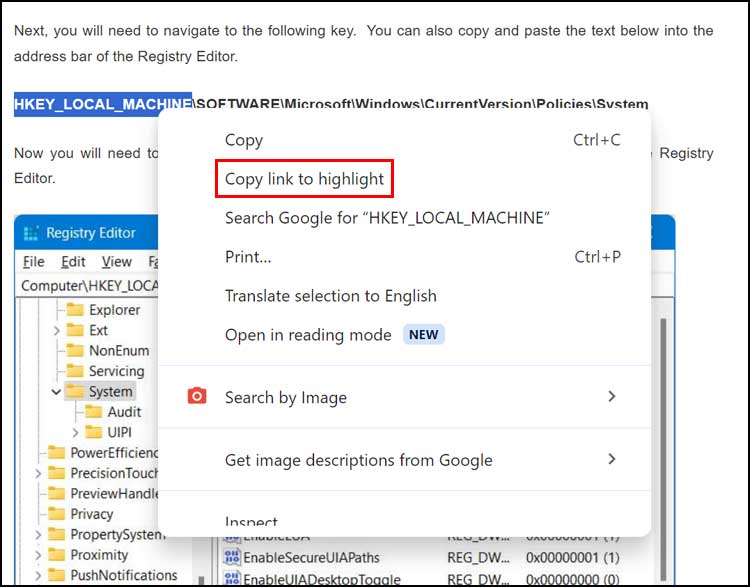
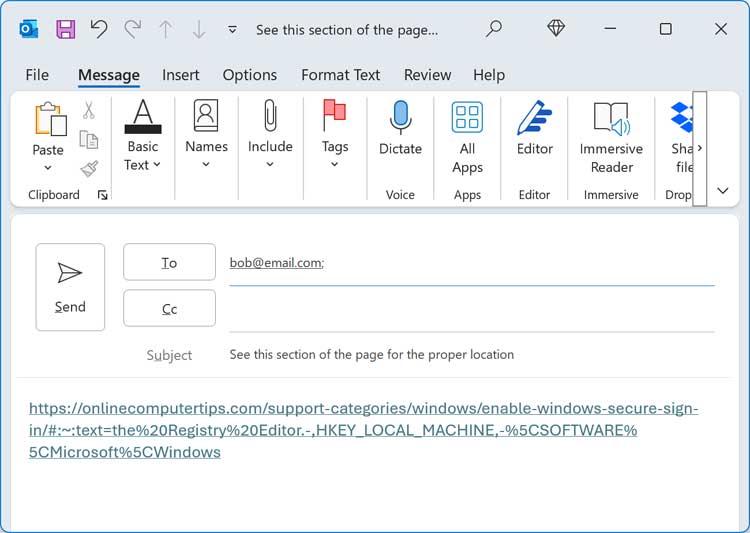
Then you can paste the link from your clipboard into an email or other type of message and send it off.
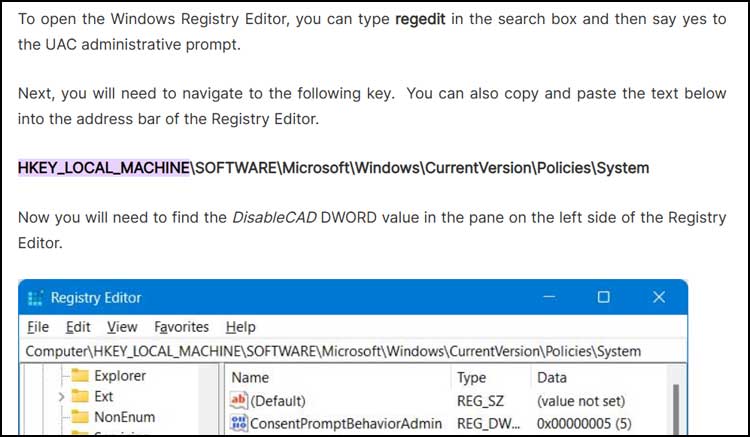
Then when the recipient of your message clicks on the link, they will be taken to that exact spot on the same web page with the text you selected highlighted to show them exactly what you want them to see. They do not even need to be using Chrome for their browser to be taken to the spot on the page.
This makes sharing information much more efficient, whether you are helping someone troubleshoot a problem, pointing out an important update, or referencing a specific section of an article. Instead of providing detailed instructions on where to scroll or what to search for, the highlighted link does the work for you. Once you start using this feature, it quickly becomes a convenient tool for clearer and more effective online communication.
Unfortunately, this only works with text and not with images but you can always highlight some text next to an image to point them in the right direction.