Last Updated on April 7, 2026
You may or may not know that the Microsoft Edge web browser comes installed with Windows and is set to be the default browser automatically which makes sense since it’s the only browser that you will have on your computer if you are using a computer with a new installation of Windows.
For many people, Edge is a perfectly fine browser and is actually much better than the prior version of the Windows web browser called Internet Explorer. Of course you can have more than one web browser installed on your computer at a time and also use multiple browsers at one time so if you want to try out some others, its easy (and free) to install them.

Because of these different behaviors, changing one setting doesn’t always affect the others, which is where the confusion often starts. You might update your home page and expect everything else to follow. You might only to find Edge still opening a completely different site when you launch it or create a new tab. Understanding how these pages work independently makes it much easier to tailor the browser to your habits. This ensures it opens exactly where and how you want every time you use it.
What is not so easy for many people is figuring out how to customize their browser settings in regards to your home, startup and new tab pages. Your home page is the site that loads when you click on the physical home button. The startup page is the page that loads when you first open your browser. The new tab page is the page that loads when you click the new tab button within your browser.
Many times people will have all of these pages set to open the exact same website. This makes sense if you have a favorite or commonly used site that you like to search from such as Google, Bing or Yahoo for example. In order to change these pages in Edge, you will need to change some settings as well as add a third party browser extension for the new tab page.
Configuring Your Edge Home Page
1. Access the Browser Settings
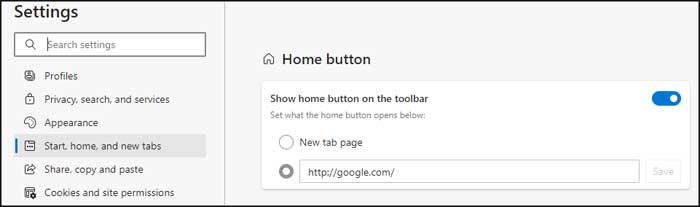
To change the home page setting, you will need to click on the ellipsis (…) at the top right of the Edge window. Choose Settings from the drop down menu. From there you will want to go to the Start, home and new tabs section on the left side menu.
2. Enable the Home Button
The first thing you should do is enable the physical home button in your browser if it’s not already there. To do so, simply move the slider next to the Show home button on the toolbar option to the right. It will turn blue meaning it’s enabled and the icon will appear next to your address bar.
3. Set the Custom URL
Next you can click on the radio button located directly under the New tab page option. Type in the exact web address of the website you want Edge to go to when you click on the Home button. Click the Save button next to the text box.
Configuring Your Edge Startup Page
1. Locate the Startup Settings
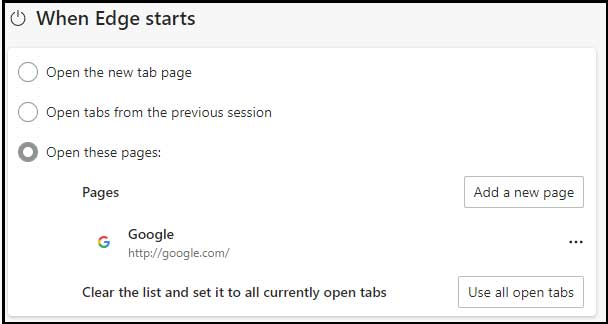
From the exact same settings area you will find a section called When Edge starts. Here is where you can configure the browser to open a particular website when you first open the browser itself.
2. Choose the Startup Behavior
If you leave it on Open the new tab page, it will open the default Microsoft website page when you open Edge. Choosing Open tabs from the previous session will automatically re-open any tabs that you had open when you previously closed Edge.
3. Add Specific Startup Pages
The Open these pages section is where you can tell Edge which website or websites you want it to open each time you open the browser. Clicking on the Add a new page button will allow you to add additional websites to be opened simultaneously at startup.
Customizing the New Tab Page Behavior
1. Understand the New Tab Limitations
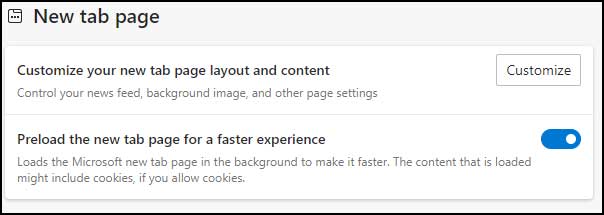
This is where things can get a little tricky. As of now, if you were to open a new tab, it would open the Microsoft search website. You would manually have to go to your home page by clicking the Home button. In the same area one again, you will see a section called New tab page where you can customize how your new tab page looks and functions.
2. Check the Default Customization Options
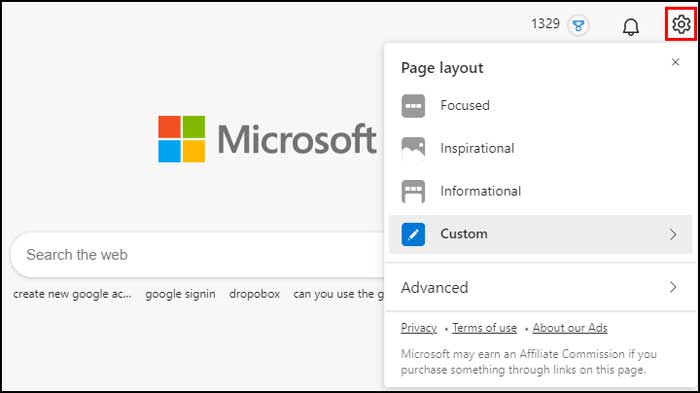
Unfortunately, this default menu will not allow you to change the actual site that opens when you click the new tab button. It only controls how the Microsoft search site behaves. Clicking on the gear icon will allow you to change your page layout, theme, search history and so on which is nice but not what we are trying to accomplish.
3. Enable Third-Party Extensions
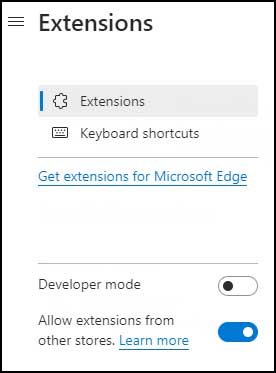
To get the functionality we are looking for, we will have to install a browser extension into Edge. There is one called New Tab Redirect that does a good job. To install the extension you will first need to enable extensions from other developers besides Microsoft since we will be using a Google Chrome extension to accomplish our goal. To do this, click on the ellipsis once again and go to Extensions and enable the Allow extensions from other stores setting.
4. Install the Chrome Extension
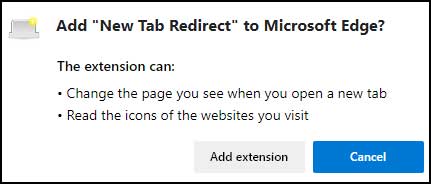
Now you can install the New Tab Redirect extension by going directly to their official website. Click on the Add to Chrome button even though you are doing so from Microsoft Edge. Then you will need to click on the Add extension button when prompted by the security popup.
5. Enable the Extension in Edge
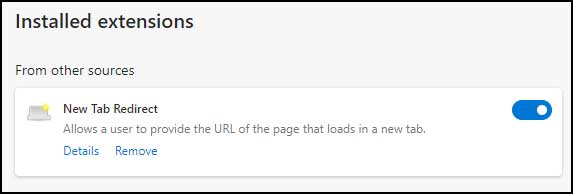
You might see a message from Edge saying the extension was disabled automatically for your safety. You will need to go back to the extensions section and click on Manage extensions. From there you can manually enable the New Tab Redirect extension by sliding the slider to the right. You can also permanently remove the extension from here if you decide you don’t like it.
6. Grant Management Permissions
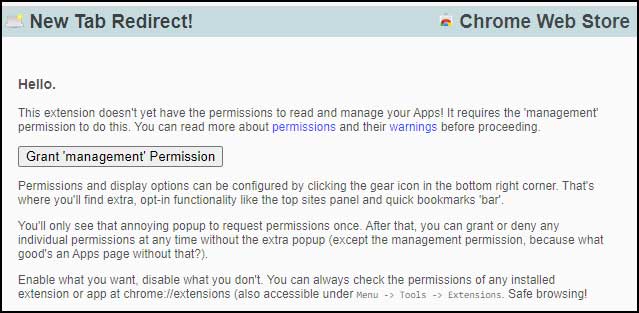
Once you enable the extension, you might be shown a bunch of informational screens that you can ignore unless you really feel like reading all the details about the extension. Next you will need to click the physical new tab button in Edge. You will need to click on the button that says Grant ‘management” Permission to allow the extension to actually work with your browser.
7. Confirm the Permission Request
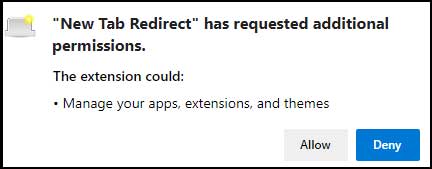
Then you will click on Allow at the next security prompt. This confirms you want the extension to manage your tabs.
8. Set the Final Redirect URL
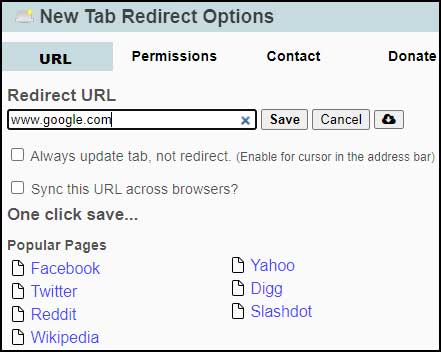
Finally you will click on the New Tab Redirect text in the title bar on the page. This will take you to the final options screen. Here you can enter the exact address of the website you want to be loaded every time you click the new tab button. When you are done make sure to click the Save button.
For additional training resources, check out our online IT training courses.
Check out our extensive IT book series.