Last Updated on August 30, 2026
Google Chrome is one of the most popular web browsers in use today. It’s available for many operating systems including Windows, Linux and even macOS. And as you probably know, Google also has many other free apps that you can use besides Chrome including Gmail and Google Docs, to name a few.
There is a newer feature available for Chrome that will let you view two web pages side by side in the same browser window. This comes in handy for things such as comparing the contents of two webpages or having your search results open in one window while viewing one of those results in the other window. In this article, we will be showing you how to use the Google Chrome Split View feature to open tabs side-by-side.

Create a Split View from Existing Tabs
1. Right-Click Your Primary Tab
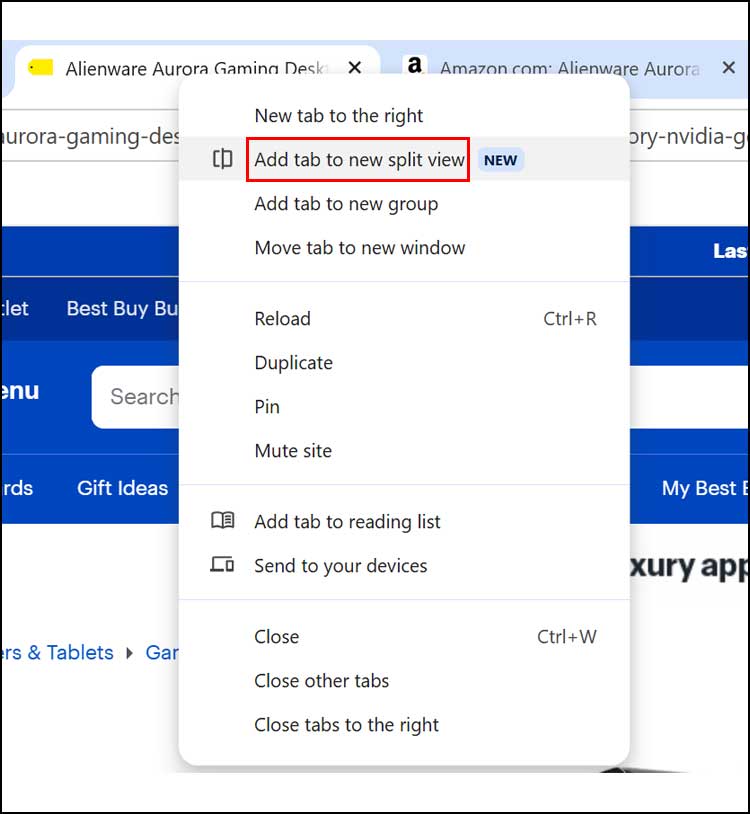
There are a couple of ways to use the Chrome Split View feature. The easiest way is to simply right-click one of the active tabs that you want to use in the side-by-side mode. A context menu will immediately appear with several tab management choices.
2. Select the Split View Option
Scan down the list of options in that context menu. Choose Add tab to a new split view to initiate the layout change. Your browser window will instantly divide itself into two distinct visual sections.
3. Choose the Second Tab
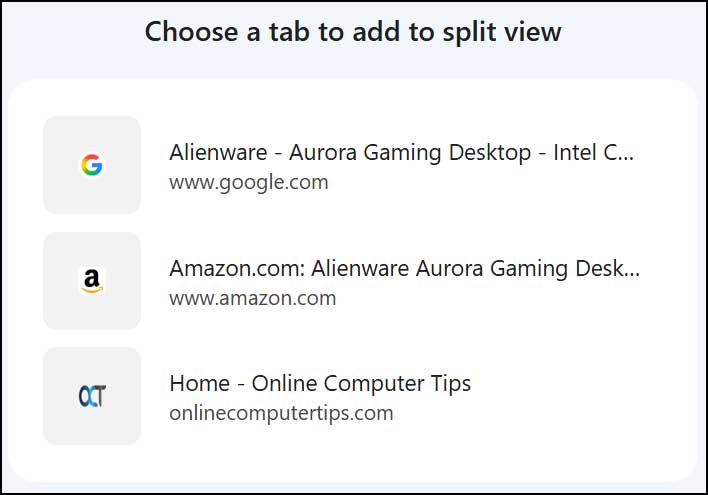
Then Chrome will show you all the other tabs that you have open in your browser. You can click the specific tab that you want to add for the other half of the split view. For our example, we will choose the Amazon page to fill the adjacent pane.
4. Compare Your Webpages
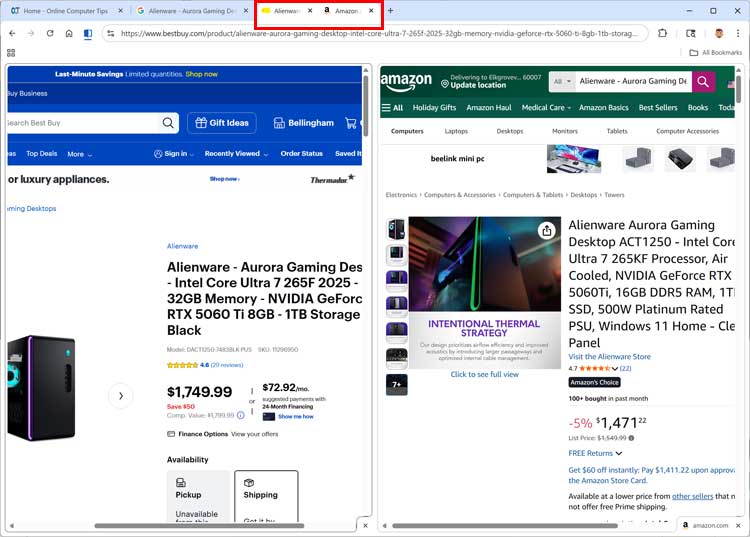
As you can see in the image below, we have the Best Buy and Amazon pages open side-by-side. We can easily compare the computers on each page without having to go back and forth between the tabs themselves. We can scroll each page individually as well to read different product details.
Managing and Rearranging Split Tabs
1. Locate the Grouped Tabs
Now that we have the two tabs in a split view, they will be grouped together at the top of Chrome. They share a single unified tab container to save space on your screen. This visual indicator helps you identify paired sites quickly.
2. Open the Arrangement Menu
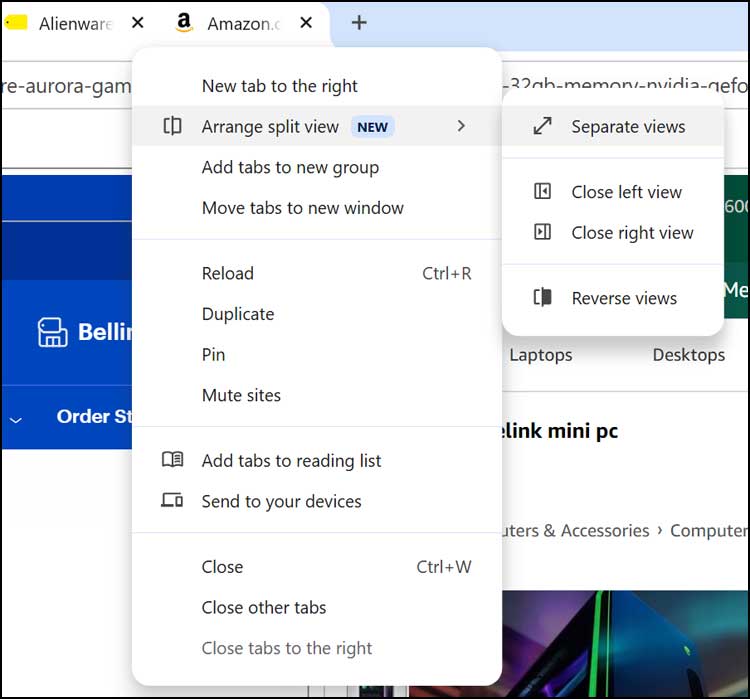
If we were to right-click these grouped tabs, we would access a specialized layout menu. We would have the option to do things such as separate the tabs back into individual pages. You can also close one of the tabs entirely or reverse their display order on the screen.
Open a Specific Link in Split View
1. Right-Click a Web Link
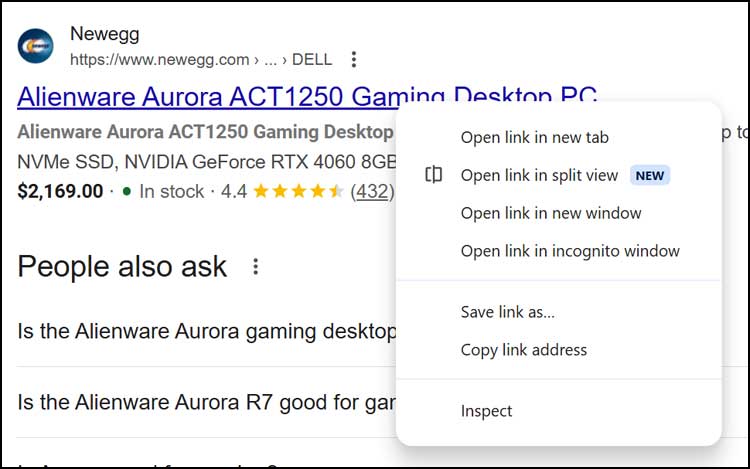
Another way you can use the Google Chrome Split View feature is by targeting a hyperlink directly. Find a link on your current webpage that you want to explore without leaving the current article. Right-click that specific link to open the standard context menu.
2. Choose the Split View Command
Select Open link in split view from the available choices. Chrome will instantly divide your screen and load the target URL in the secondary pane. This works perfectly for checking search engine results while keeping your main query visible.
3. Navigate Multiple Split Groups
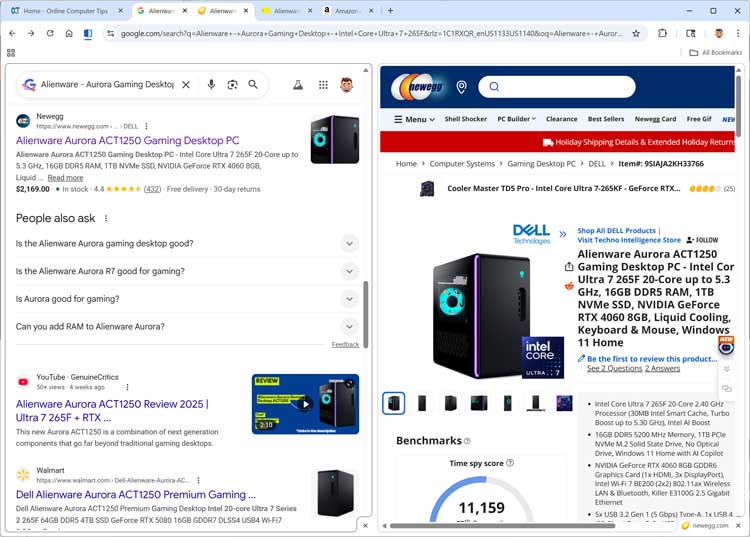
Now we have the website from the link open in one tab while having our search results open in the other tab. As you can see, we also have two sets of side-by-side tabs running simultaneously. While in this view, you can right-click on any link on either side and open it in the other pane as needed.
Replacing Tabs in an Active Split View
1. Select a Standalone Tab
Another thing you can do with the Chrome Split View feature is replace a tab with a completely different one. If you already have two tabs grouped together, you can swap out the content dynamically. Find a separate, standalone tab in your top bar that you want to introduce to the pair.
2. Swap the Active View
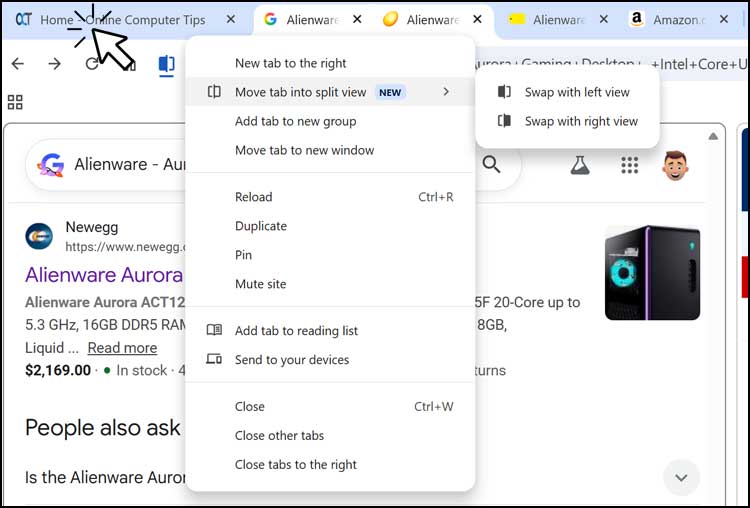
Right-click that separate tab and hover over the arrangement options. You can have it moved into the existing split view and replace one of the existing tabs. Choose whether it replaces the left or right pane based on your exact preference.
3. Verify the Tab Swap
As you can see in our example, we moved the OCT tab into the existing split view. This action automatically pushed one of the other tabs out of the group. The old tab simply returns to the main bar as a standalone page.

Disabling the Feature and Alternatives
1. Disable the Split View Feature
Here is a video showing how to disable the Split View right click option if you don’t plan on using and find that it is just getting in the way. If you want to disable the Chrome Split View option so it does not appear in your right click menu, you can do so using this method.
2. Explore Microsoft Edge Split View
Microsoft Edge also has a native split view feature you can check out if you are an Edge user. It functions very similarly to Chrome and offers great layout controls. Edge is built on the same Chromium engine, so the performance remains identical.
3. Install Document Extensions
Sometimes you need side-by-side functionality for specific web applications that resist standard splitting. Plus there is a browser extension you can use to open Google Docs, Sheets, and Slides in split view. This provides a dedicated workspace for heavy data entry tasks.
For additional training resources, check out our online IT training courses.
Check out our extensive IT book series.