EaseMate AI Unleashed: The Future of Intelligent Workflow Solutions
With all the AI tools available out there these days, you will find that you have many to choose from. Sure, you have the popular ChatGPT, Gemini and Copilot but those aren’t the only options you have. In this article, we will be talking about the EaseMate AI tool that you can use as an alternative to these popular large language models.
EaseMate AI is an AI-powered productivity tool designed to help users automate tasks, manage workflows, and get quick, intelligent assistance through natural language interactions. It streamlines everyday work by helping with content creation, organization, and decision support, making tasks faster and more efficient.
If you have ever used any of the previously mentioned tools, you will find EaseMate AI very easy to use and notice that it has many features that these other tools don’t have. Once you go to the EaseMate AI website, you will notice that it has a similar to other tools such as ChatGPT. One nice feature of EaseMate AI is that you can use ChatGPT for free with no login.
At the bottom of the website, you will see the familiar prompt box with several options such as using Reason mode or having your question researched on the web. There is also a Note feature that can be used to help you save ideas and refer back to them later. You can also upload image files such as JPG, JPEG and PNG files to be analyzed. Next to that, you will find a chat history button.
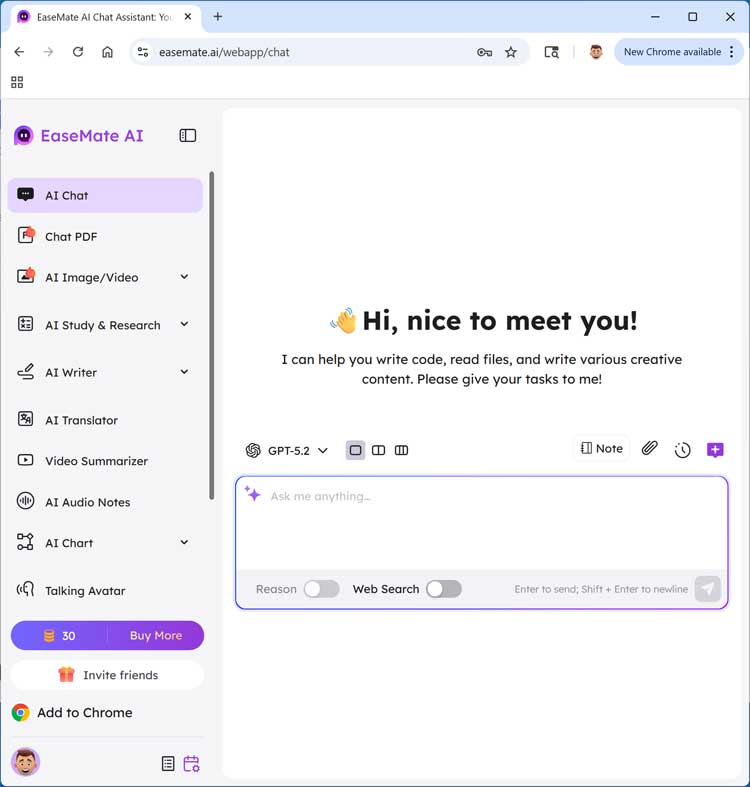
There is no need to sign in to use EaseMate AI, but if you do, you will get 30 free credits that you can use for things such as AI image generation.

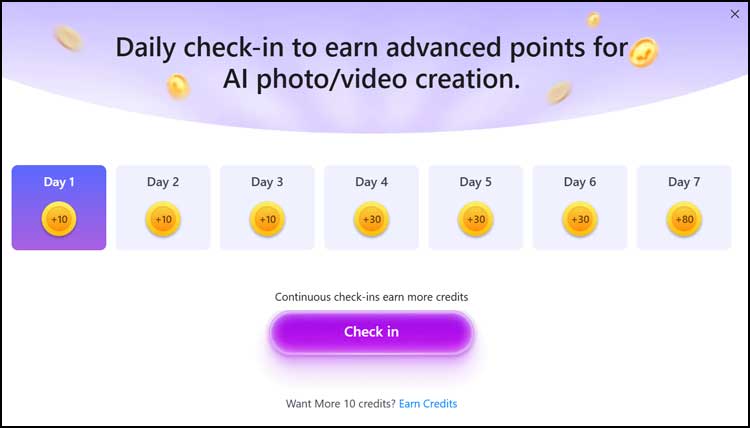
And when you check in, you can get additional credits.
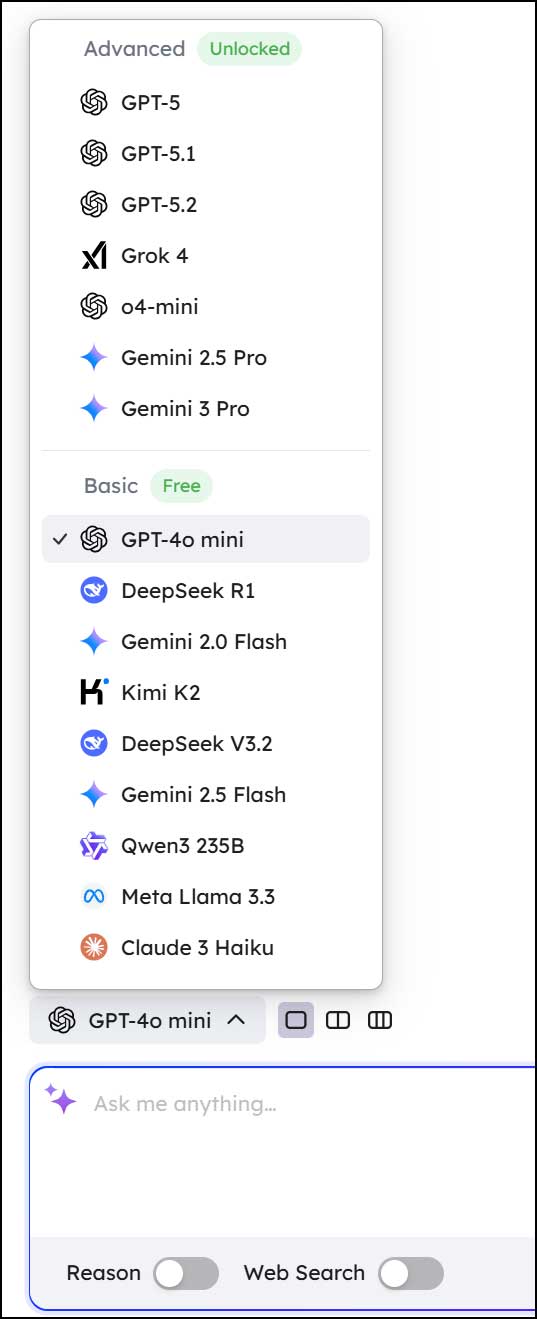
When you click on the LLM selector, you will see that there are many models you can use such as ChatGPT 5, Grok, Gemini, Meta and Claude. Logging in with a free account will unlock the more advanced models.
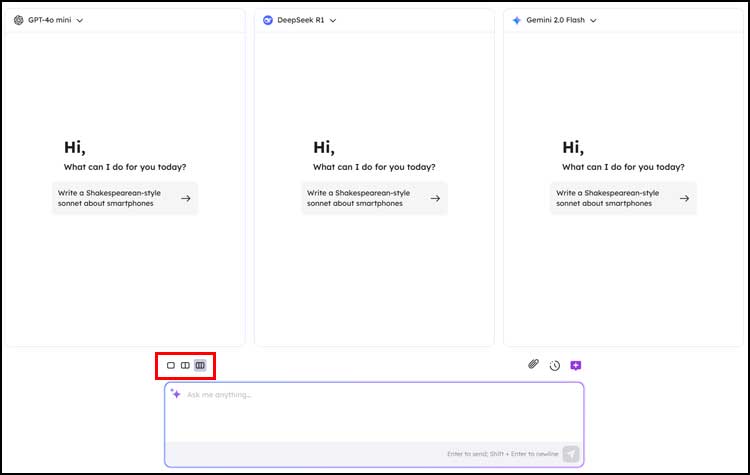
One unique feature of EaseMate AI is the ability to choose up to three models to run your query against at the same time.
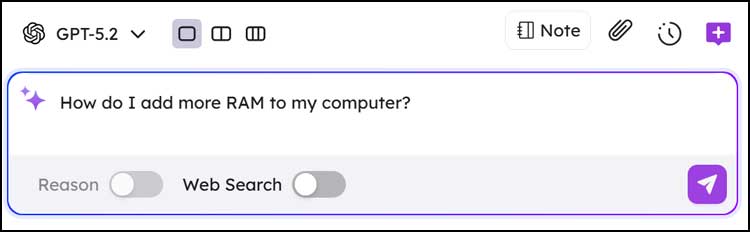
To perform a query, all you need to do is type in your prompt and press enter or click the send button and it will do the rest.
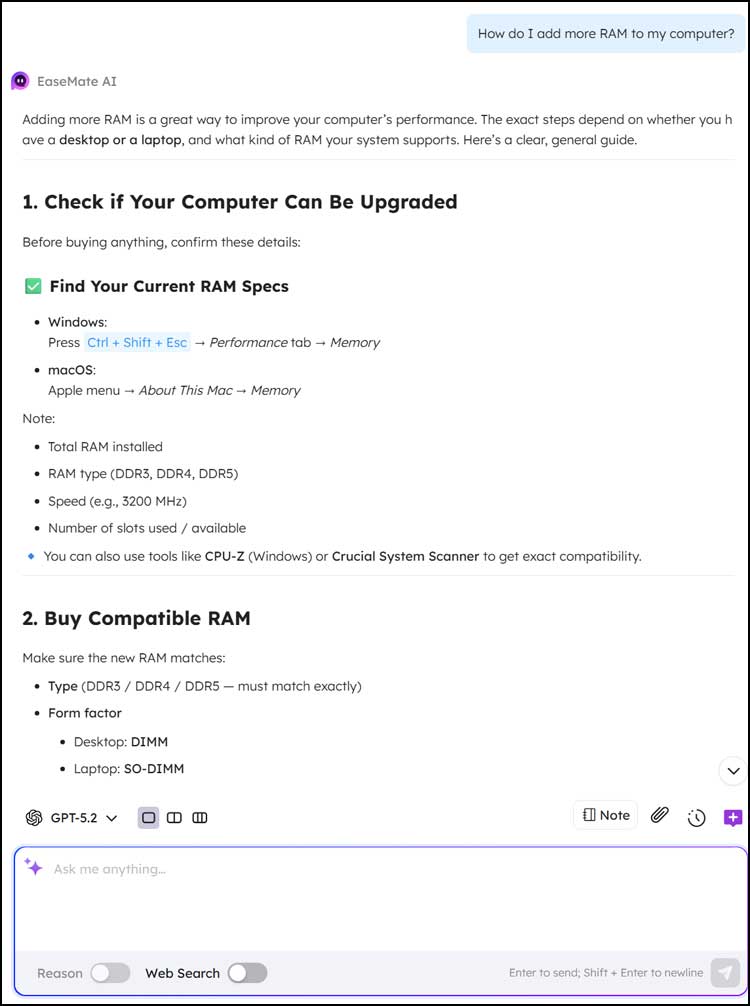
And of course, you can ask additional follow up questions to get more details about your query.
Here is a brief overview of some of the other tools you will find in the navigation area at the left of the website.
- AI Image/Video – Here you can perform image to image or text to image creation and choose which model you want to use.
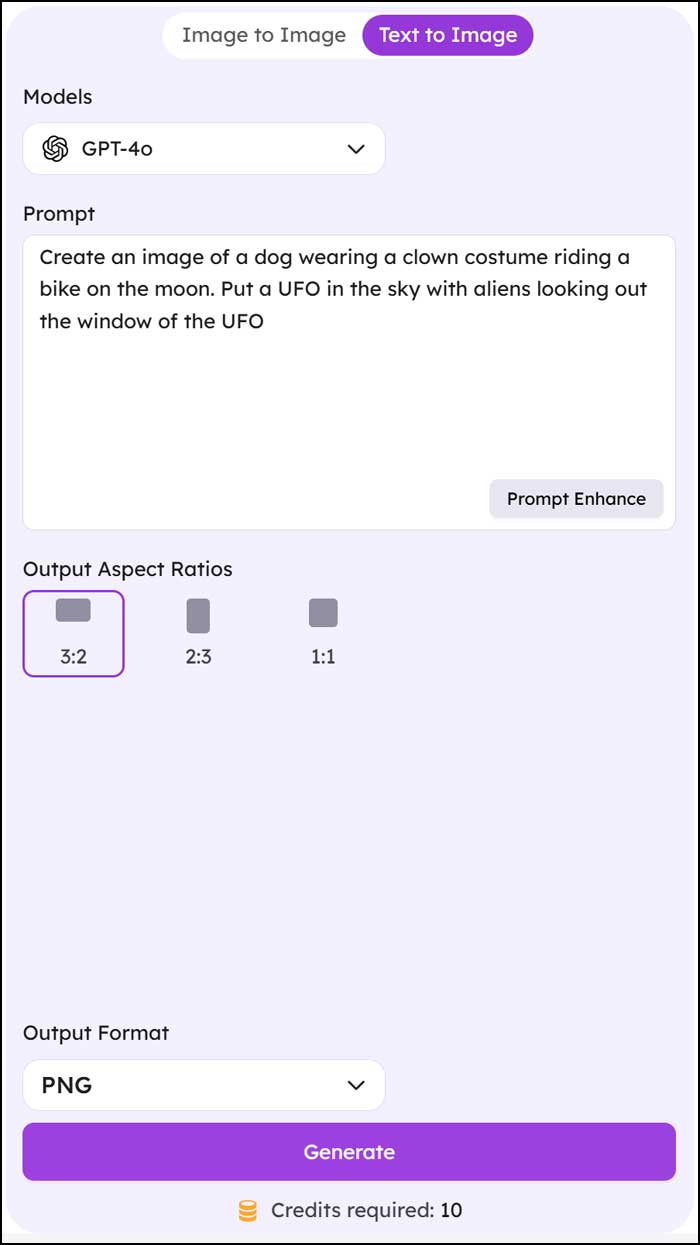
The Prompt Enhance button can be used to generate a more detailed version of your prompt.
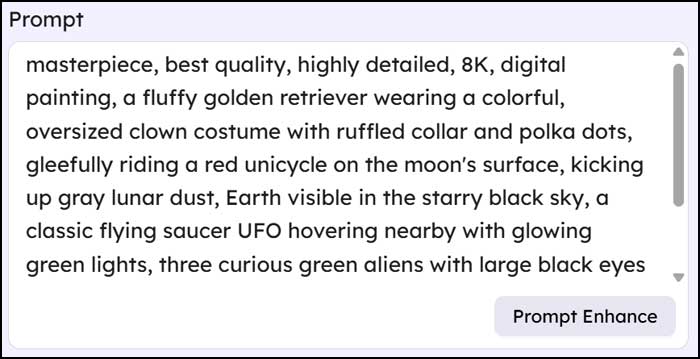
The image below shows the result from the text to image prompt shown above.

- AI Study & Research – Used to help users learn, analyze, and research information more effectively using AI assistance.
- AI Writer – This is used to help you create written content quickly and easily with AI assistance.
- AI Translator – This feature is used to translate text or conversations between languages quickly and accurately.
- Video Summarizer – Used to quickly understand the key points of a video without watching the entire thing.
- AI Audio Notes – The AI Audio Notes feature is designed to capture spoken information and turn it into useful, organized notes automatically.
- AI Chart – This can be used to turn data or information into clear, visual charts automatically.
- Talking Avatar – The Talking Avatar feature is designed to turn AI responses into a human‑like, visual speaking experience.
- AI Prompt Organizer – This is designed to help you save, manage, and reuse AI prompts efficiently.
- Notebook – Notebook in EaseMate AI is a centralized workspace for collecting, organizing, and managing your information in one place.
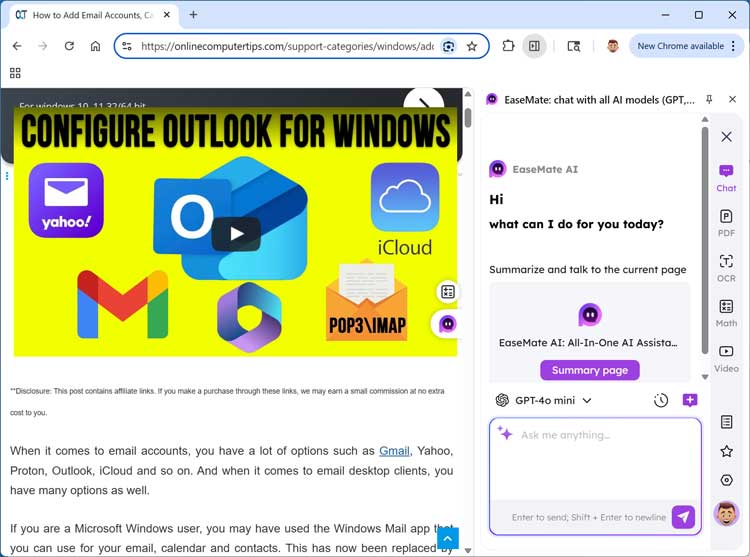
- Add to Chrome – The Add to Chrome feature allows you to install EaseMate AI as a Chrome browser extension, so you can use its AI tools directly while browsing the web.
For additional training resources, check out our online IT training courses.
Check out our extensive IT book series.