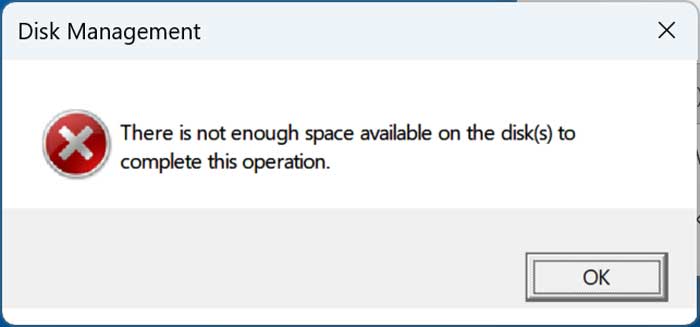
If you’ve tried converting a basic disk to a dynamic disk in Windows and encountered the “There is not enough space available on the disk to complete the operation.” error, you’re not alone. This issue is surprisingly common and can be frustrating, especially when your drive shows plenty of free space. In this article, we will show you why it happens and how you can fix it.
Windows allows you to convert a basic disk to a dynamic disk to enable advanced features like spanning, striping, and mirroring. However, during this conversion, Windows needs to store a small database that tracks dynamic volumes. This database is critical for managing dynamic disks, and it must be placed in a very specific location: at the end of the disk in unallocated space.

So even if your disk has many gigabytes of free space inside its partition, that space is not considered unallocated. If the entire disk is allocated to a single partition, Windows has nowhere to write the dynamic disk database. As a result, you get the error message:
“There is not enough space available on the disk to complete the operation.”
How to Convert a Basic Disk to a Dynamic Disk
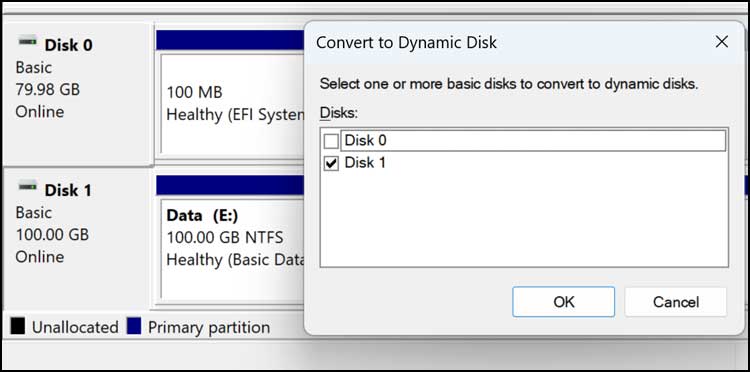
Converting a basic disk to a dynamic disk is a simple process. First you will need to open the Windows Disk Management tool. Then you can right click on the disk you want to convert and choose Convert to Dynamic Disk.
Then you will need to choose the appropriate disk from the list and click the OK button.
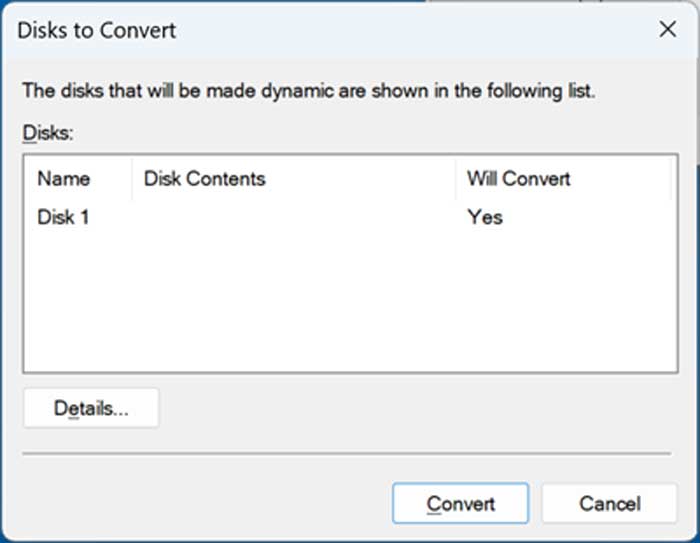
You will then see a summary screen with a will convert column with yes underneath it. Then you can click the Convert button to start the process.
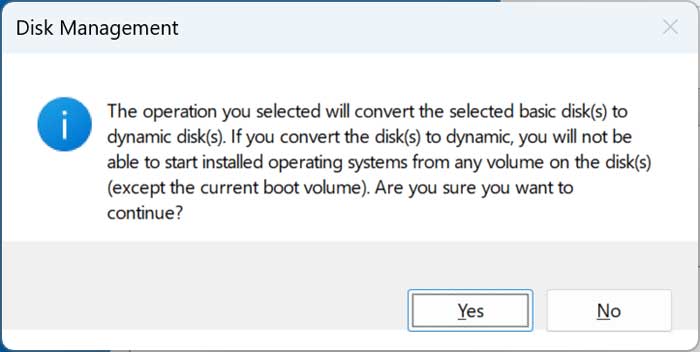
You will then get a warning telling you that you will not be able to start installed operating systems from any volume on the disk except the current boot volume. You would then click the Yes button to continue.
After clicking Yes, this is where you will see the There is not enough space available on the disk to complete the operation message and will be unable to complete the basic to dynamic conversion.
Why Does This Happen?
The error occurs because of disk layout requirements, not because of insufficient free space inside the partition. Windows needs at least 1 MB of unallocated space at the very end of the disk. So, if your disk is fully partitioned, there’s no room for the dynamic disk database.
Other factors that can cause this issue include:
- Recovery or OEM partitions at the end of the disk, which block the required space.
- Removable drives or USB disks, which do not support dynamic disk conversion.
- Disks in Storage Spaces or with certain configurations, where dynamic disks are not allowed.
How to Fix the Not Enough Space Error
Fortunately, this problem is easy to fix once you understand what’s causing it. Here is how you can do it.
Step 1. Shrink the Last Partition
Open Disk Management:
- Press Win + X and select Disk Management.
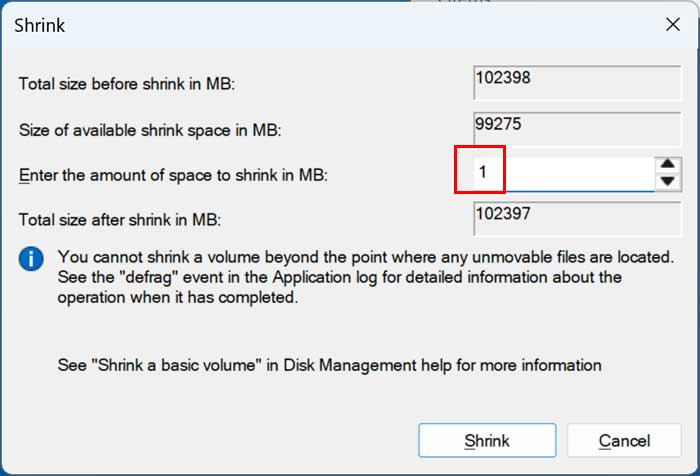
- Right click the last partition on the disk and choose Shrink Volume.
- Shrink it by at least 1 MB (more is fine). This creates the unallocated space Windows needs.
Step 2. Retry the Conversion
Once you have at least 1 MB of unallocated space at the end of the disk:
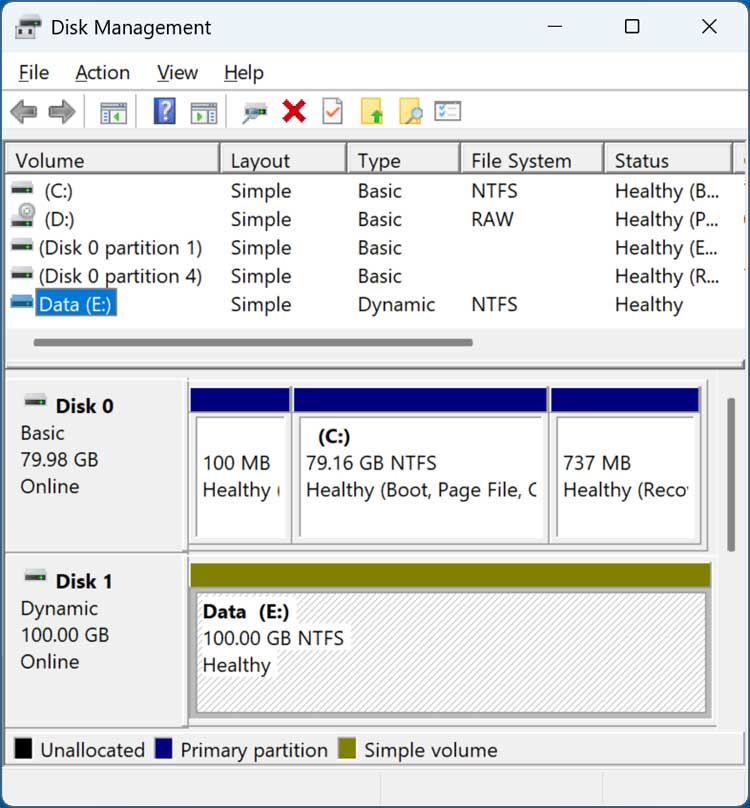
- Right click the disk in Disk Management.
- Select Convert to Dynamic Disk.
- Follow the prompts to complete the conversion.
Other Considerations
- Back up your data before making any changes to partitions.
- Do not convert your system disk to dynamic unless you fully understand the implications.
- Dynamic disks are considered legacy technology.
- For new setups, Microsoft recommends Storage Spaces or GPT partitions for advanced volume management.
Alternative Solutions
If you’re uncomfortable shrinking or deleting partitions manually, you can use third-party tools like MiniTool Partition Wizard or NIUBI Partition Editor. These tools often provide a more user-friendly interface for resizing and managing partitions without risking data loss.
You can also convert a dynamic disk to a basic disk without losing any data if needed. You can also do this with your Windows drive if needed.
For additional training resources, check out our online IT training courses.
Check out our extensive IT book series.