Last Updated on July 25, 2026
Have you ever wanted to know what computer belongs to what IP address? This information can come in very handy when trying to troubleshoot network issues or see if there are devices on your network that don’t belong there.
Just knowing the IP address of a device on your network may not be enough information to figure out what you need to know. Sure you can ping an IP address but that only tells you if there is connectivity. Sometimes you can use the -a switch with the ping command and see if you get lucky and it resolves the IP address to a name.
Another command line utility you can use to help you in your quest for finding the computer name associated with an IP address is the command nbtstat to find NetBIOS computer names if you use NetBIOS on your network.
Using the Nbtstat Command Line Tool
1. Open the Windows Command Prompt
To get started, you will need to open a command prompt window. You can do this by going to Start, Run then type in cmd and click OK. You can also just search for cmd in your Windows taskbar.
2. View the Available Command Switches
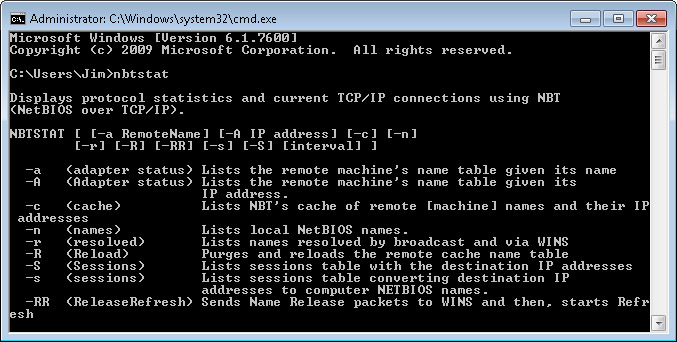
Once the black terminal window opens, type nbtstat by itself and press enter. Here are the available switches you can use with the nbtstat command. It will display a massive help list showing you exactly how to format your queries.
3. Execute the Name Resolution Command
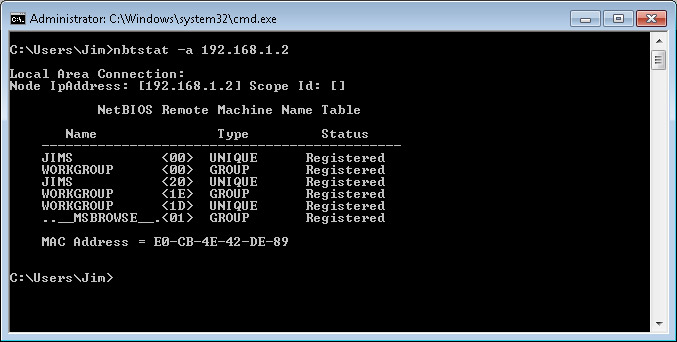
The specific switch you want to use to find the host name associated with the IP address is nbtstat –a. You must follow that exact switch with the target IP address. For example, you would type nbtstat -a 192.168.1.2 and press enter.
4. Read the NetBIOS Output Table
The tool will query the remote machine and return a NetBIOS Remote Machine Name Table. In the following example you can see 192.168.1.2 is the IP address we queried. The results clearly show that JIMS is the computer name and WORKGROUP is the workgroup name.
5. Explore Alternative Network Commands
The nbtstat command is incredibly useful, but it is just one tool in your troubleshooting arsenal. If NetBIOS is disabled on your network, this command will fail to return a hostname. Check out these other useful network commands to find alternative ways to track down devices on your network.
For additional training resources, check out our online IT training courses.
Check out our extensive IT book series.