Many Windows programs offer a listing of recently opened files so that you can re-open a file you recently worked on quickly without having to search for its location all over again. This can come in handy when you work on the same files all the time and want to be able to open them easily. If you are on a shared computer and don’t want others knowing what you have been working then it can be an issue and you may not want your recent files to be shown.
While recent file lists are designed for convenience, they can also reveal more information than you might intend, especially on shared or public computers. Anyone who opens the program can quickly see which documents were accessed last, potentially exposing sensitive projects or personal work. For users who value privacy or work with confidential files, controlling this feature becomes just as important as having quick access to documents.
I’m sure you have noticed that when you are in a Microsoft Office program such as Word or PowerPoint, or Excel that there is a list of recently opened documents when you click on the Office Orb or File menu tab. You may or may not want a record of your recently opened Office files to be displayed for anyone else to see.
The recent documents list in Microsoft Office is meant to streamline workflow, but it isn’t always useful for everyone. Some users prefer a clean start each time they open an application, while others may only want frequently used files to appear. Being able to manage or reset this list gives you more control over how Office behaves and how much of your activity is visible to others.
There is an easy way to clear this list of recently opened files so you can start with a blank list. The process is the same for Office 2007 and Office 2010 and up but the steps to get there are just a little different. Here is how you do it.
Open the Office app that you want to do this for and simply click on the File tab and then Options lower down on the left.
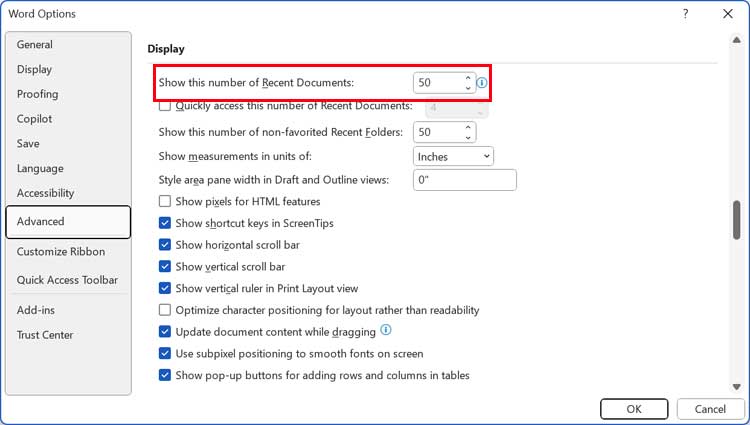
Next you will click on Advanced on the left. Then scroll down to the Display section in the window on the right. Finally enter 0 in the Show this number of recent documents list and Click OK to clear the list. After it’s cleared you can go back to this area and put in the number of recently opened documents you want kept in your list if you want any history kept at all. Otherwise you can leave it at 0. The list will update as you open your files.
For Office 2010 and up you can also right click on any document in your recent documents list and choose Remove from list if you want to choose which documents are removed.
Recent file lists in Microsoft Office are designed to improve efficiency, but they aren’t always ideal for every situation. While they can make it easier to return to frequently used documents, they can also expose activity that users may prefer to keep private, especially on shared computers. By clearing or customizing the recent documents list, you gain better control over both your workflow and your privacy, allowing Office applications to behave in a way that best suits how and where you work.