The Windows System File Checker (SFC) has been around for many versions of Windows and hasn’t really changed since it was first introduced. The main reason for using this utility is when you suspect there may be a problem with a Windows system file. There will be times when important Windows file become corrupt and unreadable. Or there may be a case when an important file gets deleted somehow.
While SFC is often thought of as a repair tool, it also serves an important diagnostic role by helping confirm whether system instability is caused by Windows itself or by something layered on top, such as drivers or third‑party software. A clean SFC result can save time by ruling out core operating system damage early in the troubleshooting process. On the other hand, when integrity violations are found, the repair logs provide valuable clues about deeper issues, such as disk errors or interrupted updates, that may require additional attention beyond a simple reboot.
The System File Checker is used to check and see if there are any corrupt Windows system files. This utility will check these files and replace them if needed. It will also check for errors with the Edge web browser so if you are having any Edge problems then it may be a good tool to use as well.
To use this utility, open an administrative command prompt and type in sfc /scannow.
Doing this will run the Windows File Protection service to scan all protected files and verify their integrity, and it will replace any files that are not correct.
The following should appear to give an indication of how long the process is taking. Depending on your computer’s speed it may take some time to complete.
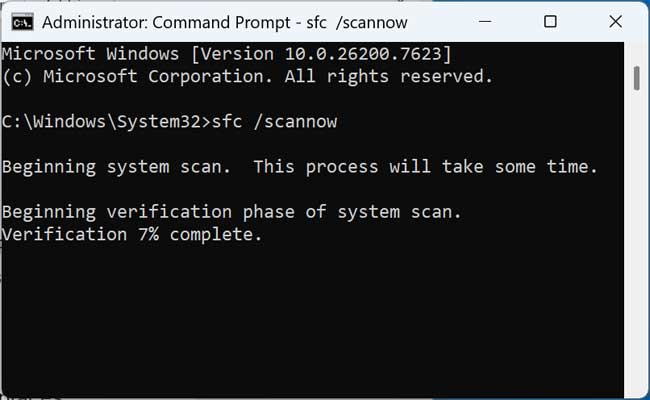
It may ask you for your Windows media if it needs any files off of it so keep it handy.
Here is a listing of the available switches you can use with the System File Checker. Some of them may be operating system specific so if it doesn’t work then that may be why.
- The /scannow command scans all protected system files and replaces incorrect versions with correct Microsoft versions. This command also repopulates the DLLCache folder with the most recent versions of protected files. This requires access to the Windows installation source files and also the installed Service Pack files. You are usually prompted for the location of these files during the scan operation.
- The /scanonce command scans all protected system files once. This command requires access to the Windows installation source files.
- The /scanboot command scans all protected system files every time that you start your computer. This command requires access to the Windows installation source files.
- The /cancel command cancels all pending scans of protected system files.
- The /enable command enables WFP for normal operation.
- The /purgecache command purges the file cache and scans all of the protected system files immediately. This command requires access to the Windows installation source files. This command is required after you run the /cachesize=x command.
- The /cachesize=x command sets the file cache size in megabytes (MB). This command requires a reboot followed by a /purgecache command to adjust the size of the on-disk cache.
- The /quiet command replaces all incorrect file versions without prompting the user.
In summary, the Windows System File Checker is a long‑standing and reliable utility for verifying the integrity of critical operating system files and repairing them when corruption is detected. Beyond fixing issues, it also serves as a valuable diagnostic tool that helps rule out core Windows problems during troubleshooting. By running SFC with the appropriate command‑line switches, users can identify damaged files, restore correct versions from trusted sources, and gain insight into deeper system issues that may require further action, making it an essential first step when dealing with unexplained Windows behavior.