Ever since the first days of Windows we have clicked on the X in the top right corner of a program to close that program or a file within that program. It has become a standard Windows practice that has even been copied by other operating systems. Not to say that Microsoft invented the idea but who knows for sure.
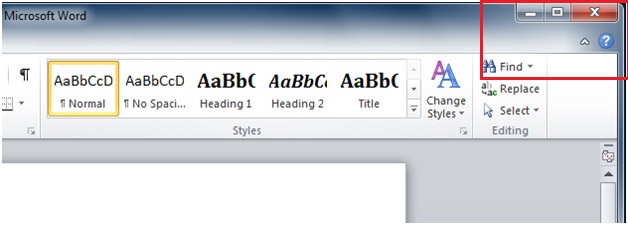
For some reason in Word 2010 they decided to take away the X on the top right corner of the document (not Word itself) so you have to either close the whole program itself or go to File and then close to close the document. You may have noticed that when trying to close a document in Word 2010 without closing Word itself that there is no close document X button where it should be. Now you either have to close Word itself or go to File and Close to close the document while leaving Word open. Here we will show you hot to restore the X on the document itself so you can close it right from there instead of going to the File menu. Check the bottom of this article for more methods for current versions of Word.
Before the fix
After the fix
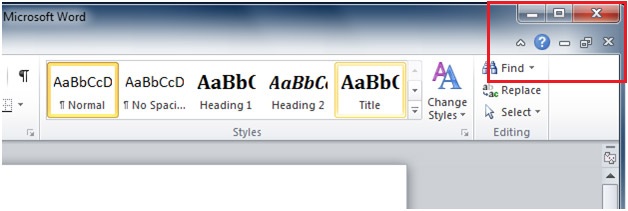
For Word 2010 click on the File tab, then click on Options and then Advanced and scroll to the Display section.
For Word 2007 click on the Office ball and then on the Word Options button. Then click on Advanced and scroll to the Display section.
Under Display find and uncheck the box that says Show all windows in the Taskbar and click Ok. Now you will have your close document button back!
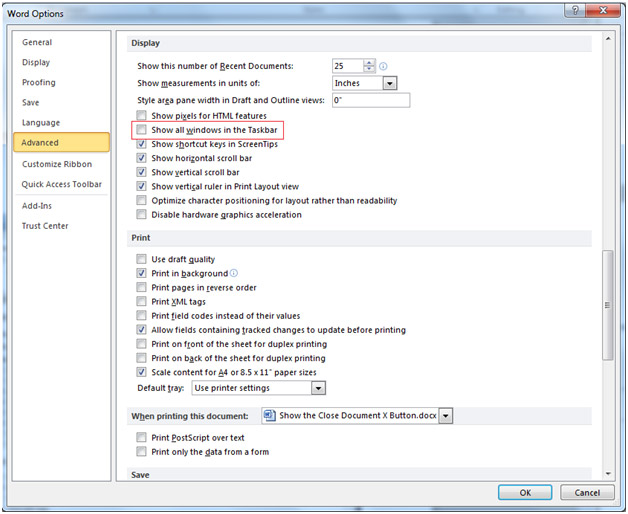
Keep in mind that changing this setting will prevent your Word documents from showing up in the Taskbar as separate entries when you have multiple Word documents open like they used to as shown below. This is assuming you use the never combine option for your taskbar button settings under Taskbar properties.

Another option you can use consist of a couple of keyboard shortcuts. You can also press Ctrl+W or Ctrl+F4 to close the currently open document but not Word itself.
How to Close a Document in Modern Word
Since the “Close Document” button cannot be restored, here are the current options:
- File Menu Method
- Click File > Close to close the current document without quitting Word.
- Keyboard Shortcuts
- Windows: Press Ctrl+W or Ctrl+F4
- Mac: Press Cmd+W
- Add a Close Button to the Quick Access Toolbar
- Click the down arrow on the Quick Access Toolbar (top-left corner of Word).
- Select More Commands.
- In the list, choose Close and click Add.
- Click OK.
This adds a “Close” button to the toolbar for easy access.
Important Note
There is no built-in way to restore the old “X” button for individual documents. If you need that functionality, consider using the Quick Access Toolbar method or keyboard shortcuts.
Check out this video that will show you some other close document options for Word and other Office programs.