Formatting a drive in Microsoft Windows is the process of preparing its storage by creating a fresh file system, clearing old data structures, and organizing the space so files can be written, stored, and accessed reliably. This is often done when you want to wipe the drive so there is no data left on it. It is not the same as securely wiping a drive so the data cannot be recovered so keep that in mind.
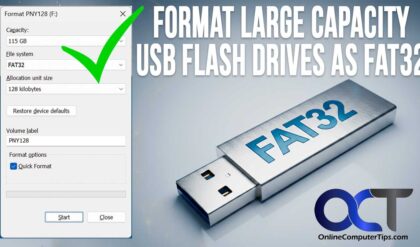
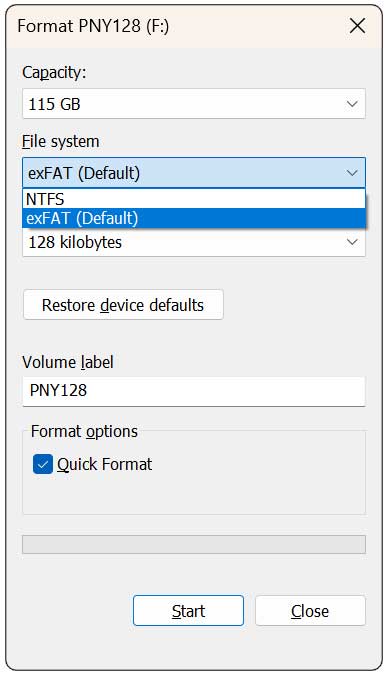
Many times, your flash drive will need to be formatted as FAT32 when used in devices such as smart TVs, game consoles, car stereos, projectors and older computers. If you have a USB flash drive that is larger than 32GB, Windows will not give you the option to format it as FAT32. When you right click on it and choose Format, you will only have the option to use exFAT which is the default and NTFS. In this article, we will be showing you how to format large USB flash drives as FAT32 in Windows.

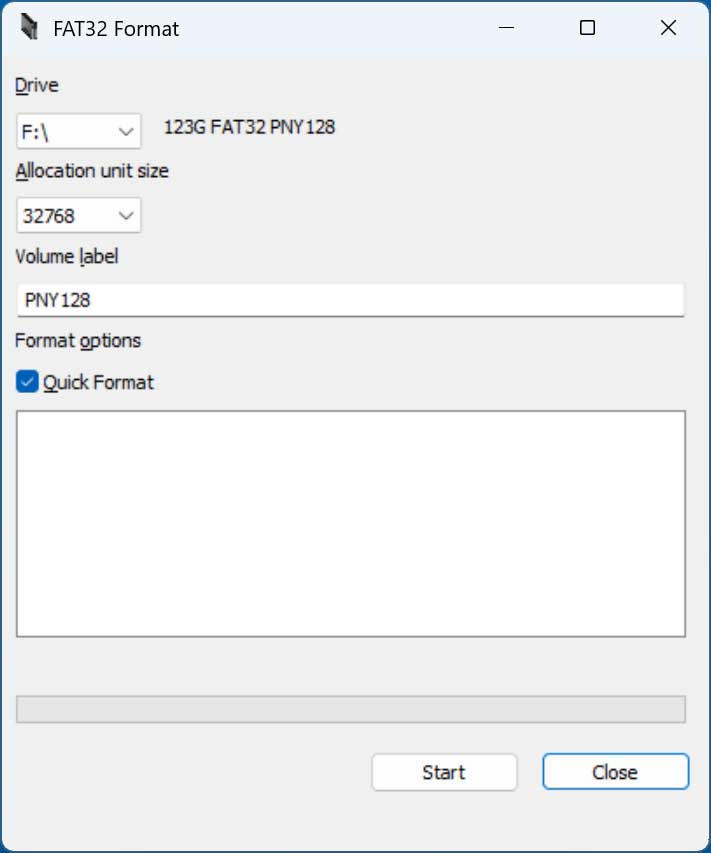
To be able to format a large flash drive as FAT32, we will be using a free app called FAT32 Format GUI (GUIFormat) which can be downloaded here. It will be in a zip file that will need to be extracted. Then you will see a folder for the macOS version and the Windows version. You will want to double click the file called guiformat-x64.exe to start the process.
You will then need to select your flash drive from the Drive drop down list. Be sure to choose the correct drive so you do not accidentally format the wrong dive since all data on the drive will be erased. You can also change the volume label (drive name) if you like. You should be fine using the quick format option unless you want to do something such as check for bad sectors or to ensure the previous structure is fully removed if you are switching from a different file system like exFAT. You should also use the 32768 allocation unit size choice which is the same as 32k.
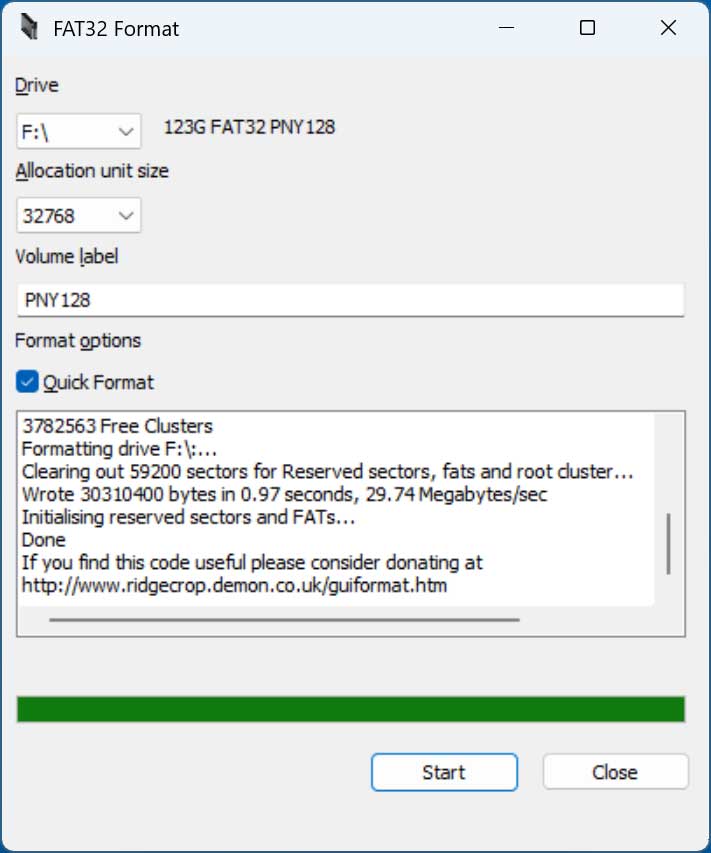
Once you are ready, simply click the Start button to begin. The format will only take a few seconds, and you will be shown a summary when it’s complete. You will then be warned that all the data on the drive will be lost, and you will need to click the OK button. Before doing so, make sure that all File Explorer windows are closed and that you do not have anything open on the flash drive.
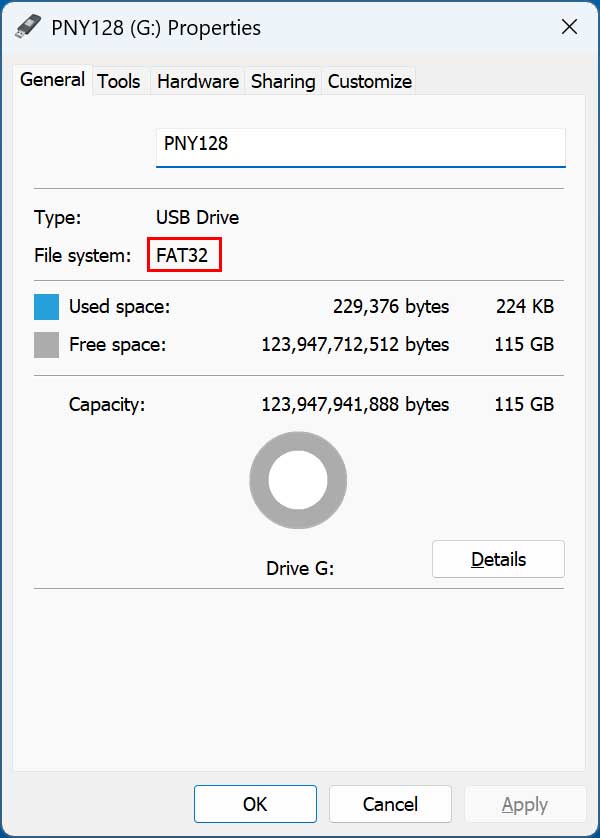
If you then right click on the formatted flash drive and choose Properties, you will see that it is now using the FAT32 filesystem.
Now you can use your newly formatted FAT32 USB flash drive in your device that requires it.
Here is another way you can format your USB flash drive as FAT32 using Rufus.
For additional training resources, check out our online IT training courses.
Check out our extensive IT book series.