Computer crashes and other related issues are nothing new and most of us have had this happen at least once, if not many times. Being able to diagnose and repair computer issues is a great way to save yourself some money and learn valuable skills at the same time. But having the right tools is crucial if you want to be able to get your computer up and running again. And of course having a current backup of your files is essential just in case you cant get it repaired and have to reinstall Windows.
Fortunately, there are several tools out there that you can use to boot your computer with to do things such as run diagnostics, reconfigure hare drive and even reinstall Windows if needed. In this article, we will be discussing Sergei Strelec’s WinPE which some consider to be the ultimate all-in-one rescue USB toolkit.

Sergei Strelec’s WinPE rescue USB is a bootable tool that comes with a multitude of common tools all packed into one toolkit.
Here are some of the tools that come included with the toolkit. Of course these can vary as the app is updated.
- Backup & Imaging: Acronis True Image, Macrium Reflect, R‑Drive Image, EaseUS Todo Backup and more for cloning, imaging, and system recovery.
- Disk & Partition Utilities: MiniTool Partition Wizard, DiskGenius, AOMEI Partition Assistant, Defraggler, KillDisk, HDD Low Level Format and more for formatting, resizing, wiping, and repairing drives.
- Data Recovery Tools: R‑Studio, EASEUS Data Recovery, Active File Recovery and other tools for file and partition recovery.
- Diagnostics: AIDA64, HWiNFO, BurnInTest, CrystalDiskInfo, CPU‑Z, OCCT, and more for hardware testing and system analysis.
- Password Reset Tools: PCUnlocker, Reset Windows Password, Windows Login Unlocker and more.
- Networking: TeamViewer, AnyDesk, OpenVPN, UltraVNC, Advanced IP Scanner and additional utilities for connectivity and remote troubleshooting.
In order to use Sergei Strelec’s WinPE toolkit, you will need to download the ISO file and then create a bootable USB flash drive using one of the many bootable flash drive creation tools.
The ISO will be contained within a RAR file that will need to be extracted. Since there is a password of strelec which will need to be used to extract the files from the ISO. You can use a free tool such as 7-zip to extract it.
Once you extract the RAR file, you will see several other files and folders including the WinPE11_XX.iso file which is the one you want to create your bootable flash drive with.
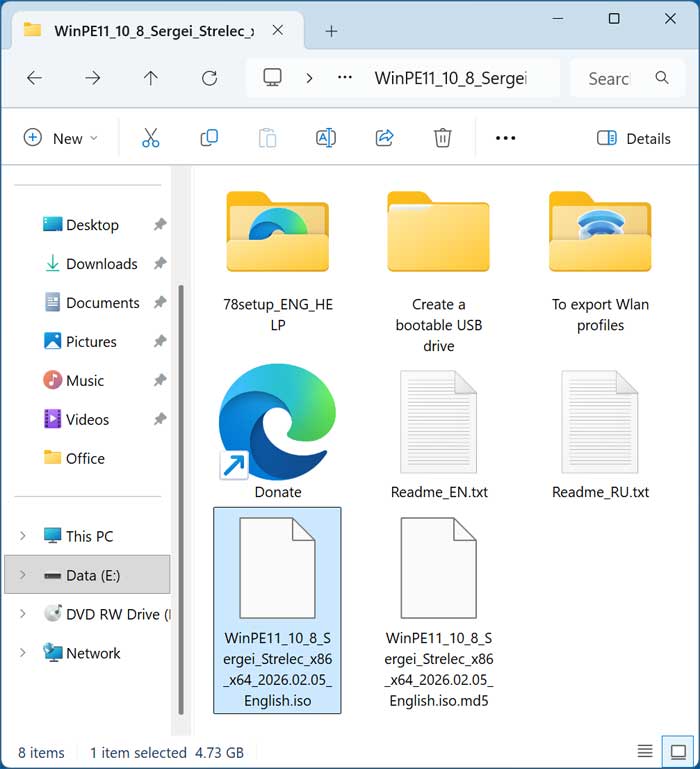
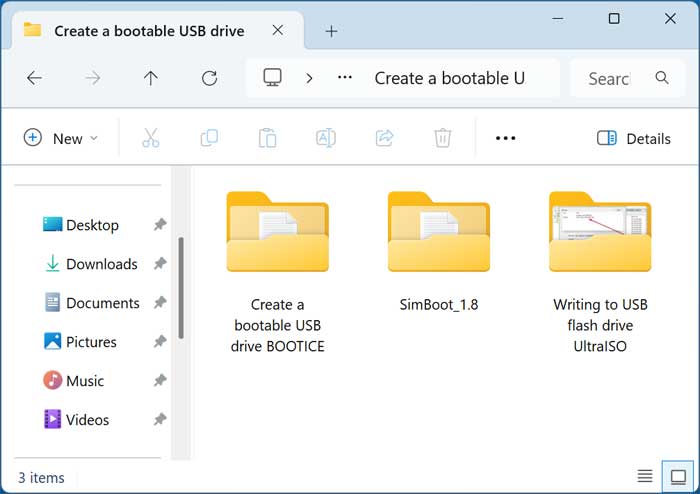
You may also have a Create a bootable USB drive folder with some other utilities such as BOOTICE, SimBoot and UltraISO that you can use to create your drive.
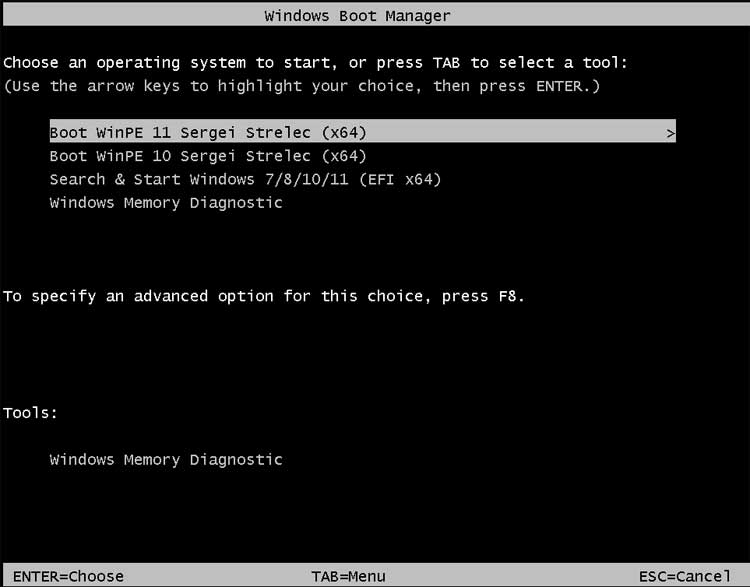
Once you have created your bootable flash drive and started your computer with it, you will have several options at the boot manager screen. If you are using Windows 11, you will choose the Boot WinPE 11 Sergei Strelec (x64) option. You will need to move the arrow keys on your keyboard within 10 seconds to stop the countdown timer, otherwise it will automatically choose the first option.
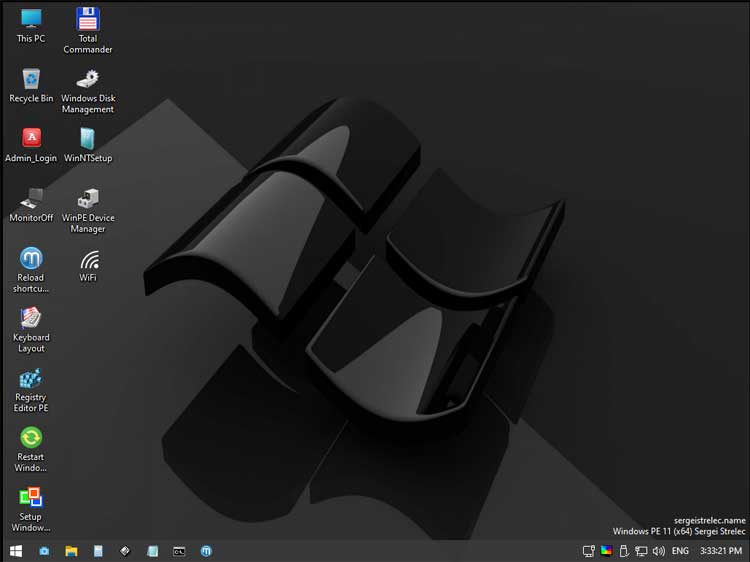
You will see a Windows 11 logo but keep in mind that it is not actually booting your computer back into Windows. You will then see the WinPE desktop with several icons as well as a Windows style start menu and taskbar.
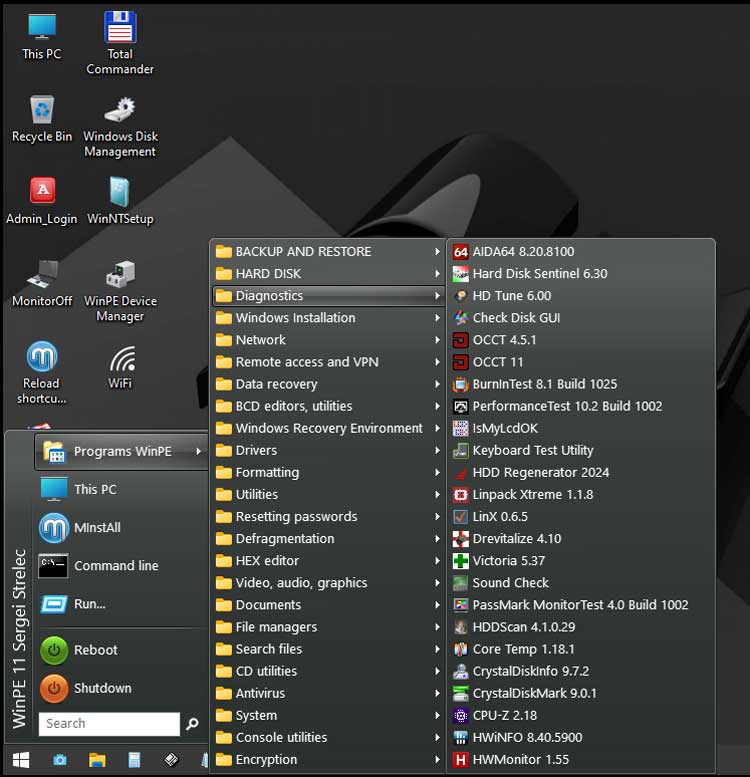
If you click on the start menu, you will see several options for things such as shutdown, reboot, run, command line, and This PC (File Explorer). If you click on the Programs WinPE option, you will see several categories of tools and software separated by folders. You can then use any of these tools from within one of these categories.
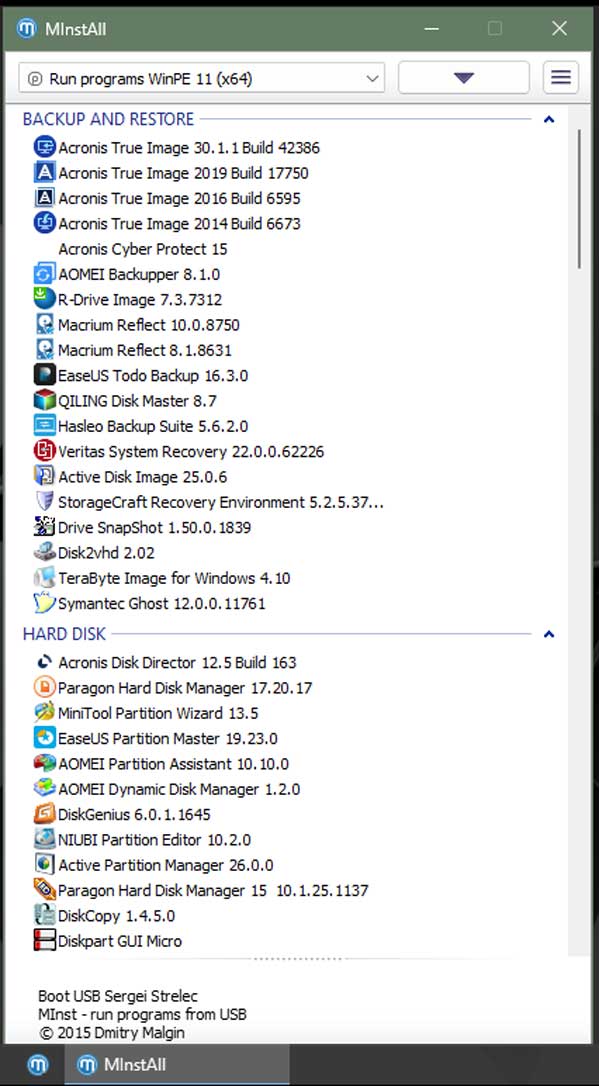
If you were to click on the MInstallAll icon, you would see the same tools and apps but displayed in a different format.
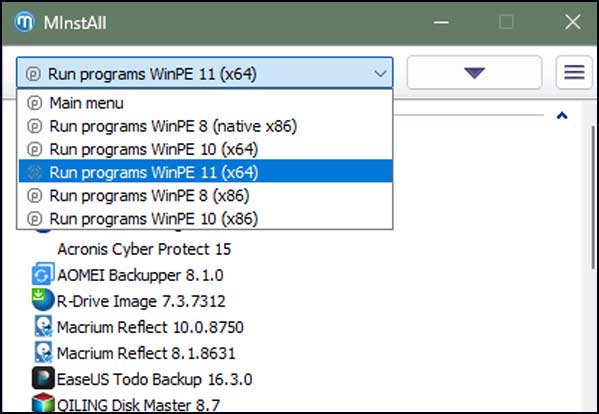
Clicking on the dropdown menu will show other options for Windows 8 and Windows 10.
One thing you may find is that the tools that are on the desktop might not be listed with the others so keep that in mind when reviewing all the available apps.
Now you can use any of these tools/apps to fix or configure your PC and hopefully get things up and running again!
For additional training resources, check out our online IT training courses.
Check out our extensive IT book series.