If you are any type of Windows power user, then you have most likely played with the various Windows settings and options to try and make the OS more user friendly, so it works better for your needs. When Microsoft released Windows 11, many users were upset with the lack of customization and all the extra bloatware and junk that nobody really has a need for.
Thankfully, there are many Windows debloating and tweaking apps that you can use to customize how Windows looks and feels. These are different from apps such as Windhawk which modifies behavior of Windows while debloating apps modify settings and components. In this article, we will be going over the free Sparkle app that is used to clean, debloat, tweak and optimize Windows.
There are several ways to download the Sparkle app, but you may want to get it from the GitHub website since it most likely will have the latest version, even though you can update the app from within the app itself.
When you run Sparkle for the first time, you will be prompted to create a system restore point which you defiantly should do in case you end up breaking something. If you have System Restore disabled, then this most likely will not create one. You can also create one manually using the System Restore tool itself.

We will now discuss each of the sections in the Sparkle app.
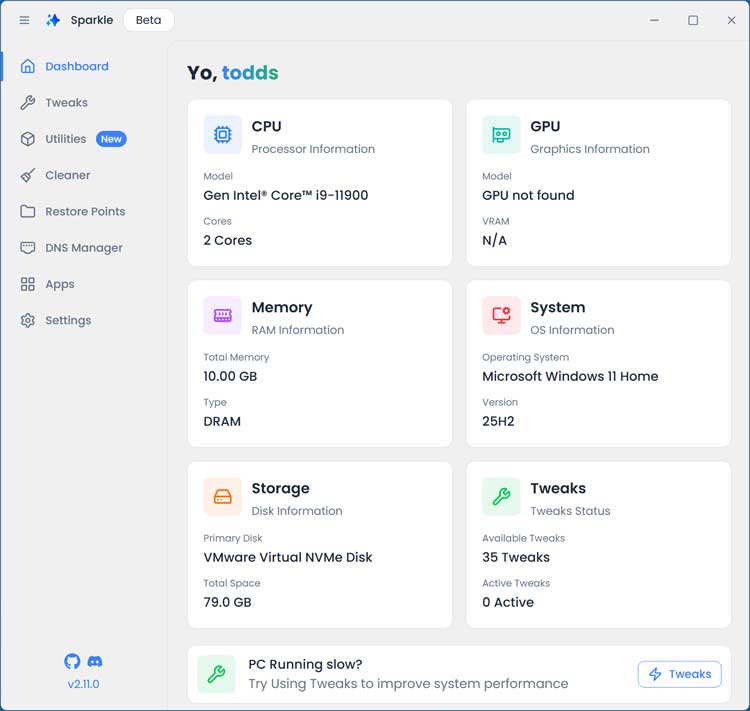
Dashboard
This will show you the installed hardware in your computer such as CPU, GPU, memory and hard drives. It will also show you the currently installed version of Windows that you are running.
Tweaks
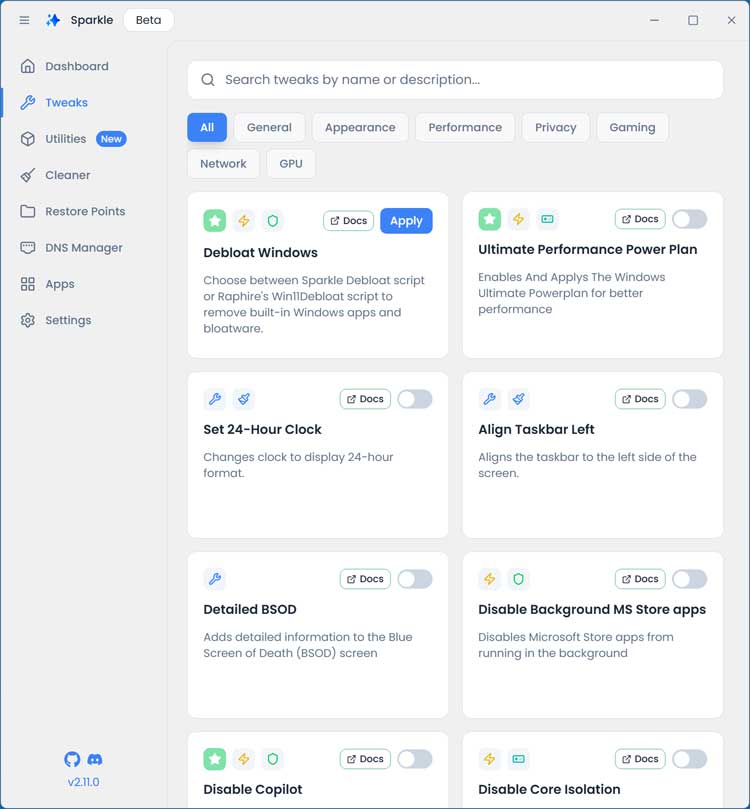
This is where you will come to apply the various tweaks you can use to customize, tune and debloat your computer. You can search for a tweak from the search box at the top or filter the various types of tweaks by clicking one of the categories below the search box.
The main Debloat Windows section will apply a variety of different tweaks to help speed up your computer. You can click on the Docs button to go to the Sparkle website to read up on what this option will do.
There are two different scripts you can choose from to run after you click the Apply button.
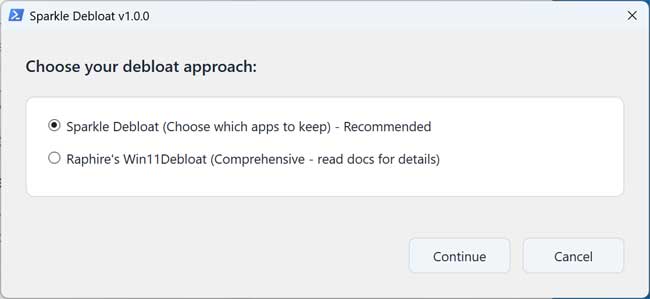
Sparkle Custom Selective Script (Recommended):
- This option lets users choose exactly which Windows apps they want to keep on their system. It opens a WPF-based interface where users can browse a list of applications and simply check or uncheck the ones they wish to remove or retain.
Raphire’s Win11Debloat Script:
- This approach relies on a widely recognized debloating script known for stripping out a broad range of built‑in Windows apps and components. It’s a more automated and comprehensive solution, ideal for users who prefer a fast, hands‑off method to clean up and streamline their Windows installation.
You will then be presented with a list of apps to keep or remove. It’s a little confusing because you need to UNCHECK the apps you want to remove rather than check them. Then you can click on the Start Debloat button.

Here is a PowerShell command you can run to run the debloater tool by itself without installing Sparkle. h
Utilities
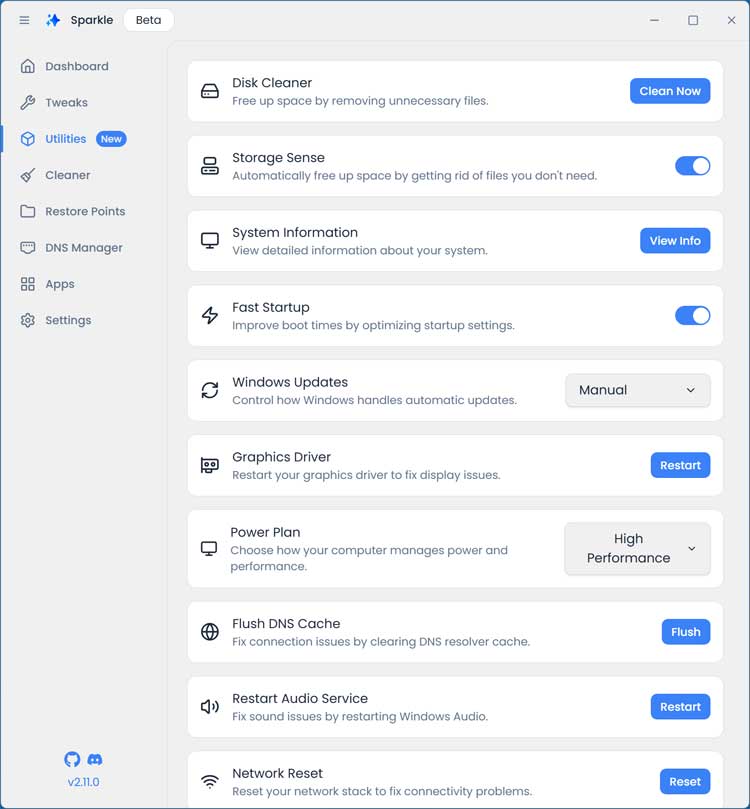
Here you will find several tools you can use to do things such as run the old Windows Disk Cleanup tool, enable or disable Storage Sense, change your power plan, flush DNS, perform a network reset and more.
Cleaner
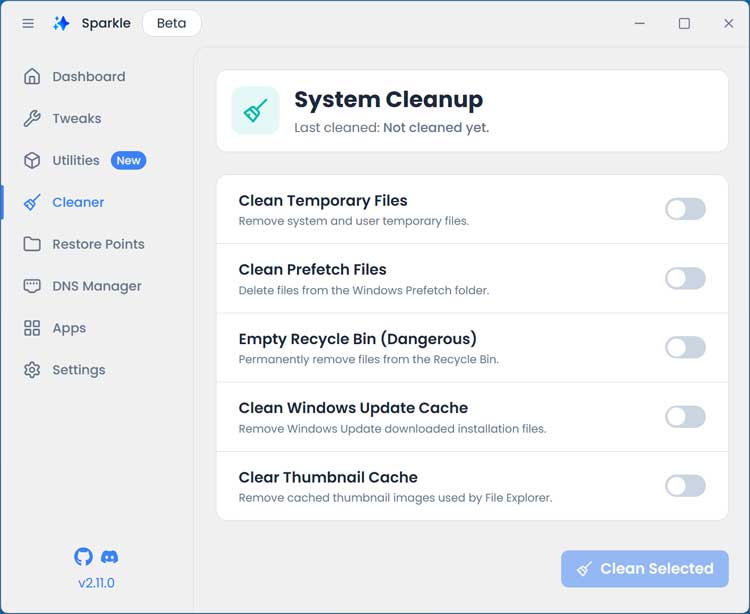
If you want to remove junk and temporary files, you can do so from here. You can also have Sparkle empty your Recycle Bin but just make sure you do not have anything in there you need to keep.
Restore Points
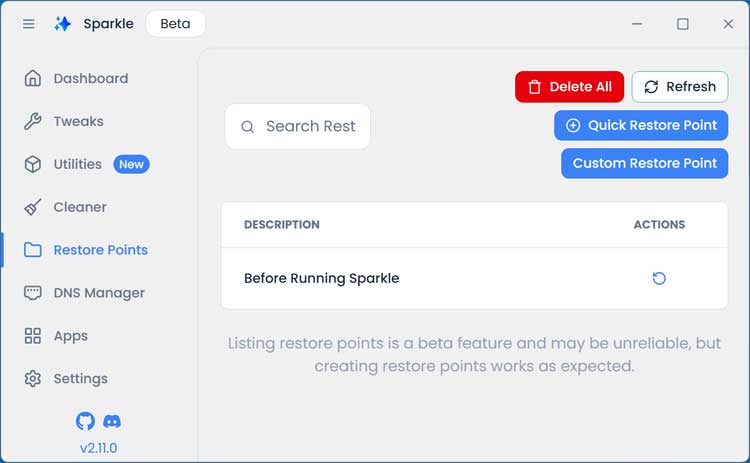
If you need to create another system restore point or restore a previously created one, you can quickly do so from here.
DNS Manager
This section will apply custom DNS settings to your computer from places such as Cloudfare, Google and OpenDNS. You can even configure your own custom DNS settings from here as well as configure automatic (DHCP) DNS settings as well.
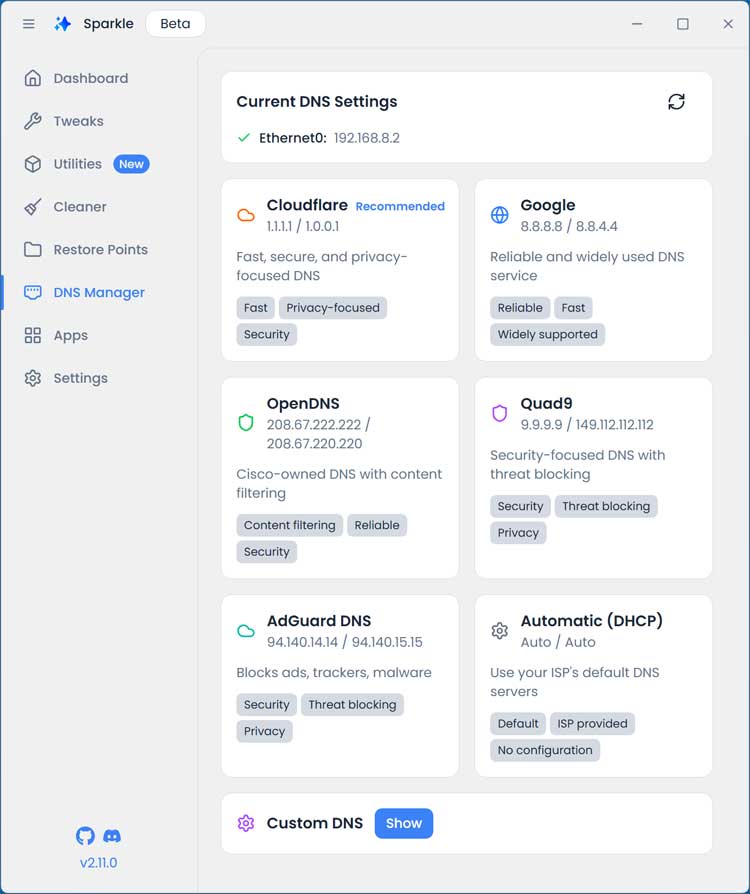
When you choose one of the options, you will be shown the primary and secondary DNS servers that will be applied to your network settings.

Apps
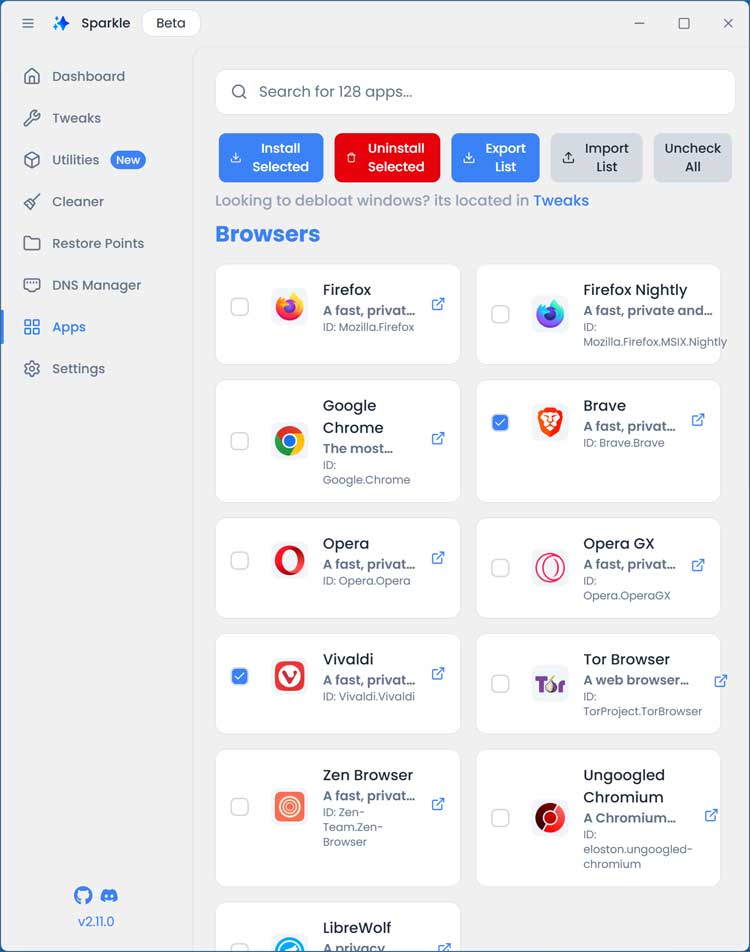
Sparkle comes with a large variety of apps that can be downloaded and installed right from Sparkle itself. You can also uninstall applications from this section.
Here are the categories of apps that you have to choose from.
- Browsers
- Communication
- Multimedia
- Games
- Development
- Utilities
- Peripherals
- Productivity
- Privacy and Security
There is also a Settings section where you can check out where you will find things such as options to change to dark mode or another color, clear your cache and backups and restart Windows Explorer.
For additional training resources, check out our online IT training courses.
Check out our extensive IT book series.