Last Updated on March 28, 2026
YouTube is the most popular streaming and hosting website in use today. YouTube offers multiple ways to organize and manage your viewing experience, but the differences between Playlists, Watch Now, and Queued Videos often leave users wondering which option to choose. These tools shape how content flows, how easily you can revisit videos, and how personalized your sessions feel. In this article, we’ll break down what sets them apart and help you decide which approach best fits your viewing habits.
Beyond simple saving, YouTube’s organizational tools quietly influence how intentional your viewing becomes. The moment you decide where a video belongs, whether it’s tucked into a themed playlist or left to surface later, you’re shaping the way YouTube remembers your interests and serves content back to you. This subtle layer of control can turn casual watching into a curated experience, helping you separate one‑off entertainment from videos you actually want to return to, learn from, or share. Understanding these distinctions makes it easier to keep your feed feeling useful instead of cluttered, especially as your watch history grows over time.

Saving Videos to Playlists
YouTube has a nice feature that allows you to save videos so you can watch them again whenever you like without needing to search for them. This comes in handy if you enjoy videos from a variety of channels but do not want to subscribe to these channels.
To save a video, simply click the Save button below the video itself. And by the way, if you were wondering what the Thanks button is for, it’s a way to send a tip to the creator of the video but you will need to link some type of payment method to your Google account in order to do this.

When you click the Save button, you will have the option to add the videos to an existing playlist if you have one. You can also create a new playlist on the spot.
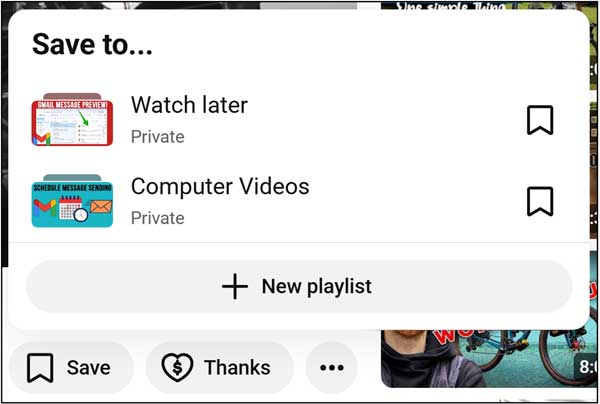
For our example, we will be creating a new playlist called Mountain Biking.
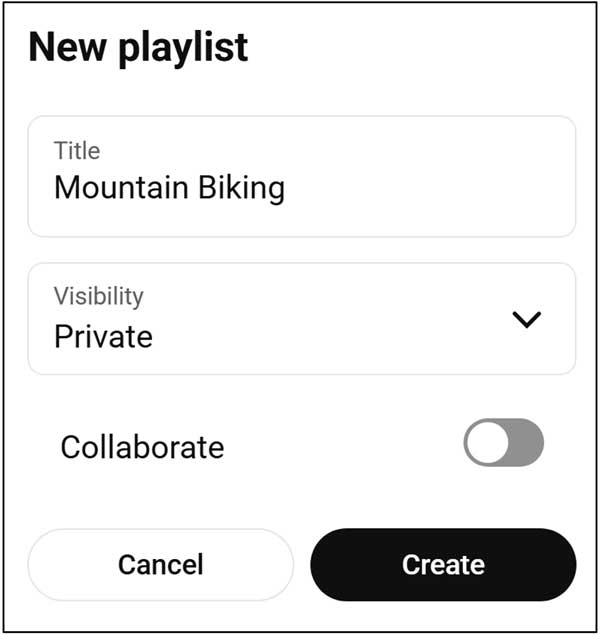
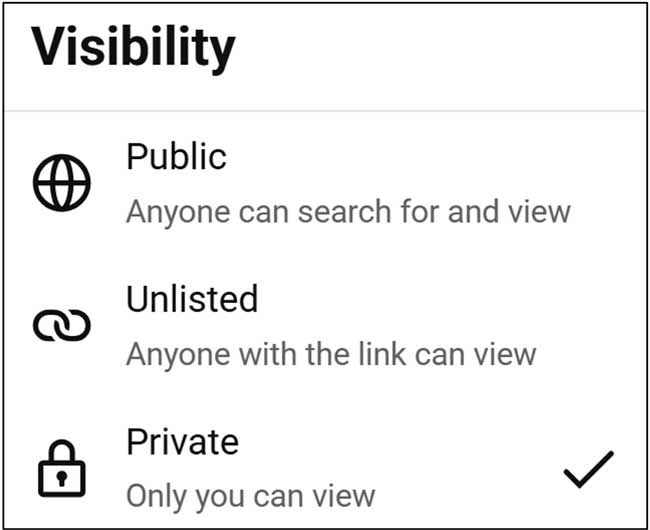
For the visibility options, you will have three choices, public, unlisted or private with private being the default. The Collaborate option is a feature that turns a private or solo playlist into a shared one, allowing other people to add videos to it. It is essentially a “group playlist.”
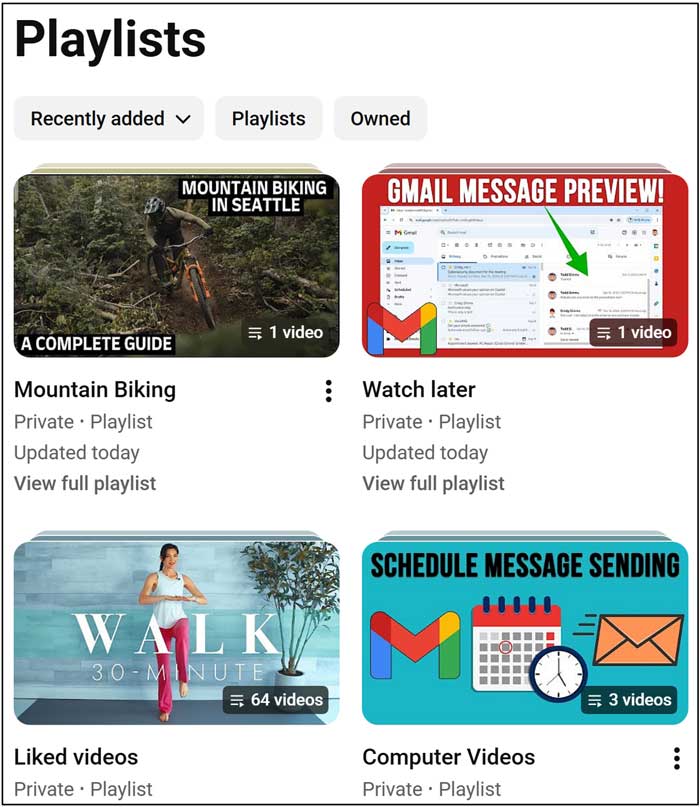
Now that we have saved the video into a new playlist, we can then go back to the Playlist section and see it there along with our liked videos, other playlist and watch later list.
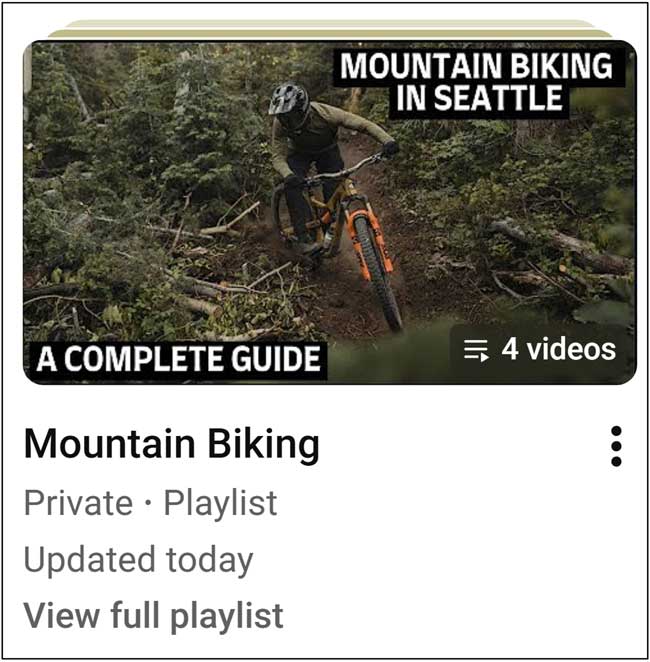
We will now add some additional videos to our playlist by saving them from the video themselves. As you can see from in the image below, our playlist now shows 4 videos. If we were to click on the three vertical dots off to the right, we would have the option to delete the playlist or edit it if we needed to rename it or change the privacy settings etc.
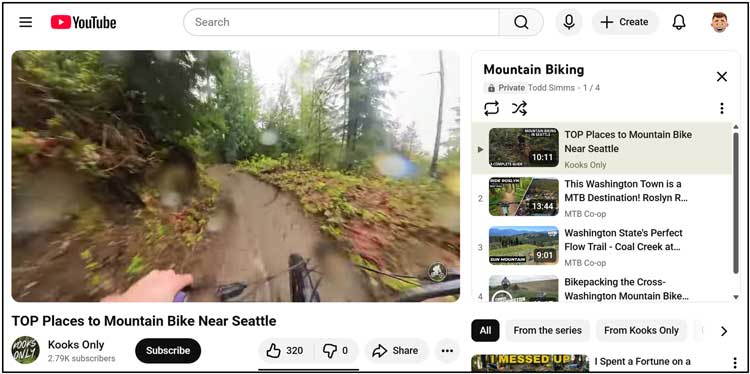
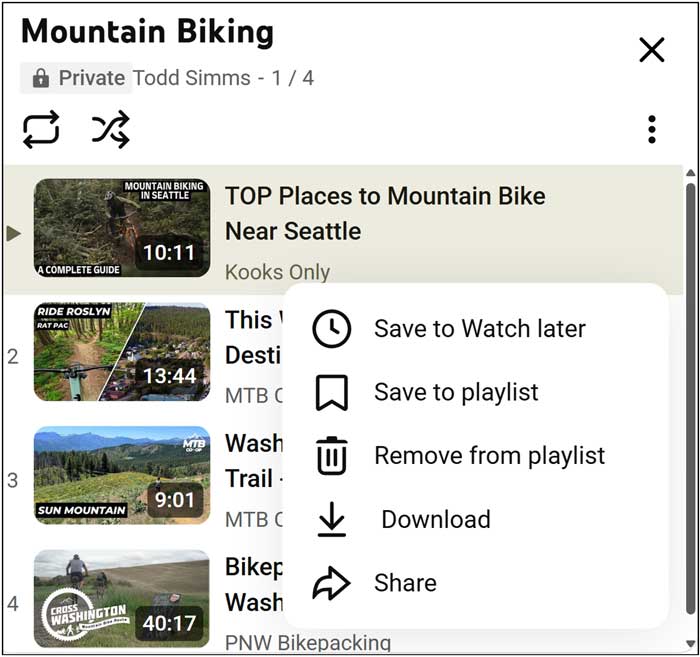
When we click on our playlist, it will open the first video in the list and then show the other videos in the playlist off to the right. We can then click on any one of them to play that specific video.
If we were to click the three vertical dots next to one of these videos, we would have several options such as saving it to a different playlist or removing it as shown in the image below. The download option will only work for those who pay for the YouTube Premium service.
Watch Later List
The Watch Later feature is similar to adding a video to a playlist but is meant to be more of a temporary way of saving videos. Let’s say you are looking up a specific topic and find a video that looks interesting, but you do not have the time to watch it right now. You can click the three vertical dots next to the video in the search results and choose Save to Watch Later.
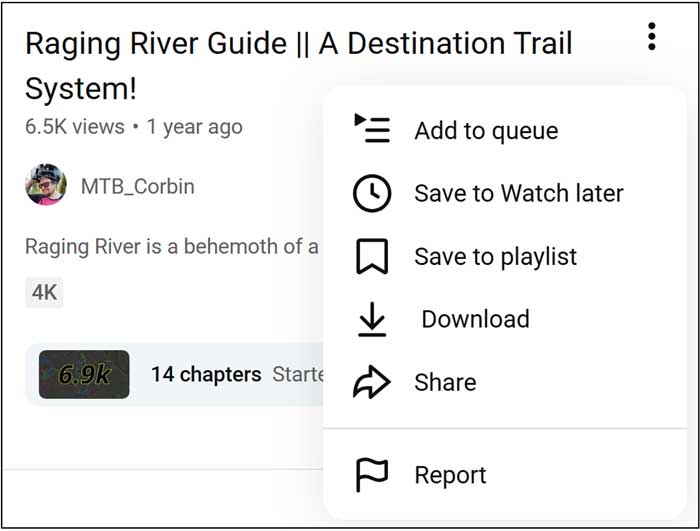
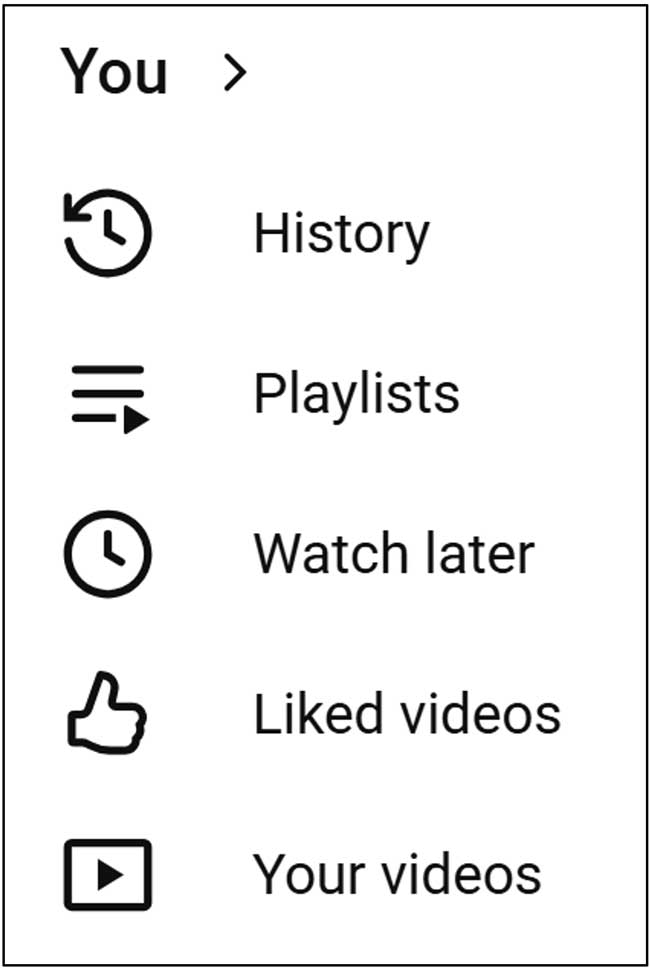
To see our Watch later list, we can either go back to the Playlists section or to Watch later to view our list.
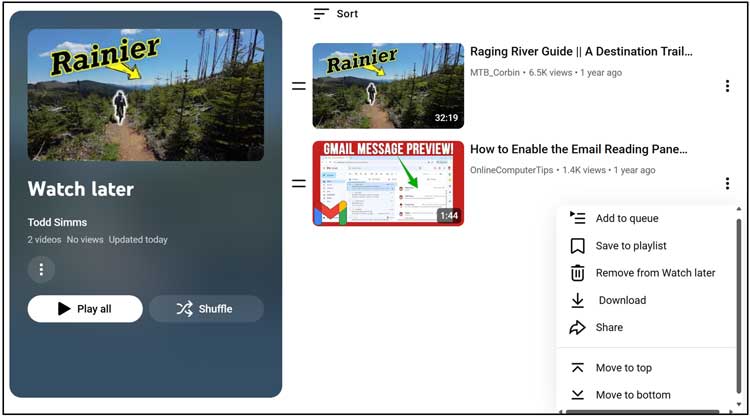
If we go to Watch later, we will get a better view of our videos from this category. We can then watch them as needed or click on the three vertical dots next to one of them and do things such as remove them or save them to a playlist.
Add to Queue
A YouTube queue is a temporary list of videos you add to play next in a specific order during your current session. It is not saved and disappears when you refresh the page or close YouTube. If you have your web browser set to restore the current browsing session after you close and reopen it, then your queue may be saved.
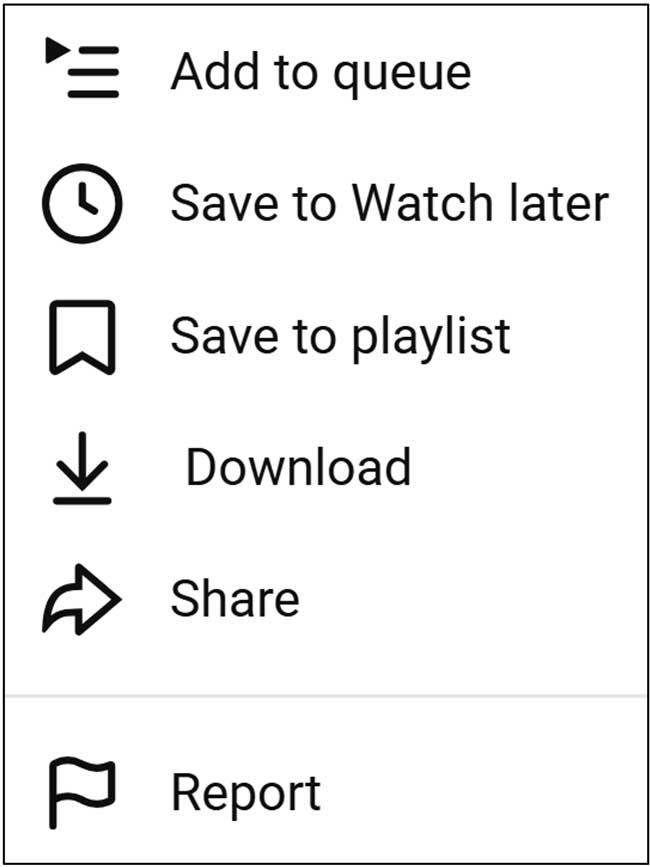
To add a video to your queue, you can click the three vertical dots next to the video in the search results and choose Add to queue.
YouTube will then open that video in the mini player on your screen and immediately start playing the video. You will also see how many videos are in your queue at the lower left corner of the video. If you were to close the video, it would no longer be in your queue.

After adding a couple more videos to the queue using the same method, you can see the total number of videos in our queue is now 3.

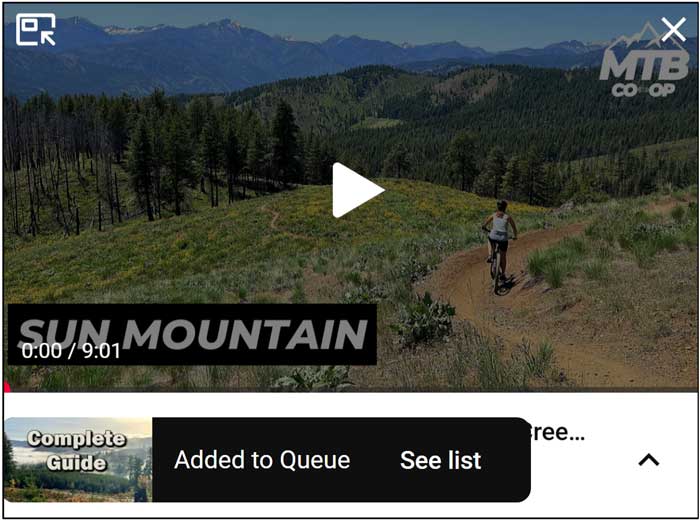
As you add videos to your queue, you should see a popup message saying Added to Queue with an option to see your queue list.
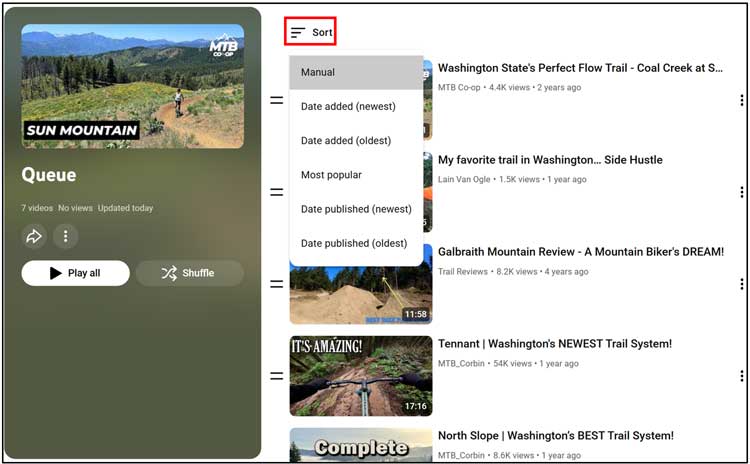
When you click on See list, you will be taken to the list that contains all the videos in your queue. You can then use the Sort option to change the order that they are shown.
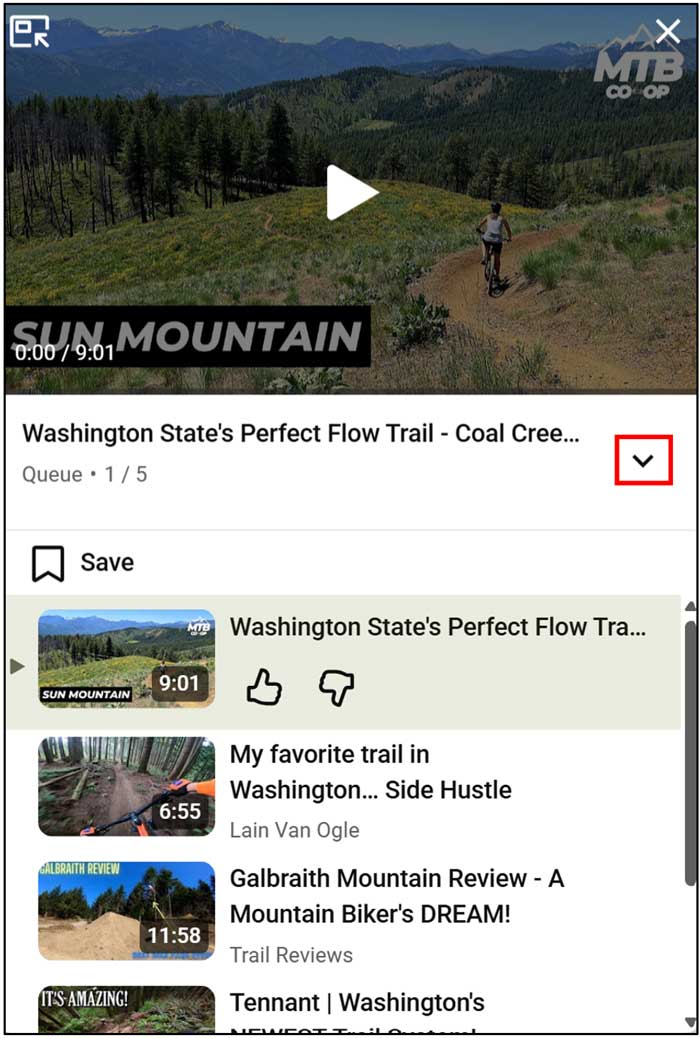
If you were to click the arrow while in the mini player, you would then be able to see the videos in your queue and then click on a different one to watch if desired.
As you can see, YouTube Playlists, Watch Later lists and Queued Videos are similar yet are all unique enough that they all have their specific purposes on the YouTube website.
For additional training resources, check out our online IT training courses.
Check out our extensive IT book series.