If you use Microsoft Word as your word processor application like many of us do, you most likely use the New Document option to create a new blank document. You may come across a situation where you try and create a new blank document and it opens with garbled text\gibberish, fonts and styles are wrong, custom margins don’t stay, add-ins fail to load, or Word itself freezes or crashes.
Problems like these can be especially frustrating because they often appear suddenly, even if Word has been working normally for years. A document that should open cleanly instead behaves unpredictably, making it difficult to trust basic features that are normally taken for granted. Because the issue affects new documents rather than existing ones, many users assume Word itself is broken or that an update failed, when in reality the underlying cause is usually confined to Word’s startup behavior rather than the application as a whole.

Some people even get error messages such as:
- There was a problem with your Normal.dotm template.
- Word experienced an error trying to open the global template.
- Microsoft Word has encountered a problem and needs to close.
- Word cannot open the existing Normal template. It will be renamed.
- Changes have been made that affect the global template, Normal.dotm. Do you want to save those changes?
- Word cannot save this file because it is already open elsewhere.
- Word cannot save the file Normal.dotm.
- dotm is locked for editing.
- You don’t have permission to modify the Normal template.
When this happens, it is usually because of a damaged, missing or corrupt Normal.dotm file. The Normal.dotm file is Microsoft Word’s default global template that defines the settings for all new blank documents. It stores default styles, fonts, page layout configurations, and any macros or customizations you’ve added. Every time you create a new document, Word uses Normal.dotm as the base. In this article, we will be showing you how to fix corrupt new blank Word documents with garbled text or other related errors.
The first thing you need to do is make sure Microsoft Word is closed, otherwise you will get error messages when trying to fix the issue. Then you can open File Explorer and navigate to the Microsoft templates folder by copying and pasting the text below into the File Explorer address bar. File Explorer is the app used to manage the files and folders on your computer.
%appdata%\Microsoft\Templates
This will take you to the same place as if you were to browse to the following folder.
C:\Users\YOURNAME\AppData\Roaming\Microsoft\Templates
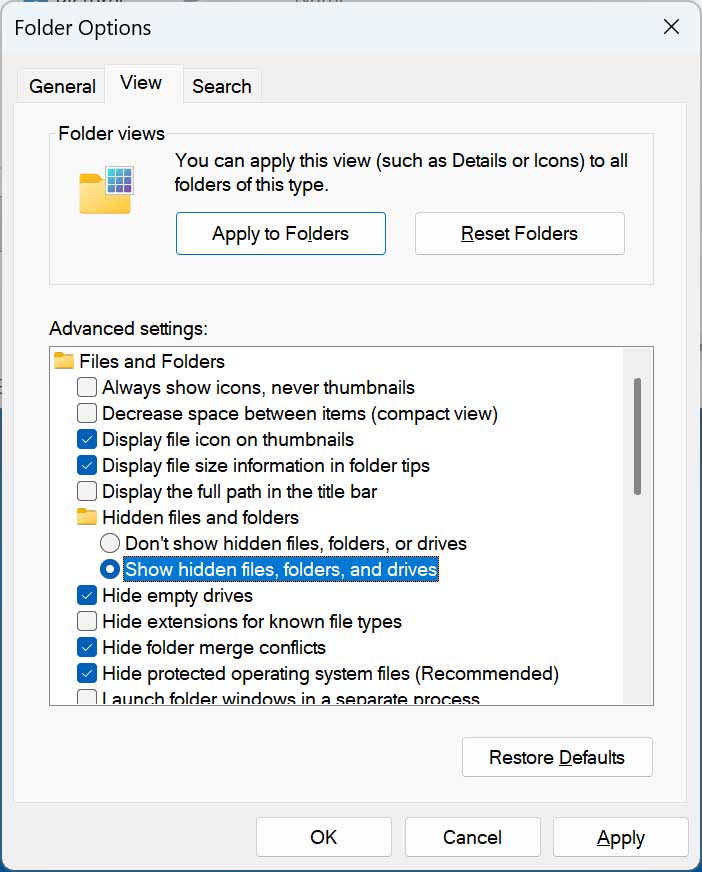
To get to the AppData folder, you will need to have the option to show hidden files, folders, and drives enabled in the File Explorer folder options. Pasting in the other address will get you to the Templates folder without needing to enable this setting.
Once you are in the Templates folder, you can either rename the Normal.dotm file, move it to another folder or delete it.
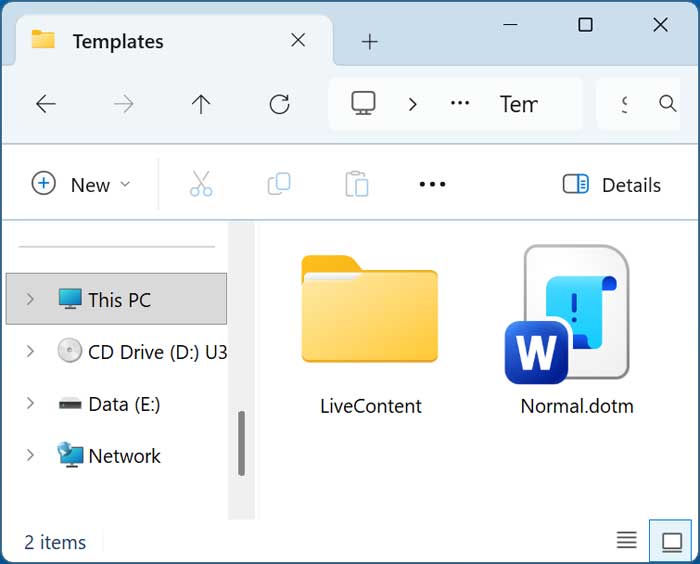
Then once you open Microsoft Word again, you should have a functioning blank document template ready to go. This is because Word will recreate the Normal.dotm file once you open Word again.
And by the way, you can edit the Normal.dotm file and save it so that your changes become the default for all new blank documents in Word.
If you ever come across a message in Microsoft Word that says “Your document will be upgraded to the newest file format”, fixing it involves the Normal.dotm file as well.
For additional training resources, check out our online IT training courses.
Check out our extensive IT book series.