I’m sure you may have noticed that with most default Windows installations or when you buy a computer with Windows already installed that there are sound effects for just about everything you do. There will be sounds for events such as starting your computer, shutting it down, minimizing or maximizing a window, email notifications, error messages and so on. This can get old after awhile; actually it can get old really quickly.
For many users, these sounds start out as helpful feedback but quickly become an unnecessary distraction, especially in quiet environments like offices, classrooms, or shared living spaces. What might seem like a harmless chime or alert can break concentration or even become embarrassing when it goes off at the wrong moment.

Fortunately it is easy to change these sounds or better yet to shut them off so you don’t have to keep your speakers turned down or have your music blasting in the background to cover them up!
Another advantage of customizing or disabling system sounds is that it gives you more control over how your computer behaves. Instead of reacting to every alert, you can decide which notifications truly matter to you and which ones can be safely ignored. This small adjustment can make your daily computer use feel calmer and more personalized.
What you need to do is get to the Windows Control Panel. How to get there will vary on what version of Windows you are running. The easiest way is just to type control from the run or search box when you click on Start and it should take you there. Then you will find the icon for Sounds and you will double click that and click on the Sounds tab. Even if you are not very experienced with Windows settings, this process is straightforward and reversible. You can experiment freely, knowing that you can always return to the default sound scheme if you change your mind later.
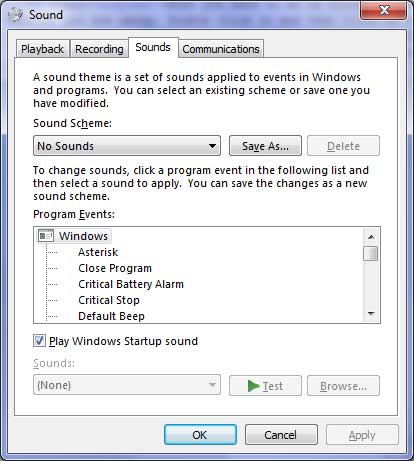
Here you can see what sounds are associated with what actions. You can highlight an action or event and hear the sound associated with it, change it to a different sound or remove the sound from the item. This will not remove the actual sound file from your computer but just stop it from playing every time that type of event happens. You can even browse to your own .wav files to use custom sounds for specific events.
Using custom sounds can be especially useful if you want subtle, less intrusive audio cues or if you want different sounds for important events so they stand out without being annoying. This level of customization allows your system to work the way you want it to, rather than forcing you to adapt to its defaults.
In the Sound scheme area you can save your new sound scheme once you fine tune it. You can also set the sounds scheme to none so that there are no sounds at all. This can be done from the Sound Scheme drop down menu.
Once you have created a setup that works for you, saving it as a sound scheme ensures that your preferences remain consistent even after updates or changes. Whether you prefer total silence or just a few carefully chosen alerts, adjusting your Windows sound settings is a simple step that can greatly improve your overall computing experience.
For additional training resources, check out our online IT training courses.
Check out our extensive IT book series