When it comes to web search engines, Google has become the most widely used search engine in the world. Many web surfer’s users prefer Google and their many free apps for a variety of reasons. Some may prefer the simple, uncluttered interface while others like the accurate results it produces. And until AI chatbots such as ChatGPT, Copilot and even Google’s own Gemini tool take over, Google will stay the king of searches.
So, if you prefer to be “old school” and use an actual search engine to find what you are looking for, we will help you out in this article. Today, we will be going over how to get the most out of the Google search engine.

Google Search Features
Google offers other handy features such as a web, image and video search where you enter in the type of picture or video you are looking for, and it finds results that have your search term in the name. This comes in handy, for example if you want to find prices on a new computer, get an idea of what a 1969 Camaro Z28 may look like or see a video of an F-18 fighter jet in action. Keep in mind that it will find many unrelated results that may have a file name like your search term.
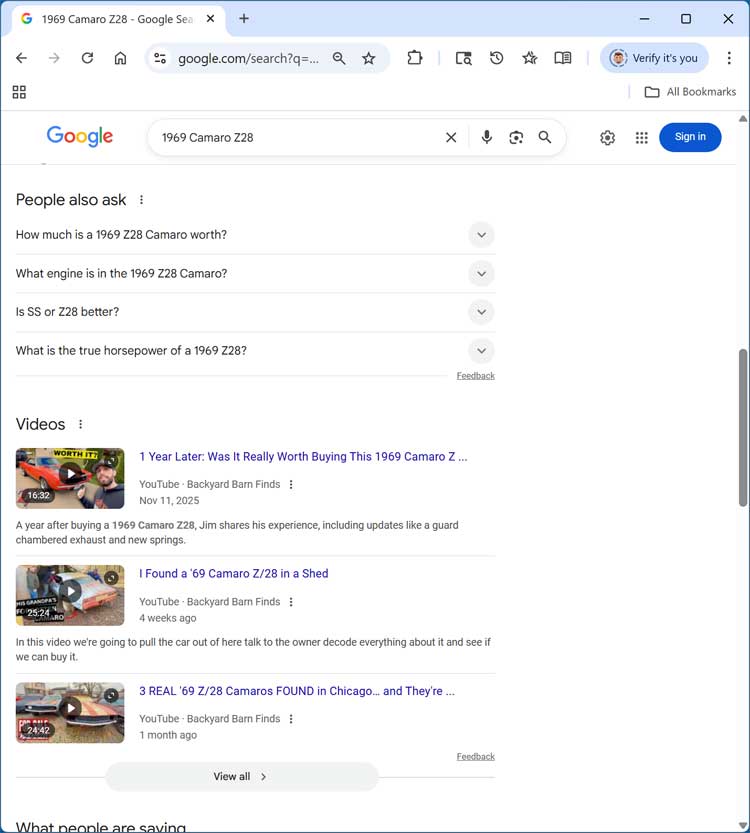
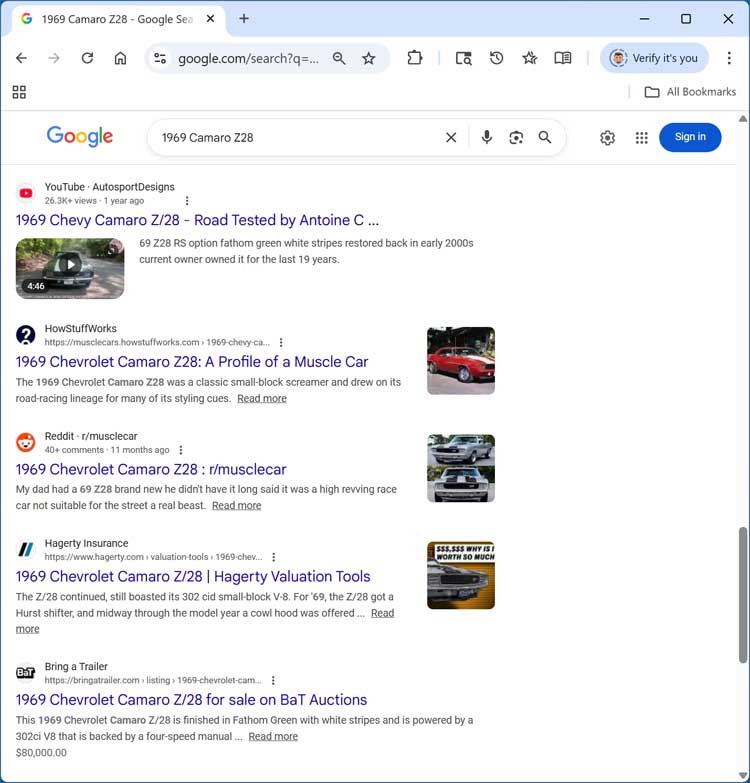
When you do a search for something, you will get results for many of these categories. For example, if we were to search for 1969 Camaro Z28, we will get information, videos and photos of this particular search term.
As you can see in the image below, we get our Gemini AI results which can be removed from Google Chrome with a little bit of tweaking of the Chrome settings.
Then we get some articles on the right side of the page that we can click on to read up about this car. And below that we get some shopping results in case you have enough money to actually buy one!
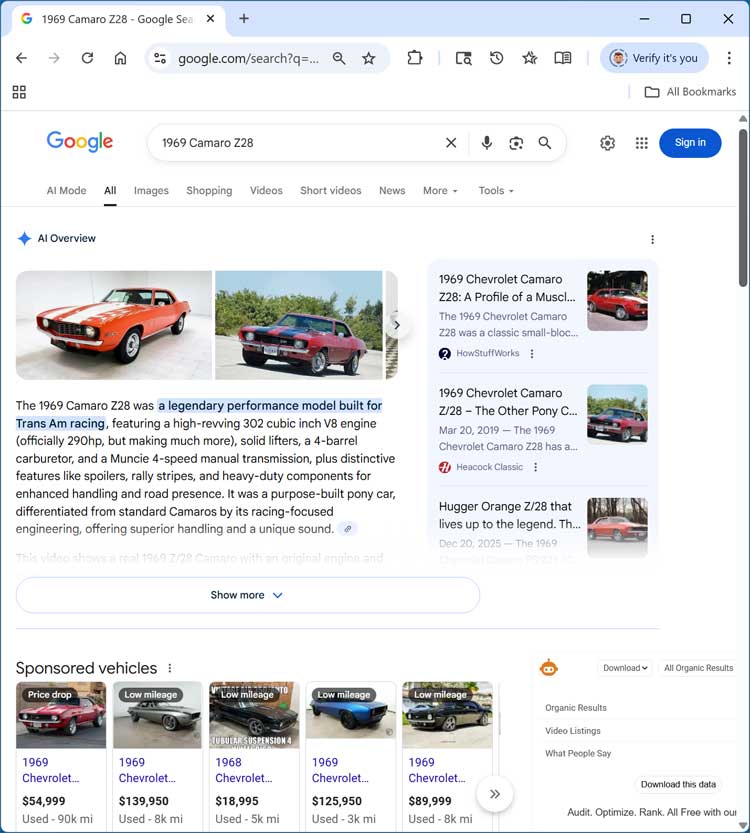
Then below that, you will get some related questions that other people are asking about this topic and then some related videos.
Finally, below that we will see our search results!
Effectively Searching the Web with Google
So, as you can see, there is a lot more to Google searches than just finding websites on the topic you are searching for. So now we will start our discussion on how to get the most out of the Google search engine by going over several ways to go about your searches. We will be using what are known as search operators, which is a fancy term for the way you structure your search when typing it out in the Google search box.
Most people search the web by typing in exactly what they are looking for. There are a few tips and tricks you can use with Google to get the most out of your searches. One thing you want to try and do is stay away from common words. Google ignores most common words and characters such as “and” and “to”, as well as certain single letters and digits because they tend to slow down your search without improving the search results. So, try and design your searches to use more unique words that will give you less generic and unrelated results.
Using quotation marks for phrases
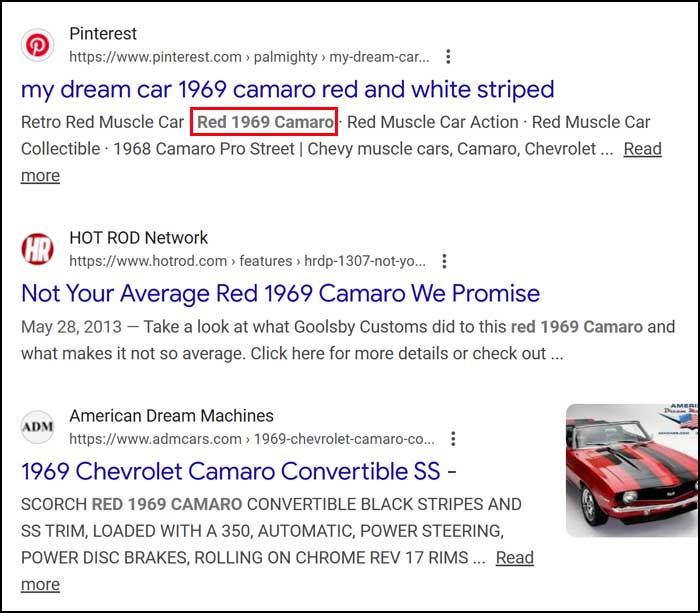
If you put quotes around your search phrase, then Google will find results that contain all the words in the exact order you have entered them in the search box. For example, if you wanted to find information about a red 1969 Camaro but didn’t want to see other colors or years, you could type in “red 1969 Camaro” and Google will find pages with that exact phrase in it. You do not need to worry about capitalization either. You won’t necessarily see the exact phrase in the title of the page but if its in on the site itself, it will be shown below in bold.
Using the “+” search variable
If you are looking for a certain thing on the internet but need to include a specific word in your search results, then you can use the plus sign to have Google include your keyword in its results. For example, if you were looking up mountain bikes and wanted to include Trek brand bikes in your search you can type in mountain bikes + Trek in the search box. Make sure you put a space before the +.
Using OR to find two results
To find pages that include either of two search terms, add an uppercase OR between the terms. For example if you wanted information about Princeton or Harvard University you can search by university Princeton OR Harvard. Just make sure you use an uppercase OR.
Searching all the pages of an entire website/domain using site:
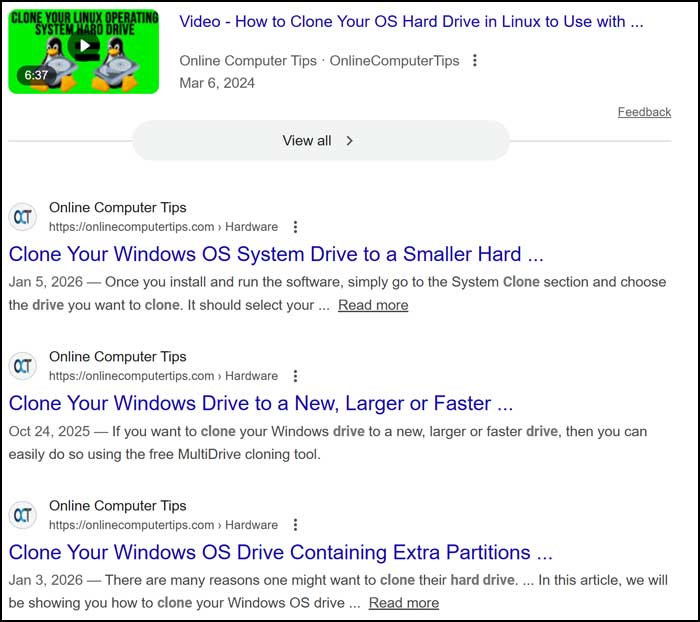
If you wanted to bring up a listing of every indexed page for a certain site or domain, you would use the site: search string. An example would be site:www.onlinecomputertips.com which would list every page on the onlinecomputertips.com site that was indexed by Google. Keep in mind that this may give you more than you need depending on how many pages are indexed. A better way to use site:onlinecomputertips.com clone a hard drive to find all the articles on onlinecomputertips.com about cloning a hard drive.
Searching by title
To find all pages with a certain word or phrase in the title of the page you can use the intitle: query. For example, if you were to type in intitle:”healthy recipes” that would show results for pages with healthy recipes in the title.
Getting definitions
If you need to look up the meaning of a word, then you can use the define: query to get the definition. For example, you can type in define:encryption to get the definition of the word encryption.
Using minus to exclude results
If you want to find information about a topic but exclude certain results, you can use the minus (-) operator. Let’s say you want to find information about the jaguar animal but not the Jaguar car, you can use jaguar -car to exclude the car from the results.
File type search
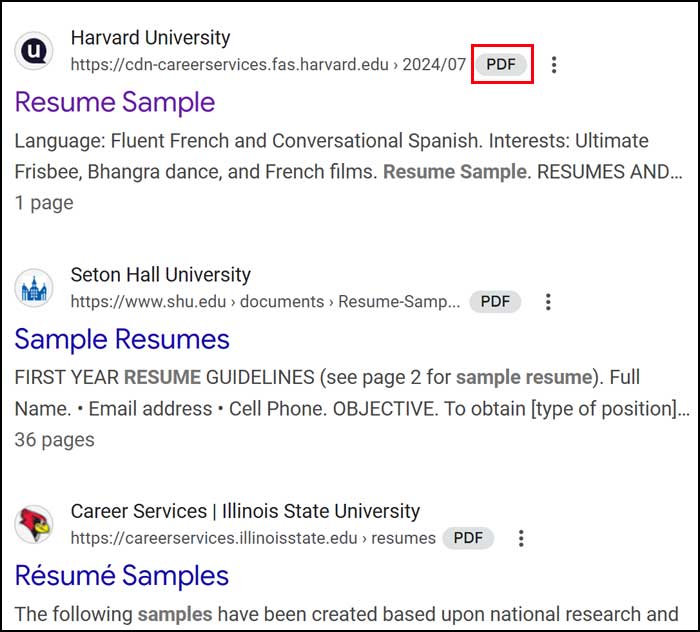
Sometimes you will want to find a particular type of file such as a Microsoft Word document or PDF file in your results. To do this, simply use the filetype operator followed by the type of file you want to find. So, if you are looking for a resume sample as a PDF, you can type resume sample filetype:pdf in the search box. As you can see in the image below, the results show PDF next to the URL indicating that the are PDF files.
Wildcard Search (*)
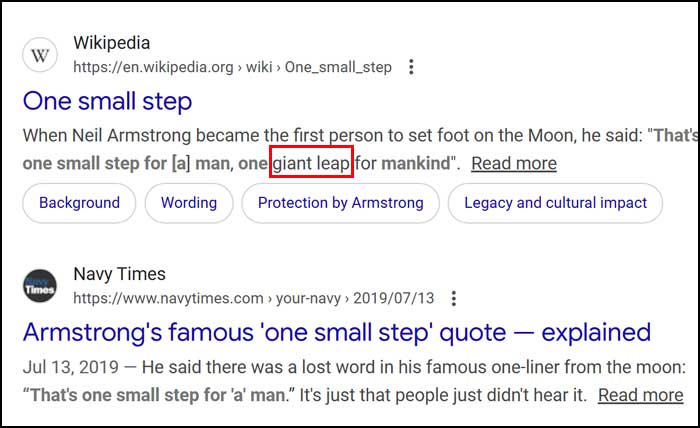
Sometimes you will want let Google do the work for you by “filling in the blank” for your search results. Let’s say you were trying to remember the famous moon landing quote but were drawing a blank on part of it. You can use the asterisk symbol to have Google try and figure it out for you. So, if you type in that’s one small step for a man, one * for mankind then Google would search for that term and see what it can replace the asterisk with.
Related Sites
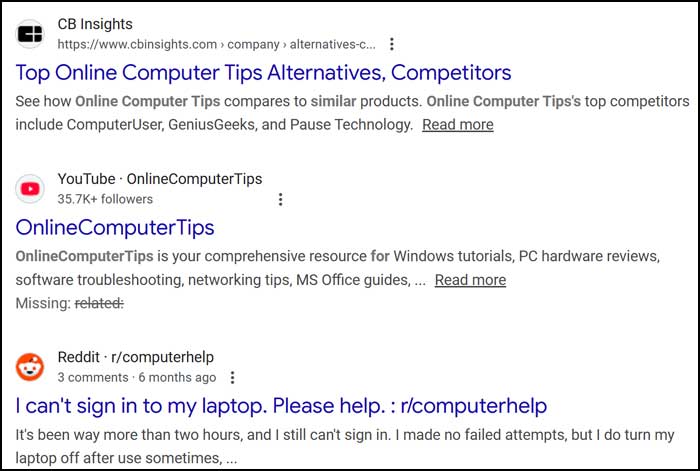
If you have a favorite website and want to find similar sites, you can use the related search operator. For example, let’s say you wanted to find a computer tip site like the one that you are on now. You can type related:onlinecomputertips.com and you would get the results shown below. You will also get results for that actual site and other websites that mention that site.
Search by Date
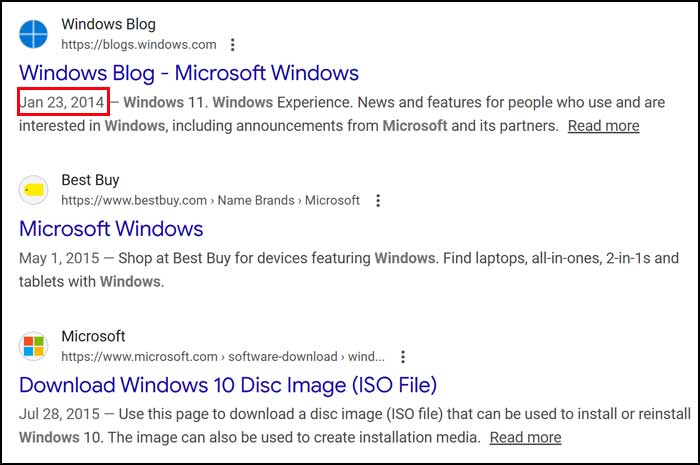
Now let’s say you wanted to find web pages that were of a certain date. Let’s say you wanted to find pages about Windows that were older than January 1st, 2020. You can type the following text to do so. Microsoft Windows before:2020-01-01. You will then be shown the results that are before that date and the date of the page will be shown as well.
Conversions
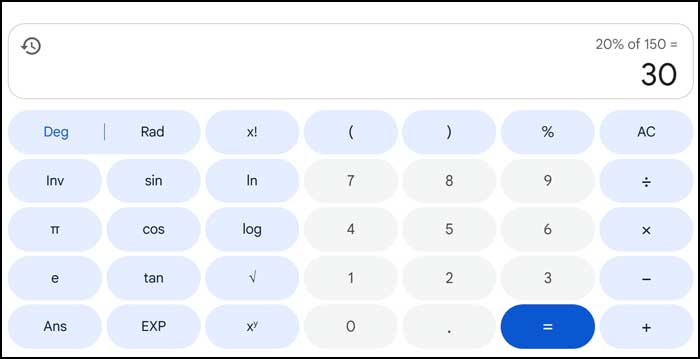
If you need to convert things such as currency, temperature, weight, distance, and so on, you can easily use Google to do this as well. Here are some examples.
- 20% of 150
- sqrt(144)
- 10 lbs to kg
- 1 mile to km
- 100 f to c
- 5 gallons to liters
- 100 USD to EUR
- 5000 MB to GB
Reverse Image Search
As you have seen, you can search Google for images of whatever you like. But you can also take an image and do what is a called a reverse image search. This means Google will search for similar images based on the image link or image file you give it.
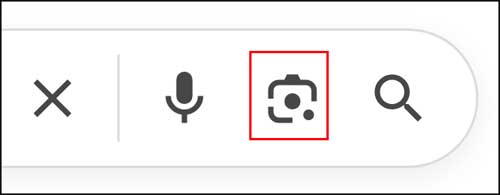
To do this, simply go to the Google Images search page and click on the camera icon in the search bar.
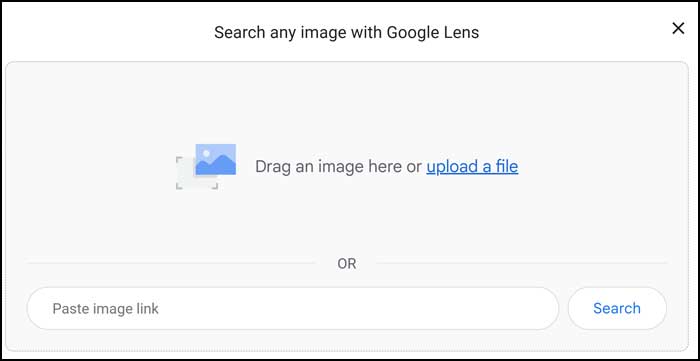
Then you can paste in a URL/link to an existing image or upload your own and Google will find images that are similar to what you have uploaded.
Using Google’s advanced search feature
Google has a sort of hidden feature that many people either don’t know about or don’t think to use. It’s their advanced search page where you can fine tune your search for better results. Here you can do things such as search for an exact word or phrase, exclude words, add a number range, choose a specific language and more. This advanced search page can be found here.
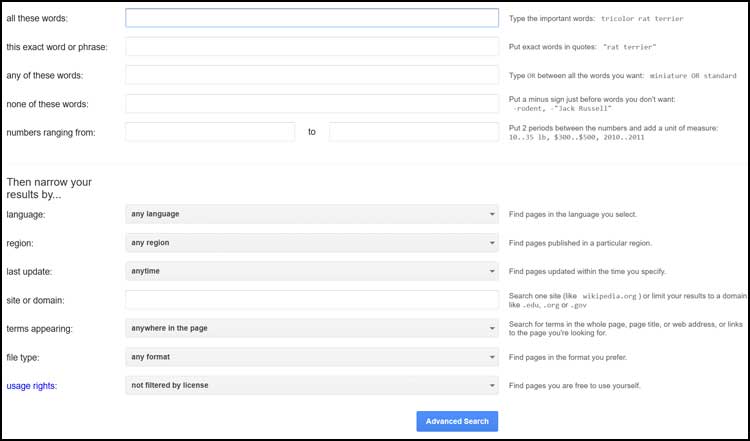
As you can see, its not that hard to get the most out of the Google search engine if you know what to search for!
For additional training resources, check out our online IT training courses.
Check out our extensive IT book series.