Last Updated on May 4, 2026
Running your own website is a lot of work on its own. But if you have problems with your site and are not the most tech savvy when it comes to networking, you may find that your website is down longer than you would like it to be and causing you to lose money at the same time.
Network troubleshooting can be a difficult task to take on but there are a few things you can try to see what is causing your website outage before resorting to calling your website hosting company and waiting on hold all day just to be told you need to clear your browser cache and try again.

What most people begin with is pinging the website name or IP address to see if it’s up. Not all websites will allow ping requests through but if you know yours will, you can start with this step.
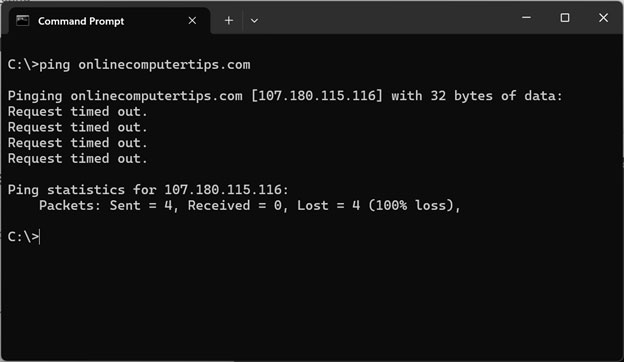
If your site allows ping and it’s failing, you know that you have an issue. But if it doesn’t allow it or the ping is succeeding, you can try the next step which is using the Test-NetConnetion PowerShell command.
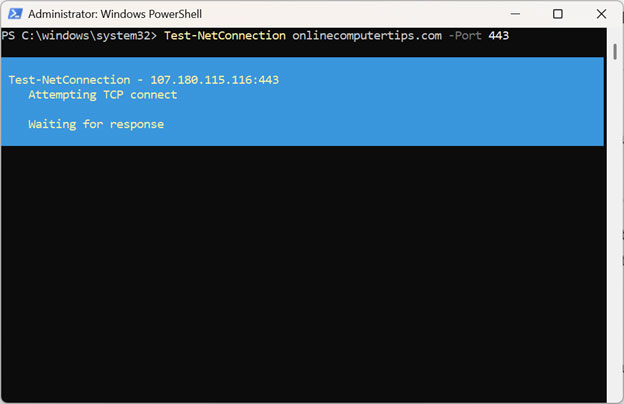
To use this command you will need to put the website address or its IP address and then also port 443 to test the security handshake.
For example, we can type Test-NetConnetion – onlinecomputertips.com -Port 443 and press enter.
What the specific command checks
When we run Test-NetConnection onlinecomputertips.com -Port 443, it performs the following steps:
- DNS Lookup: It resolves the domain name onlinecomputertips.com to its current IP address.
- ICMP Ping: It attempts a standard ping to see if the server responds at all.
- TCP Handshake: It attempts to establish a connection specifically on Port 443, which is the standard port for HTTPS (Secure Web Traffic).
If you notice the process is taking a long time, that is generally not a good sign.
How to Read the Results
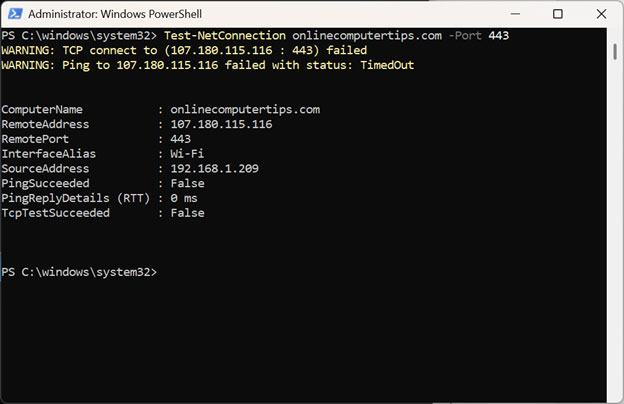
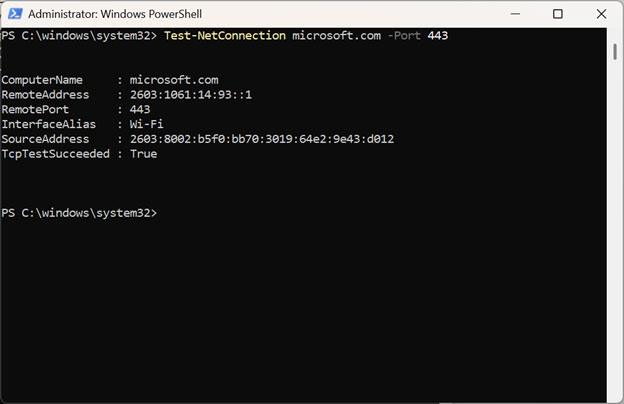
The most important part of the output is the TcpTestSucceeded line:
- TcpTestSucceeded : True — This means the web server is up, the firewall is allowing traffic, and the site is ready to serve secure web pages.
- TcpTestSucceeded : False — This means that even if the server is “online,” it is not accepting connections on Port 443. This usually indicates a web service crash or a firewall blocking that specific port.
Using Test-NetConnection with -Port 443 is a much more “real-world” test of whether a website is actually functional because it tests the exact path a web browser would use.
As you can see in the image below, our test failed and shows PingSucceeded = False and TcpTestSucceed = False. Think of this as we have tried knocking on the front gate (Ping) and the front door (Port 443), and nobody answered either.
Here’s a more “real-world” breakdown of why that connection is hitting a brick wall:
1. The Server is “Dark”
The most likely scenario is that the server is simply down. Whether it’s a physical box in a rack or a virtual instance in the cloud, if it has lost power, crashed, or is currently stuck in a reboot cycle, it’s effectively dead to the world. It can’t answer the door (Port 443) because it isn’t even in the building.
2. The “Ghost” Treatment (Firewall Stealth)
Sometimes the server is fine, but a firewall is playing “hide and seek.” High-end security systems often use a Drop policy instead of a Reject policy:
- Reject: Like a “No Trespassing” sign—the server actively tells you the connection is refused.
- Drop: Like someone sitting silently inside while you knock on the door—the server simply ignores you. If your IP address has been flagged or “blackholed,” the server won’t acknowledge any of your requests, making both Ping and TCP tests time out.
3. The “Internet Highway” is Out
Your request has to travel through dozens of routers to reach its destination. If any link in that chain is broken, the connection fails:
- Wrong Directions (DNS): Your computer might be trying to reach the “old house.” If the site recently moved and your DNS hasn’t updated, you’re sending requests to an empty, inactive IP address.
- ISP Detours: Your internet provider might have a “pothole” in its routing table, causing your data to get lost before it even leaves their network.
4. The Block is Coming from “Inside the House”
The problem might be sitting right on your desk. Your own security setup could be the culprit:
- Overzealous Antivirus: A local firewall or security suite might decide that the site looks suspicious and silently kill the connection before it even hits the wire.
- Workplace Restrictions: If you’re on a corporate network or a VPN, your IT department might have rules that block diagnostic tools like Test-NetConnection to prevent people from “poking around” the network.
The image below shows how the test result should look when its successful after running it against the Microsoft website.
Pro Tip: Getting more detail
If you want to see exactly where a connection might be failing along the path to the server, you can add the -TraceRoute parameter:
Test-NetConnection onlinecomputertips.com -Port 443 -TraceRoute
This will show you every “hop” (router) your data passes through, helping you identify if a connection is dropping at your local ISP or closer to the website’s host.
Resolving Website Security Errors
If the process of getting your website back up involved server or certificate changes, you may find that your web browser is showing a not secure warning in the address bar. Many times, this will resolve itself on its own or you can do things like clear your browser cache to refresh things.

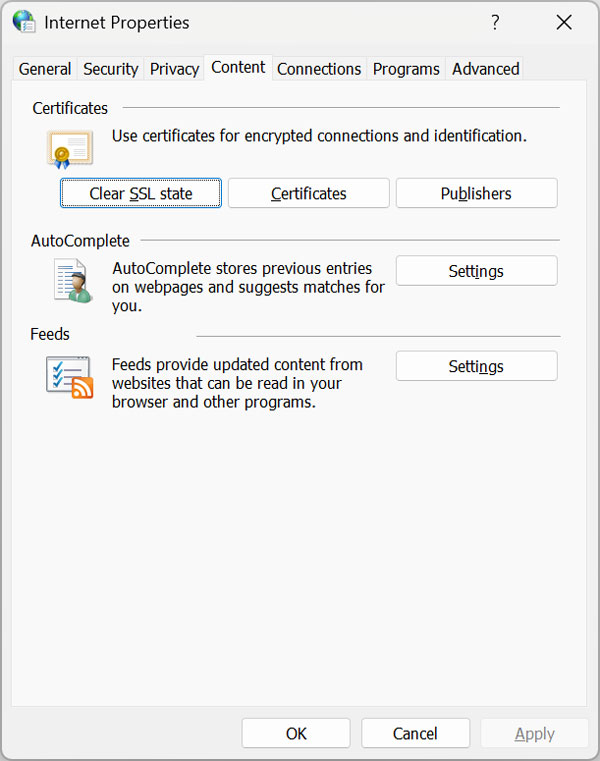
Another thing you can try is to clear the SSL state which is essentially like a “reboot” for your computer’s security handshake memory. To do this you can search for Internet Options in the Windows taskbar search box and then go to the Content tab and click the Clear SSL state button.
What “Clear SSL State” Actually Does
- Resets the “Security Handshake”: Think of this as a hard reboot for your network’s memory. Usually, when your PC connects to a secure site, it remembers that “handshake” so it doesn’t have to re-introduce itself every time you click a new page. Clearing the state wipes that memory, forcing your computer to start a completely fresh conversation with the server from square one.
- Dumps “Bad” History: If your computer caught a glimpse of your site during the migration while the certificate was mismatched or the IP was in flux, it might have saved a “red flag” in its internal log. This button flushes those old warnings out, preventing Windows from clinging to a “not secure” status that isn’t true anymore.
- Fixes the Root Source: Browsers like Chrome and Edge don’t handle security entirely on their own, they actually lean on the Windows operating system to verify certificates. By clearing the SSL state, you’re ensuring the OS isn’t feeding outdated or “stale” security data to your browsers, making sure everything is in sync.
For Google Chrome users you can also type chrome://net-internals/#hsts into the address bar and press enter. For Edge users you can type edge://net-internals/#hsts.
Then in the Delete domain security policies box, type the URL of your website and click the Delete button.
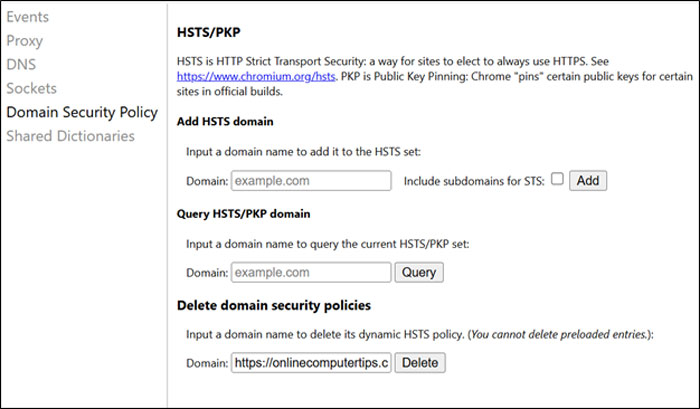
Then you can type the website URL into the Query HSTS/PKP domain box and click the Query button. If it shows not found that is a good thing because it usually means your browser is starting with a “clean slate” for that domain. It can show that there are no active security rules saved in your browser for this site. This allows you to bypass certificate warnings (if necessary) or load the site over standard HTTP while you fix your server settings.
One additional step you should take is to close out your browser completely and then open Task Manager and kill any remaining instances of the browser process.
For additional training resources, check out our online IT training courses.
Check out our extensive IT book series.