Last Updated on June 29, 2026
Microsoft Outlook is one of the most popular desktop email clients in use today and has been for many years. Now there are two different versions that you need to be aware of. There is the Outlook Classic that comes with Office 365 as well as the newer Outlook for Windows that comes built into Windows itself.
If you are using Outlook Classic and are connected to a Microsoft Exchange server or even use it for IMAP type accounts such as Gmail or Outlook.com, you are most likely using an OST file with your Outlook email accounts.

An Outlook OST file is a local, synchronized cache on your hard drive that acts as a mirror image of your cloud-based mailbox for various types of email accounts. It allows you to seamlessly read, draft, and organize your emails, calendars, and contacts offline, automatically syncing all changes back to the live server the moment you reconnect.
You probably remember using PST files for your Outlook emails. Those old PST files acted like a local physical safe where emails were downloaded, removed from the server, and trapped on a single computer. The modern OST file is simply a temporary mirror of your email. It is a local copy you can safely delete and rebuild from the cloud at any time.
By shifting to OST, Outlook ensures your live data stays anchored safely in the cloud for multi-device access. It gives your hard drive a local, offline cache that can be deleted and rebuilt at a moment’s notice without data loss.
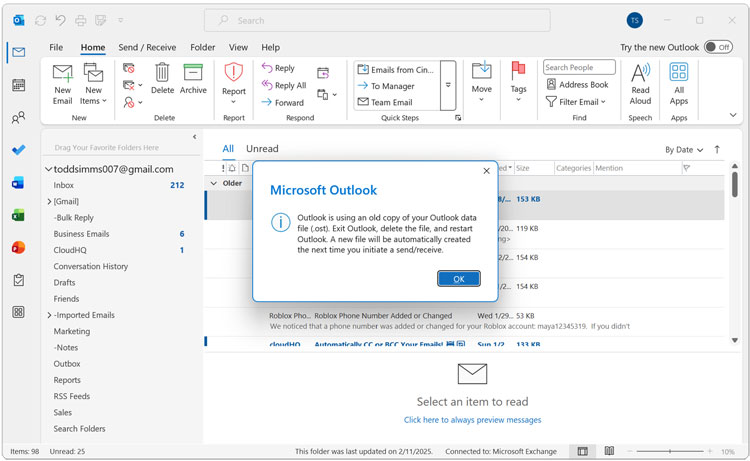
But OST files are not foolproof. You may find yourself in a situation where you open Outlook and receive a message that says “Outlook is using an old copy of your Outlook data file (.ost). Exit Outlook, delete the file, and restart Outlook. A new file will be automatically created the next time you initiate a send/receive.”
Resolving the OST Data File Error
1. Understand the Error Message
When this happens, you might find yourself panicking and thinking that you have lost your email. You might assume there is something horribly wrong with your account or the Outlook software itself. But this is not the case and there is an easy way to fix this issue and clear out the error.
2. Close the Outlook Application
To fix the corruption, all you need to do is close Outlook completely. Ensure the application is not running minimized in your system tray. You cannot modify the data file while the software is actively locking it.
3. Open Windows File Explorer
Open a new File Explorer window from your taskbar or start menu. You can then copy and paste the text below directly into the address bar at the top of the window. Press Enter on your keyboard to execute the shortcut.
4. Locate Your OST Files
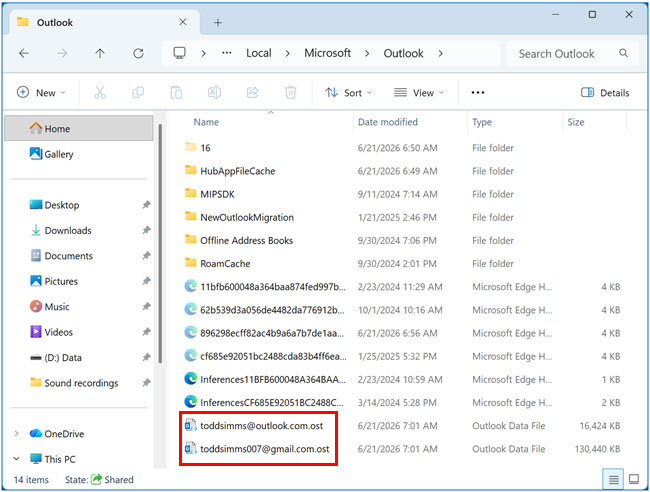
Paste %localappdata%\Microsoft\Outlook into the address bar. You will then be taken directly to the hidden location of the OST file associated with your email account. If you have more than one email account configured in Outlook, then you will see a separate OST file for each one.
5. Identify the Problematic File
If you do have more than one email account, you can look at the date modified column associated with each OST file. Delete the newer one first since there is a better chance that it is the problematic OST file.
6. Rename the File as a Backup
If you are worried that you might lose data, you do not have to delete it. You can also move it to a different location or even rename the file entirely. Just change the .ost extension to something like .bak. Then you can come back and permanently delete this old file once you get things working again.
7. Restart Outlook to Rebuild
Once you delete or rename the corrupted OST file, you can then open Outlook again. It will automatically create a brand new data file on your hard drive. It should connect to the email server and start synchronizing your email and calendar.
8. Wait for the Sync to Finish
If you have a lot of email, this synchronization can take some time to complete. Do not panic and think that your email has been deleted if your inbox looks empty at first. Let the software run in the background until the status bar says all folders are up to date.
For additional training resources, check out our online IT training courses.
Check out our extensive IT book series.