As you may know, in Windows you can copy files from one location to another, giving you multiple copies of the same file. There can be many reasons to do this such as wanting to make changes to a file while keeping the other copy in the original format.
You may have also come across a file that was read only at one point or another. A read only file can only be opened but not changed or saved. This has the benefit of avoiding unwanted changes being saved to your file.
You may have a need to open a Word file in another mode rather than read/write to accomplish a certain task. For example if you want to make changes to your file but don’t want to overwrite the original file and would like to save it as a separate document with a different name. This is basically the same as doing a Save As and then manually choosing a name. Open as copy will rename the file with Copy (1) in front of it.
Another situation where opening a file in an alternate mode can be helpful is when you want to review or reference the contents without the risk of making accidental edits. In these cases, using Word’s protected modes or opening the document as a copy can serve as a safe workspace while still giving you full visibility into the information you need. This is especially useful when you’re dealing with templates or standardized documents where the structure must remain unchanged.
Additionally, opening a document as a copy can streamline your workflow when you frequently produce new files based on an existing layout. Instead of manually duplicating templates or creating new documents from scratch, the Open as Copy option provides an easy way to generate a fresh working file in seconds. This method keeps your original files organized and intact while allowing you to quickly branch off new versions whenever needed.
Opening a file as read-only is handy when you want to have someone work on the file and not have any chance of them saving the changes they make to your document. The only way they will be able to save the file is to save it with a different name.
To open a file as read-only or as a copy go to File and Open or your Open icon and click once on the file to highlight it. Then from the Open drop down list choose how you want to open the file.
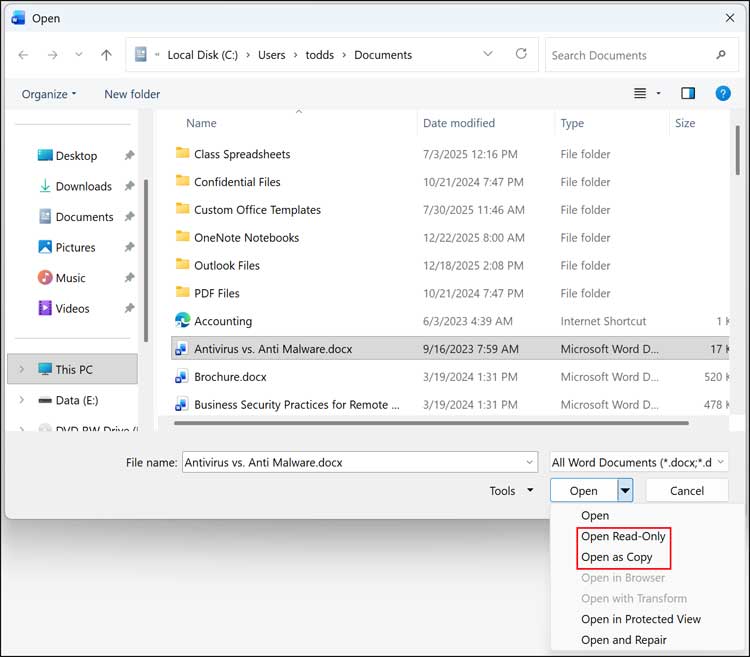
This process will work with other Office programs such as Excel and PowerPoint.